> ## Documentation Index
> Fetch the complete documentation index at: https://docs.gcore.com/llms.txt
> Use this file to discover all available pages before exploring further.
# Protect CDN resources with Gcore WAAP
[Gcore Web Application and API Protection](/waap/overview) (WAAP) combines all aspects of website security and traffic management, including Layer 7 DDoS protection, web app security, and API protection.
With built-in security rules, advanced behavioral analytics, and a range of available customization options, Gcore WAAP protects your domains against known vulnerabilities and common exploits.
WAAP operates at the CDN resource level and protects all requests passing through the CDN, regardless of origin type. CDN resources that use Gcore Object Storage as the origin require WAAP to be explicitly enabled in resource settings.
## Enable WAAP for a resource
1. In the [Gcore Customer Portal](https://portal.gcore.com/cdn/resources/list), navigate to **CDN** > **CDN resources**.
2. Next to the resource that you want to protect with WAAP, click the three-dot icon and select **Settings**.
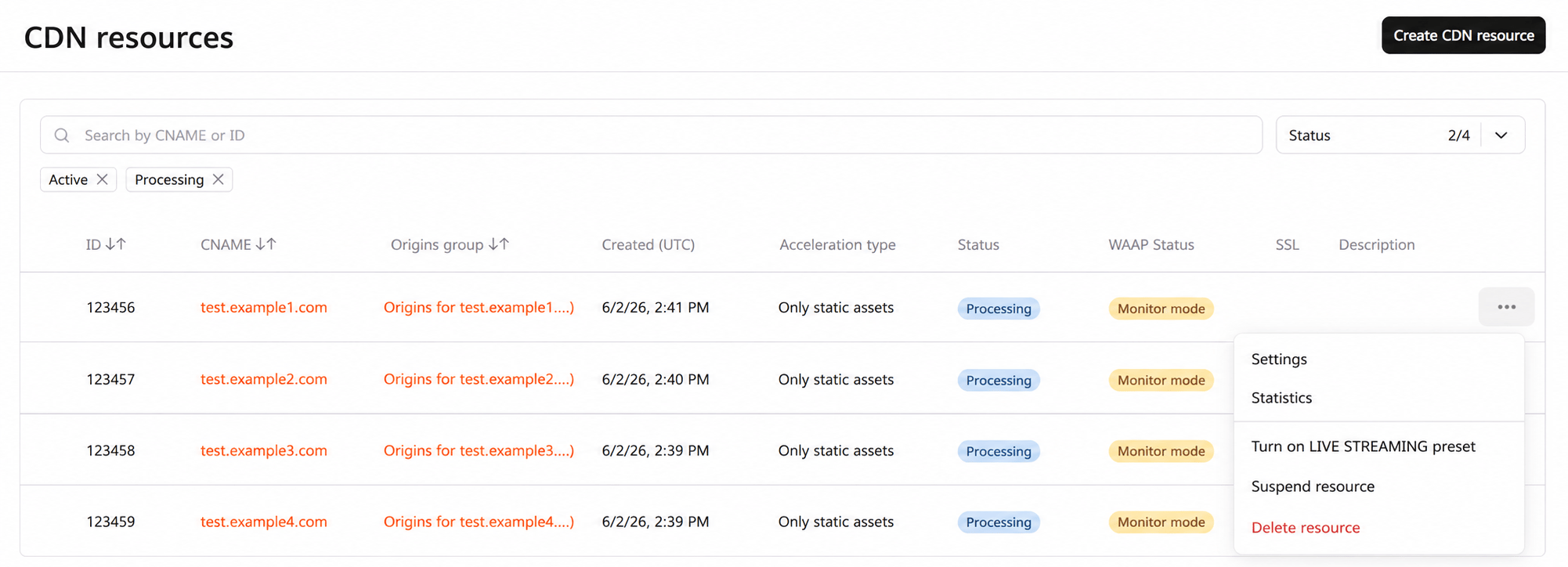 3. Scroll down the page and find the **Security** section.
4. Enable the **WAAP** toggle to activate Web Application and API Protection for your CDN resource.
3. Scroll down the page and find the **Security** section.
4. Enable the **WAAP** toggle to activate Web Application and API Protection for your CDN resource.
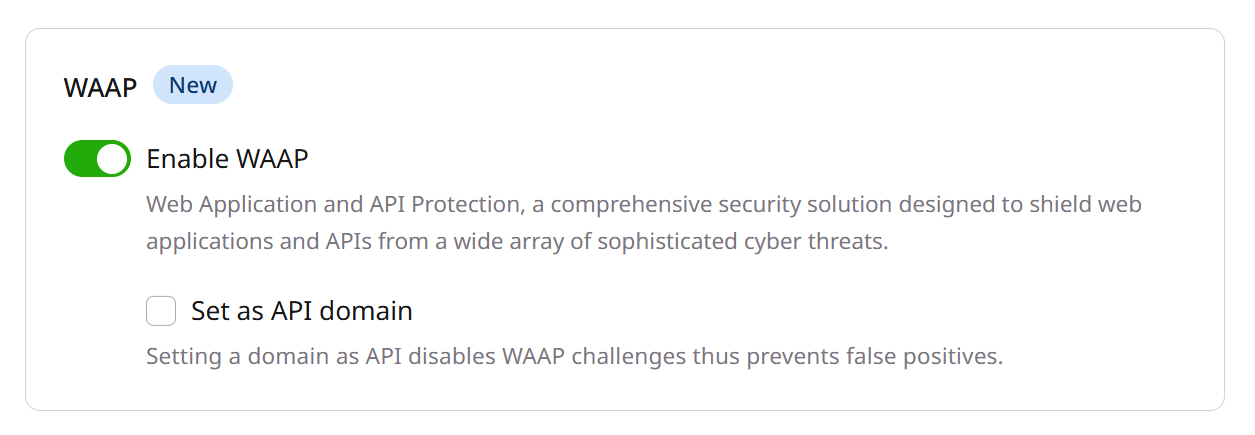 5. Click **Save** to apply the changes.
Consider that it might take up to 20 minutes for the HTTP traffic to start passing through our WAAP after the activation.
### What to do if WAAP blocks content that shouldn't be blocked?
Instead of disabling WAAP protection for the whole resource, you can create a rule with an exception:
1. In the CDN resource settings, open the **Rules** tab.
2. Click **Create rule** > **Create blank rule**.
3. Give your rule a name.
4. In the **Match criteria** section, specify the URLs or a regular expression of files blocked by WAAP.
5. Set the origin pull protocol to **Inherit from resource**.
5. Click **Save** to apply the changes.
Consider that it might take up to 20 minutes for the HTTP traffic to start passing through our WAAP after the activation.
### What to do if WAAP blocks content that shouldn't be blocked?
Instead of disabling WAAP protection for the whole resource, you can create a rule with an exception:
1. In the CDN resource settings, open the **Rules** tab.
2. Click **Create rule** > **Create blank rule**.
3. Give your rule a name.
4. In the **Match criteria** section, specify the URLs or a regular expression of files blocked by WAAP.
5. Set the origin pull protocol to **Inherit from resource**.
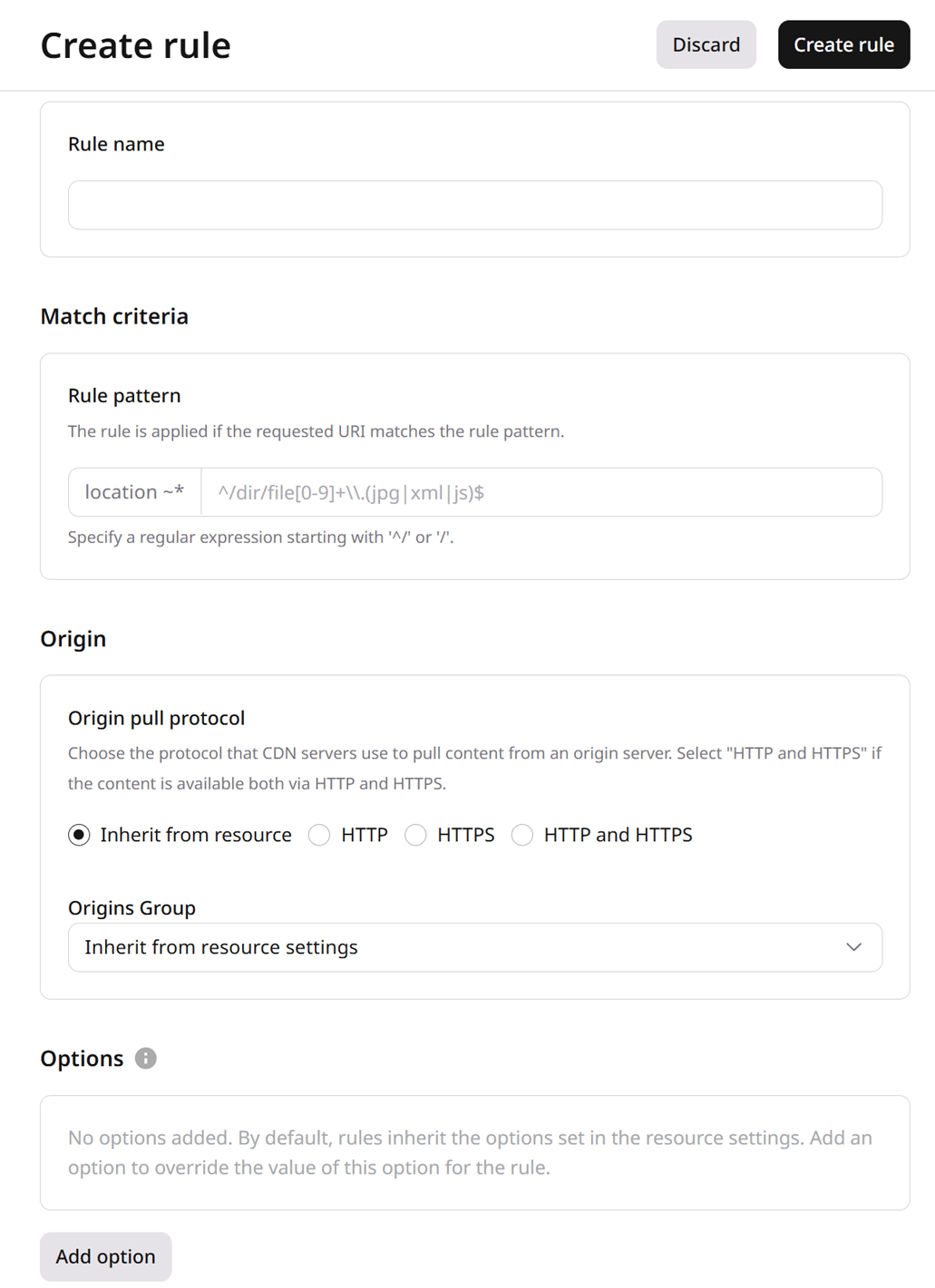 6. In the **Options** section, click **Add option**.
7. Find WAAP and then turn it off for the selected URL rule pattern.
8. Click **Create rule**.
Your content should no longer be blocked by WAAP.
6. In the **Options** section, click **Add option**.
7. Find WAAP and then turn it off for the selected URL rule pattern.
8. Click **Create rule**.
Your content should no longer be blocked by WAAP.