> ## Documentation Index
> Fetch the complete documentation index at: https://docs.gcore.com/llms.txt
> Use this file to discover all available pages before exploring further.
# Configuring HTTP status codes for CDN-hosted content
export const Caution = ({children}) => {
return ;
};
The "Set status code" option enables you to establish custom HTTP status codes for content hosted on the Gcore CDN, which can be applied based on a schedule.
For instance, in accordance with certain jurisdictions' laws, children under the age of 16 are not allowed to access specific content past 22:00. To comply with this regulation, the "Set status code" option can be configured to either send a 403 error code to users or redirect them to a different page when they attempt to access this restricted content. The schedule should be set such that this code is only activated after 22:00.
You can configure the option in two ways:
* Via **Resource settings** : the custom code will be applied to all the CDN resource's content -Via **Rules** : the custom code will be applied only to certain files
Select the appropriate method and click the desired tab below to learn how to configure this option.
1\. In the Gcore Customer Portal, navigate to [CDN](https://portal.gcore.com/cdn/resources/list).
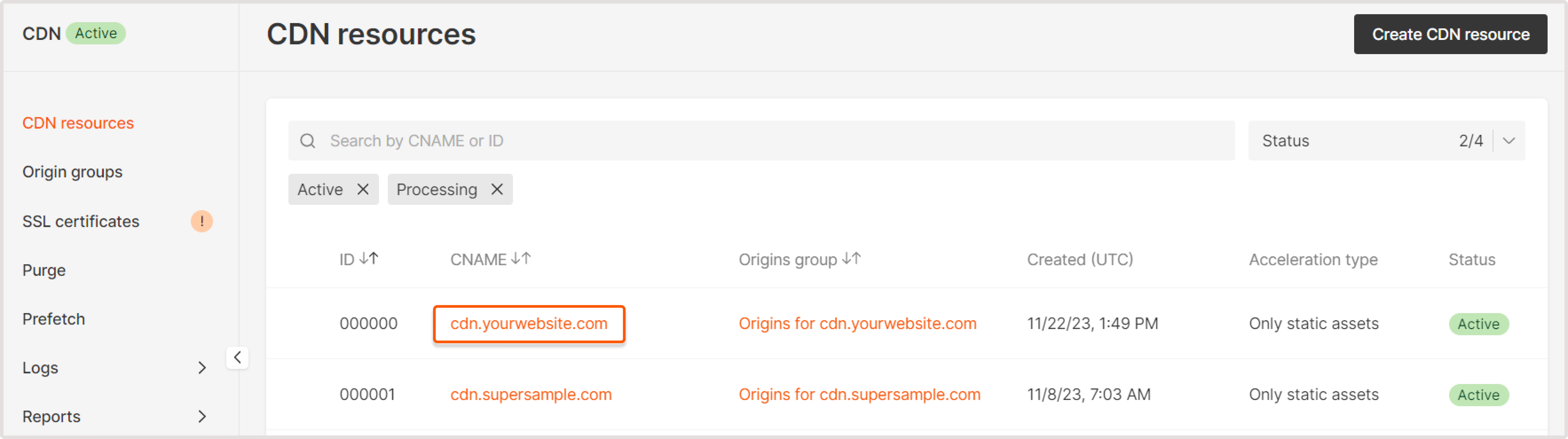
2\. Click the CNAME of the required CDN resource to open **Resource settings**.
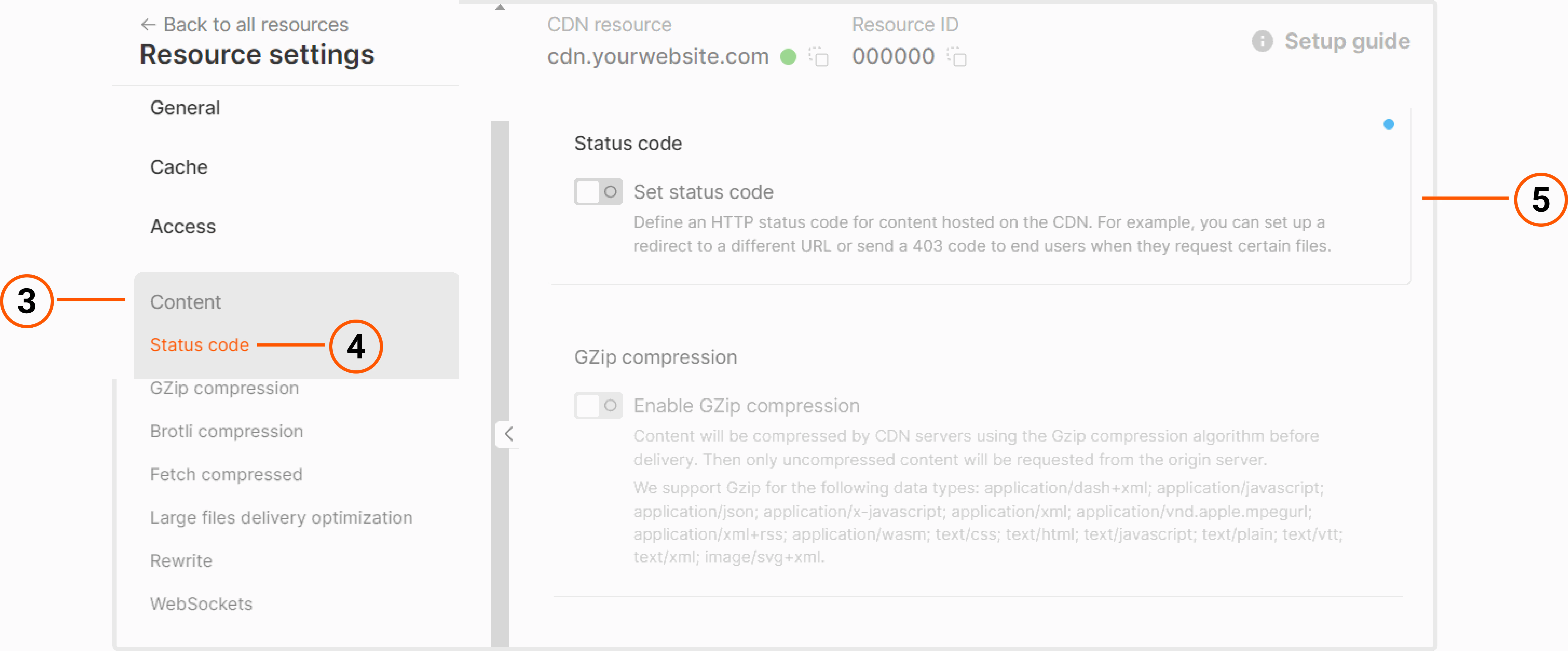
 3\. Click the **Content** section to open nested options.
4\. Click **Status code**.
5\. Enable the **Set status code** toggle.
3\. Click the **Content** section to open nested options.
4\. Click **Status code**.
5\. Enable the **Set status code** toggle.
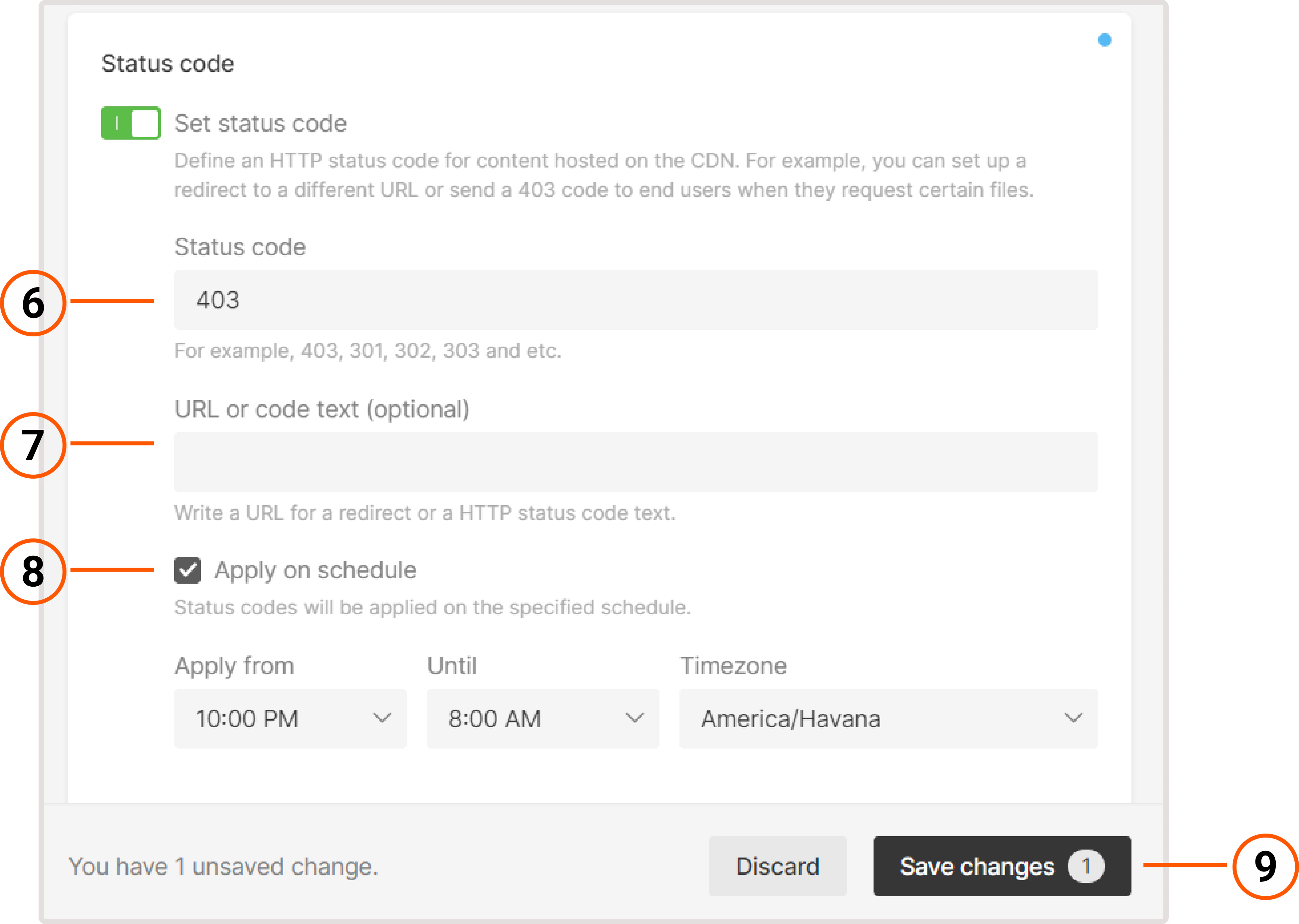
 6\. Specify the desired HTTP status code in the field.
**Caution**
You can't specify 408, 444, 494, 495, 496, 497, or 499 codes.
7\. (Optional) Specify a URL for a redirect or an HTTP status code text.
8\. (Optional) Enable a schedule. In the expanded block, set the time when the custom status code will be applied, as well as the time zone.
9\. Save changes.
6\. Specify the desired HTTP status code in the field.
**Caution**
You can't specify 408, 444, 494, 495, 496, 497, or 499 codes.
7\. (Optional) Specify a URL for a redirect or an HTTP status code text.
8\. (Optional) Enable a schedule. In the expanded block, set the time when the custom status code will be applied, as well as the time zone.
9\. Save changes.
 That's it! The custom code will be applied to all files delivered via the CDN.
1\. In the Gcore Customer Portal, navigate to [CDN](https://portal.gcore.com/cdn/resources/list).
2\. Click the CNAME of the needed CDN resource to open **Resource settings**.
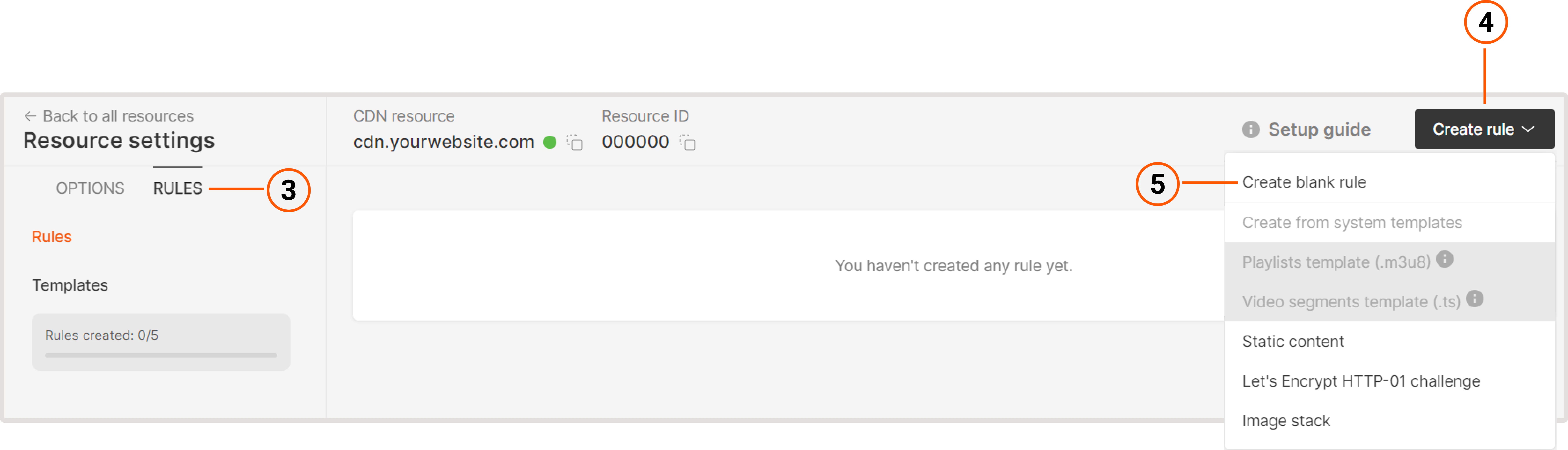
3\. Go to the **Rules** tab.
4\. Click **Create rule**.
5\. In the menu that opens, click **Create blank rule**.
That's it! The custom code will be applied to all files delivered via the CDN.
1\. In the Gcore Customer Portal, navigate to [CDN](https://portal.gcore.com/cdn/resources/list).
2\. Click the CNAME of the needed CDN resource to open **Resource settings**.
3\. Go to the **Rules** tab.
4\. Click **Create rule**.
5\. In the menu that opens, click **Create blank rule**.
 On the page that opens, specify to which files the rule for custom code will be applied. Configure the other settings on the page. Our guide on [creating a rule manually](/cdn/cdn-resource-options/rules-for-particular-files/create-a-rule-manually-or-from-a-template-to-configure-settings-for-particular-files#create-a-rule-manually) explains the configuration options in depth.
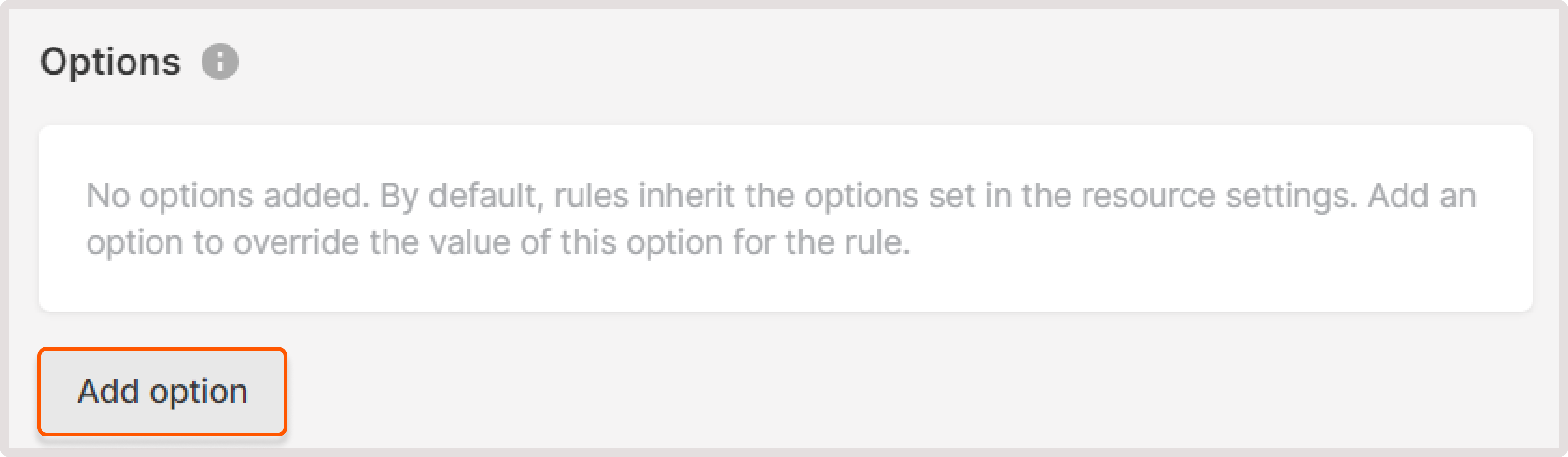
6\. At the end of the page, click **Add option**.
On the page that opens, specify to which files the rule for custom code will be applied. Configure the other settings on the page. Our guide on [creating a rule manually](/cdn/cdn-resource-options/rules-for-particular-files/create-a-rule-manually-or-from-a-template-to-configure-settings-for-particular-files#create-a-rule-manually) explains the configuration options in depth.
6\. At the end of the page, click **Add option**.
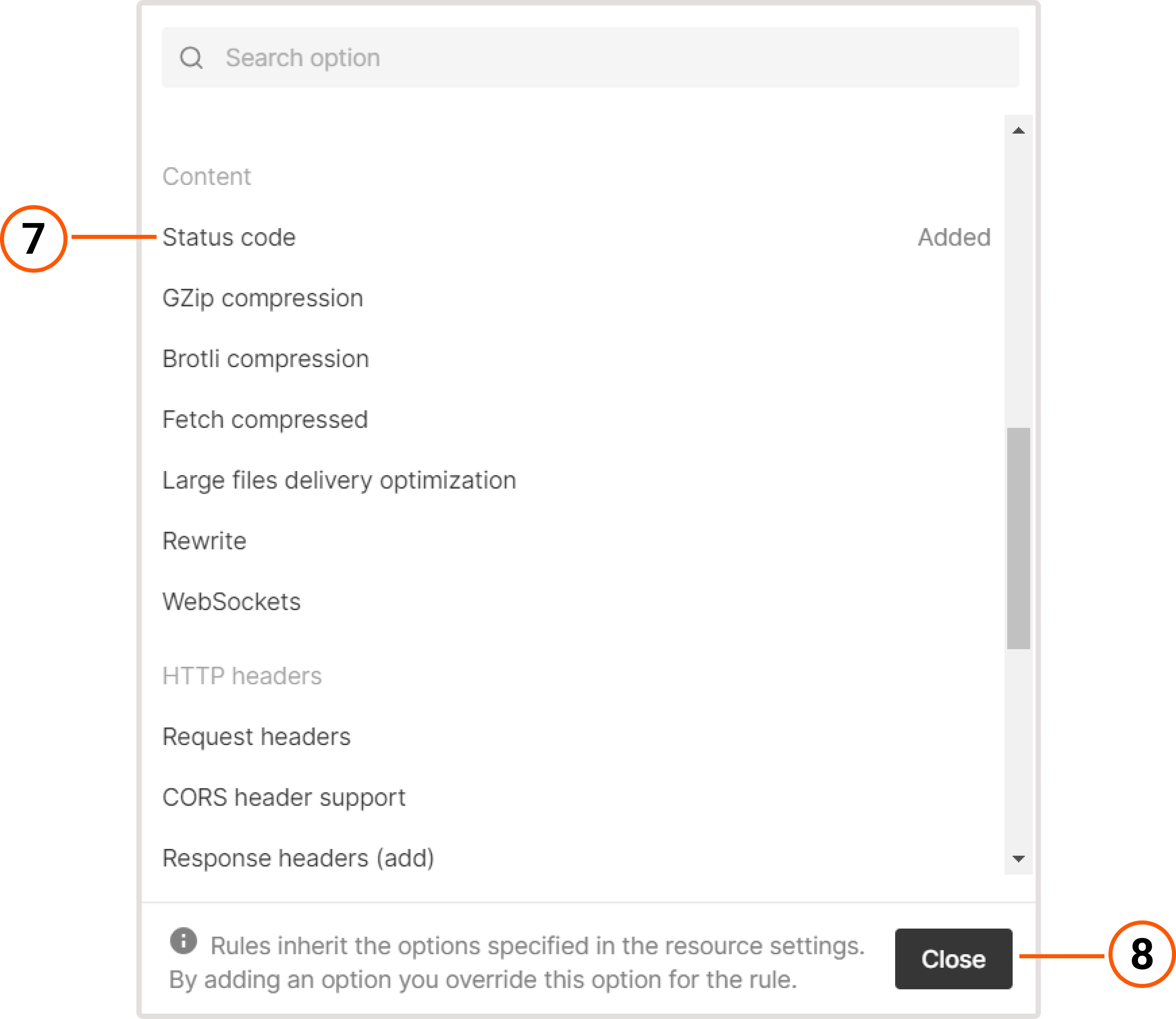
 7\. Click **Status code** in the list to add the option to the rule.
8\. Click **Close**.
7\. Click **Status code** in the list to add the option to the rule.
8\. Click **Close**.
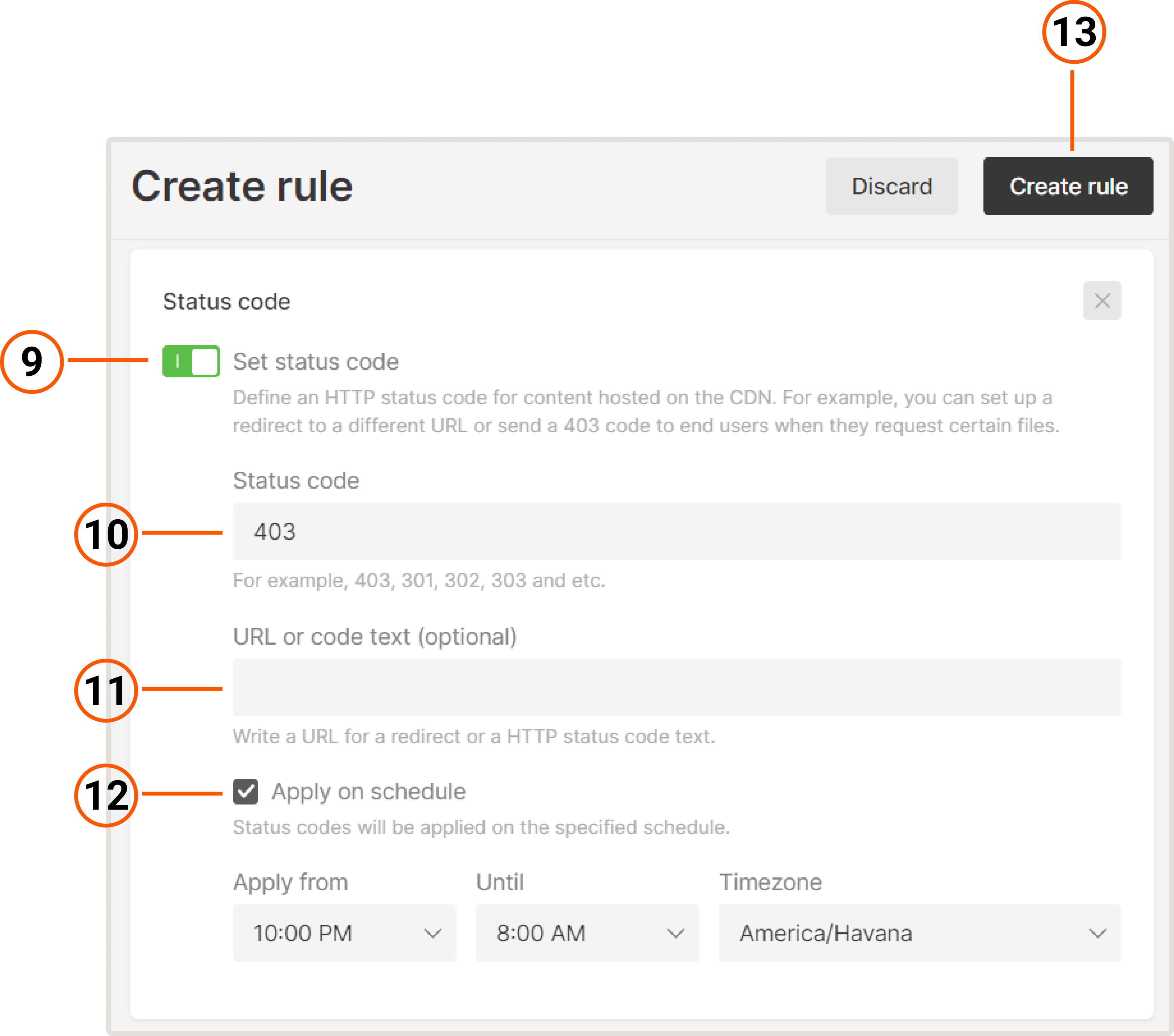
 9\. Enable the **Set status code** toggle.
10\. Specify the desired HTTP status code in the field.
**Caution**
You can't specify 408, 444, 494, 495, 496, 497, or 499 codes.
11\. (Optional) Specify a URL for a redirect or an HTTP status code text.
12\. (Optional) Enable a schedule. In the expanded block, set the time when the custom status code will be applied, as well as the time zone.
13\. Save changes.
9\. Enable the **Set status code** toggle.
10\. Specify the desired HTTP status code in the field.
**Caution**
You can't specify 408, 444, 494, 495, 496, 497, or 499 codes.
11\. (Optional) Specify a URL for a redirect or an HTTP status code text.
12\. (Optional) Enable a schedule. In the expanded block, set the time when the custom status code will be applied, as well as the time zone.
13\. Save changes.
 That's it! The rule with the set custom code will be applied to specified files delivered via the CDN.