> ## Documentation Index
> Fetch the complete documentation index at: https://docs.gcore.com/llms.txt
> Use this file to discover all available pages before exploring further.
# Integrate CDN resource with Google Cloud Storage
This guide describes how you could use [Google Cloud Storage](https://cloud.google.com/storage) as an origin server.
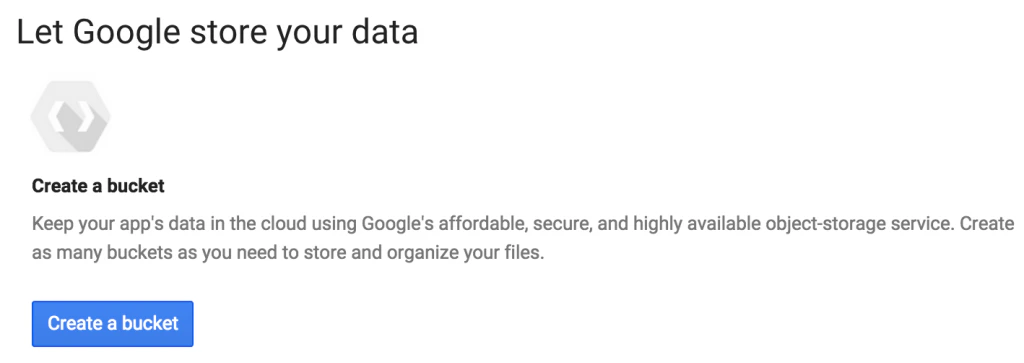
Create a Google Cloud Storage (GCS) bucket.
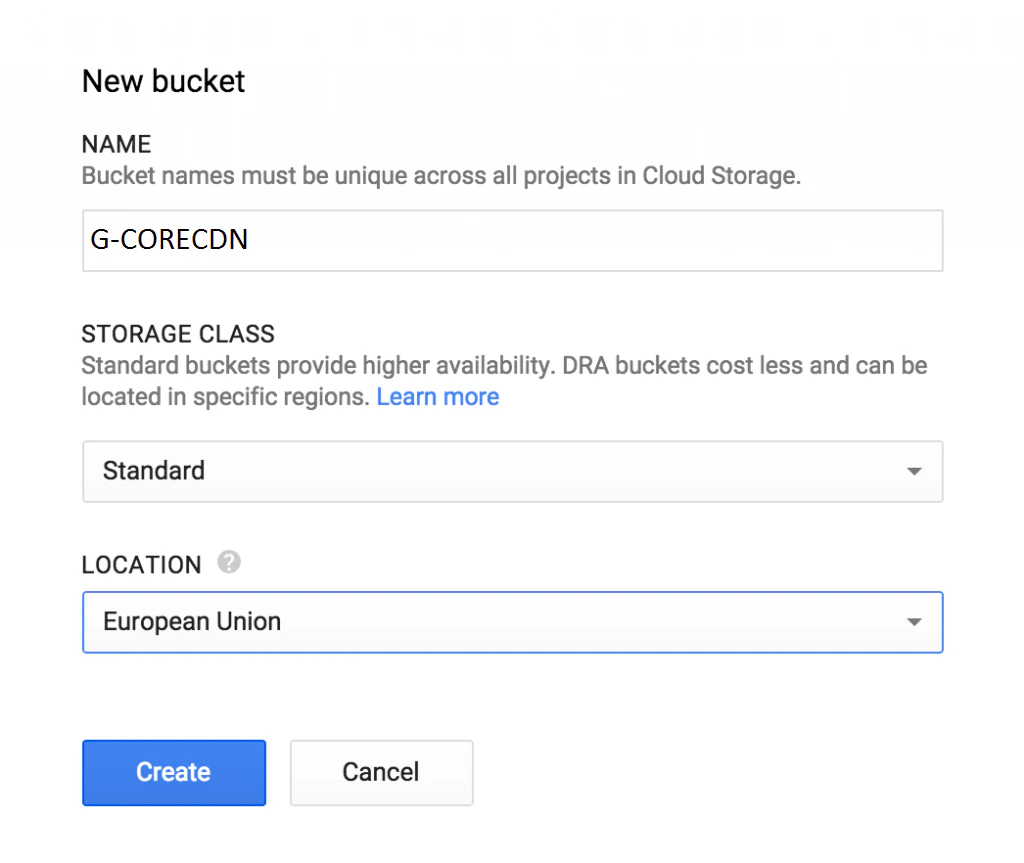 Upload your data and mark it as Shared publicly.
 Login to [Gcore Customer Portal](https://portal.gcore.com/cdn/resources/list) at our site and [create a CDN resource](/cdn/getting-started/create-a-cdn-resource/create-a-cdn-resource) using `storage.googleapis.com` as origin.
When your CDN resource is created, check the accessibility of files through CDN. Ensure that your [CNAME record has been configured](/cdn/cdn-resource-options/general/create-and-set-a-custom-domain-for-the-content-delivery-via-cdn) in a proper way before using it for integration.
**Note** : If you want to hide your cloud bucket name, use our [Rewrite](/cdn/cdn-resource-options/rewrite-redirect-requests-from-the-cdn-to-the-origin) option.
Integration has been completed! We highly recommend you to check the HTML code of your web page to ensure that URLs have been rewritten properly from your original ones to CNAME from the Gcore Customer Portal.
To do that press **F12** or open Developers Tools in your browser, choose the Network tab and refresh the page. All static files should have your CNAME in URLs.
Login to [Gcore Customer Portal](https://portal.gcore.com/cdn/resources/list) at our site and [create a CDN resource](/cdn/getting-started/create-a-cdn-resource/create-a-cdn-resource) using `storage.googleapis.com` as origin.
When your CDN resource is created, check the accessibility of files through CDN. Ensure that your [CNAME record has been configured](/cdn/cdn-resource-options/general/create-and-set-a-custom-domain-for-the-content-delivery-via-cdn) in a proper way before using it for integration.
**Note** : If you want to hide your cloud bucket name, use our [Rewrite](/cdn/cdn-resource-options/rewrite-redirect-requests-from-the-cdn-to-the-origin) option.
Integration has been completed! We highly recommend you to check the HTML code of your web page to ensure that URLs have been rewritten properly from your original ones to CNAME from the Gcore Customer Portal.
To do that press **F12** or open Developers Tools in your browser, choose the Network tab and refresh the page. All static files should have your CNAME in URLs.