> ## Documentation Index
> Fetch the complete documentation index at: https://docs.gcore.com/llms.txt
> Use this file to discover all available pages before exploring further.
# Activate advanced DDoS protection for Bare Metal
Advanced DDoS Protection filters attack traffic through the Threat Mitigation System before it reaches a [Bare Metal](/cloud/bare-metal-servers/about-bare-metal-servers) server. The [feature overview](/cloud/bare-metal-servers/advanced-ddos-protection/about-advanced-ddos-protection-for-bare-metal-servers) covers capabilities, pricing, and the comparison with basic protection. Protection applies only to public network interfaces or sub-interfaces with public IP addresses — private and internal interfaces do not support this feature.
Quota approval is required before the network interface configuration unlocks.
## Enable during server creation
1. In the [Gcore Customer Portal](https://portal.gcore.com), navigate to **Cloud** > **Bare Metal** and click **Create Bare Metal**.
2. Select a region, image, and server type. In the **Network interfaces** section, set the network type to **Public**.
3. Enable **Advanced DDoS Protection**.
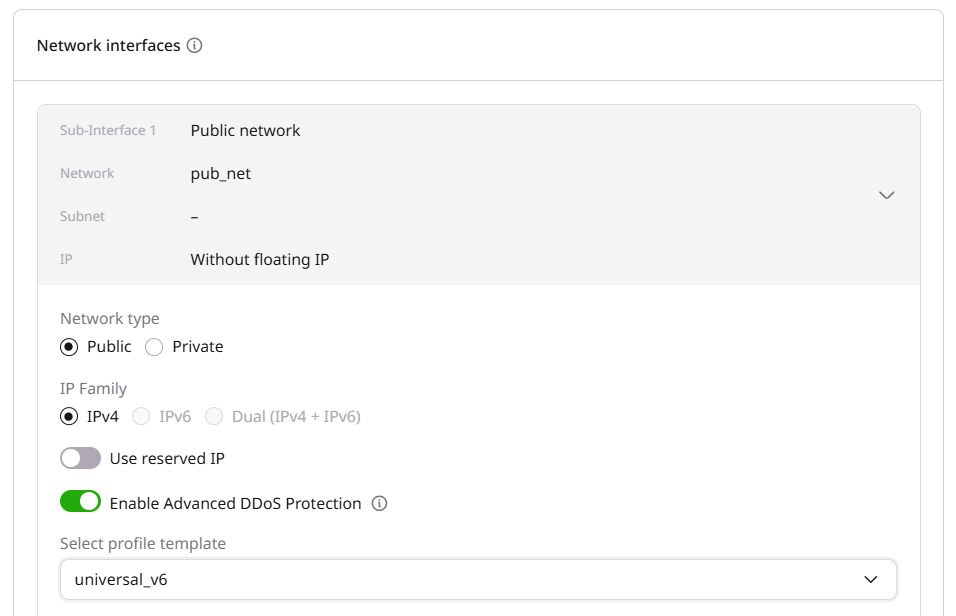 Advanced DDoS Protection is available only on external interfaces and sub-interfaces with public IP addresses. Internal and private interfaces cannot use this feature.
4. Open the profile template dropdown and select a template. Each template requires different fields, and the available options depend on the region — pricing details appear when a template is selected.
5. In the **SSH Keys** section, select an [SSH key](/cloud/bare-metal-servers/connect-to-your-bare-metal-server-via-ssh) for Linux servers or set a password for Windows servers.
6. Enter the server name template and click **Create Server**.
## Enable on an existing server
1. In the Customer Portal, navigate to **Cloud** > **Bare Metal** and click the server name.
2. Open the **Networking** tab.
3. In the public interface row, open the three-dot menu and select **Enable Advanced DDoS Protection**.
4. In the **Create Advanced DDoS protection profile** dialog, select a profile template from the dropdown, fill in the required fields, and click **Submit**.
The interface row shows **Advanced** as the protection type once activation completes.
## Manage from the DDoS Protection list
1. In the Customer Portal, navigate to **Cloud** > **Networking** > **DDoS Protection**.
2. Locate the Bare Metal server in the list, open the three-dot menu on the right, and select **Enable Advanced DDoS Protection**.
Advanced DDoS Protection is available only on external interfaces and sub-interfaces with public IP addresses. Internal and private interfaces cannot use this feature.
4. Open the profile template dropdown and select a template. Each template requires different fields, and the available options depend on the region — pricing details appear when a template is selected.
5. In the **SSH Keys** section, select an [SSH key](/cloud/bare-metal-servers/connect-to-your-bare-metal-server-via-ssh) for Linux servers or set a password for Windows servers.
6. Enter the server name template and click **Create Server**.
## Enable on an existing server
1. In the Customer Portal, navigate to **Cloud** > **Bare Metal** and click the server name.
2. Open the **Networking** tab.
3. In the public interface row, open the three-dot menu and select **Enable Advanced DDoS Protection**.
4. In the **Create Advanced DDoS protection profile** dialog, select a profile template from the dropdown, fill in the required fields, and click **Submit**.
The interface row shows **Advanced** as the protection type once activation completes.
## Manage from the DDoS Protection list
1. In the Customer Portal, navigate to **Cloud** > **Networking** > **DDoS Protection**.
2. Locate the Bare Metal server in the list, open the three-dot menu on the right, and select **Enable Advanced DDoS Protection**.
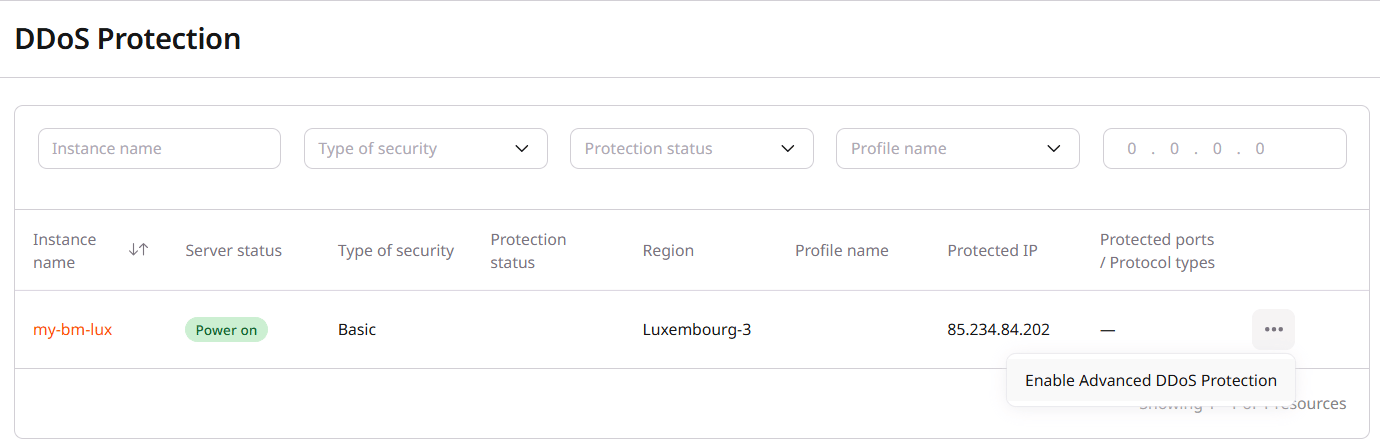 3. In the **Create Advanced DDoS protection profile** dialog, open the profile template dropdown and select a template. Profile templates vary by region — for example, Luxembourg-3 offers **universal\_v3**, **universal\_v5**, and **universal\_v6**.
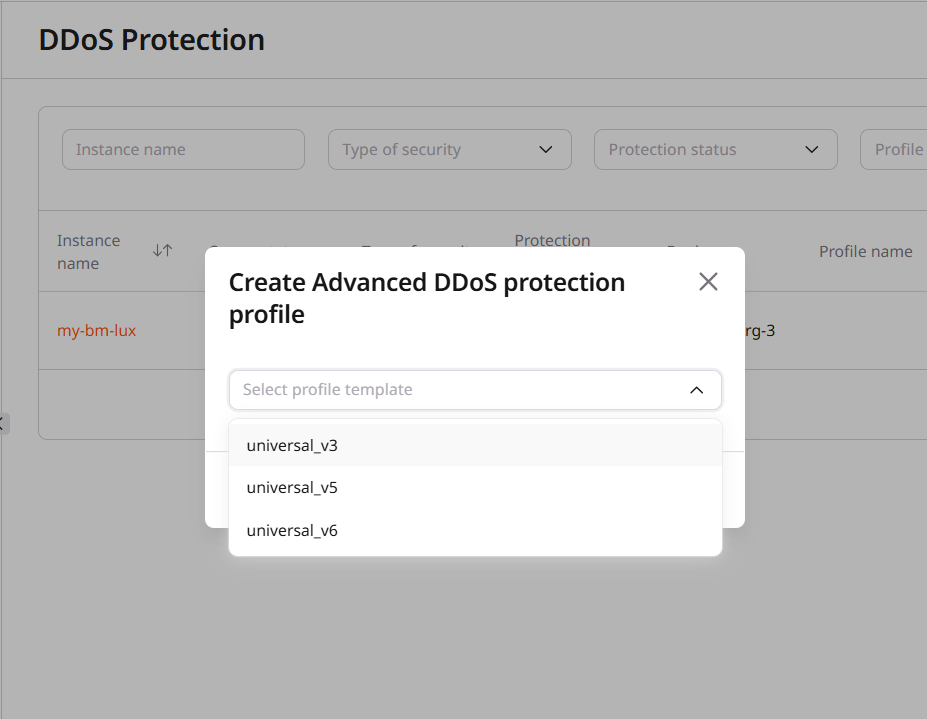 4. Complete the required fields for the selected template.
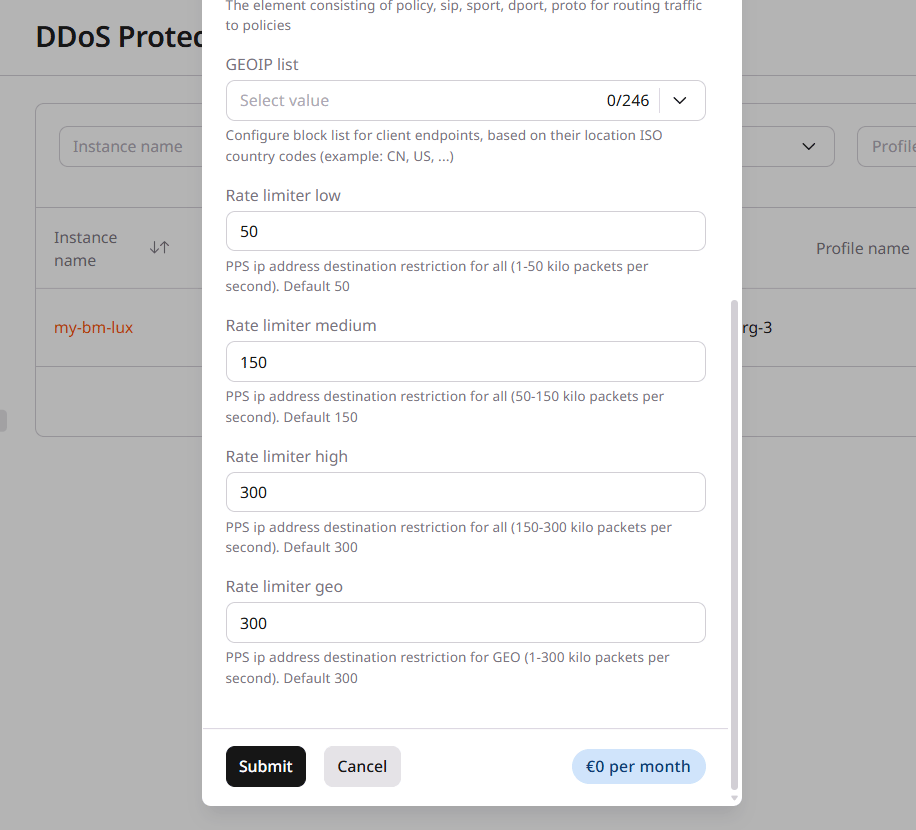 5. Click **Submit**. The protection type changes from **Basic** to **Advanced**, and the profile name and parameters appear in the list.