> ## Documentation Index
> Fetch the complete documentation index at: https://docs.gcore.com/llms.txt
> Use this file to discover all available pages before exploring further.

# Create a container

export const MethodSection = ({children}) => children ?? null;

export const MethodSwitch = ({children}) => {
  const tabs = React.Children.toArray(children).map(c => {
    if (!c || !c.props) return null;
    if (c.props.id) return c;
    const inner = c.props.children;
    if (inner && inner.props && inner.props.id) return inner;
    return null;
  }).filter(Boolean);
  const firstId = tabs.length > 0 ? tabs[0].props.id : "";
  const [active, setActive] = React.useState(firstId);
  React.useEffect(() => {
    try {
      const saved = localStorage.getItem("gcore_docs_method");
      if (saved && tabs.find(t => t.props.id === saved)) {
        setActive(saved);
      }
    } catch (_) {}
  }, []);
  React.useEffect(() => {
    try {
      document.querySelectorAll("h2[id], h3[id]").forEach(heading => {
        const visible = heading.offsetParent !== null;
        document.querySelectorAll(`a[href="#${heading.id}"]`).forEach(link => {
          if (link.closest("h1,h2,h3,h4,h5,h6")) return;
          const li = link.closest("li");
          if (li) li.style.display = visible ? "" : "none";
        });
      });
    } catch (_) {}
    window.dispatchEvent(new Event("scroll"));
  }, [active]);
  const handleClick = id => {
    setActive(id);
    try {
      localStorage.setItem("gcore_docs_method", id);
    } catch (_) {}
  };
  return <div>
      <div className="not-prose flex gap-0 border-b border-zinc-200 dark:border-zinc-800 mb-8 mt-2" role="tablist">
        {tabs.map(tab => {
    const isActive = active === tab.props.id;
    return <button key={tab.props.id} role="tab" aria-selected={isActive} onClick={() => handleClick(tab.props.id)} className={["px-4 py-2 text-sm font-medium border-b-2 -mb-px transition-colors cursor-pointer", isActive ? "border-primary text-primary" : "border-transparent text-zinc-500 hover:text-zinc-800 dark:hover:text-zinc-200"].join(" ")}>
              {tab.props.label}
            </button>;
  })}
      </div>

      {tabs.map(tab => <div key={tab.props.id} style={{
    display: active === tab.props.id ? "" : "none"
  }}>
          {tab.props.children}
        </div>)}
    </div>;
};

<MethodSwitch>
  <MethodSection id="portal" label="Customer Portal">
    <p>Deploy and run a containerized application in the Cloud, without managing any underlying infrastructure.</p>

    ## Step 1. Add a container image

    <Tip>
      If there are insufficient resources to create a container, request a [quota increase](/cloud/getting-started/request-a-quota-increase).
    </Tip>

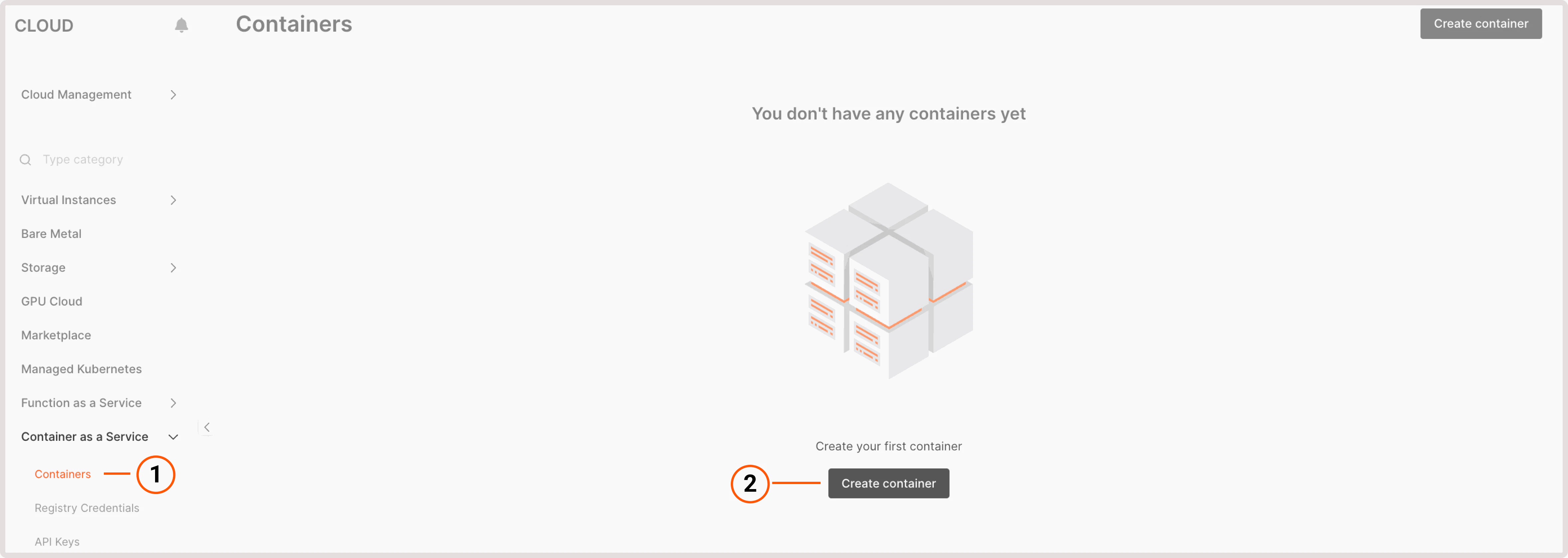
    1\. In the Gcore Customer Portal, navigate to **Cloud** > **Container as a Service**.

    2\. Click **Create container**.

    <Frame>
      <img src="https://mintcdn.com/gcore/QIEAnezmG8Bl8nMk/images/docs/cloud/caas/caas-page.png?fit=max&auto=format&n=QIEAnezmG8Bl8nMk&q=85&s=cd1afa6b69a664cb9361ae8fcf71e28c" alt="CaaS page in the Customer Portal" width="4712" height="1676" data-path="images/docs/cloud/caas/caas-page.png" />
    </Frame>

    3\. In the **Container image** section, select the image type: **public** or **private**. The difference between them is that a private image is secured with credentials.

    4\. Enter the image URL. For example, `nginx:latest`. For a private image, enter the URL in the format `https://registry.mysite.com`.

    5\. (Optional) Specify registry credentials. If a private image was selected in the previous step, enter credentials for accessing that image. If credentials have already been added to the Customer Portal, select them from the **Credentials** dropdown.

    <Frame>
      <img src="https://mintcdn.com/gcore/gC2cpnyadtVorzGi/images/docs/cloud/caas/create-a-container/add-container-image.png?fit=max&auto=format&n=gC2cpnyadtVorzGi&q=85&s=e690bedbb9fa3896ac3fc09fc07d6346" alt="Container image settings" width="3644" height="1532" data-path="images/docs/cloud/caas/create-a-container/add-container-image.png" />
    </Frame>

    <p>If no credentials have been saved yet, add them as follows:</p>

    * **Image registry name** : Registry name that will appear in the **Credentials** dropdown.
    * **Image registry URL** : Link to the location where the application is stored.
    * **Image registry username** : Username for accessing the storage location of the application.
    * **Image registry password** : Password for accessing the storage location of the application.

    <p>To save the new credentials, click **Create credentials**.</p>

    <p>(Optional) Set startup command. Enable the toggle to execute a specific command when the container starts.</p>

    ## Step 2. Specify port

    <p>In the **Port** section, specify the port for connection to the container.</p>

    <Frame>
      <img src="https://mintcdn.com/gcore/gC2cpnyadtVorzGi/images/docs/cloud/caas/create-a-container/specify-port.png?fit=max&auto=format&n=gC2cpnyadtVorzGi&q=85&s=ce2b7dbdfd13d54cf271eb74983db692" alt="Container port" width="3064" height="628" data-path="images/docs/cloud/caas/create-a-container/specify-port.png" />
    </Frame>

    <Info>
      Only one port per container is supported. To expose additional ports, create a separate container.
    </Info>

    ## Step 3. Choose container configuration

    <p>From the **mCPU-memory** dropdown, select the flavor for the container pod. Available options range from 80mCPU-128MiB to 2260mCPU-4096MiB. This configuration is used for the deployed Kubernetes pod that runs the container.</p>

    <Frame>
      <img src="https://mintcdn.com/gcore/gC2cpnyadtVorzGi/images/docs/cloud/caas/create-a-container/container-configuration.png?fit=max&auto=format&n=gC2cpnyadtVorzGi&q=85&s=94de7217dabb88fcbdb7f25f5e4eb474" alt="Container configuration" width="2948" height="628" data-path="images/docs/cloud/caas/create-a-container/container-configuration.png" />
    </Frame>

    ## Step 4. Configure autoscaling

    <p>In the **Set autoscaling limits** section, enter the range for the number of replicas to maintain under **Minimum replicas** and **Maximum replicas**.</p>

    <Frame>
      <img src="https://mintcdn.com/gcore/gC2cpnyadtVorzGi/images/docs/cloud/caas/create-a-container/autoscaling-limits.png?fit=max&auto=format&n=gC2cpnyadtVorzGi&q=85&s=ac4deef12da3074e66fe8e04fa90ec45" alt="Container autoscaling limits" width="2120" height="920" data-path="images/docs/cloud/caas/create-a-container/autoscaling-limits.png" />
    </Frame>

    <p>In the **Cooldown period** field, set the interval (in seconds) between trigger executions. This prevents frequent and unnecessary scaling changes. Enter a value between 1 and 3600 seconds.</p>

    <p>Define scaling thresholds for CPU, RAM, and HTTP request resource utilization to make efficient use of computational resources and maintain consistent performance. Triggers can be combined or used individually.</p>

    <p>In the **Autoscaling triggers**, click **Add trigger** to view and modify current thresholds:</p>

    * The minimum setting is 1% of the resource capacity. Only the **HTTP requests** trigger can scale replicas to and from 0.

    * The maximum setting is 100% of the resource capacity.

    <Frame>
      <img src="https://mintcdn.com/gcore/gC2cpnyadtVorzGi/images/docs/cloud/caas/create-a-container/autoscaling-thresholds.png?fit=max&auto=format&n=gC2cpnyadtVorzGi&q=85&s=f6cd81d9716df706ad574e722859b28e" alt="Container autoscaling thresholds" width="2664" height="836" data-path="images/docs/cloud/caas/create-a-container/autoscaling-thresholds.png" />
    </Frame>

    <p>By default, the autoscaling parameters are set to 80%, but any percentage within the specified range can be entered.</p>

    <p>Note that the waiting times specified for the **Cooldown period** and **HTTP requests** trigger are combined, and they determine the total time the system waits before initiating another scaling action.</p>

    <Warning>
      When setting up the cooldown period or HTTP scaling, use small values with caution — they may affect the scale window. For the cooldown period, small values can lead to random unexpected scale triggers; for HTTP scaling, small values can affect the time needed to aggregate HTTP request rates before scaling decisions are made.
    </Warning>

    ## Step 5. Specify container lifetime

    <p>Enter the number of seconds after which a pod is deleted when there are no incoming requests. For example, entering 600 means the pod is deleted after 600 seconds — equal to ten minutes.</p>

    <Frame>
      <img src="https://mintcdn.com/gcore/gC2cpnyadtVorzGi/images/docs/cloud/caas/create-a-container/container-lifetime.png?fit=max&auto=format&n=gC2cpnyadtVorzGi&q=85&s=cbbb692e1a90eab84a99b63bbabb3e35" alt="Container lifetime settings" width="2948" height="628" data-path="images/docs/cloud/caas/create-a-container/container-lifetime.png" />
    </Frame>

    <Tip>
      Specifying 0 means the container takes approximately one minute to scale down.
    </Tip>

    ## Step 6 (optional). Add environment variables

    <p>(Optional) To add metadata to the container, create variables as key-value pairs. These variables are scoped to the created container's environment.</p>

    <Frame>
      <img src="https://mintcdn.com/gcore/gC2cpnyadtVorzGi/images/docs/cloud/caas/create-a-container/variables.png?fit=max&auto=format&n=gC2cpnyadtVorzGi&q=85&s=3eab835b788dd9211599a283cfb3e501" alt="Environment variables settings" width="2948" height="628" data-path="images/docs/cloud/caas/create-a-container/variables.png" />
    </Frame>

    <p>For example, to configure where an application writes its log files within the container, set an environment variable for the log file path:</p>

    * Key: `LOG_FILE_PATH`
    * Value: `/var/log/myapp.log`

    <p>This variable directs the application to write logs to the specified path inside the container.</p>

    ## Step 7. Finalize container configuration

    <p>Specify the container name (displayed in the Customer Portal) and any additional description if needed.</p>

    <Frame>
      <img src="https://mintcdn.com/gcore/gC2cpnyadtVorzGi/images/docs/cloud/caas/create-a-container/container-details.png?fit=max&auto=format&n=gC2cpnyadtVorzGi&q=85&s=59dd2da152ad7d44e28ca91a0cd1d8ea" alt="Container details settings" width="2356" height="836" data-path="images/docs/cloud/caas/create-a-container/container-details.png" />
    </Frame>

    <p>In the top-right corner of the screen, click **Create container**. After a few minutes, the initial setup will be finished and the container will be launched.</p>
  </MethodSection>

  <MethodSection id="api" label="REST API">
    The steps below deploy a container from a public registry image and return a live HTTPS endpoint.

    <Info>
      An [API token](/developer-tools/rest-api/authentication) is required, along with a [project ID](/api-reference/cloud/projects/list-projects) and a [region ID](/api-reference/cloud/regions/list-regions).
    </Info>

    Set the following environment variables before running the examples:

    ```bash theme={null}
    export GCORE_API_KEY="{YOUR_API_KEY}"
    export GCORE_CLOUD_PROJECT_ID="{YOUR_PROJECT_ID}"
    export GCORE_CLOUD_REGION_ID="{YOUR_REGION_ID}"
    ```

    ## Step 1. List available flavors

    Flavors define the CPU and RAM allocation for each container pod. Choose the smallest flavor that meets the application's requirements.

    <Tabs>
      <Tab title="Python">
        ```python theme={null}
        import os
        import requests  # pip install requests

        API_KEY = os.environ["GCORE_API_KEY"]
        PROJECT_ID = os.environ["GCORE_CLOUD_PROJECT_ID"]
        REGION_ID = os.environ["GCORE_CLOUD_REGION_ID"]
        HDR = {"Authorization": f"APIKey {API_KEY}"}

        resp = requests.get(
            f"https://api.gcore.com/cloud/v1/caas/flavors/{PROJECT_ID}/{REGION_ID}",
            headers=HDR,
        )
        resp.raise_for_status()
        for f in resp.json()["results"]:
            print(f["name"], "-", f["cpu"], "mCPU,", f["ram"], "MiB")
        ```
      </Tab>

      <Tab title="Go">
        ```go theme={null}
        package main

        import (
            "bytes"
            "encoding/json"
            "fmt"
            "io"
            "net/http"
            "os"
            "time"
        )

        func main() {
            apiKey := os.Getenv("GCORE_API_KEY")
            projectID := os.Getenv("GCORE_CLOUD_PROJECT_ID")
            regionID := os.Getenv("GCORE_CLOUD_REGION_ID")
            client := &http.Client{}

            req, _ := http.NewRequest("GET",
                fmt.Sprintf("https://api.gcore.com/cloud/v1/caas/flavors/%s/%s", projectID, regionID),
                nil)
            req.Header.Set("Authorization", "APIKey "+apiKey)
            resp, _ := client.Do(req)
            body, _ := io.ReadAll(resp.Body)
            resp.Body.Close()

            var flavorsResp struct {
                Results []struct {
                    Name string `json:"name"`
                    CPU  int    `json:"cpu"`
                    RAM  int    `json:"ram"`
                } `json:"results"`
            }
            json.Unmarshal(body, &flavorsResp)
            for _, f := range flavorsResp.Results {
                fmt.Printf("%s - %d mCPU, %d MiB\n", f.Name, f.CPU, f.RAM)
            }
        }
        ```
      </Tab>

      <Tab title="curl">
        ```bash theme={null}
        curl -s "https://api.gcore.com/cloud/v1/caas/flavors/$GCORE_CLOUD_PROJECT_ID/$GCORE_CLOUD_REGION_ID" \
          -H "Authorization: APIKey $GCORE_API_KEY"
        ```

        Response:

        ```json theme={null}
        {
          "count": 7,
          "results": [
            {"name": "80mCPU-128MiB",    "cpu": 80,   "ram": 128},
            {"name": "160mCPU-256MiB",   "cpu": 160,  "ram": 256},
            {"name": "330mCPU-512MiB",   "cpu": 330,  "ram": 512},
            {"name": "580mCPU-1024MiB",  "cpu": 580,  "ram": 1024},
            {"name": "1140mCPU-2048MiB", "cpu": 1140, "ram": 2048},
            {"name": "1700mCPU-3072MiB", "cpu": 1700, "ram": 3072},
            {"name": "2260mCPU-4096MiB", "cpu": 2260, "ram": 4096}
          ]
        }
        ```
      </Tab>
    </Tabs>

    Save the chosen flavor name for the next step:

    ```bash theme={null}
    export FLAVOR="80mCPU-128MiB"
    ```

    ## Step 2. Create a container

    CaaS pulls the image, starts pods, and assigns a public HTTPS endpoint. The container name appears in the endpoint URL.

    | Parameter        | Required | Description                                                                                                             |
    | ---------------- | -------- | ----------------------------------------------------------------------------------------------------------------------- |
    | `name`           | Yes      | Alphanumeric, dots, hyphens; cannot start or end with `.` or `-`; max 43 characters. Appears in the public endpoint URL |
    | `image`          | Yes      | Docker image reference. Use `nginx:latest` for public images or a full registry path for private ones                   |
    | `listening_port` | Yes      | Port the container process listens on                                                                                   |
    | `flavor`         | Yes      | Flavor name from Step 1                                                                                                 |
    | `scale.min`      | Yes      | Minimum running pods. Set to `0` to scale to zero when idle                                                             |
    | `scale.max`      | Yes      | Maximum pods for autoscaling                                                                                            |
    | `timeout`        | No       | Seconds before an idle pod scales down (when `scale.min = 0`). Maximum 180                                              |

    <Tabs>
      <Tab title="Python">
        ```python theme={null}
        FLAVOR = "80mCPU-128MiB"  # from Step 1

        resp = requests.post(
            f"https://api.gcore.com/cloud/v1/caas/{PROJECT_ID}/{REGION_ID}/containers",
            headers=HDR,
            json={
                "name": "my-nginx",
                "image": "nginx:latest",
                "listening_port": 80,
                "flavor": FLAVOR,
                "scale": {"min": 1, "max": 2},
                "timeout": 180,
            },
        )
        resp.raise_for_status()
        task_id = resp.json()["tasks"][0]
        print("Task ID:", task_id)
        ```
      </Tab>

      <Tab title="Go">
        ```go theme={null}
            flavor := "80mCPU-128MiB" // from Step 1

            payload, _ := json.Marshal(map[string]any{
                "name":           "my-nginx",
                "image":          "nginx:latest",
                "listening_port": 80,
                "flavor":         flavor,
                "scale":          map[string]int{"min": 1, "max": 2},
                "timeout":        180,
            })
            req, _ = http.NewRequest("POST",
                fmt.Sprintf("https://api.gcore.com/cloud/v1/caas/%s/%s/containers", projectID, regionID),
                bytes.NewReader(payload))
            req.Header.Set("Authorization", "APIKey "+apiKey)
            req.Header.Set("Content-Type", "application/json")
            resp, _ = client.Do(req)
            body, _ = io.ReadAll(resp.Body)
            resp.Body.Close()

            var taskResp struct{ Tasks []string `json:"tasks"` }
            json.Unmarshal(body, &taskResp)
            taskID := taskResp.Tasks[0]
            fmt.Println("Task ID:", taskID)
        ```
      </Tab>

      <Tab title="curl">
        ```bash theme={null}
        curl -s -X POST "https://api.gcore.com/cloud/v1/caas/$GCORE_CLOUD_PROJECT_ID/$GCORE_CLOUD_REGION_ID/containers" \
          -H "Authorization: APIKey $GCORE_API_KEY" \
          -H "Content-Type: application/json" \
          -d '{
            "name": "my-nginx",
            "image": "nginx:latest",
            "listening_port": 80,
            "flavor": "'"$FLAVOR"'",
            "scale": {"min": 1, "max": 2},
            "timeout": 180
          }'
        ```

        Response:

        ```json theme={null}
        {
          "tasks": ["dd52d84a-b49b-43f1-93d1-06bd928a8f26"]
        }
        ```
      </Tab>
    </Tabs>

    Save the task ID for the next step:

    ```bash theme={null}
    export TASK_ID="dd52d84a-b49b-43f1-93d1-06bd928a8f26"
    ```

    ## Step 3. Poll the task

    Container provisioning typically takes 30-60 seconds. Poll every 5 seconds until `state` is `FINISHED`.

    <Tabs>
      <Tab title="Python">
        ```python theme={null}
        import time

        while True:
            resp = requests.get(
                f"https://api.gcore.com/cloud/v1/tasks/{task_id}",
                headers=HDR,
            )
            resp.raise_for_status()
            state = resp.json()["state"]
            print("State:", state)
            if state == "FINISHED":
                break
            time.sleep(5)
        ```
      </Tab>

      <Tab title="Go">
        ```go theme={null}
            for {
                req, _ = http.NewRequest("GET",
                    fmt.Sprintf("https://api.gcore.com/cloud/v1/tasks/%s", taskID),
                    nil)
                req.Header.Set("Authorization", "APIKey "+apiKey)
                resp, _ = client.Do(req)
                body, _ = io.ReadAll(resp.Body)
                resp.Body.Close()

                var status struct{ State string `json:"state"` }
                json.Unmarshal(body, &status)
                fmt.Println("State:", status.State)
                if status.State == "FINISHED" {
                    break
                }
                time.Sleep(5 * time.Second)
            }
        ```
      </Tab>

      <Tab title="curl">
        ```bash theme={null}
        curl -s "https://api.gcore.com/cloud/v1/tasks/$TASK_ID" \
          -H "Authorization: APIKey $GCORE_API_KEY"
        ```

        Response when complete:

        ```json theme={null}
        {
          "id": "dd52d84a-b49b-43f1-93d1-06bd928a8f26",
          "state": "FINISHED",
          "created_resources": {
            "caas_containers": ["my-nginx"]
          }
        }
        ```
      </Tab>
    </Tabs>

    `caas_containers` returns the container name (not a UUID). Use it in subsequent calls.

    ## Step 4. Get container details

    Retrieve the container to find the public endpoint and confirm it is ready.

    <Tabs>
      <Tab title="Python">
        ```python theme={null}
        resp = requests.get(
            f"https://api.gcore.com/cloud/v1/caas/{PROJECT_ID}/{REGION_ID}/containers/my-nginx",
            headers=HDR,
        )
        resp.raise_for_status()
        container = resp.json()
        print("Status:", container["status"])
        print("Endpoint:", container["address"])
        ```
      </Tab>

      <Tab title="Go">
        ```go theme={null}
            req, _ = http.NewRequest("GET",
                fmt.Sprintf("https://api.gcore.com/cloud/v1/caas/%s/%s/containers/my-nginx", projectID, regionID),
                nil)
            req.Header.Set("Authorization", "APIKey "+apiKey)
            resp, _ = client.Do(req)
            body, _ = io.ReadAll(resp.Body)
            resp.Body.Close()

            var container struct {
                Status  string `json:"status"`
                Address string `json:"address"`
            }
            json.Unmarshal(body, &container)
            fmt.Println("Status:", container.Status)
            fmt.Println("Endpoint:", container.Address)
        ```
      </Tab>

      <Tab title="curl">
        ```bash theme={null}
        curl -s "https://api.gcore.com/cloud/v1/caas/$GCORE_CLOUD_PROJECT_ID/$GCORE_CLOUD_REGION_ID/containers/my-nginx" \
          -H "Authorization: APIKey $GCORE_API_KEY"
        ```

        Response:

        ```json theme={null}
        {
          "name": "my-nginx",
          "image": "nginx:latest",
          "listening_port": 80,
          "flavor": "80mCPU-128MiB",
          "status": "Ready",
          "address": "https://my-nginx-76-1186668-caas.caas.k1.luxembourg-2.cloud.gcore.dev/",
          "deploy_status": {"total": 2, "ready": 1},
          "scale": {"min": 1, "max": 2, "cooldown_period": 60}
        }
        ```
      </Tab>
    </Tabs>

    ## Step 5. Verify the endpoint

    Send a request to confirm the container is serving traffic. The pod may return `503` for 1-2 minutes after the task completes while the ingress routes settle - retry if the first attempt fails.

    <Tabs>
      <Tab title="Python">
        ```python theme={null}
        resp = requests.get(container["address"])
        print("HTTP status:", resp.status_code)
        ```
      </Tab>

      <Tab title="Go">
        ```go theme={null}
            resp, _ = http.Get(container.Address)
            fmt.Println("HTTP status:", resp.StatusCode)
            resp.Body.Close()
        ```
      </Tab>

      <Tab title="curl">
        ```bash theme={null}
        curl -s -o /dev/null -w "%{http_code}" \
          "https://my-nginx-76-1186668-caas.caas.k1.luxembourg-2.cloud.gcore.dev/"
        ```

        Response:

        ```
        200
        ```
      </Tab>
    </Tabs>

    ## Use a private registry

    To run an image stored in a private [Container Registry](/cloud/container-registry/create-a-registry), complete the following steps before creating the container. Both Container Registry and CaaS must be in the same region - Luxembourg-2 supports both.

    ### Step 1. Create a Container Registry

    A Container Registry stores the Docker image before CaaS pulls it.

    | Parameter       | Required | Description                                                                    |
    | --------------- | -------- | ------------------------------------------------------------------------------ |
    | `name`          | Yes      | Registry name, lowercase letters and hyphens. Becomes part of the registry URL |
    | `storage_limit` | No       | Maximum storage in GiB. Defaults to 10                                         |

    <Tabs>
      <Tab title="Python">
        ```python theme={null}
        resp = requests.post(
            f"https://api.gcore.com/cloud/v1/registries/{PROJECT_ID}/{REGION_ID}",
            headers=HDR,
            json={"name": "my-registry", "storage_limit": 10},
        )
        resp.raise_for_status()
        registry = resp.json()
        REGISTRY_ID = registry["id"]
        REGISTRY_URL = registry["url"].rstrip("/")
        print("Registry URL:", REGISTRY_URL)
        ```
      </Tab>

      <Tab title="Go">
        ```go theme={null}
        package main

        import (
            "bytes"
            "encoding/json"
            "fmt"
            "io"
            "net/http"
            "os"
            "strings"
            "time"
        )

        func main() {
            apiKey := os.Getenv("GCORE_API_KEY")
            projectID := os.Getenv("GCORE_CLOUD_PROJECT_ID")
            regionID := os.Getenv("GCORE_CLOUD_REGION_ID")
            client := &http.Client{}

            payload, _ := json.Marshal(map[string]any{"name": "my-registry", "storage_limit": 10})
            req, _ := http.NewRequest("POST",
                fmt.Sprintf("https://api.gcore.com/cloud/v1/registries/%s/%s", projectID, regionID),
                bytes.NewReader(payload))
            req.Header.Set("Authorization", "APIKey "+apiKey)
            req.Header.Set("Content-Type", "application/json")
            resp, _ := client.Do(req)
            body, _ := io.ReadAll(resp.Body)
            resp.Body.Close()

            var registry struct {
                ID  int    `json:"id"`
                URL string `json:"url"`
            }
            json.Unmarshal(body, &registry)
            registryID := registry.ID
            registryURL := strings.TrimSuffix(registry.URL, "/")
            fmt.Printf("Registry ID: %d, URL: %s\n", registryID, registryURL)
        }
        ```
      </Tab>

      <Tab title="curl">
        ```bash theme={null}
        curl -s -X POST "https://api.gcore.com/cloud/v1/registries/$GCORE_CLOUD_PROJECT_ID/$GCORE_CLOUD_REGION_ID" \
          -H "Authorization: APIKey $GCORE_API_KEY" \
          -H "Content-Type: application/json" \
          -d '{"name": "my-registry", "storage_limit": 10}'
        ```

        Response:

        ```json theme={null}
        {
          "id": 606,
          "name": "my-registry",
          "url": "registry.luxembourg-2.cloud.gcore.dev/1000503-1186668-76-my-registry/"
        }
        ```
      </Tab>
    </Tabs>

    ```bash theme={null}
    export REGISTRY_ID="606"
    export REGISTRY_URL="registry.luxembourg-2.cloud.gcore.dev/1000503-1186668-76-my-registry"
    ```

    ### Step 2. Create a registry user

    A registry user provides Docker login credentials. The `secret` is returned only once - copy it immediately.

    | Parameter  | Required | Description                                                |
    | ---------- | -------- | ---------------------------------------------------------- |
    | `name`     | Yes      | Username suffix, lowercase alphanumeric, max 16 characters |
    | `duration` | Yes      | Credential lifetime in days. Use `-1` for no expiration    |

    <Tabs>
      <Tab title="Python">
        ```python theme={null}
        resp = requests.post(
            f"https://api.gcore.com/cloud/v1/registries/{PROJECT_ID}/{REGION_ID}/{REGISTRY_ID}/users",
            headers=HDR,
            json={"name": "pusher", "duration": -1},
        )
        resp.raise_for_status()
        user = resp.json()
        DOCKER_USERNAME = user["name"]
        DOCKER_PASSWORD = user["secret"]
        print("Username:", DOCKER_USERNAME)
        ```
      </Tab>

      <Tab title="Go">
        ```go theme={null}
            payload, _ = json.Marshal(map[string]any{"name": "pusher", "duration": -1})
            req, _ = http.NewRequest("POST",
                fmt.Sprintf("https://api.gcore.com/cloud/v1/registries/%s/%s/%d/users",
                    projectID, regionID, registryID),
                bytes.NewReader(payload))
            req.Header.Set("Authorization", "APIKey "+apiKey)
            req.Header.Set("Content-Type", "application/json")
            resp, _ = client.Do(req)
            body, _ = io.ReadAll(resp.Body)
            resp.Body.Close()

            var regUser struct {
                Name   string `json:"name"`
                Secret string `json:"secret"`
            }
            json.Unmarshal(body, &regUser)
            dockerUsername := regUser.Name
            dockerPassword := regUser.Secret
            fmt.Println("Username:", dockerUsername)
        ```
      </Tab>

      <Tab title="curl">
        ```bash theme={null}
        curl -s -X POST \
          "https://api.gcore.com/cloud/v1/registries/$GCORE_CLOUD_PROJECT_ID/$GCORE_CLOUD_REGION_ID/$REGISTRY_ID/users" \
          -H "Authorization: APIKey $GCORE_API_KEY" \
          -H "Content-Type: application/json" \
          -d '{"name": "pusher", "duration": -1}'
        ```

        Response:

        ```json theme={null}
        {
          "name": "r_1000503-1186668-76-my-registry+pusher",
          "secret": "gVa7zL5meW9cBOJLGiQx9AcvPFSehcgg"
        }
        ```
      </Tab>
    </Tabs>

    <Warning>
      The `secret` field cannot be retrieved after this response. Save it immediately. If lost, delete the user and create a new one.
    </Warning>

    ```bash theme={null}
    export DOCKER_USERNAME="r_1000503-1186668-76-my-registry+pusher"
    export DOCKER_PASSWORD="{secret_from_response}"
    ```

    ### Step 3. Push an image

    Log in to the registry, tag a local image, and push it. Requires [Docker](https://docs.docker.com/get-started/get-docker/) installed locally.

    ```bash theme={null}
    echo "$DOCKER_PASSWORD" | docker login "$REGISTRY_URL" \
      --username "$DOCKER_USERNAME" --password-stdin

    docker tag nginx:latest "$REGISTRY_URL/nginx:latest"
    docker push "$REGISTRY_URL/nginx:latest"
    ```

    ### Step 4. Create a pull secret

    A pull secret stores registry credentials inside the CaaS region, letting CaaS authenticate when pulling the private image.

    | Parameter  | Required | Description                                                                                  |
    | ---------- | -------- | -------------------------------------------------------------------------------------------- |
    | `name`     | Yes      | Secret identifier referenced in the container spec. Pattern `^[a-z][-a-z0-9]{0,24}[a-z0-9]$` |
    | `registry` | Yes      | Registry hostname without path                                                               |
    | `login`    | Yes      | Full Docker username from Step 2                                                             |
    | `password` | Yes      | Secret from Step 2                                                                           |

    <Tabs>
      <Tab title="Python">
        ```python theme={null}
        resp = requests.post(
            f"https://api.gcore.com/cloud/v1/caas/secrets/{PROJECT_ID}/{REGION_ID}",
            headers=HDR,
            json={
                "name": "my-registry-secret",
                "registry": "registry.luxembourg-2.cloud.gcore.dev",
                "login": DOCKER_USERNAME,
                "password": DOCKER_PASSWORD,
            },
        )
        resp.raise_for_status()
        PULL_SECRET_NAME = resp.json()["name"]
        print("Pull secret:", PULL_SECRET_NAME)
        ```
      </Tab>

      <Tab title="Go">
        ```go theme={null}
            payload, _ = json.Marshal(map[string]any{
                "name":     "my-registry-secret",
                "registry": "registry.luxembourg-2.cloud.gcore.dev",
                "login":    dockerUsername,
                "password": dockerPassword,
            })
            req, _ = http.NewRequest("POST",
                fmt.Sprintf("https://api.gcore.com/cloud/v1/caas/secrets/%s/%s", projectID, regionID),
                bytes.NewReader(payload))
            req.Header.Set("Authorization", "APIKey "+apiKey)
            req.Header.Set("Content-Type", "application/json")
            resp, _ = client.Do(req)
            body, _ = io.ReadAll(resp.Body)
            resp.Body.Close()

            var secret struct{ Name string `json:"name"` }
            json.Unmarshal(body, &secret)
            pullSecretName := secret.Name
            fmt.Println("Pull secret:", pullSecretName)
        ```
      </Tab>

      <Tab title="curl">
        ```bash theme={null}
        curl -s -X POST "https://api.gcore.com/cloud/v1/caas/secrets/$GCORE_CLOUD_PROJECT_ID/$GCORE_CLOUD_REGION_ID" \
          -H "Authorization: APIKey $GCORE_API_KEY" \
          -H "Content-Type: application/json" \
          -d "{
            \"name\": \"my-registry-secret\",
            \"registry\": \"registry.luxembourg-2.cloud.gcore.dev\",
            \"login\": \"$DOCKER_USERNAME\",
            \"password\": \"$DOCKER_PASSWORD\"
          }"
        ```

        Response:

        ```json theme={null}
        {
          "name": "my-registry-secret",
          "registry": "registry.luxembourg-2.cloud.gcore.dev",
          "login": "r_1000503-1186668-76-my-registry+pusher"
        }
        ```
      </Tab>
    </Tabs>

    ```bash theme={null}
    export PULL_SECRET_NAME="my-registry-secret"
    ```

    ### Step 5. Create a container with pull secret

    Pass the pull secret name and the full private image path in the container spec.

    <Tabs>
      <Tab title="Python">
        ```python theme={null}
        resp = requests.post(
            f"https://api.gcore.com/cloud/v1/caas/{PROJECT_ID}/{REGION_ID}/containers",
            headers=HDR,
            json={
                "name": "my-nginx",
                "image": f"{REGISTRY_URL}/nginx:latest",
                "listening_port": 80,
                "flavor": "80mCPU-128MiB",
                "scale": {"min": 1, "max": 2},
                "timeout": 180,
                "pull_secret": PULL_SECRET_NAME,
            },
        )
        resp.raise_for_status()
        task_id = resp.json()["tasks"][0]
        print("Task ID:", task_id)
        ```
      </Tab>

      <Tab title="Go">
        ```go theme={null}
            payload, _ = json.Marshal(map[string]any{
                "name":           "my-nginx",
                "image":          registryURL + "/nginx:latest",
                "listening_port": 80,
                "flavor":         "80mCPU-128MiB",
                "scale":          map[string]int{"min": 1, "max": 2},
                "timeout":        180,
                "pull_secret":    pullSecretName,
            })
            req, _ = http.NewRequest("POST",
                fmt.Sprintf("https://api.gcore.com/cloud/v1/caas/%s/%s/containers", projectID, regionID),
                bytes.NewReader(payload))
            req.Header.Set("Authorization", "APIKey "+apiKey)
            req.Header.Set("Content-Type", "application/json")
            resp, _ = client.Do(req)
            body, _ = io.ReadAll(resp.Body)
            resp.Body.Close()

            var taskResp2 struct{ Tasks []string `json:"tasks"` }
            json.Unmarshal(body, &taskResp2)
            taskID = taskResp2.Tasks[0]
            fmt.Println("Task ID:", taskID)
        ```
      </Tab>

      <Tab title="curl">
        ```bash theme={null}
        curl -s -X POST "https://api.gcore.com/cloud/v1/caas/$GCORE_CLOUD_PROJECT_ID/$GCORE_CLOUD_REGION_ID/containers" \
          -H "Authorization: APIKey $GCORE_API_KEY" \
          -H "Content-Type: application/json" \
          -d "{
            \"name\": \"my-nginx\",
            \"image\": \"$REGISTRY_URL/nginx:latest\",
            \"listening_port\": 80,
            \"flavor\": \"80mCPU-128MiB\",
            \"scale\": {\"min\": 1, \"max\": 2},
            \"timeout\": 180,
            \"pull_secret\": \"$PULL_SECRET_NAME\"
          }"
        ```

        Response:

        ```json theme={null}
        {
          "tasks": ["bf1bbc44-3a20-4c90-bbb9-3781e208fd16"]
        }
        ```
      </Tab>
    </Tabs>

    Poll the task and retrieve the endpoint as in [Step 3](#step-3-poll-the-task) and [Step 4](#step-4-get-container-details) of the basic flow.

    ## Clean up

    Delete the container when it is no longer needed:

    <Tabs>
      <Tab title="Python">
        ```python theme={null}
        resp = requests.delete(
            f"https://api.gcore.com/cloud/v1/caas/{PROJECT_ID}/{REGION_ID}/containers/my-nginx",
            headers=HDR,
        )
        resp.raise_for_status()
        task_id = resp.json()["tasks"][0]
        print("Delete task:", task_id)
        # Poll task_id until FINISHED (same as Step 3)
        ```
      </Tab>

      <Tab title="Go">
        ```go theme={null}
            req, _ = http.NewRequest("DELETE",
                fmt.Sprintf("https://api.gcore.com/cloud/v1/caas/%s/%s/containers/my-nginx",
                    projectID, regionID),
                nil)
            req.Header.Set("Authorization", "APIKey "+apiKey)
            resp, _ = client.Do(req)
            body, _ = io.ReadAll(resp.Body)
            resp.Body.Close()

            var delTask struct{ Tasks []string `json:"tasks"` }
            json.Unmarshal(body, &delTask)
            fmt.Println("Delete task:", delTask.Tasks[0])
            // Poll delTask.Tasks[0] until FINISHED (same as Step 3)
        ```
      </Tab>

      <Tab title="curl">
        ```bash theme={null}
        curl -s -X DELETE \
          "https://api.gcore.com/cloud/v1/caas/$GCORE_CLOUD_PROJECT_ID/$GCORE_CLOUD_REGION_ID/containers/my-nginx" \
          -H "Authorization: APIKey $GCORE_API_KEY"
        ```

        Response:

        ```json theme={null}
        {
          "tasks": ["2b7eb0dd-360f-4a35-9b85-4bf8336a3171"]
        }
        ```
      </Tab>
    </Tabs>

    Poll <code>GET /cloud/v1/tasks/{task_id}</code> until `state` is `FINISHED`.

    To remove a private registry and its user, delete the registry user first, then the registry:

    <Tabs>
      <Tab title="Python">
        ```python theme={null}
        requests.delete(
            f"https://api.gcore.com/cloud/v1/registries/{PROJECT_ID}/{REGION_ID}/{REGISTRY_ID}/users/pusher",
            headers=HDR,
        ).raise_for_status()

        requests.delete(
            f"https://api.gcore.com/cloud/v1/registries/{PROJECT_ID}/{REGION_ID}/{REGISTRY_ID}",
            headers=HDR,
        ).raise_for_status()
        ```
      </Tab>

      <Tab title="Go">
        ```go theme={null}
            req, _ = http.NewRequest("DELETE",
                fmt.Sprintf("https://api.gcore.com/cloud/v1/registries/%s/%s/%d/users/pusher",
                    projectID, regionID, registryID),
                nil)
            req.Header.Set("Authorization", "APIKey "+apiKey)
            client.Do(req)

            req, _ = http.NewRequest("DELETE",
                fmt.Sprintf("https://api.gcore.com/cloud/v1/registries/%s/%s/%d",
                    projectID, regionID, registryID),
                nil)
            req.Header.Set("Authorization", "APIKey "+apiKey)
            client.Do(req)
        ```
      </Tab>

      <Tab title="curl">
        ```bash theme={null}
        curl -s -X DELETE \
          "https://api.gcore.com/cloud/v1/registries/$GCORE_CLOUD_PROJECT_ID/$GCORE_CLOUD_REGION_ID/$REGISTRY_ID/users/pusher" \
          -H "Authorization: APIKey $GCORE_API_KEY"

        curl -s -X DELETE \
          "https://api.gcore.com/cloud/v1/registries/$GCORE_CLOUD_PROJECT_ID/$GCORE_CLOUD_REGION_ID/$REGISTRY_ID" \
          -H "Authorization: APIKey $GCORE_API_KEY"
        ```
      </Tab>
    </Tabs>
  </MethodSection>
</MethodSwitch>