> ## Documentation Index
> Fetch the complete documentation index at: https://docs.gcore.com/llms.txt
> Use this file to discover all available pages before exploring further.
# Manage user access
All operations below are performed from the **Access** tab in Project Settings. Only users with the Client Administrator or Project Administrator role can make these changes.
## Edit user roles
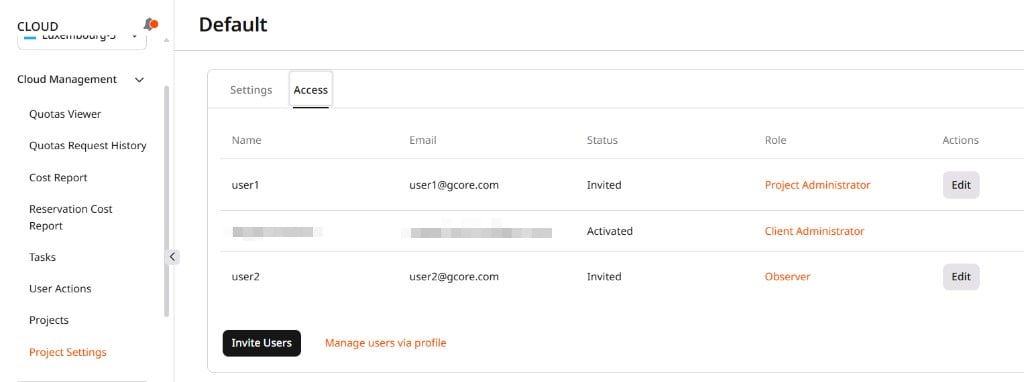
1. In the [Gcore Customer Portal](https://portal.gcore.com), navigate to **Cloud** > **Project Settings** and open the **Access** tab.
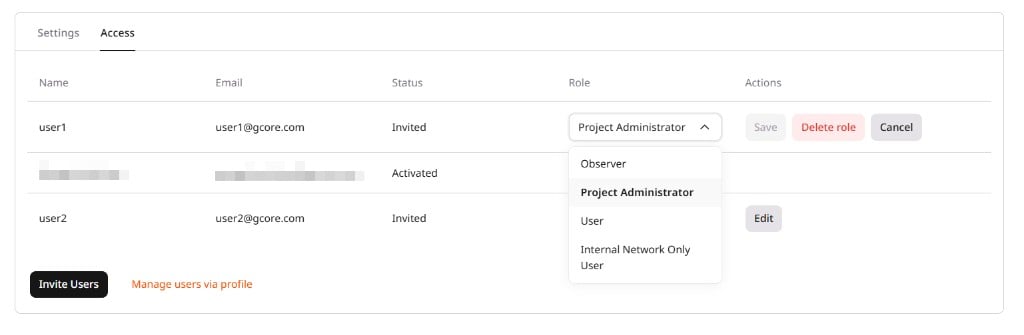
2. Click **Edit** next to the user.
 3. In the **Role** column, select a new role from the dropdown: Observer, Project Administrator, User, or Internal Network Only User.
 4. Click **Save**.
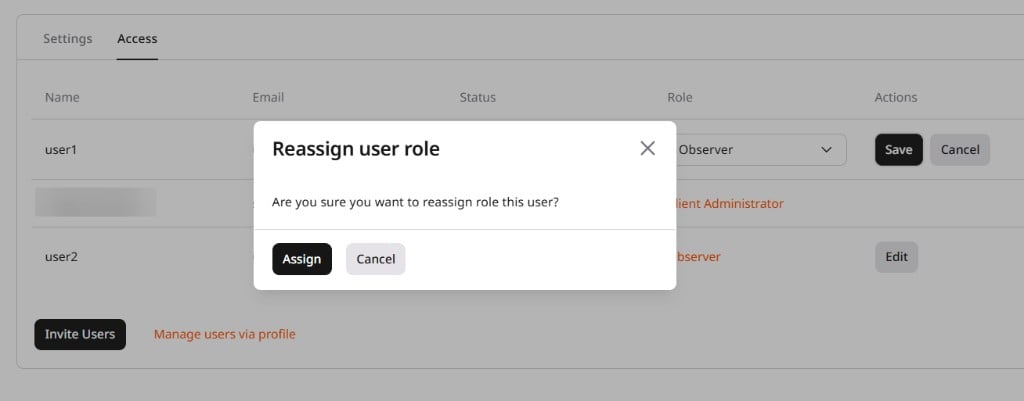
5. In the **Reassign user role** dialog, click **Assign** to confirm.
## Deny access to a project
Denying access removes the user's role without removing the user from the project.
1. In the **Access** tab, click **Edit** next to the user, then click **Delete role**.
4. Click **Save**.
5. In the **Reassign user role** dialog, click **Assign** to confirm.
## Deny access to a project
Denying access removes the user's role without removing the user from the project.
1. In the **Access** tab, click **Edit** next to the user, then click **Delete role**.
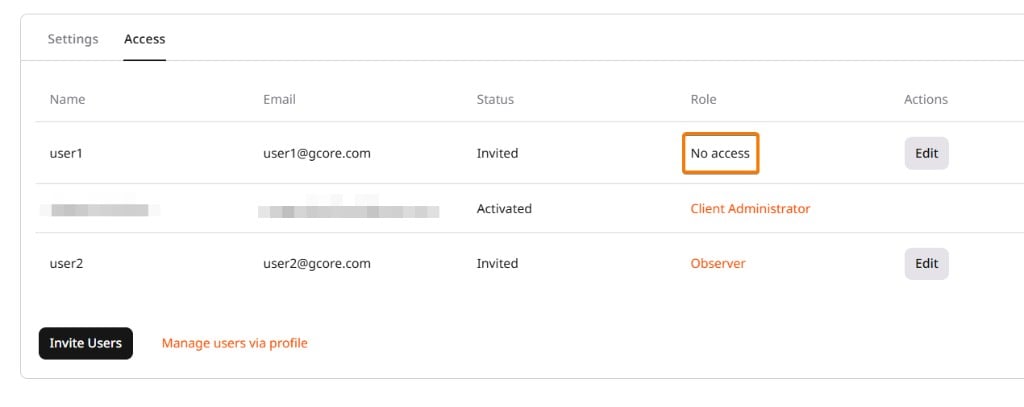
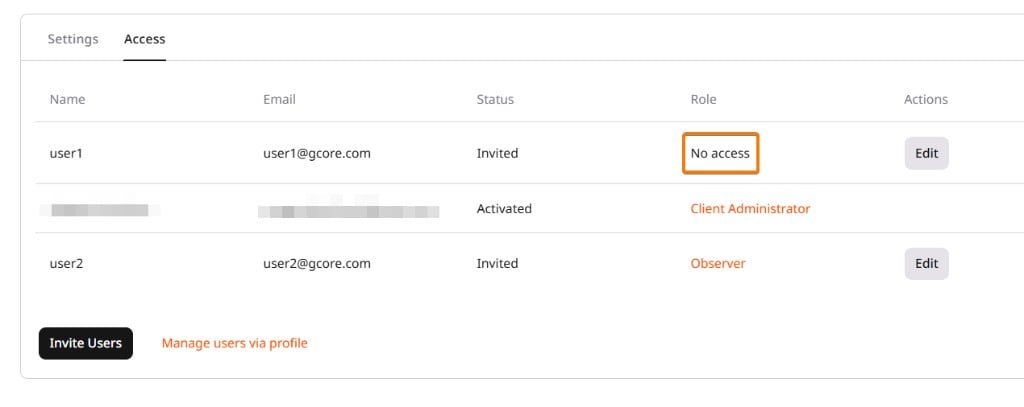
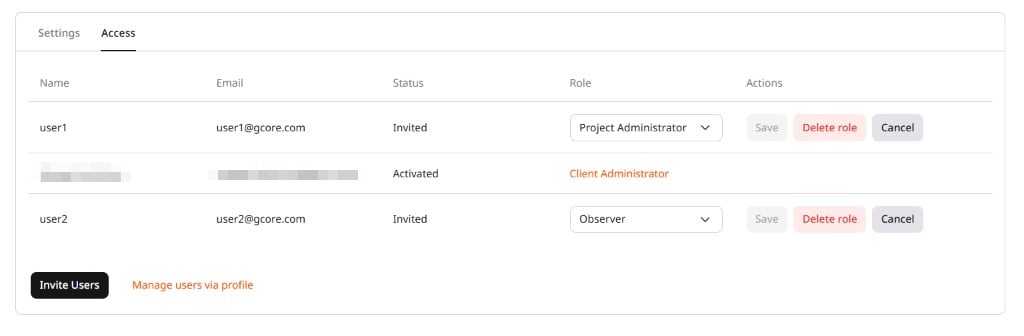 2. Confirm the deletion. The user's **Role** column changes to **No access**.
 ## Restore user access to a project
To restore access for a user whose role shows as No access, assign a new role.
1. In the **Access** tab, click **Edit** next to the user.
## Restore user access to a project
To restore access for a user whose role shows as No access, assign a new role.
1. In the **Access** tab, click **Edit** next to the user.
 2. Select the required role and click **Save**.
3. In the **Reassign user role** dialog, click **Assign** to confirm.
2. Select the required role and click **Save**.
3. In the **Reassign user role** dialog, click **Assign** to confirm.
 The user regains access to the project.