> ## Documentation Index
> Fetch the complete documentation index at: https://docs.gcore.com/llms.txt
> Use this file to discover all available pages before exploring further.
# Cost reports
Cloud resource usage and associated costs are available on the Cost reports pages in the [Gcore Customer Portal](https://portal.gcore.com). To access them, navigate to **Cloud**, open a project, then select **Cloud Management** in the left sidebar and click **Cost Report** or **Reservation Cost Report**.
The Customer Portal provides two reports:
* **Cost Report** — costs for all Cloud resources used, calculated at Pay-As-You-Go rates. If active resource commitments exist, the prices shown don't reflect actual costs because commit discounts are not applied.
* **Reservation Cost Report** — monthly resource usage and costs that account for resource commitments. This report shows how much of the committed resources were consumed, whether commits were fully utilized, and any overcommit costs incurred when usage exceeded the reserved amount.
Reports are also available via the [API](/api-reference/cloud#tag/Cost-Reports/operation/CostReportResourcesHandler.post).
Statistics for the last hour may contain incomplete data — for accurate results, review data collected more than an hour ago.
## Cost Report
This report calculates all costs using Pay-As-You-Go rates and doesn't account for resource commitments. If active commits exist, the prices shown won't reflect actual costs. Check the [Reservation Cost Report](/cloud/getting-started/view-statistics-on-expenses#reservation-cost-report) for cost data that includes commit discounts.
The report contains data about each Cloud resource in use, helping estimate future pay-as-you-go costs.
The cost data can be filtered by:
* **Project** — view costs for all projects or a selected subset. Deleted projects appear in the **Project** dropdown with a **(Deleted)** label and can be selected like active ones.
* **Regions** — filter by the region where resources were created.
* **Types** — filter by resource type.
* **Tags** — filter by tags assigned to resources.
* **Consumption period** — view costs for 1 week, 2 weeks, or a custom date range. The maximum custom period is one month.
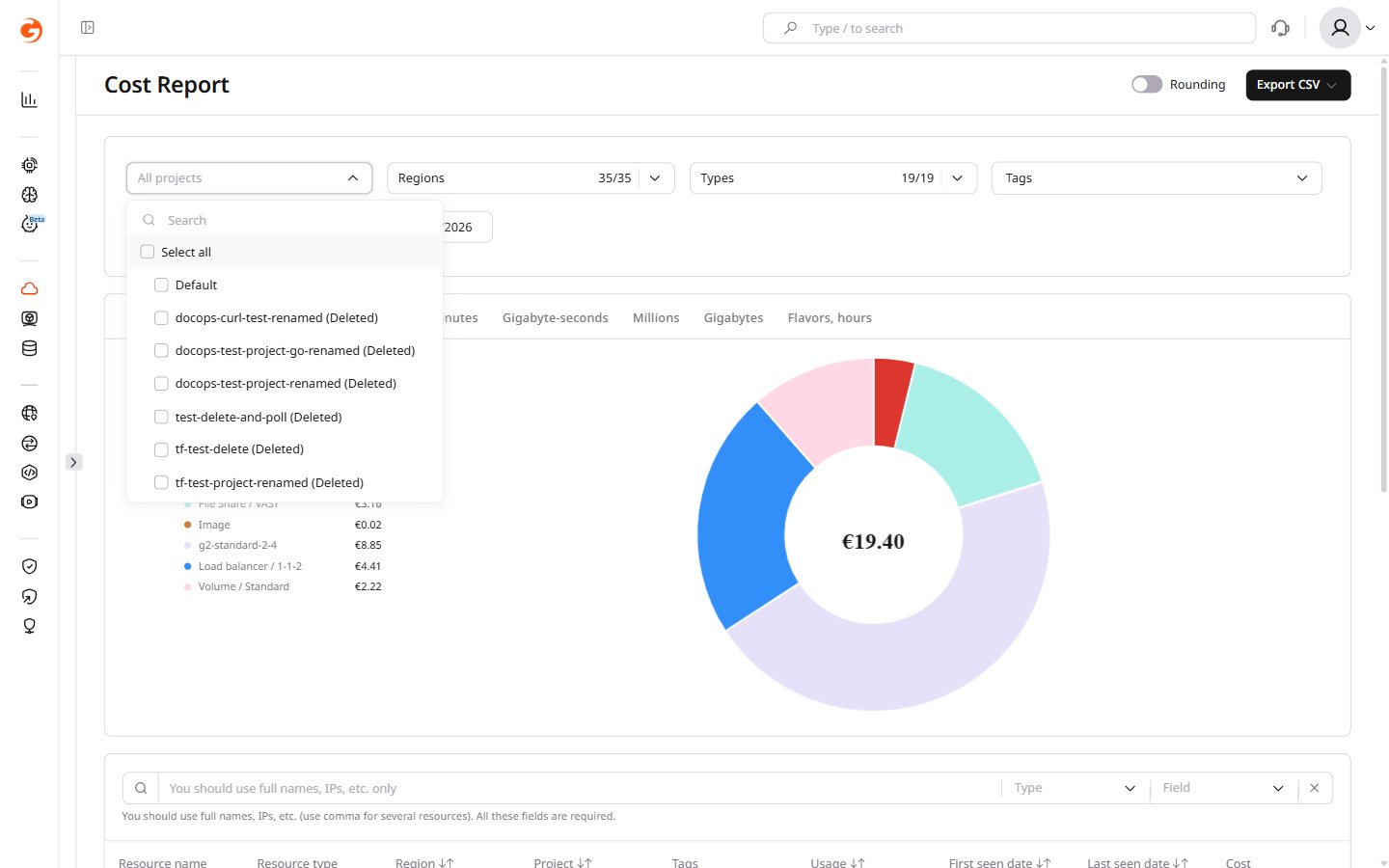 Use the **Rounding** checkbox in the top-right corner to toggle cost rounding on or off.
After applying filters, cost statistics are displayed in a graph and table format. In the graph view, the **Total €** tab displays the cumulative costs associated with each Cloud resource.
Use the **Rounding** checkbox in the top-right corner to toggle cost rounding on or off.
After applying filters, cost statistics are displayed in a graph and table format. In the graph view, the **Total €** tab displays the cumulative costs associated with each Cloud resource.
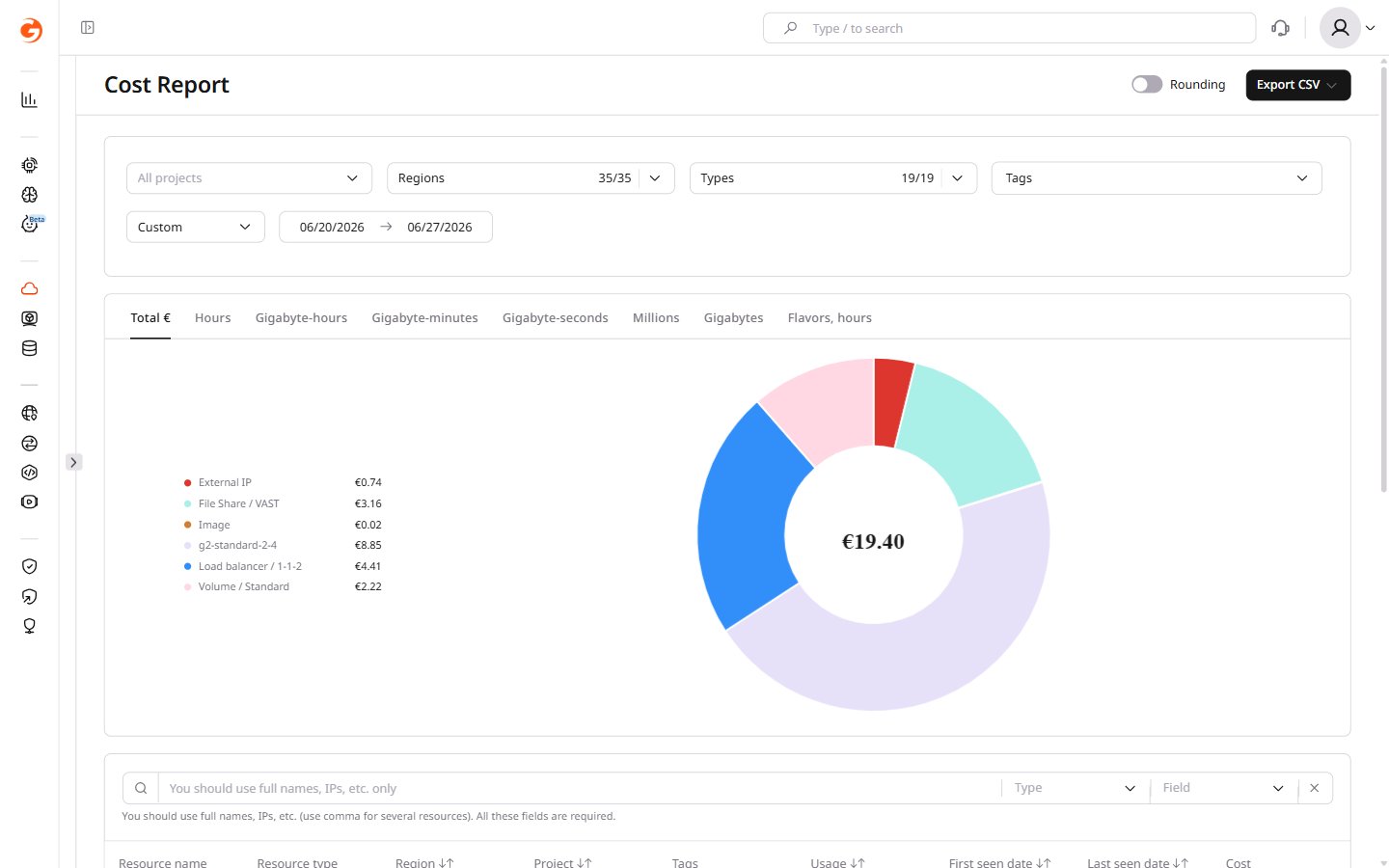 More granular statistics are available on the following tabs:
* **Hours**
* **Gigabyte-hours**
* **Gigabyte-minutes**
* **Gigabyte-seconds**
* **Millions**
* **Gigabytes**
* **Flavors, hours**
Under the graph, a table lists resources consumed within the selected period with the following properties:
* Resource name
* Resource type
* Region
* Project
* Tags
* Usage
* First seen date
* Last seen date
* Cost
More granular statistics are available on the following tabs:
* **Hours**
* **Gigabyte-hours**
* **Gigabyte-minutes**
* **Gigabyte-seconds**
* **Millions**
* **Gigabytes**
* **Flavors, hours**
Under the graph, a table lists resources consumed within the selected period with the following properties:
* Resource name
* Resource type
* Region
* Project
* Tags
* Usage
* First seen date
* Last seen date
* Cost
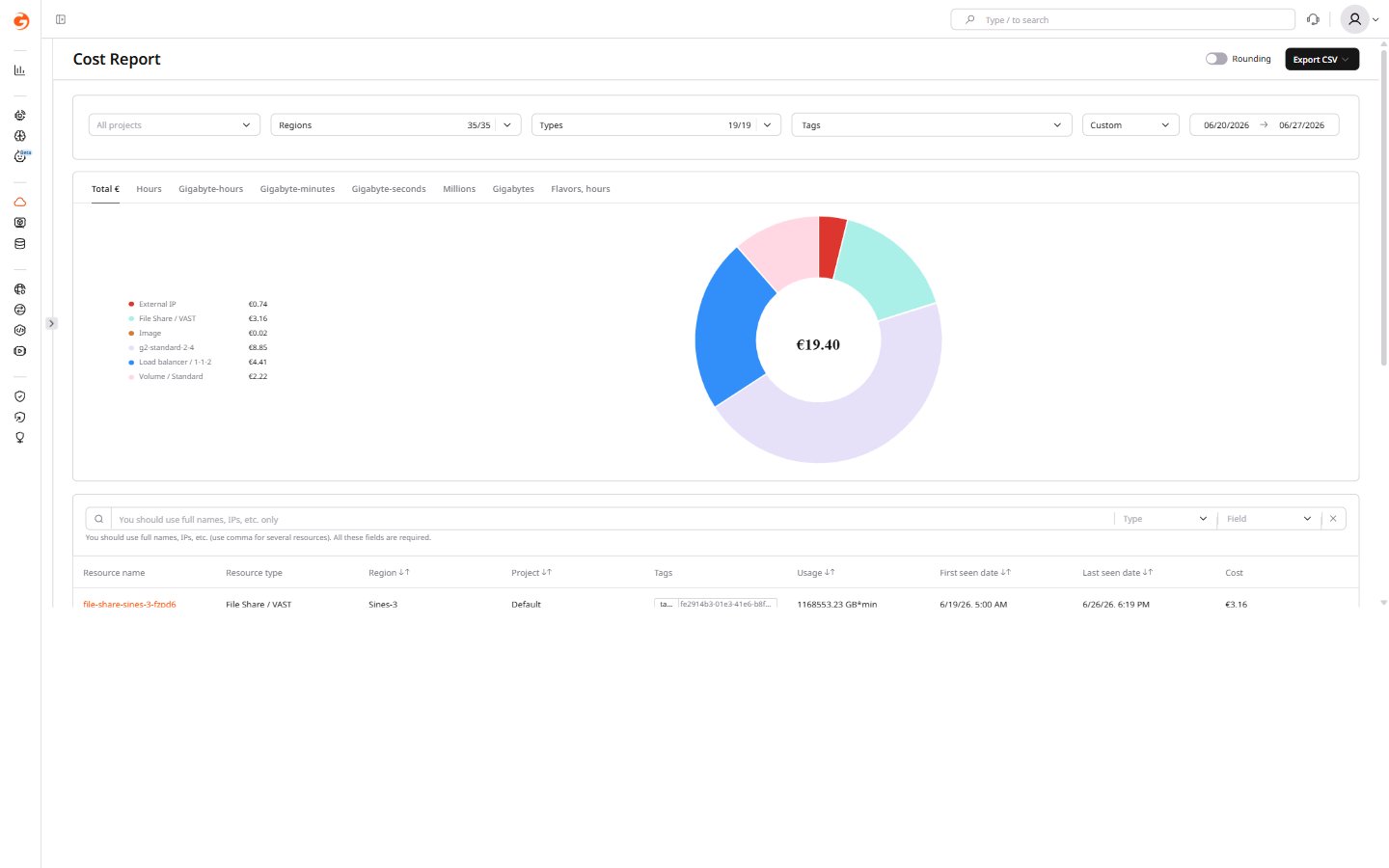 To refine table results, filter by resource type and attribute, or use the search field. Only full-text search is supported.
To filter table data:
1\. In the **Type** field, select the resource type. For example, select **External IP**.
To refine table results, filter by resource type and attribute, or use the search field. Only full-text search is supported.
To filter table data:
1\. In the **Type** field, select the resource type. For example, select **External IP**.
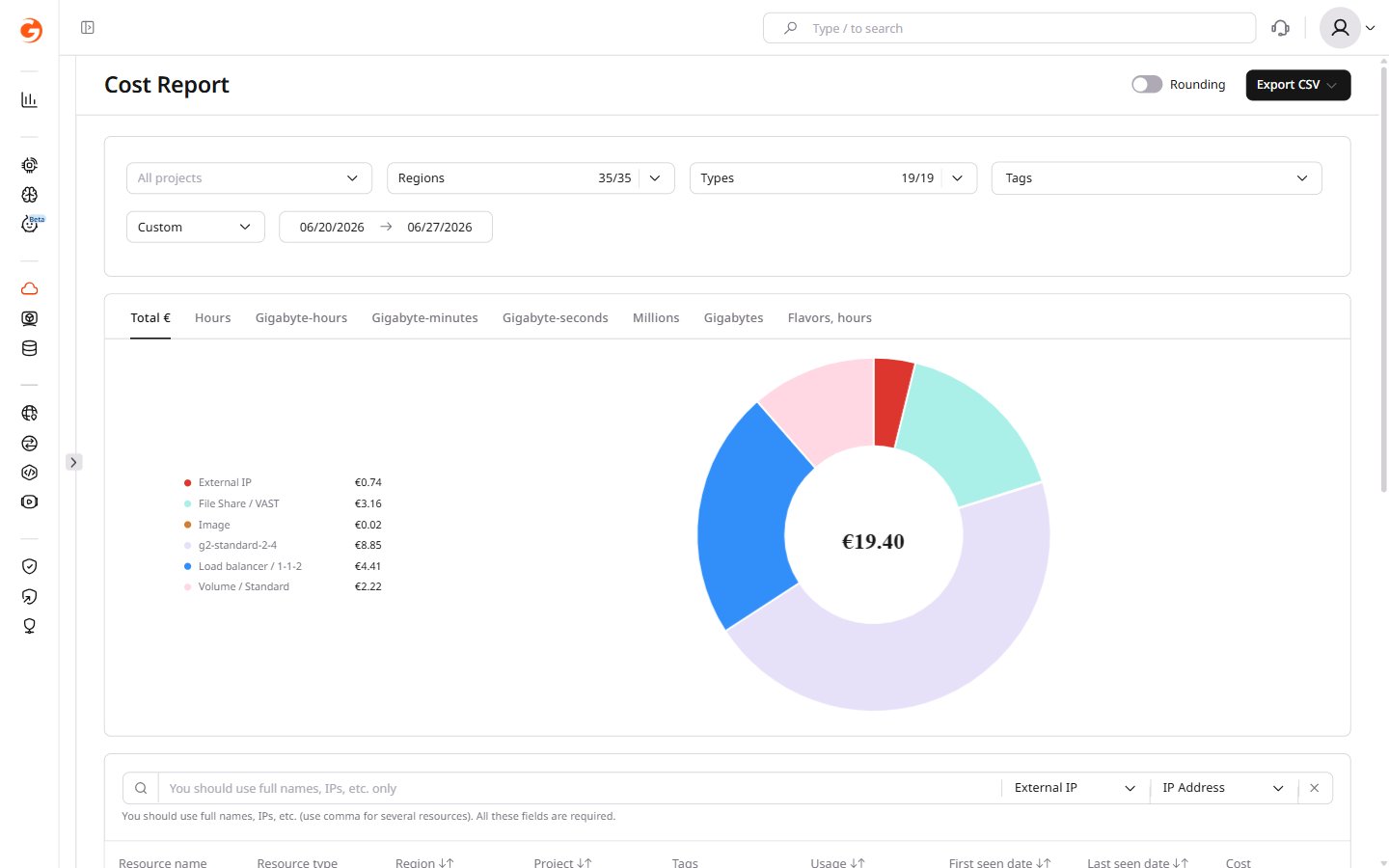 2\. In the **Field** dropdown, select the relevant resource attribute. For example, to view Cost Report data for a particular IP address, select **IP Address**.
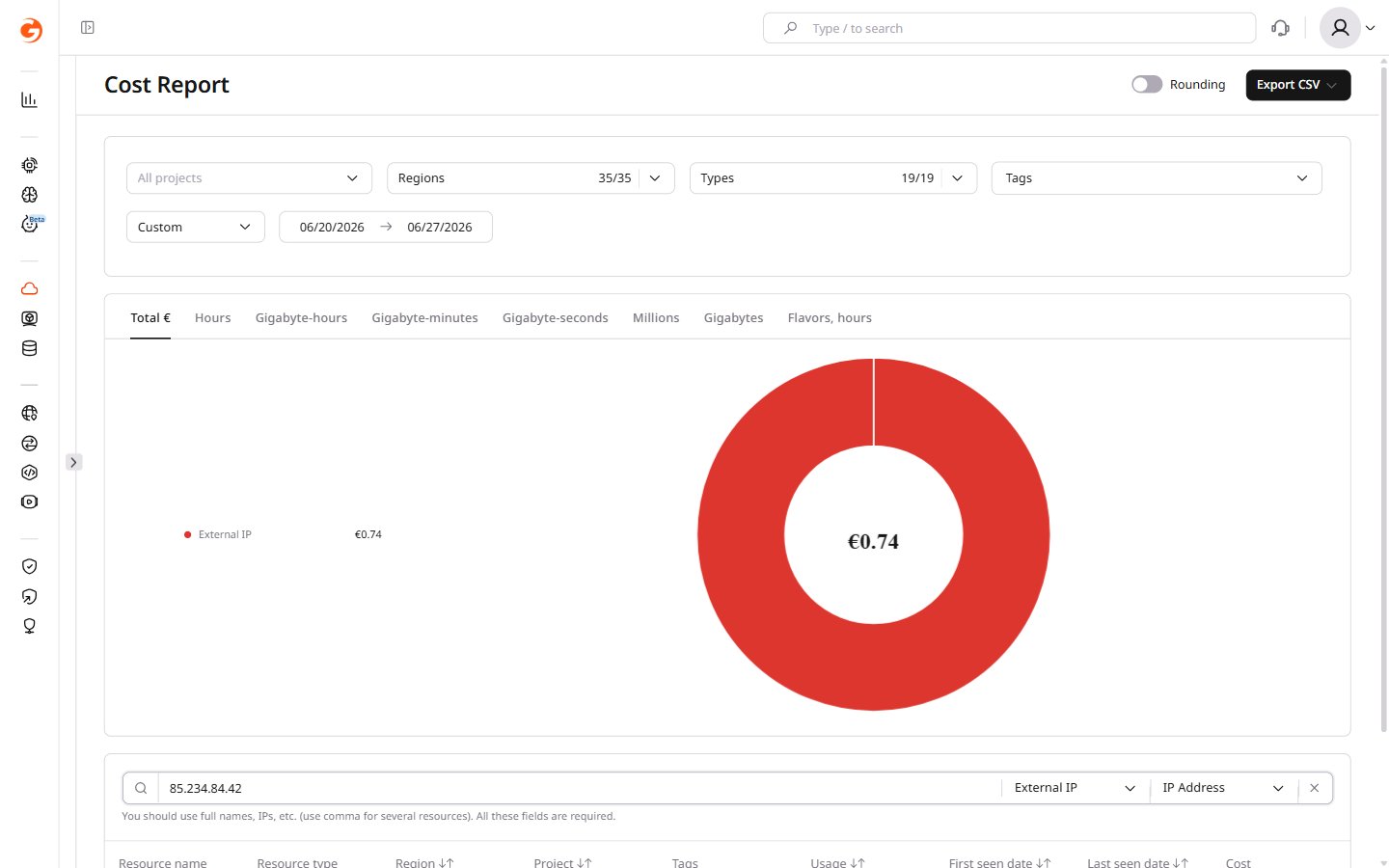
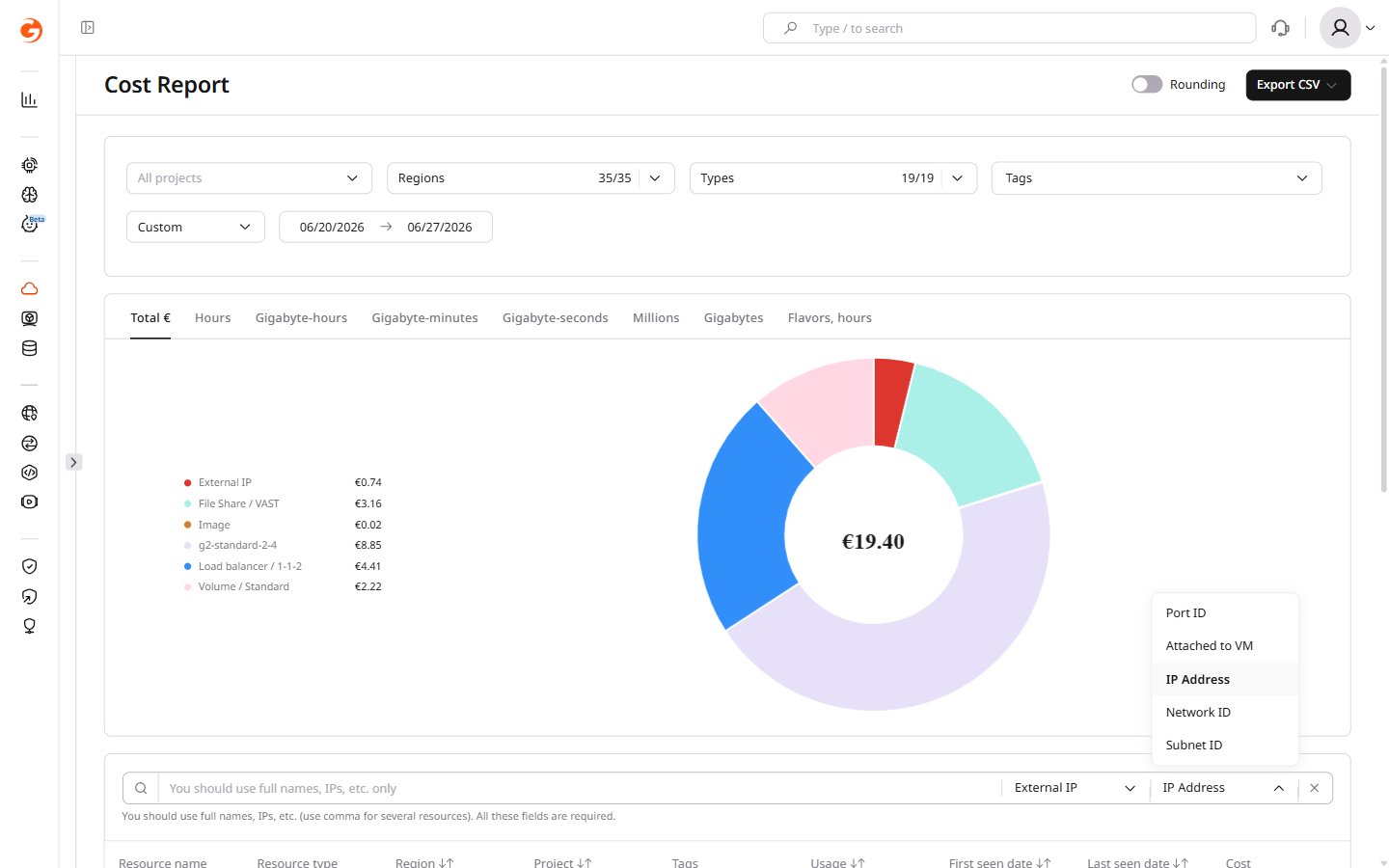 3\. In the search field, enter the IP address.
The table data and graph above the table will be updated accordingly.
3\. In the search field, enter the IP address.
The table data and graph above the table will be updated accordingly.
 ### Cost Report export
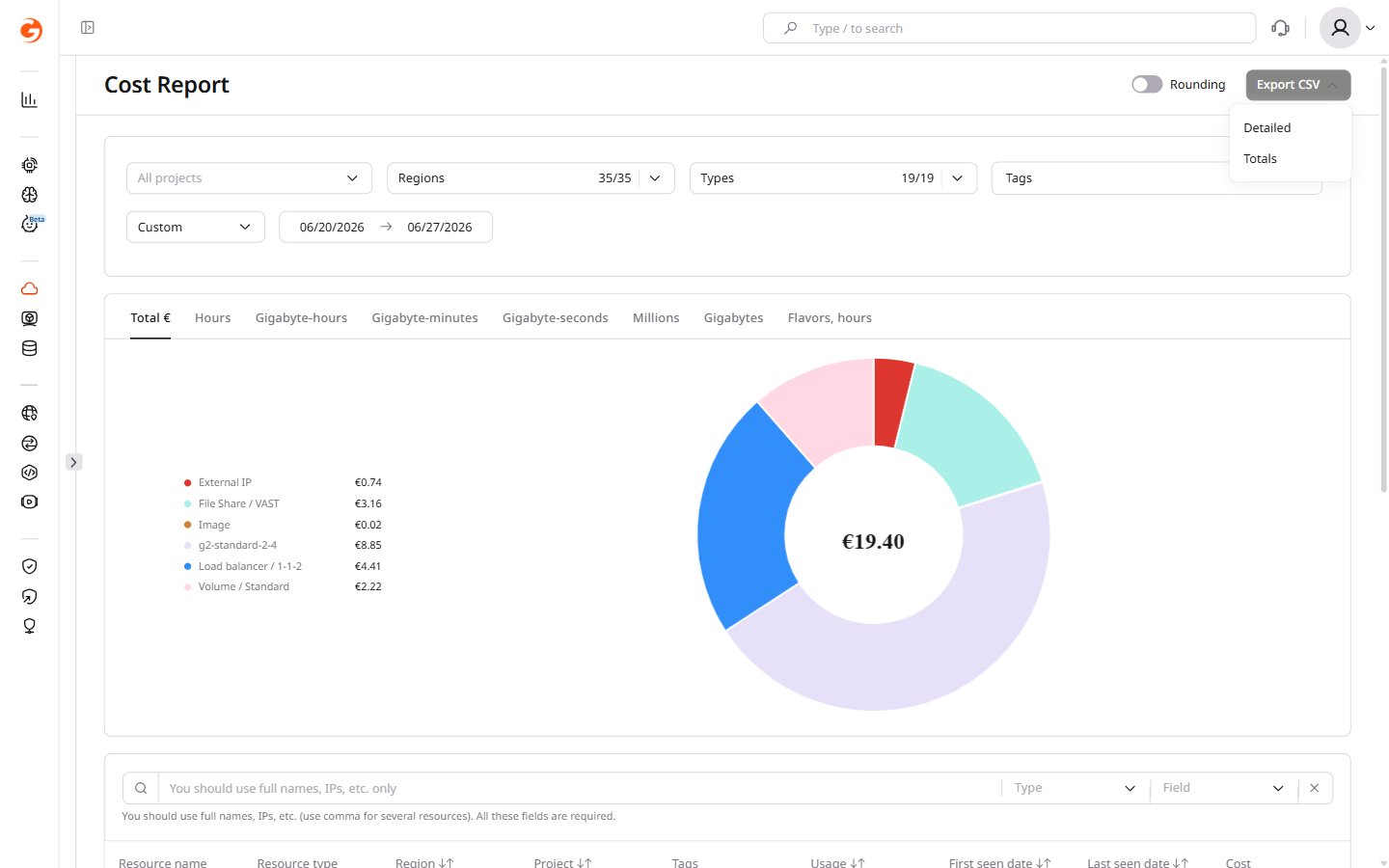
To export data for the selected period, click **Export CSV** in the top-right corner. Two file types are available:
* **Detailed** — a detailed breakdown of each resource.
* **Totals** — the total cost of resources in each location.
### Cost Report export
To export data for the selected period, click **Export CSV** in the top-right corner. Two file types are available:
* **Detailed** — a detailed breakdown of each resource.
* **Totals** — the total cost of resources in each location.
The following table describes the columns in the **Detailed** CSV export.
| Column | Description |
| ------------- | ---------------------------------------------------------------------------------------------------------------------------------------------------------------------------------------------------------------- |
| Service | Name of the Cloud resource. |
| UUID | Universally unique identifier assigned to the resource. Some resources, like IP addresses, don't have a UUID as they're already unique. |
| Feature | Billing identifier that combines resource type, configuration, region, and pricing model. Every resource has a feature value, including resources with a single configuration like IP addresses. |
| Tags | Tags added to the resource, including system-generated tags. |
| Service\_name | Name of the service as displayed in the **Name** field in the portal. For example, the name of a Virtual Machine. |
| Region\_id | ID of the region where the resource was created. Check the ID via the [API](/api-reference/cloud/regions/list-regions). |
| Region\_name | Name of the geographical location of the data center where the resource was created. |
| Project\_id | ID of the project where the resource was created. The project ID is visible on the **Projects** page in the [grid view](/cloud/getting-started/projects/create-a-project#view-projects-in-different-layouts). |
| Project\_name | Name of the project where the resource was created. |
| First\_seen | Date when the resource was first detected in the billing system during the selected period. Identifies when a resource started generating costs. |
| Last\_seen | Date when the resource was last detected in the billing system during the selected period. Identifies when a resource stopped generating costs, though it doesn't necessarily indicate the resource was deleted. |
| Period\_from | Start date of the reporting period. Reflects the selected date range, not when the resource was created. |
| Period\_to | End date of the reporting period. Reflects the selected date range, not when the resource was stopped or deleted. |
| Units | Consumption measurement unit — either usage time (gbminutes, minutes, milliseconds) or consumed quantity (bytes, GBS). |
| Value | Numerical measurement of resource usage. |
| Error | Any errors associated with costs incurred during the specified period. |
| Cost | Cost of the resource for the specified period. |
| Currency | Currency in which the cost is calculated. |
| Attached\_to | Cloud product to which the resource is connected. For example, the ID of a Virtual Machine that a volume is attached to. |
| Port\_id | Unique identifier for a network virtual port of a VM, used to associate IP addresses and traffic with specific network connections. |
The following table describes the columns in the **Totals** CSV export.
| Column | Description |
| ------------ | ------------------------------------------------------------------------------------------------------------------------------------------------------------------------------------------------ |
| Type | Cloud resource type. |
| Feature | Billing identifier that combines resource type, configuration, region, and pricing model. Every resource has a feature value, including resources with a single configuration like IP addresses. |
| Region\_id | ID of the region where the resource was created. Check the ID via the [API](/api-reference/cloud/regions/list-regions). |
| Region\_name | Name of the geographical location of the data center where the resource was created. |
| Period\_from | Start date of the reporting period. Reflects the selected date range, not when the resource was created. |
| Period\_to | End date of the reporting period. Reflects the selected date range, not when the resource was stopped or deleted. |
| Units | Consumption measurement unit — either usage time (gbminutes, minutes, milliseconds) or consumed quantity (bytes, GBS). |
| Value | Numerical measurement of resource usage. |
| Error | Any errors associated with costs incurred during the specified period. |
| Cost | Cost of the resource for the specified period. |
| Currency | Currency in which the cost is calculated. |
## Reservation Cost Report
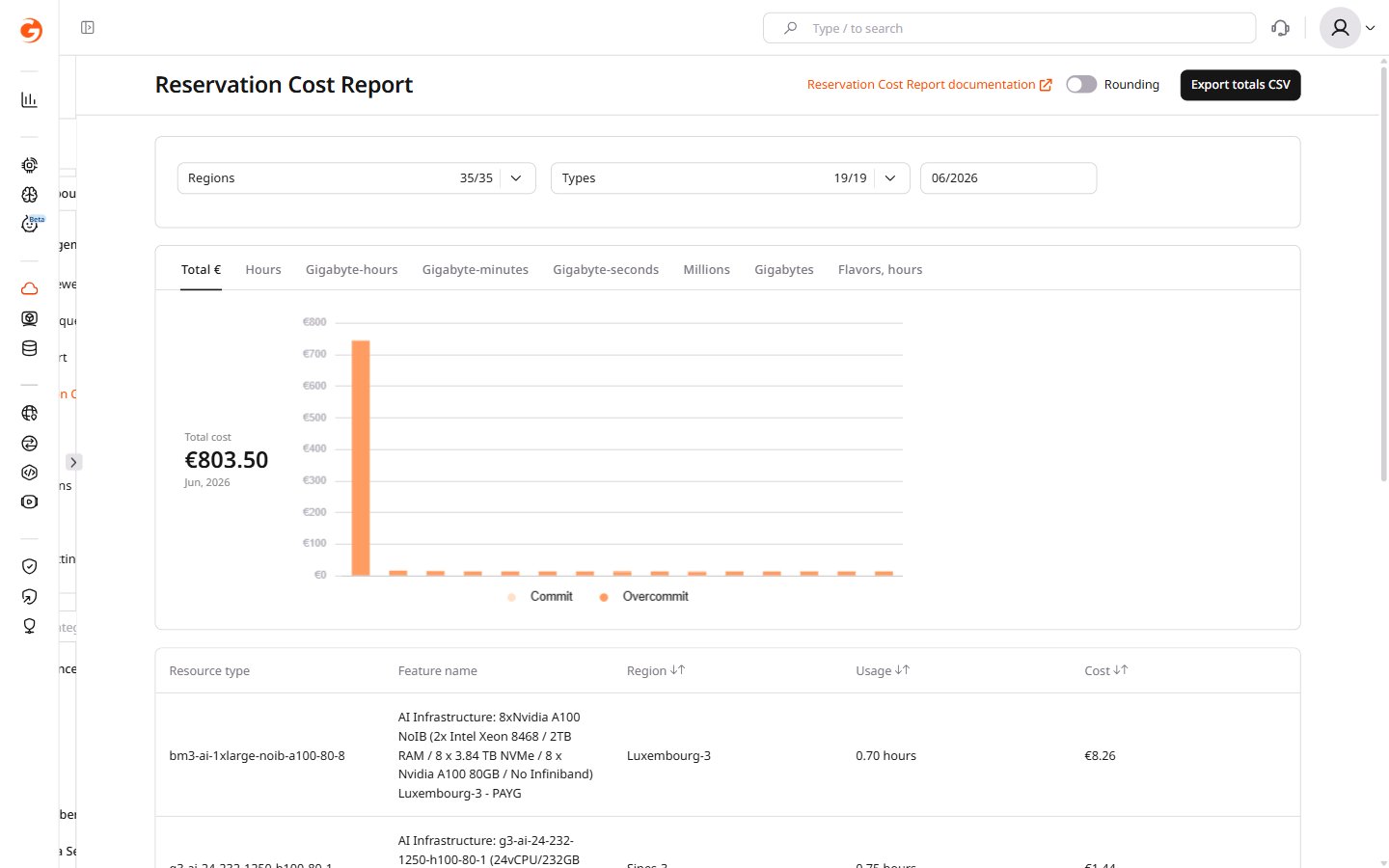
The Reservation Cost Report presents monthly usage and costs for prepaid and [reserved](/cloud/getting-started/resource-reservation/about-resource-reservation) resources, showing commit utilization and any overcommit charges. Data is grouped by resource type and feature.
The cost data can be filtered by:
* **Regions** — filter by the region where resources were created.
* **Types** — filter by resource type.
* **Consumption period** — select a specific month.
The report includes statistics for all regions, including deleted ones.
Use the **Rounding** checkbox in the top-right corner to toggle cost rounding on or off.
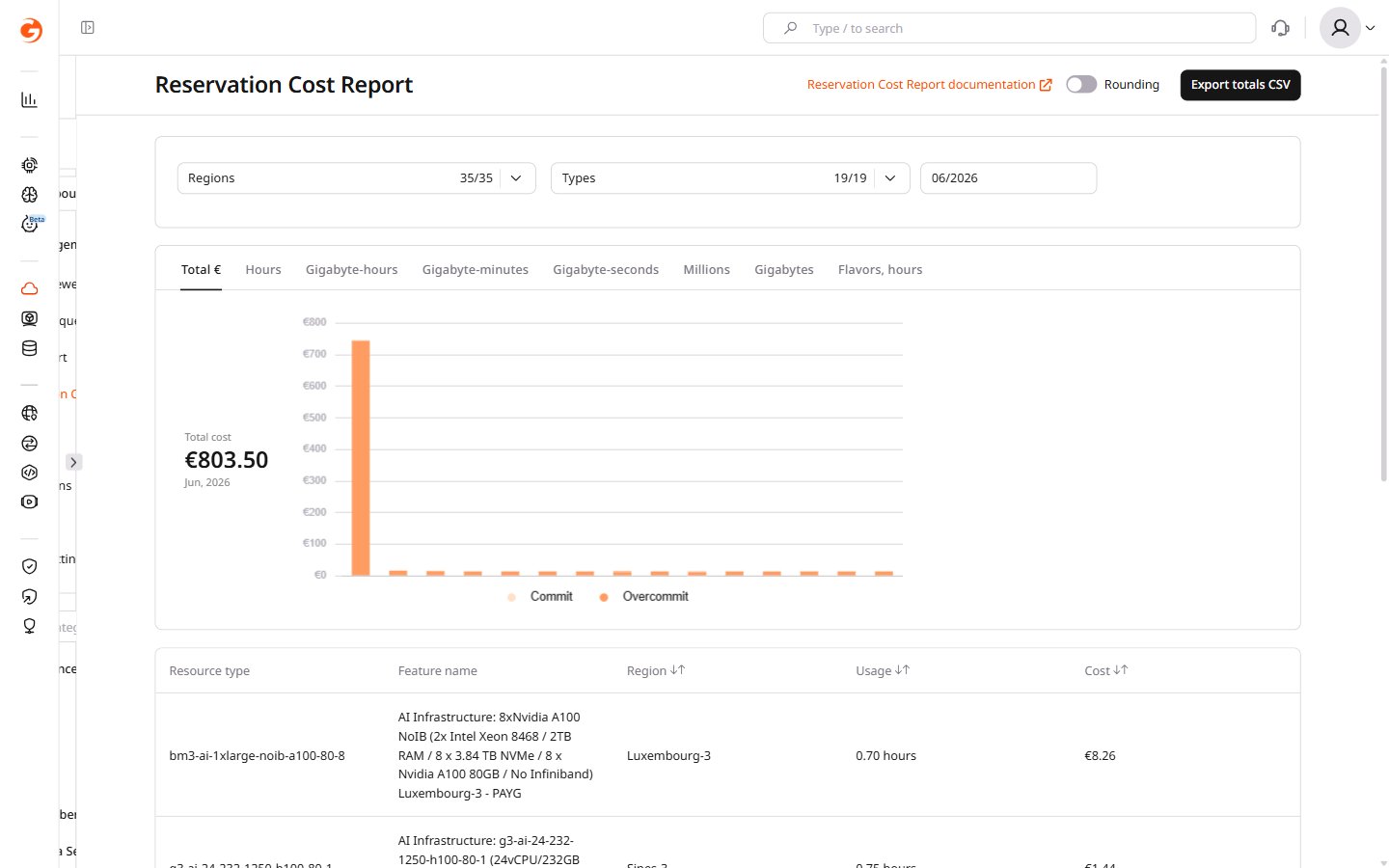
Cost data is displayed as a chart and a table. In the chart view, the **Total €** tab displays the cumulative costs for the selected period.
 More granular information is available on the following tabs:
* **Hours**
* **Gigabyte-hours**
* **Gigabyte-minutes**
* **Gigabyte-seconds**
* **Millions**
* **Gigabytes**
* **Flavors, hours**
Under the chart, the table shows a detailed breakdown of resources consumed during the selected month. The table includes the following columns:
* **Resource type** — the type of Cloud resource.
* **Feature name** — the billing identifier that combines resource type, configuration, region, and pricing model.
* **Region** — the region where the resource is located.
* **Usage** — the amount of resource consumed.
* **Cost** — the cost for the selected period.
### Reservation Cost Report export
To export the billing report for the selected period, click **Export totals CSV** in the top-right corner.
More granular information is available on the following tabs:
* **Hours**
* **Gigabyte-hours**
* **Gigabyte-minutes**
* **Gigabyte-seconds**
* **Millions**
* **Gigabytes**
* **Flavors, hours**
Under the chart, the table shows a detailed breakdown of resources consumed during the selected month. The table includes the following columns:
* **Resource type** — the type of Cloud resource.
* **Feature name** — the billing identifier that combines resource type, configuration, region, and pricing model.
* **Region** — the region where the resource is located.
* **Usage** — the amount of resource consumed.
* **Cost** — the cost for the selected period.
### Reservation Cost Report export
To export the billing report for the selected period, click **Export totals CSV** in the top-right corner.
 The following table describes the columns in the **Totals** CSV export for reserved resources.
| Column | Description |
| --------------- | ------------------------------------------------------------------------------------------------------------------------------------------------------------------------------------------------ |
| Type | Cloud resource type. |
| Feature | Billing identifier that combines resource type, configuration, region, and pricing model. Every resource has a feature value, including resources with a single configuration like IP addresses. |
| Region\_id | ID of the region where the resource is reserved. Check the ID via the [API](/api-reference/cloud/regions/list-regions). |
| Region\_name | Name of the geographical location of the data center where the resource is reserved. |
| Period | Timeframe for the displayed statistics. |
| Units | Consumption measurement unit — either usage time (gbminutes, minutes, milliseconds) or consumed quantity (bytes, GBS). |
| Value | Total consumed value. |
| Commit value | Total amount of resources reserved. |
| Commit cost | Cost for the reserved amount of Cloud resources. |
| Overcommit cost | Additional charges incurred when resource usage exceeded the committed (reserved) amount. |
| Error | Any errors associated with costs incurred during the specified period. |
| Currency | Currency in which the cost is calculated. |
The following table describes the columns in the **Totals** CSV export for reserved resources.
| Column | Description |
| --------------- | ------------------------------------------------------------------------------------------------------------------------------------------------------------------------------------------------ |
| Type | Cloud resource type. |
| Feature | Billing identifier that combines resource type, configuration, region, and pricing model. Every resource has a feature value, including resources with a single configuration like IP addresses. |
| Region\_id | ID of the region where the resource is reserved. Check the ID via the [API](/api-reference/cloud/regions/list-regions). |
| Region\_name | Name of the geographical location of the data center where the resource is reserved. |
| Period | Timeframe for the displayed statistics. |
| Units | Consumption measurement unit — either usage time (gbminutes, minutes, milliseconds) or consumed quantity (bytes, GBS). |
| Value | Total consumed value. |
| Commit value | Total amount of resources reserved. |
| Commit cost | Cost for the reserved amount of Cloud resources. |
| Overcommit cost | Additional charges incurred when resource usage exceeded the committed (reserved) amount. |
| Error | Any errors associated with costs incurred during the specified period. |
| Currency | Currency in which the cost is calculated. |