> ## Documentation Index
> Fetch the complete documentation index at: https://docs.gcore.com/llms.txt
> Use this file to discover all available pages before exploring further.
# Connect to your nodes via SSH
To connect to a Kubernetes worker node over SSH, first attach a floating IP address to the node, then connect using the SSH key configured for the cluster.
## Assign a floating IP address
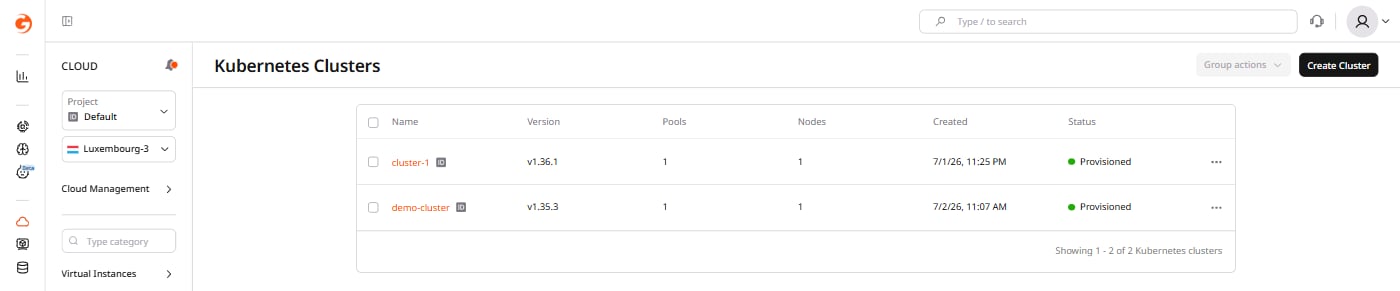
1\. In the [Gcore Customer Portal](https://portal.gcore.com), navigate to **Cloud** > **Managed Kubernetes**, then click the cluster name.
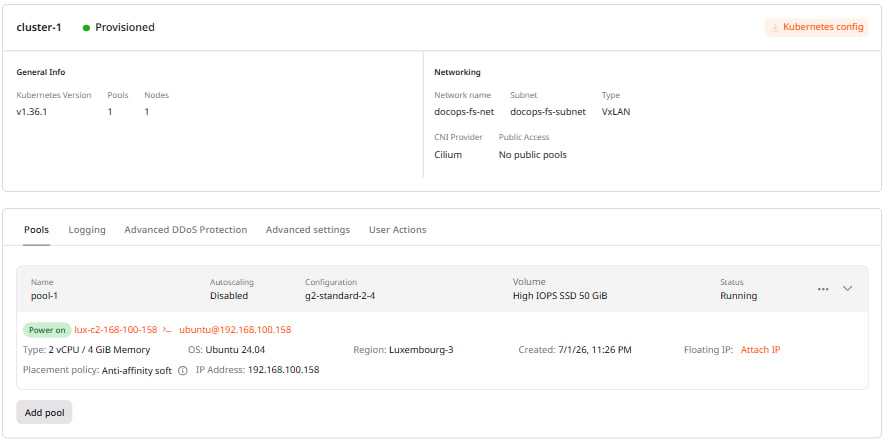
 2\. In the **Pools** section, expand the pool, find the target node, and click **Attach IP** in the **Floating IP** row.
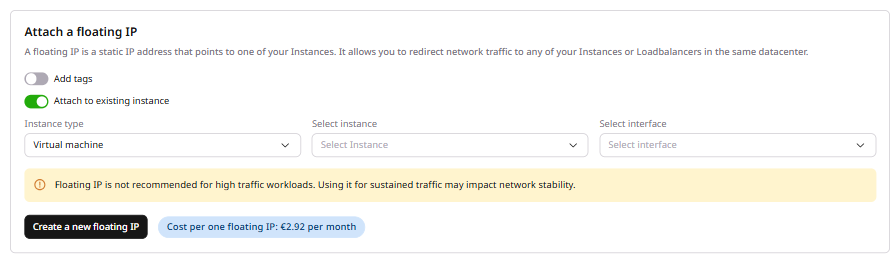
 3\. On the **Floating IPs** page, choose one of the following options:
### Create a new floating IP
Enable the **Attach to existing instance** toggle, select **Virtual machine** as the instance type, select the node and the interface, then click **Create a new floating IP**.
Floating IPs are not recommended for high-traffic workloads. Sustained traffic may impact network stability.
3\. On the **Floating IPs** page, choose one of the following options:
### Create a new floating IP
Enable the **Attach to existing instance** toggle, select **Virtual machine** as the instance type, select the node and the interface, then click **Create a new floating IP**.
Floating IPs are not recommended for high-traffic workloads. Sustained traffic may impact network stability.
 ### Attach an existing floating IP
Find the address in the list below the form and click **Attach to instance**, then select the node and the interface.
The floating IP is now attached to the node.
Once the node has a reachable public address, connect to it over SSH.
## Connect to a node via SSH
Run the following command, replacing `[floating IP address]` with the node's floating IP and `[path to the private SSH key]` with the path to the private key:
```sh theme={null}
ssh ubuntu@[floating IP address] -i "[path to the private SSH key]"
```
### Attach an existing floating IP
Find the address in the list below the form and click **Attach to instance**, then select the node and the interface.
The floating IP is now attached to the node.
Once the node has a reachable public address, connect to it over SSH.
## Connect to a node via SSH
Run the following command, replacing `[floating IP address]` with the node's floating IP and `[path to the private SSH key]` with the path to the private key:
```sh theme={null}
ssh ubuntu@[floating IP address] -i "[path to the private SSH key]"
```