> ## Documentation Index
> Fetch the complete documentation index at: https://docs.gcore.com/llms.txt
> Use this file to discover all available pages before exploring further.
# Install nginx Ingress controller
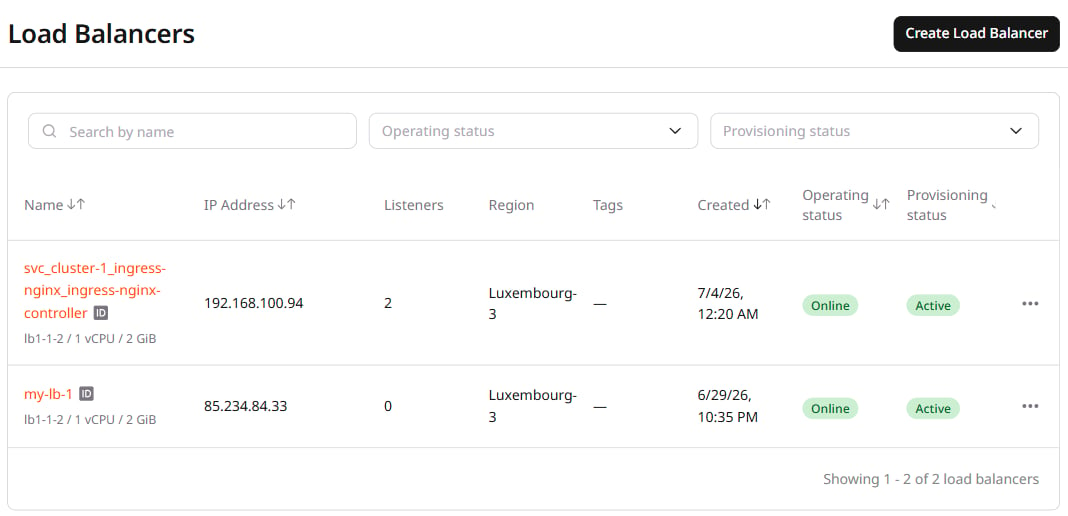
Installing the nginx Ingress Controller automatically creates a [Load Balancer](https://gcore.com/cloud/load-balancers) that acts as an entry point for incoming traffic. The Load Balancer forwards requests to the Ingress Controller, which routes them to the appropriate services based on Ingress manifest rules.
## Step 1. Install Helm
[Helm](https://helm.sh/) is a package manager that simplifies deploying and managing applications on Kubernetes.
The following tabs cover installation on the most common operating systems. For other platforms, the Helm [installation guide](https://helm.sh/docs/intro/install/) lists additional methods.
1\. In the terminal, run the official Helm installation script:
```sh theme={null}
curl https://raw.githubusercontent.com/helm/helm/main/scripts/get-helm-3 | bash
```
This downloads and installs the latest version of Helm to `/usr/local/bin/helm`.
2\. Verify the installation: `helm version`
With [Homebrew](https://brew.sh/) installed, run:
```sh theme={null}
brew install helm
```
Without Homebrew, use the Linux installation method.
Verify the installation: `helm version`
Download the latest Helm release from the [Helm GitHub releases](https://github.com/helm/helm/releases) page and extract the ZIP file to a local directory.
Add the directory containing `helm.exe` to the system `PATH`:
1\. Open **Start** and search for **Edit the system environment variables**.
2\. In the **System properties** window, click **Environment variables**.
3\. Under **System variables**, select **Path** and click **Edit**.
4\. Click **New** and enter the full path to the directory containing `helm.exe`.
5\. Click **OK** to save.
Verify the installation by running `helm version` in the terminal.
## Step 2. Deploy the nginx Ingress Controller
The following commands create a dedicated namespace, register the Helm repository, and install the controller.
1. Create a namespace for the controller:
```sh theme={null}
kubectl create namespace ingress-nginx
```
2. Add the nginx Ingress Controller Helm repository:
```sh theme={null}
helm repo add ingress-nginx https://kubernetes.github.io/ingress-nginx
```
3. Update the repository index:
```sh theme={null}
helm repo update
```
4. Install the nginx Ingress Controller:
```sh theme={null}
helm install ingress-nginx ingress-nginx/ingress-nginx \
\--namespace ingress-nginx \
\--set controller.ingressClassResource.name=nginx
```
Once installed, the controller provisions a Load Balancer automatically.
## Step 3. Get the Load Balancer IP address
Run the following command to watch the service until an external IP is assigned:
```sh theme={null}
watch kubectl -n ingress-nginx get svc
```
Wait until the `EXTERNAL-IP` column changes from `` to an IP address.
The Load Balancer also appears in the [Gcore Customer Portal](https://portal.gcore.com) under **Networking** > **Load Balancers**, where it routes all incoming traffic to the nginx Ingress Controller.