> ## Documentation Index
> Fetch the complete documentation index at: https://docs.gcore.com/llms.txt
> Use this file to discover all available pages before exploring further.
# Create a PVC and bind to a pod
Persistent storage in Kubernetes is provided through PersistentVolumes (PVs) and PersistentVolumeClaims (PVCs). This article shows how to create a PVC backed by a custom StorageClass, bind it to a pod, and resize it when additional storage is needed.
## PV and PVC overview
A PV (PersistentVolume) in Managed Kubernetes is a resource used to store data. It is attached to pods but has a separate lifecycle, specified by its reclaim policy. This policy determines if a PV will continue to exist or will be deleted when a pod attached to it gets destroyed.
A PV represents available storage in the cluster. Applications don't use PVs directly — instead, they request storage by creating a PersistentVolumeClaim (PVC). Kubernetes forwards that request to a StorageClass, which provisions a matching PV automatically.
## Create a PVC
Before creating a PVC, create a storage class with the required disk type. Gcore provides the following disk types:
| Volume type | Features |
| --------------- | -------------------------------------------------------------------------------------------------------------------------------------------------------------------------------------------------------------------------------- |
| standard | Standard Network SSD disk, which provides stable and high random I/O performance, as well as high data reliability (6 IOPS per 1 GiB; 0.4 MB/s per 1 GiB.) The IOPS performance limit is 4,500. The bandwidth limit is 300 MB/s. |
| ssd\_hiiops | High IOPS SSD High-performance SSD block storage designed for latency-sensitive transactional workloads (60 IOPS per 1 GiB; 2.5 MB/s per 1 GiB.) The IOPS performance limit is 9,000. The bandwidth limit is 500 MB/s. |
| ssd\_lowlatency | SSD Low Latency SSD block storage, designed for applications that require low-latency storage and real-time data processing. It can achieve IOPS performance of up to 5000, with an average latency of 300 µs. |
1. Verify that the required disk type is available in the target region. Navigate to **Managed Kubernetes**, select the region, and click **Create Cluster**. In the **Pools** section, open the **Volume type** dropdown to see the available options.
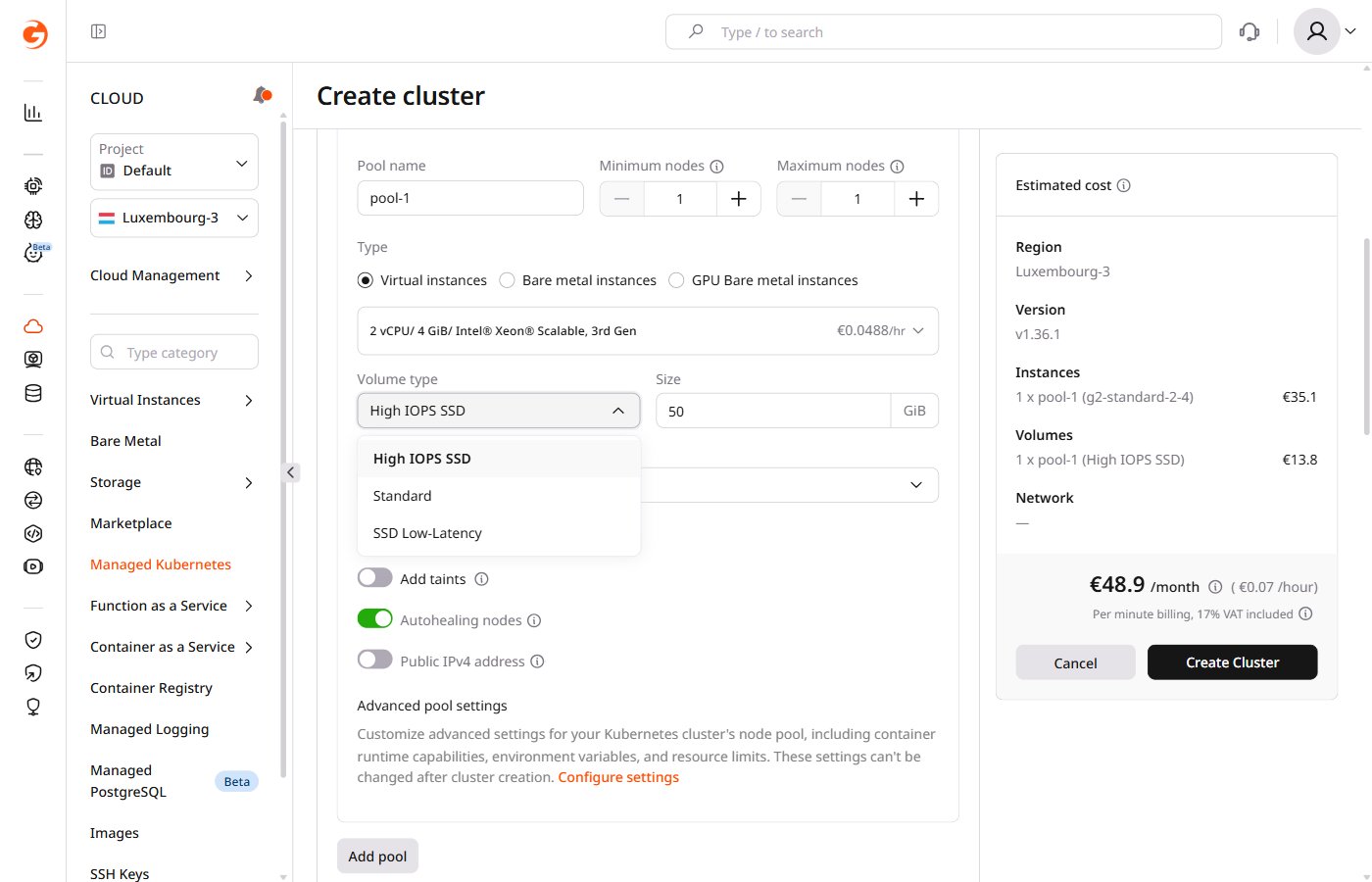 A storage class configured with a disk type unavailable in the target region will fail to provision PVs. Choose one of the available volume types and use its identifier in the StorageClass manifest.
2. Create a YAML file to create a storage class with the required disk type:
```yaml theme={null}
apiVersion: storage.k8s.io/v1
kind: StorageClass
metadata:
name: csi-sc-cinderplugin-hiiops
annotations:
storageclass.kubernetes.io/is-default-class: "false"
provisioner: cinder.csi.gcorelabs.com
parameters:
type: ssd_hiiops
allowVolumeExpansion: true
```
The manifest defines a StorageClass that provisions volumes of the selected disk type. Replace the placeholder values:
* `csi-sc-cinderplugin-hiiops`: Storage class name
* `ssd_hiiops`: Disk type (`standard`, `ssd_hiiops`, or `ssd_lowlatency`)
3. Run the kubectl command from the file directory:
```sh theme={null}
kubectl apply -f .yaml
```
The expected output:
```sh theme={null}
storageclass.storage.k8s.io/ created
```
Once the StorageClass exists, create a PersistentVolumeClaim that requests storage from it.
4. Create a YAML file to configure a PVC:
```yaml theme={null}
apiVersion: v1
kind: PersistentVolumeClaim
metadata:
name: block-pvc
spec:
storageClassName: csi-sc-cinderplugin-hiiops
accessModes:
- ReadWriteOnce
resources:
requests:
storage: 1Gi
```
Replace the placeholder values:
* `block-pvc`: PVC name
* `csi-sc-cinderplugin-hiiops`: Name of the created storage class
* `1Gi`: Storage size
5. Run the kubectl command from the file directory:
```sh theme={null}
kubectl apply -f .yaml
```
The expected output:
```sh theme={null}
persistentvolumeclaim/ created
```
The PVC is now created with a storage class of the required disk type.
## Bind a PVC to a pod
1. Reference the PVC from the pod manifest to mount the volume inside the container.
```yaml theme={null}
apiVersion: v1
kind: Pod
metadata:
name: mypod
spec:
containers:
- name: myfrontend
image: nginx
volumeMounts:
- mountPath: "/var/www/html"
name: mypd
volumes:
- name: mypd
persistentVolumeClaim:
claimName: block-pvc
```
Replace the placeholder values:
* `mypod`: Pod name
* `myfrontend`: Container name
* `"/var/www/html"`: Mount path inside the container
* `mypd`: Volume name
* `block-pvc`: PVC name
2. Run the kubectl command from the file directory:
```sh theme={null}
kubectl apply -f .yaml
```
Expected output:
```sh theme={null}
pod/ created
```
The PVC is now connected to the pod. Its containers can access the storage at the configured mount path.
## Resize a PVC
To increase the size of a volume, update the PersistentVolumeClaim that was used to provision it. When a PVC is created, Managed Kubernetes provisions a dynamic PV that matches its specs — resizing the PVC triggers a corresponding resize of the underlying PV.
Only increasing PVC storage size is supported. Reducing the size of a PV is not possible.
1. Find the PVC by querying all PVCs with this command:
```sh theme={null}
kubectl get pvc
```
2. In the PVC YAML, update the `storage` field under `resources.requests` to the desired size (`1Ti`, `250Gi`, etc.).
For example, a PVC configured for 250 Gi using the standard storage class:
```yaml theme={null}
apiVersion: v1
kind: PersistentVolumeClaim
metadata:
name: example-pvc
spec:
storageClassName: standard
accessModes:
- ReadWriteOnce
resources:
requests:
storage: 250Gi
```
3. Run the following command to apply the updated PVC manifest to the cluster:
```sh theme={null}
kubectl apply -f /path/to/example-pvc.yaml
```
The update may take a few minutes to complete.
4. Verify the resize was applied successfully:
```sh theme={null}
kubectl get pvc example-pvc
```
A storage class configured with a disk type unavailable in the target region will fail to provision PVs. Choose one of the available volume types and use its identifier in the StorageClass manifest.
2. Create a YAML file to create a storage class with the required disk type:
```yaml theme={null}
apiVersion: storage.k8s.io/v1
kind: StorageClass
metadata:
name: csi-sc-cinderplugin-hiiops
annotations:
storageclass.kubernetes.io/is-default-class: "false"
provisioner: cinder.csi.gcorelabs.com
parameters:
type: ssd_hiiops
allowVolumeExpansion: true
```
The manifest defines a StorageClass that provisions volumes of the selected disk type. Replace the placeholder values:
* `csi-sc-cinderplugin-hiiops`: Storage class name
* `ssd_hiiops`: Disk type (`standard`, `ssd_hiiops`, or `ssd_lowlatency`)
3. Run the kubectl command from the file directory:
```sh theme={null}
kubectl apply -f .yaml
```
The expected output:
```sh theme={null}
storageclass.storage.k8s.io/ created
```
Once the StorageClass exists, create a PersistentVolumeClaim that requests storage from it.
4. Create a YAML file to configure a PVC:
```yaml theme={null}
apiVersion: v1
kind: PersistentVolumeClaim
metadata:
name: block-pvc
spec:
storageClassName: csi-sc-cinderplugin-hiiops
accessModes:
- ReadWriteOnce
resources:
requests:
storage: 1Gi
```
Replace the placeholder values:
* `block-pvc`: PVC name
* `csi-sc-cinderplugin-hiiops`: Name of the created storage class
* `1Gi`: Storage size
5. Run the kubectl command from the file directory:
```sh theme={null}
kubectl apply -f .yaml
```
The expected output:
```sh theme={null}
persistentvolumeclaim/ created
```
The PVC is now created with a storage class of the required disk type.
## Bind a PVC to a pod
1. Reference the PVC from the pod manifest to mount the volume inside the container.
```yaml theme={null}
apiVersion: v1
kind: Pod
metadata:
name: mypod
spec:
containers:
- name: myfrontend
image: nginx
volumeMounts:
- mountPath: "/var/www/html"
name: mypd
volumes:
- name: mypd
persistentVolumeClaim:
claimName: block-pvc
```
Replace the placeholder values:
* `mypod`: Pod name
* `myfrontend`: Container name
* `"/var/www/html"`: Mount path inside the container
* `mypd`: Volume name
* `block-pvc`: PVC name
2. Run the kubectl command from the file directory:
```sh theme={null}
kubectl apply -f .yaml
```
Expected output:
```sh theme={null}
pod/ created
```
The PVC is now connected to the pod. Its containers can access the storage at the configured mount path.
## Resize a PVC
To increase the size of a volume, update the PersistentVolumeClaim that was used to provision it. When a PVC is created, Managed Kubernetes provisions a dynamic PV that matches its specs — resizing the PVC triggers a corresponding resize of the underlying PV.
Only increasing PVC storage size is supported. Reducing the size of a PV is not possible.
1. Find the PVC by querying all PVCs with this command:
```sh theme={null}
kubectl get pvc
```
2. In the PVC YAML, update the `storage` field under `resources.requests` to the desired size (`1Ti`, `250Gi`, etc.).
For example, a PVC configured for 250 Gi using the standard storage class:
```yaml theme={null}
apiVersion: v1
kind: PersistentVolumeClaim
metadata:
name: example-pvc
spec:
storageClassName: standard
accessModes:
- ReadWriteOnce
resources:
requests:
storage: 250Gi
```
3. Run the following command to apply the updated PVC manifest to the cluster:
```sh theme={null}
kubectl apply -f /path/to/example-pvc.yaml
```
The update may take a few minutes to complete.
4. Verify the resize was applied successfully:
```sh theme={null}
kubectl get pvc example-pvc
```