## Virtual IP address overview
A virtual IP address (VIP) is an IP address that can be assigned to multiple Virtual Machines or serve as a secondary IP address for a network interface.
## VIP use cases
To use a VIP for fault tolerance, install and configure Keepalived, a Linux daemon that uses the Virtual Router Redundancy Protocol (VRRP) to manage the address. VRRP allows multiple machines to share a common IP address. Keepalived passes the VIP between a primary machine and backup machines. When the primary fails, the VRRP detects the failure and assigns the VIP to the highest-priority backup, keeping the service available.
To use a VIP as a secondary address for a network interface, reserve a VIP and assign it to a Virtual Machine — first in the Gcore Cloud settings, then in the machine's network configuration. The VIP then works alongside the machine's regular IP address, and the machine can receive and send traffic on both addresses.
## Billing
A VIP is billed from the moment it is reserved until the moment it is deleted. For example, if a VIP is reserved and then deleted after an hour, charges apply only for that hour of use, regardless of whether the address was assigned to the Virtual Machine or not.
The monthly price is displayed in the order window.
## Public IP limits
A Virtual Machine has only one public interface, meaning it receives a Public IP from the public network. It also supports multiple Floating IPs from private networks, but quotas limit the number. In a multi-network setup, each subnet can have one Floating IP. Within a single network, multiple subnets can exist, and each subnet of a single machine (VM/BM) is allowed one Floating IP.
By default, Bare Metal servers support up to six attached IPs. A dedicated Bare Metal network removes this limit, allowing unlimited IPs per machine. Unlike standard networks, this type of network lacks port security and can be allocated by request.
## Create a virtual IP address
1. In the Cloud menu, go to **Networking** → **Reserved IPs** and click **Reserve new IP**.
 2. In the dialog, set **Network type** to **Public**, **Private**, or **Dedicated public**. For a private IP, also select the network and subnet. In the **IP address to reserve** section, leave **Any available IP** selected or choose **Custom** to specify an address from the subnet CIDR. Select an **IP Family** and click **Reserve IP**.
 3. In the list of reserved IPs, find the new address, click **⋯** next to it, and select **Set as VIP**.
 4. In the confirmation dialog, click **Set as VIP**.
The IP status changes to **VIP** and the **VIP settings** dialog opens. Instance interfaces can be added immediately or at any time later.
## Assign a virtual IP address to multiple VMs
1. In the Cloud menu, go to **Networking** → **Reserved IPs**, find the required virtual IP address, click **⋯** next to it, and select **VIP settings**.
 2. In the **VIP settings** dialog, click **+ Add Instance Interface**. Select the VM from the **Select VM** dropdown and choose its network port from **Select Port**. Add more VMs using **+ Add Instance Interface** again, then click **Save**.
 3. Install and configure Keepalived on the Virtual Machines using the [Keepalived documentation](https://keepalived.readthedocs.io/en/latest/installing_keepalived.html).
4. Change the Keepalived configuration file to set the "MASTER" machine and "BACKUP" machines. Additionally, set the priority to determine the order in which the VIP will be transferred between devices. If the master server fails, the IP address will be transferred to the backup machine with the highest priority. If the second machine fails, the VIP will be transferred to the backup machine with the second-highest priority.
5. Run Keepalived on the Virtual Machine and add it to the autostart list.
3. Install and configure Keepalived on the Virtual Machines using the [Keepalived documentation](https://keepalived.readthedocs.io/en/latest/installing_keepalived.html).
4. Change the Keepalived configuration file to set the "MASTER" machine and "BACKUP" machines. Additionally, set the priority to determine the order in which the VIP will be transferred between devices. If the master server fails, the IP address will be transferred to the backup machine with the highest priority. If the second machine fails, the VIP will be transferred to the backup machine with the second-highest priority.
5. Run Keepalived on the Virtual Machine and add it to the autostart list.
The VIP is now configured and the fault-tolerant system is operational.
## Assign a virtual IP address as a secondary address
1. In the Cloud menu, go to **Networking** → **Reserved IPs**, find the required virtual IP address, click **⋯** next to it, and select **VIP settings**.
2. In the **VIP settings** dialog, click **+ Add Instance Interface**. Select the VM and its port, then click **Save**.
Next, configure the VIP in the Virtual Machine settings. The sections below cover non-Windows and Windows VMs.
## Configure a virtual IP address for non-Windows Virtual Machines
1. Connect to the Virtual Machine.
2. Run the following command as an administrator:
```sh theme={null}
ip addr add [VIP]/[mask] dev [interface name]
```
where:
- **\[VIP]** is the virtual IP address to add to the interface.
\- **\[mask]** is the subnet mask associated with the virtual IP address. It can be found in the **Networking** tab of the Virtual Machine.
\- **\[interface name]** is the name of the network interface where the IP address will be added. To find the name, run the command:
```sh theme={null}
ip addr
```
The interface name will appear on the left below the loopback interface.
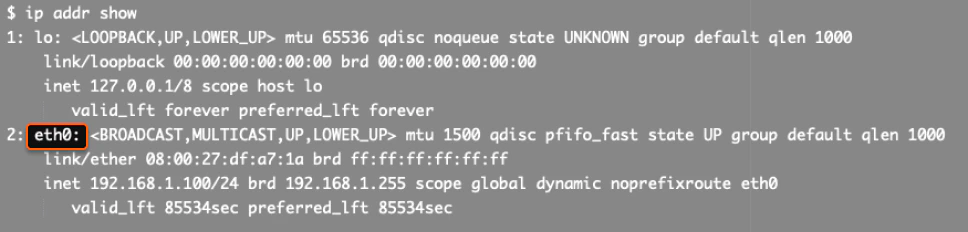
For example, to add the virtual IP address *192.168.1.200* with a subnet mask of *24* to the *eth0* interface, use the following command:

The assignment lasts until the machine restarts. To make it permanent, add the IP address to the OS network configuration files.
The VIP is now configured. To verify it, connect to the Virtual Machine [via SSH](/cloud/virtual-instances/connect/connect-to-your-instance-via-ssh) using the VIP. If the connection fails, there may be an error in the IP assignment command or the IP address may not have been added to the network configuration. Repeat the steps.
### Configure a virtual IP address for Windows Virtual Machines
1. Open the **Control Panel**.
2. Go to the **Network and Sharing Center**.
3. Right-click the network connection to which the virtual IP address will be added and select **Properties**.
4. Select **Internet Protocol Version 4 (TCP/IPv4)** and click **Properties**.
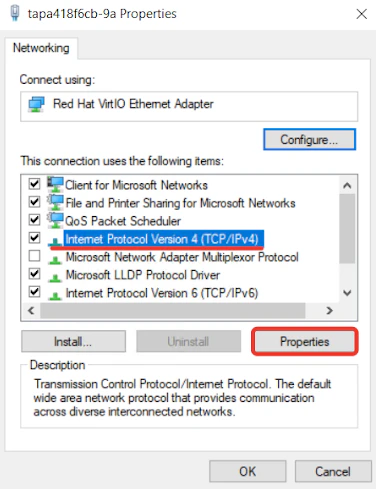 5. Click **Use the following IP address** option and enter the virtual IP address, subnet mask, and default gateway in the appropriate fields. To find these parameters, run the following command:
```sh theme={null}
ipconfig
```
5. Click **Use the following IP address** option and enter the virtual IP address, subnet mask, and default gateway in the appropriate fields. To find these parameters, run the following command:
```sh theme={null}
ipconfig
```
The output will be similar to:
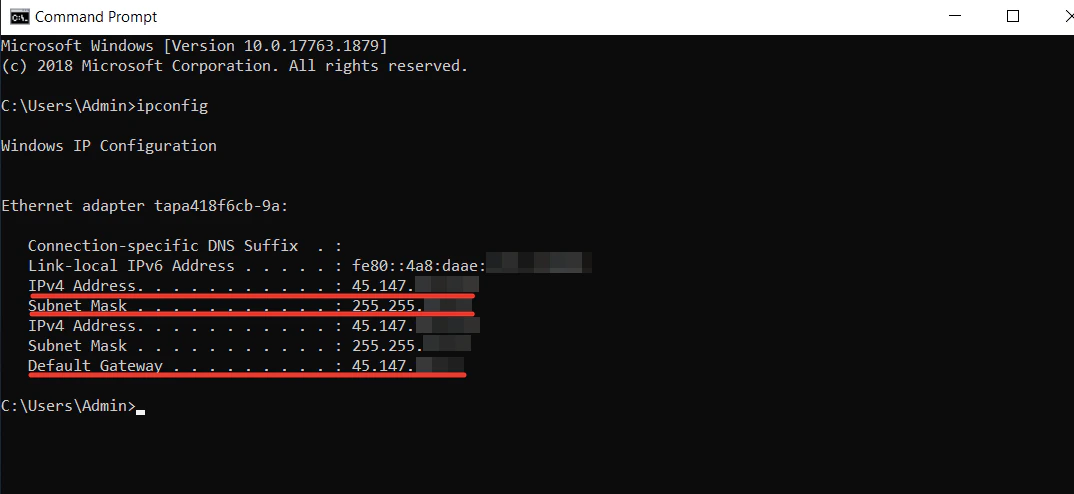
Go back to the **Control Panel**, verify the values are correct, and click **Advanced ....**
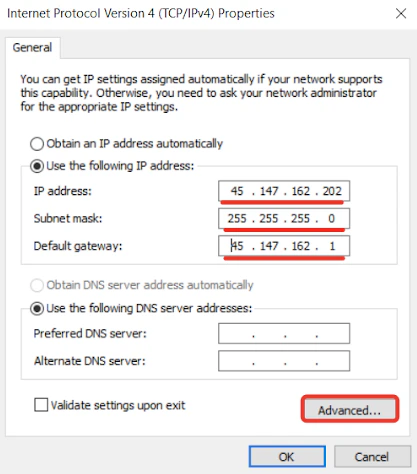 6. In the **IP Settings** tab, find the **IP addresses** section and click **Add ....**
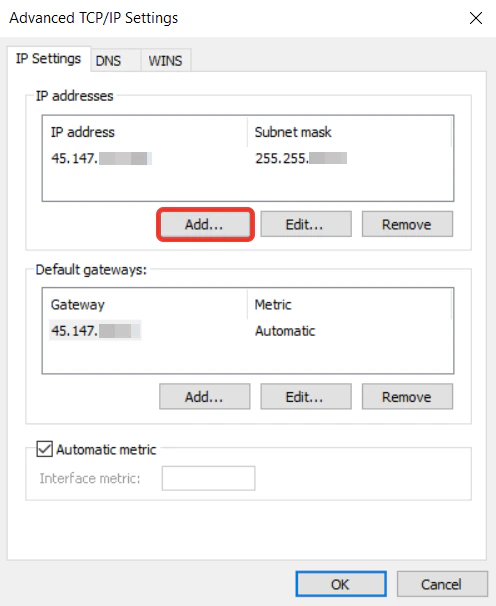 7. In the next window, enter the VIP and the subnet mask from the command line. Then click **Add**.
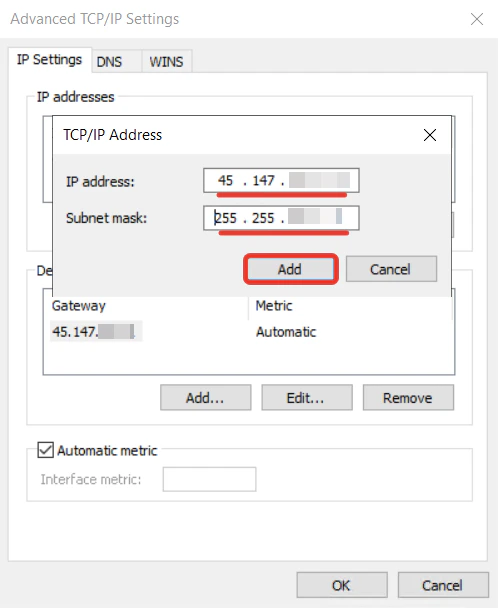 8. Click **OK**.
The VIP is now configured. To verify it, connect to the Virtual Machine [via SSH](/cloud/virtual-instances/connect/connect-to-your-instance-via-ssh) using the VIP. If the connection fails, there may be an error in the IP assignment command or the IP address may not have been added to the network configuration. Repeat the steps.
Reserve a shared IP address and attach it to multiple Virtual Machines to enable high-availability failover configurations.
An [API token](/account-settings/api-tokens) is required, along with a [project ID](/api-reference/cloud/projects/list-projects) and a [region ID](/api-reference/cloud/regions/list-regions).
Set these environment variables before running the examples:
```bash theme={null}
export GCORE_API_KEY="{YOUR_API_KEY}"
export GCORE_CLOUD_PROJECT_ID="{YOUR_PROJECT_ID}"
export GCORE_CLOUD_REGION_ID="{YOUR_REGION_ID}"
```
## Quickstart
The scripts below reserve a public virtual IP address, connect one VM's network port to it, then remove the connection and delete the VIP.
```python theme={null}
import os
from gcore import Gcore
client = Gcore()
port_id = os.environ["PORT_ID"] # Port ID of an existing VM's network interface; see Step 2
# Step 1. Reserve a public virtual IP address
vip = client.cloud.reserved_fixed_ips.create_and_poll(
type="external",
ip_family="ipv4",
is_vip=True,
)
print(f"VIP: port_id={vip.port_id} address={vip.fixed_ip_address}")
# Step 2. List VM ports eligible to share this VIP
candidates = client.cloud.reserved_fixed_ips.vip.candidate_ports.list(vip.port_id)
print(f"Candidate VM ports: {candidates.count}")
# Step 3. Connect a VM port to the VIP
result = client.cloud.reserved_fixed_ips.vip.connected_ports.add(
vip.port_id,
port_ids=[port_id],
)
print(f"Connected VMs: {result.count}")
# Step 4. List VMs connected to the VIP
connected = client.cloud.reserved_fixed_ips.vip.connected_ports.list(vip.port_id)
for vm in connected.results:
print(f" VM: {vm.instance_name} port_id: {vm.port_id}")
# Step 5. Disconnect all VMs from the VIP
client.cloud.reserved_fixed_ips.vip.connected_ports.replace(
vip.port_id,
port_ids=[],
)
# Step 6. Disable VIP mode (required before deletion)
client.cloud.reserved_fixed_ips.vip.toggle(vip.port_id, is_vip=False)
# Step 7. Delete the reserved IP
client.cloud.reserved_fixed_ips.delete_and_poll(vip.port_id)
print("VIP deleted.")
```
```go theme={null}
package main
import (
"context"
"fmt"
"log"
"os"
gcore "github.com/G-Core/gcore-go"
"github.com/G-Core/gcore-go/cloud"
"github.com/G-Core/gcore-go/packages/param"
"github.com/G-Core/gcore-go/shared/constant"
)
func main() {
portID := os.Getenv("PORT_ID") // Port ID of an existing VM's network interface; see Step 2
client := gcore.NewClient()
ctx := context.Background()
// Step 1. Reserve a public virtual IP address
vip, err := client.Cloud.ReservedFixedIPs.NewAndPoll(ctx, cloud.ReservedFixedIPNewParams{
OfExternal: &cloud.ReservedFixedIPNewParamsBodyExternal{
IsVip: param.NewOpt(true),
IPFamily: cloud.InterfaceIPFamilyIpv4,
Type: constant.ValueOf[constant.External](),
},
})
if err != nil {
log.Fatalf("create VIP: %v", err)
}
fmt.Printf("VIP: port_id=%s address=%s\n", vip.PortID, vip.FixedIPAddress)
// Step 2. List VM ports eligible to share this VIP
candidates, err := client.Cloud.ReservedFixedIPs.Vip.CandidatePorts.List(ctx,
vip.PortID,
cloud.ReservedFixedIPVipCandidatePortListParams{},
)
if err != nil {
log.Fatalf("list candidates: %v", err)
}
fmt.Printf("Candidate VM ports: %d\n", candidates.Count)
// Step 3. Connect a VM port to the VIP
result, err := client.Cloud.ReservedFixedIPs.Vip.ConnectedPorts.Add(ctx,
vip.PortID,
cloud.ReservedFixedIPVipConnectedPortAddParams{PortIDs: []string{portID}},
)
if err != nil {
log.Fatalf("add connected port: %v", err)
}
fmt.Printf("Connected VMs: %d\n", result.Count)
// Step 4. List VMs connected to the VIP
connected, err := client.Cloud.ReservedFixedIPs.Vip.ConnectedPorts.List(ctx,
vip.PortID,
cloud.ReservedFixedIPVipConnectedPortListParams{},
)
if err != nil {
log.Fatalf("list connected: %v", err)
}
for _, vm := range connected.Results {
fmt.Printf(" VM: %s port_id: %s\n", vm.InstanceName, vm.PortID)
}
// Step 5. Disconnect all VMs from the VIP
if _, err = client.Cloud.ReservedFixedIPs.Vip.ConnectedPorts.Replace(ctx,
vip.PortID,
cloud.ReservedFixedIPVipConnectedPortReplaceParams{PortIDs: []string{}},
); err != nil {
log.Fatalf("disconnect VMs: %v", err)
}
// Step 6. Disable VIP mode (required before deletion)
if _, err = client.Cloud.ReservedFixedIPs.Vip.Toggle(ctx,
vip.PortID,
cloud.ReservedFixedIPVipToggleParams{IsVip: false},
); err != nil {
log.Fatalf("toggle VIP off: %v", err)
}
// Step 7. Delete the reserved IP
if err = client.Cloud.ReservedFixedIPs.DeleteAndPoll(ctx,
vip.PortID, cloud.ReservedFixedIPDeleteParams{},
); err != nil {
log.Fatalf("delete VIP: %v", err)
}
fmt.Println("VIP deleted.")
}
```
## Step-by-step
Each step below explains what the call does, which parameters matter, and what the response looks like. Use this section to understand the flow or to debug a specific step.
### Step 1. Reserve a virtual IP address
Reserving a public IP with `is_vip: true` creates a port that can be shared across multiple VM interfaces — the VIP flag enables connecting more than one port to the same address.
| Parameter | Required | Description |
| ----------- | -------- | ------------------------------------------------------------ |
| `type` | Yes | `"external"` for a public IP, `"subnet"` for a private IP |
| `ip_family` | No | `"ipv4"` (default), `"ipv6"`, or `"dual"` |
| `is_vip` | No | Set to `true` to create the reserved IP as a VIP immediately |
```python theme={null}
import os
from gcore import Gcore
client = Gcore()
vip = client.cloud.reserved_fixed_ips.create_and_poll(
type="external",
ip_family="ipv4",
is_vip=True,
)
print(f"port_id={vip.port_id} address={vip.fixed_ip_address} is_vip={vip.is_vip}")
```
```go theme={null}
vip, err := client.Cloud.ReservedFixedIPs.NewAndPoll(ctx, cloud.ReservedFixedIPNewParams{
OfExternal: &cloud.ReservedFixedIPNewParamsBodyExternal{
IsVip: param.NewOpt(true),
IPFamily: cloud.InterfaceIPFamilyIpv4,
Type: constant.ValueOf[constant.External](),
},
})
if err != nil {
log.Fatalf("create VIP: %v", err)
}
fmt.Printf("port_id=%s address=%s is_vip=%t\n", vip.PortID, vip.FixedIPAddress, vip.IsVip)
```
```bash theme={null}
curl -X POST "https://api.gcore.com/cloud/v1/reserved_fixed_ips/$GCORE_CLOUD_PROJECT_ID/$GCORE_CLOUD_REGION_ID" \
-H "Authorization: APIKey $GCORE_API_KEY" \
-H "Content-Type: application/json" \
-d '{"type": "external", "ip_family": "ipv4", "is_vip": true}'
```
Response:
```json theme={null}
{
"tasks": ["28cfde66-33c5-4ace-b97a-d7869df10154"]
}
```
Poll `GET https://api.gcore.com/cloud/v1/tasks/{task_id}` every 5 seconds until `state` is `FINISHED`. Save `created_resources.ports[0]` as `VIP_PORT_ID`.
```json theme={null}
{
"state": "FINISHED",
"created_resources": {
"ports": ["6a6eb2dc-8647-4fb4-8497-9b8ba301b9ec"]
}
}
```
Then retrieve the VIP details:
```bash theme={null}
curl "https://api.gcore.com/cloud/v1/reserved_fixed_ips/$GCORE_CLOUD_PROJECT_ID/$GCORE_CLOUD_REGION_ID/$VIP_PORT_ID" \
-H "Authorization: APIKey $GCORE_API_KEY"
```
Response:
```json theme={null}
{
"port_id": "6a6eb2dc-8647-4fb4-8497-9b8ba301b9ec",
"fixed_ip_address": "85.234.84.202",
"is_vip": true,
"status": "DOWN",
"reservation": {
"status": "attached"
}
}
```
The `reservation.status` of `"attached"` confirms VIP mode is active. Additional creation options such as specifying a private network or a fixed IP address are described in the [reserved IPs API](/api-reference/cloud#tag/Reserved-Fixed-IPs/operation/ReservedFixedIPCreateV1.post).
### Step 2. Get a VM port ID
Each VM network interface has a `port_id`. Supply this ID when connecting the VM to the VIP.
```bash theme={null}
curl "https://api.gcore.com/cloud/v1/instances/$GCORE_CLOUD_PROJECT_ID/$GCORE_CLOUD_REGION_ID" \
-H "Authorization: APIKey $GCORE_API_KEY"
```
Response (excerpt):
```json theme={null}
{
"results": [
{
"id": "a1b2c3d4-...",
"name": "my-vm",
"addresses": {
"pub_net": [
{
"addr": "95.85.95.10",
"type": "fixed",
"port_id": "f1e2d3c4-b5a6-7890-abcd-ef1234567890"
}
]
}
}
]
}
```
Save the `port_id` from the relevant network interface. Use the port on the same network as the VIP:
```bash theme={null}
export PORT_ID="{port_id}"
```
`PORT_ID` is the UUID of the VM's network interface port on the same network as the VIP. The value appears in the response from Step 2 above, or by listing instances via `GET /cloud/v2/instances/{project_id}/{region_id}` and reading the `addresses` field.
### Step 3. Connect a VM to the VIP
Adding a VM's port to the VIP makes both the VM's own IP and the VIP reachable on that interface. Multiple VM ports can share one VIP.
| Parameter | Required | Description |
| ---------- | -------- | -------------------------------------- |
| `port_ids` | Yes | Array of VM port IDs to add to the VIP |
```python theme={null}
result = client.cloud.reserved_fixed_ips.vip.connected_ports.add(
vip.port_id,
port_ids=[os.environ["PORT_ID"]],
)
print(f"Connected VMs: {result.count}")
for vm in result.results:
print(f" VM: {vm.instance_name} port_id: {vm.port_id}")
```
```go theme={null}
result, err := client.Cloud.ReservedFixedIPs.Vip.ConnectedPorts.Add(ctx,
vip.PortID,
cloud.ReservedFixedIPVipConnectedPortAddParams{
PortIDs: []string{os.Getenv("PORT_ID")},
},
)
if err != nil {
log.Fatalf("add connected port: %v", err)
}
fmt.Printf("Connected VMs: %d\n", result.Count)
for _, vm := range result.Results {
fmt.Printf(" VM: %s port_id: %s\n", vm.InstanceName, vm.PortID)
}
```
```bash theme={null}
curl -X PATCH "https://api.gcore.com/cloud/v1/reserved_fixed_ips/$GCORE_CLOUD_PROJECT_ID/$GCORE_CLOUD_REGION_ID/$VIP_PORT_ID/connected_devices" \
-H "Authorization: APIKey $GCORE_API_KEY" \
-H "Content-Type: application/json" \
-d '{"port_ids": ["f1e2d3c4-b5a6-7890-abcd-ef1234567890"]}'
```
Response:
```json theme={null}
{
"count": 1,
"results": [
{
"instance_id": "a1b2c3d4-...",
"instance_name": "my-vm",
"port_id": "f1e2d3c4-b5a6-7890-abcd-ef1234567890",
"ip_assignments": [
{ "ip_address": "10.0.0.5" }
]
}
]
}
```
To replace all connected VMs at once, use `PUT /connected_devices` (curl) or `connected_ports.replace()` (SDK) with the full `port_ids` list.
### Configure the VIP inside the guest OS
Connecting a VM's port to the VIP through the API is not enough for the VIP to carry traffic. The address must also be added to the network interface inside the VM's operating system.
For Linux, run as root:
```bash theme={null}
ip addr add {VIP_ADDRESS}/{MASK} dev {INTERFACE}
```
where `{MASK}` is the subnet prefix length (find it in the VM's **Networking** tab) and `{INTERFACE}` is the network interface name (`ip addr` lists them).
This assignment is non-persistent — it is lost on reboot. To make it permanent, add the address to the OS network configuration files.
For Windows, use **Control Panel** → **Network and Sharing Center** → interface **Properties** → **TCP/IPv4 Properties** → **Advanced** → **Add IP address**. Full step-by-step instructions are in the [Customer Portal tab](#portal) under **Configure a virtual IP address for Windows Virtual Machines**.
### Step 4. List connected VMs
Listing connected VMs confirms which ports share the VIP and returns the instance name alongside each port ID.
```python theme={null}
connected = client.cloud.reserved_fixed_ips.vip.connected_ports.list(vip.port_id)
print(f"Total connected: {connected.count}")
for vm in connected.results:
print(f" VM: {vm.instance_name} port_id: {vm.port_id}")
```
```go theme={null}
connected, err := client.Cloud.ReservedFixedIPs.Vip.ConnectedPorts.List(ctx,
vip.PortID,
cloud.ReservedFixedIPVipConnectedPortListParams{},
)
if err != nil {
log.Fatalf("list connected: %v", err)
}
fmt.Printf("Total connected: %d\n", connected.Count)
for _, vm := range connected.Results {
fmt.Printf(" VM: %s port_id: %s\n", vm.InstanceName, vm.PortID)
}
```
```bash theme={null}
curl "https://api.gcore.com/cloud/v1/reserved_fixed_ips/$GCORE_CLOUD_PROJECT_ID/$GCORE_CLOUD_REGION_ID/$VIP_PORT_ID/connected_devices" \
-H "Authorization: APIKey $GCORE_API_KEY"
```
Response:
```json theme={null}
{
"count": 1,
"results": [
{
"instance_id": "a1b2c3d4-...",
"instance_name": "my-vm",
"port_id": "f1e2d3c4-b5a6-7890-abcd-ef1234567890"
}
]
}
```
## Enable or disable VIP mode
An existing [reserved IP](/cloud/networking/ip-address/create-and-configure-a-reserved-ip-address) can be promoted to a VIP at any time by setting `is_vip: true`. Setting it back to `false` removes VIP mode and disconnects any ports connected to the VIP.
```python theme={null}
import os
from gcore import Gcore
client = Gcore()
vip_port_id = "..." # port_id from Step 1 or from listing reserved IPs
# Enable VIP mode
updated = client.cloud.reserved_fixed_ips.vip.toggle(vip_port_id, is_vip=True)
print(f"is_vip={updated.is_vip} reservation_status={updated.reservation.status}")
# Disable VIP mode
updated = client.cloud.reserved_fixed_ips.vip.toggle(vip_port_id, is_vip=False)
print(f"is_vip={updated.is_vip} reservation_status={updated.reservation.status}")
```
```go theme={null}
vipPortID := "..." // port_id from Step 1 or from listing reserved IPs
// Enable VIP mode
updated, err := client.Cloud.ReservedFixedIPs.Vip.Toggle(ctx,
vipPortID,
cloud.ReservedFixedIPVipToggleParams{IsVip: true},
)
if err != nil {
log.Fatalf("toggle on: %v", err)
}
fmt.Printf("is_vip=%t reservation_status=%s\n", updated.IsVip, updated.Reservation.Status)
// Disable VIP mode
updated, err = client.Cloud.ReservedFixedIPs.Vip.Toggle(ctx,
vipPortID,
cloud.ReservedFixedIPVipToggleParams{IsVip: false},
)
if err != nil {
log.Fatalf("toggle off: %v", err)
}
fmt.Printf("is_vip=%t reservation_status=%s\n", updated.IsVip, updated.Reservation.Status)
```
```bash theme={null}
# Enable VIP mode
curl -X PATCH "https://api.gcore.com/cloud/v1/reserved_fixed_ips/$GCORE_CLOUD_PROJECT_ID/$GCORE_CLOUD_REGION_ID/$VIP_PORT_ID" \
-H "Authorization: APIKey $GCORE_API_KEY" \
-H "Content-Type: application/json" \
-d '{"is_vip": true}'
```
Response:
```json theme={null}
{
"port_id": "6a6eb2dc-8647-4fb4-8497-9b8ba301b9ec",
"fixed_ip_address": "85.234.84.202",
"is_vip": true,
"reservation": {
"status": "attached"
}
}
```
When `is_vip` is `true`, `reservation.status` becomes `"attached"`. When `false`, it reverts to `"available"`. The toggle is synchronous — no polling needed.
## Clean up
Deleting a VIP requires disabling VIP mode first. The API rejects the delete request if `is_vip` is still `true`.
```python theme={null}
# Disconnect all VMs first
client.cloud.reserved_fixed_ips.vip.connected_ports.replace(
vip.port_id,
port_ids=[],
)
# Disable VIP mode
client.cloud.reserved_fixed_ips.vip.toggle(vip.port_id, is_vip=False)
# Delete the reserved IP
client.cloud.reserved_fixed_ips.delete_and_poll(vip.port_id)
print("VIP deleted.")
```
```go theme={null}
// Disconnect all VMs first
if _, err = client.Cloud.ReservedFixedIPs.Vip.ConnectedPorts.Replace(ctx,
vip.PortID,
cloud.ReservedFixedIPVipConnectedPortReplaceParams{PortIDs: []string{}},
); err != nil {
log.Fatalf("disconnect: %v", err)
}
// Disable VIP mode
if _, err = client.Cloud.ReservedFixedIPs.Vip.Toggle(ctx,
vip.PortID,
cloud.ReservedFixedIPVipToggleParams{IsVip: false},
); err != nil {
log.Fatalf("toggle off: %v", err)
}
// Delete the reserved IP
if err = client.Cloud.ReservedFixedIPs.DeleteAndPoll(ctx,
vip.PortID, cloud.ReservedFixedIPDeleteParams{},
); err != nil {
log.Fatalf("delete: %v", err)
}
fmt.Println("VIP deleted.")
```
```bash theme={null}
# Disconnect all VMs
curl -X PUT "https://api.gcore.com/cloud/v1/reserved_fixed_ips/$GCORE_CLOUD_PROJECT_ID/$GCORE_CLOUD_REGION_ID/$VIP_PORT_ID/connected_devices" \
-H "Authorization: APIKey $GCORE_API_KEY" \
-H "Content-Type: application/json" \
-d '{"port_ids": []}'
# Disable VIP mode
curl -X PATCH "https://api.gcore.com/cloud/v1/reserved_fixed_ips/$GCORE_CLOUD_PROJECT_ID/$GCORE_CLOUD_REGION_ID/$VIP_PORT_ID" \
-H "Authorization: APIKey $GCORE_API_KEY" \
-H "Content-Type: application/json" \
-d '{"is_vip": false}'
# Delete the reserved IP
curl -X DELETE "https://api.gcore.com/cloud/v1/reserved_fixed_ips/$GCORE_CLOUD_PROJECT_ID/$GCORE_CLOUD_REGION_ID/$VIP_PORT_ID" \
-H "Authorization: APIKey $GCORE_API_KEY"
```
Response:
```json theme={null}
{
"tasks": ["a4e8004b-cc6b-4861-9e45-d86c77ff031a"]
}
```
Poll `GET https://api.gcore.com/cloud/v1/tasks/{task_id}` until `state` is `FINISHED`.