> ## Documentation Index
> Fetch the complete documentation index at: https://docs.gcore.com/llms.txt
> Use this file to discover all available pages before exploring further.
# Create a Grafana alert rule
> Create a Grafana alert rule on CDN, DNS, FastEdge, or WAAP statistics.
A Grafana alert rule compares CDN, DNS, FastEdge, or WAAP statistics from the **Gcore Platform-EN** data source in the [Grafana plugin](/developer-tools/grafana/install-the-grafana-plugin) with a threshold and changes state when the condition is met. Grafana can send a notification through a contact point.
## Create a contact point
A contact point is the destination for a firing alert, and the alert rule requires one. **Email** is the default integration, and the fields under **Integration** change with the selected receiver.
Open **Alerting** > **Notification configuration**. Stay on the **Contact points** tab, then click **New contact point**.
The same page also opens from **View or create contact points** on the alert rule.
In **Name**, enter a name for this destination.
Leave **Integration** on **Email**, or select another receiver. **Test**, **Duplicate**, and **Delete** are next to the integration.
In **Addresses**, enter one or more addresses. Separate them with a semicolon, a comma, or a new line.
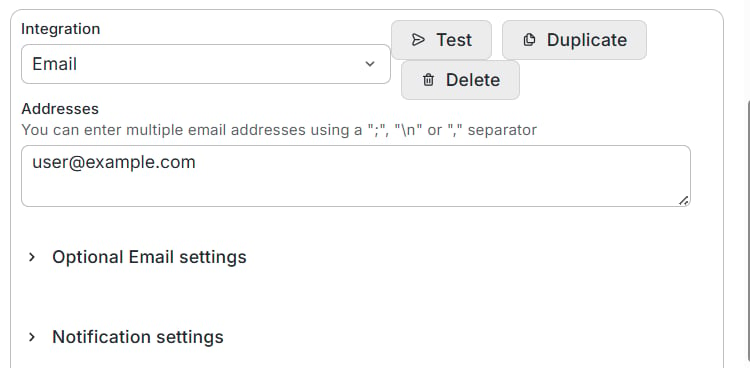 **Optional Email settings** and **Notification settings** can stay collapsed.
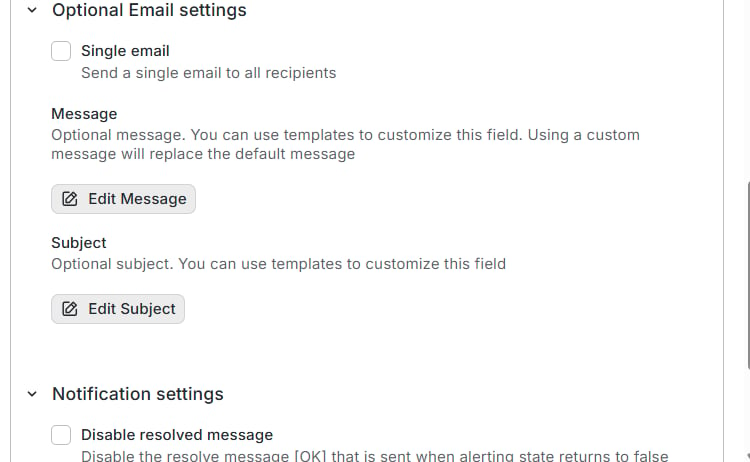
* **Single email**: sends one message to every address.
* **Message**: replaces the default message. **Edit Message** opens the template editor.
* **Subject**: replaces the default subject. **Edit Subject** opens the template editor.
* **Disable resolved message**: stops the OK message sent when the alert returns to normal.
**Optional Email settings** and **Notification settings** can stay collapsed.
* **Single email**: sends one message to every address.
* **Message**: replaces the default message. **Edit Message** opens the template editor.
* **Subject**: replaces the default subject. **Edit Subject** opens the template editor.
* **Disable resolved message**: stops the OK message sent when the alert returns to normal.
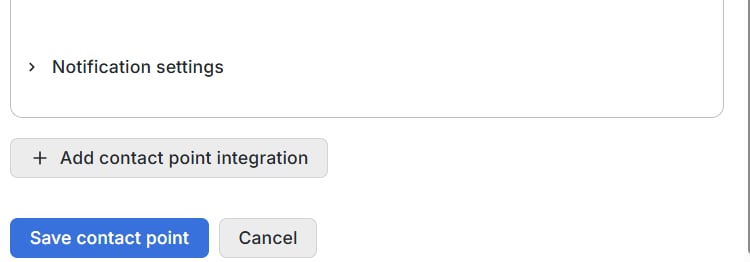
 **Add contact point integration** attaches another receiver to the same contact point. Click **Save contact point**.
 ## Create the alert rule
The rule form is one page, and its query editor matches the dashboard panel editor. The service fields are the ones in the statistics article for that product.
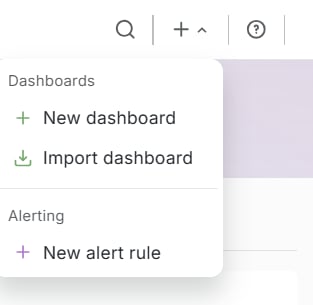
In the top bar, click **+**, then **New alert rule**.
## Create the alert rule
The rule form is one page, and its query editor matches the dashboard panel editor. The service fields are the ones in the statistics article for that product.
In the top bar, click **+**, then **New alert rule**.
 In **Name**, enter a name that states what the rule watches.
On query **A**, select the **Gcore Platform-EN** data source and set **Service**. The fields under **Query Props** depend on that service:
* **[CDN](/cdn/grafana/view-cdn-statistics-in-grafana)**: **Metric**, **Granularity**, **Group By**, and optional filters.
* **[DNS](/dns/grafana/view-dns-statistics-in-grafana)**: **Zone**, **Granularity**, and **Record type**.
* **[FastEdge](/fastedge/grafana/view-fastedge-statistics-in-grafana)**: **App Name**, **Metric**, and **Step (s)**.
* **[WAAP](/waap/view-waap-statistics-in-grafana)**: **Metric** and **Granularity**.
The time-range chip defaults to the last 10 minutes, so set a range that includes at least one point at the selected granularity. With **1h** granularity, a 10-minute range can return no points, and the rule then uses the no-data state.
For an hourly CDN request count, set **Service** to **CDN**, **Metric** to **Total Requests**, **Granularity** to **1h**, **Group By** to **Resource**, and the time range to the last 6 hours. The query returns one series per CDN resource, and each point is the number of requests in that hour. Set the threshold in Compare several series.
In **Name**, enter a name that states what the rule watches.
On query **A**, select the **Gcore Platform-EN** data source and set **Service**. The fields under **Query Props** depend on that service:
* **[CDN](/cdn/grafana/view-cdn-statistics-in-grafana)**: **Metric**, **Granularity**, **Group By**, and optional filters.
* **[DNS](/dns/grafana/view-dns-statistics-in-grafana)**: **Zone**, **Granularity**, and **Record type**.
* **[FastEdge](/fastedge/grafana/view-fastedge-statistics-in-grafana)**: **App Name**, **Metric**, and **Step (s)**.
* **[WAAP](/waap/view-waap-statistics-in-grafana)**: **Metric** and **Granularity**.
The time-range chip defaults to the last 10 minutes, so set a range that includes at least one point at the selected granularity. With **1h** granularity, a 10-minute range can return no points, and the rule then uses the no-data state.
For an hourly CDN request count, set **Service** to **CDN**, **Metric** to **Total Requests**, **Granularity** to **1h**, **Group By** to **Resource**, and the time range to the last 6 hours. The query returns one series per CDN resource, and each point is the number of requests in that hour. Set the threshold in Compare several series.
 Leave **Advanced options** off for a WAAP query, a DNS query, a FastEdge query, or a CDN query without **Group By**, because each returns one series.
Under **Alert condition**, set **WHEN** to **Last**, which uses the latest point, and leave **OF QUERY**. Set **IS ABOVE** to the threshold. To check the result before saving, click **Preview alert rule condition**.
Leave **Advanced options** off for a WAAP query, a DNS query, a FastEdge query, or a CDN query without **Group By**, because each returns one series.
Under **Alert condition**, set **WHEN** to **Last**, which uses the latest point, and leave **OF QUERY**. Set **IS ABOVE** to the threshold. To check the result before saving, click **Preview alert rule condition**.
 Turn **Advanced options** on when a CDN query uses **Group By**, because the query returns one series per group. DNS, FastEdge, and WAAP stay on the one-series condition.
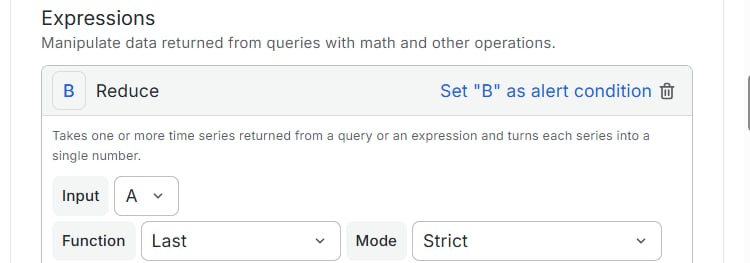
**Reduce** turns each series into one number. Set **Input** to **A**, **Function** to **Last**, and **Mode** to **Strict**. **Strict** returns NaN when a series contains non-numeric data.
**Threshold** compares that number. Set **Input** to **B**, and for the CDN request query set **IS ABOVE** to `100`. The green **Alert condition** badge must stay on **Threshold**, because that expression is the one Grafana evaluates.
Click **Preview**. The preview lists one instance per resource, and an instance matches when the latest point is above 100. The alert fires after that match lasts for the pending period, which defaults to **1m**.
Leave **Custom recovery threshold** off, so the alert clears at the same threshold that fired it.
Turn **Advanced options** on when a CDN query uses **Group By**, because the query returns one series per group. DNS, FastEdge, and WAAP stay on the one-series condition.
**Reduce** turns each series into one number. Set **Input** to **A**, **Function** to **Last**, and **Mode** to **Strict**. **Strict** returns NaN when a series contains non-numeric data.
**Threshold** compares that number. Set **Input** to **B**, and for the CDN request query set **IS ABOVE** to `100`. The green **Alert condition** badge must stay on **Threshold**, because that expression is the one Grafana evaluates.
Click **Preview**. The preview lists one instance per resource, and an instance matches when the latest point is above 100. The alert fires after that match lasts for the pending period, which defaults to **1m**.
Leave **Custom recovery threshold** off, so the alert clears at the same threshold that fired it.
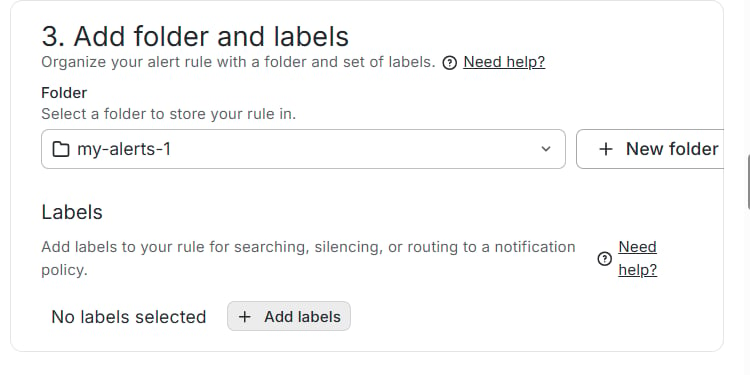
 A folder is required. Select one, or create one:
1. Click **New folder**.
2. Enter a **Folder name**.
3. Click **Create**.
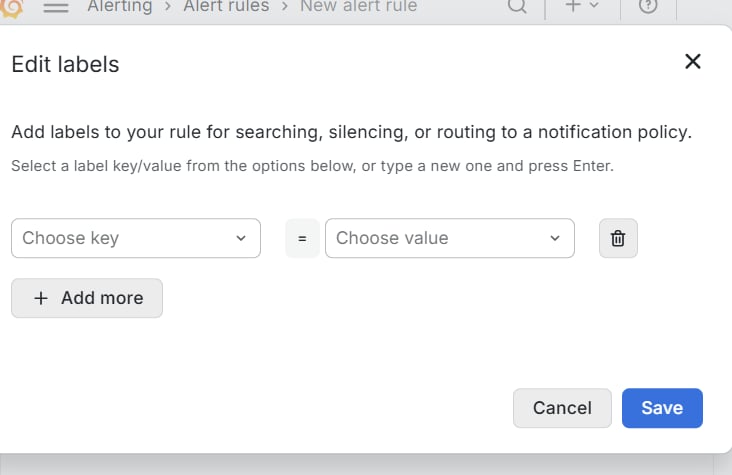
(Optional) Add labels to search, silence, or route the rule:
1. Click **Add labels**.
2. In **Edit labels**, set **Choose key** and **Choose value**, or enter a new key or value and press Enter.
3. Click **Add more** for each extra label.
4. Click **Save**.
A folder is required. Select one, or create one:
1. Click **New folder**.
2. Enter a **Folder name**.
3. Click **Create**.
(Optional) Add labels to search, silence, or route the rule:
1. Click **Add labels**.
2. In **Edit labels**, set **Choose key** and **Choose value**, or enter a new key or value and press Enter.
3. Click **Add more** for each extra label.
4. Click **Save**.
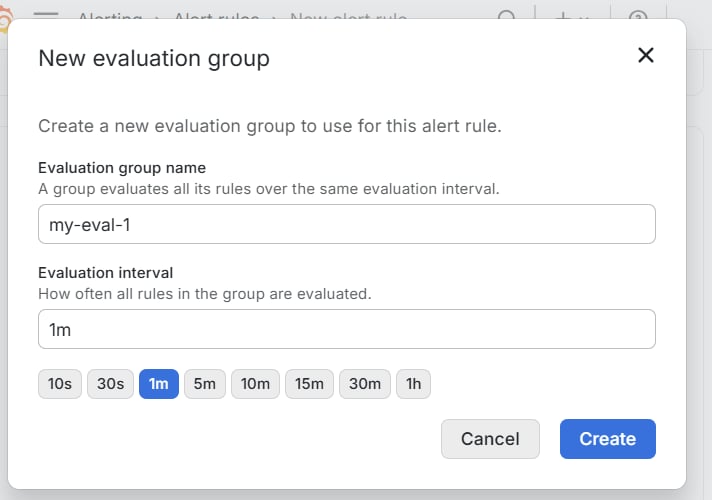
 **New evaluation group** stays disabled until a folder is selected.
1. Click **New evaluation group**.
2. Enter an **Evaluation group name**.
3. Set **Evaluation interval**. The default is **1m**, and every rule in the group uses that interval.
4. Click **Create**.
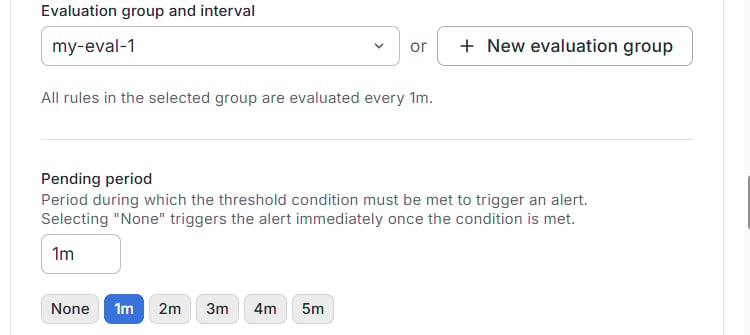
The group name then appears in **Evaluation group and interval**, and the line under the field states the interval.
**Pending period** is how long the condition must stay true before the alert fires. **None** fires on the first matching evaluation, and the default is **1m**.
**New evaluation group** stays disabled until a folder is selected.
1. Click **New evaluation group**.
2. Enter an **Evaluation group name**.
3. Set **Evaluation interval**. The default is **1m**, and every rule in the group uses that interval.
4. Click **Create**.
The group name then appears in **Evaluation group and interval**, and the line under the field states the interval.
**Pending period** is how long the condition must stay true before the alert fires. **None** fires on the first matching evaluation, and the default is **1m**.
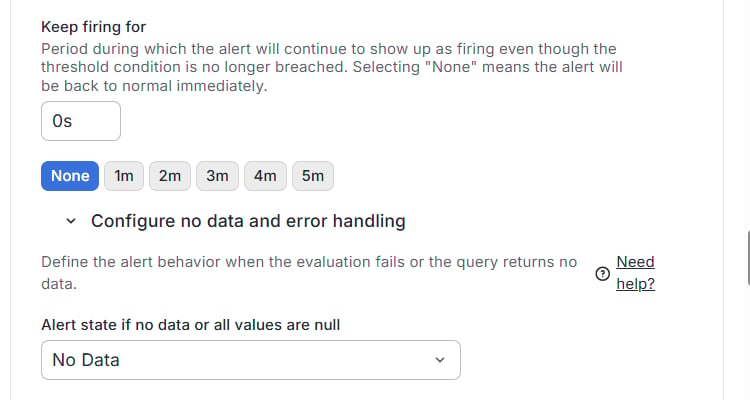
 **Keep firing for** holds the alert after the condition clears. **None**, shown as `0s`, returns the alert to normal immediately, and the other durations match the pending period.
Open **Configure no data and error handling** when an empty or failed query should not use the defaults.
* **Alert state if no data or all values are null**: **No Data** is the default.
* **Alert state if execution error or timeout**: **Error** is the default.
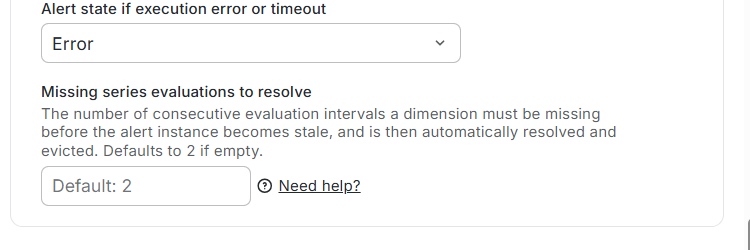
* **Missing series evaluations to resolve**: consecutive intervals a series must be missing before that instance is resolved and dropped. The default is 2.
**Keep firing for** holds the alert after the condition clears. **None**, shown as `0s`, returns the alert to normal immediately, and the other durations match the pending period.
Open **Configure no data and error handling** when an empty or failed query should not use the defaults.
* **Alert state if no data or all values are null**: **No Data** is the default.
* **Alert state if execution error or timeout**: **Error** is the default.
* **Missing series evaluations to resolve**: consecutive intervals a series must be missing before that instance is resolved and dropped. The default is 2.
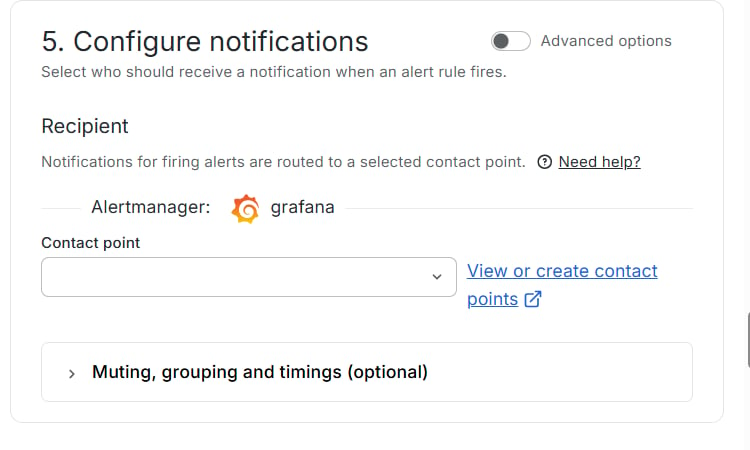
 To select a contact point, leave **Advanced options** off. **Alertmanager** stays **grafana**. In **Contact point**, select the contact point saved earlier. **Save** reports **Contact point is required** until this field is set.
To route the alert through a notification policy instead, turn **Advanced options** on. The default policy in Grafana [notification policies](https://grafana.com/docs/grafana/latest/alerting/fundamentals/notifications/notification-policies/) groups by `grafana_folder` and `alertname`, waits 30 seconds to group instances, waits 5 minutes before sending an update, and repeats every 4 hours. **New notification policy** and **Add route** are on the **Notification policies** tab.
(Optional) On the **Time intervals** tab next to **Contact points**, click **New time interval**. **Mute timings** and **Active timings** select that interval.
* **Mute timings**: a time interval during which notifications are not sent. Filled fields in [mute timings](https://grafana.com/docs/grafana/latest/alerting/configure-notifications/mute-timings/) must match the current moment, and a blank field matches any moment.
* **Active timings**: Grafana sends notifications only while the interval matches.
* **Override grouping**: the default grouping is `grafana_folder, alertname`.
* **Override timings**: replaces the default policy values for **Group wait**, **Group interval**, and **Repeat interval**.
To select a contact point, leave **Advanced options** off. **Alertmanager** stays **grafana**. In **Contact point**, select the contact point saved earlier. **Save** reports **Contact point is required** until this field is set.
To route the alert through a notification policy instead, turn **Advanced options** on. The default policy in Grafana [notification policies](https://grafana.com/docs/grafana/latest/alerting/fundamentals/notifications/notification-policies/) groups by `grafana_folder` and `alertname`, waits 30 seconds to group instances, waits 5 minutes before sending an update, and repeats every 4 hours. **New notification policy** and **Add route** are on the **Notification policies** tab.
(Optional) On the **Time intervals** tab next to **Contact points**, click **New time interval**. **Mute timings** and **Active timings** select that interval.
* **Mute timings**: a time interval during which notifications are not sent. Filled fields in [mute timings](https://grafana.com/docs/grafana/latest/alerting/configure-notifications/mute-timings/) must match the current moment, and a blank field matches any moment.
* **Active timings**: Grafana sends notifications only while the interval matches.
* **Override grouping**: the default grouping is `grafana_folder, alertname`.
* **Override timings**: replaces the default policy values for **Group wait**, **Group interval**, and **Repeat interval**.
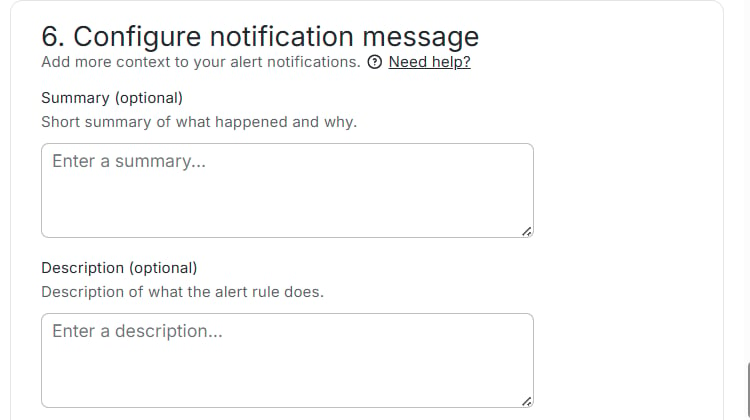
 **Summary** states what happened, and **Description** states what the rule checks. Both can stay empty. For the CDN request rule, enter `CDN requests in the latest hour exceeded 100` in **Summary**.
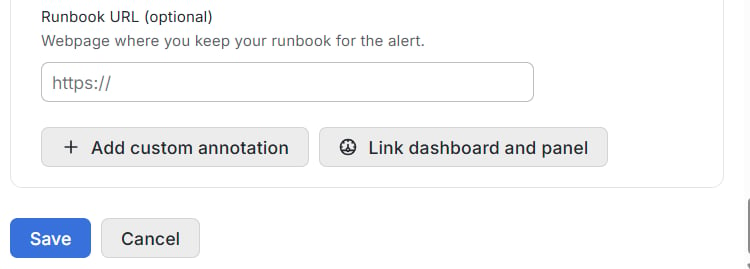
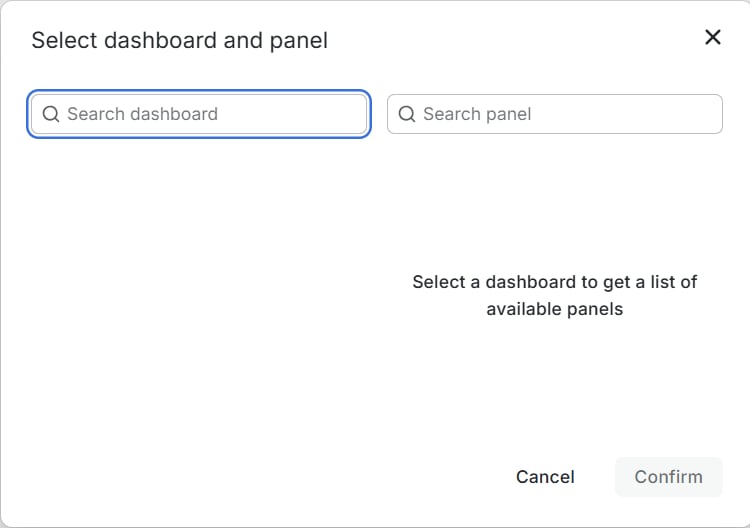
**Runbook URL** links to the runbook for this alert. **Add custom annotation** adds a name and a content field. **Link dashboard and panel** opens **Select dashboard and panel**:
1. Search for the dashboard.
2. Search for the panel.
3. Click **Confirm**.
**Summary** states what happened, and **Description** states what the rule checks. Both can stay empty. For the CDN request rule, enter `CDN requests in the latest hour exceeded 100` in **Summary**.
**Runbook URL** links to the runbook for this alert. **Add custom annotation** adds a name and a content field. **Link dashboard and panel** opens **Select dashboard and panel**:
1. Search for the dashboard.
2. Search for the panel.
3. Click **Confirm**.
 Click **Save**. Grafana stores the rule in the selected folder and lists it under **Alerting** > **Alert rules**.