> ## Documentation Index
> Fetch the complete documentation index at: https://docs.gcore.com/llms.txt
> Use this file to discover all available pages before exploring further.
# Chat with a model via Open WebUI
[Open WebUI](https://openwebui.com) is an open-source, browser-based chat interface for large language models. Gcore hosts it as a bundled module alongside the model at a separate HTTPS endpoint — enable it during deployment from the Application Catalog.
Open WebUI runs as a separate pod alongside the model pod, so the deployment requires `Inference instance count` quota ≥ 2.
## Deploy a model with Open WebUI enabled
1. In the [Gcore Customer Portal](https://portal.gcore.com/), navigate to **Everywhere Inference > Deployments**.
2. Click **Deploy application from catalog**.
3. Under **Deployment Configuration**, select an application from the catalog. The steps below use **meta-llama/Llama-3.2-1B-Instruct**.
4. Under **Routing placement**, select a region.
5. Under **Application modules**, check the **Open WebUI** checkbox.
Open WebUI adds a CPU pod to the deployment. The default flavor is **4 vCPU / 16 GiB RAM**.
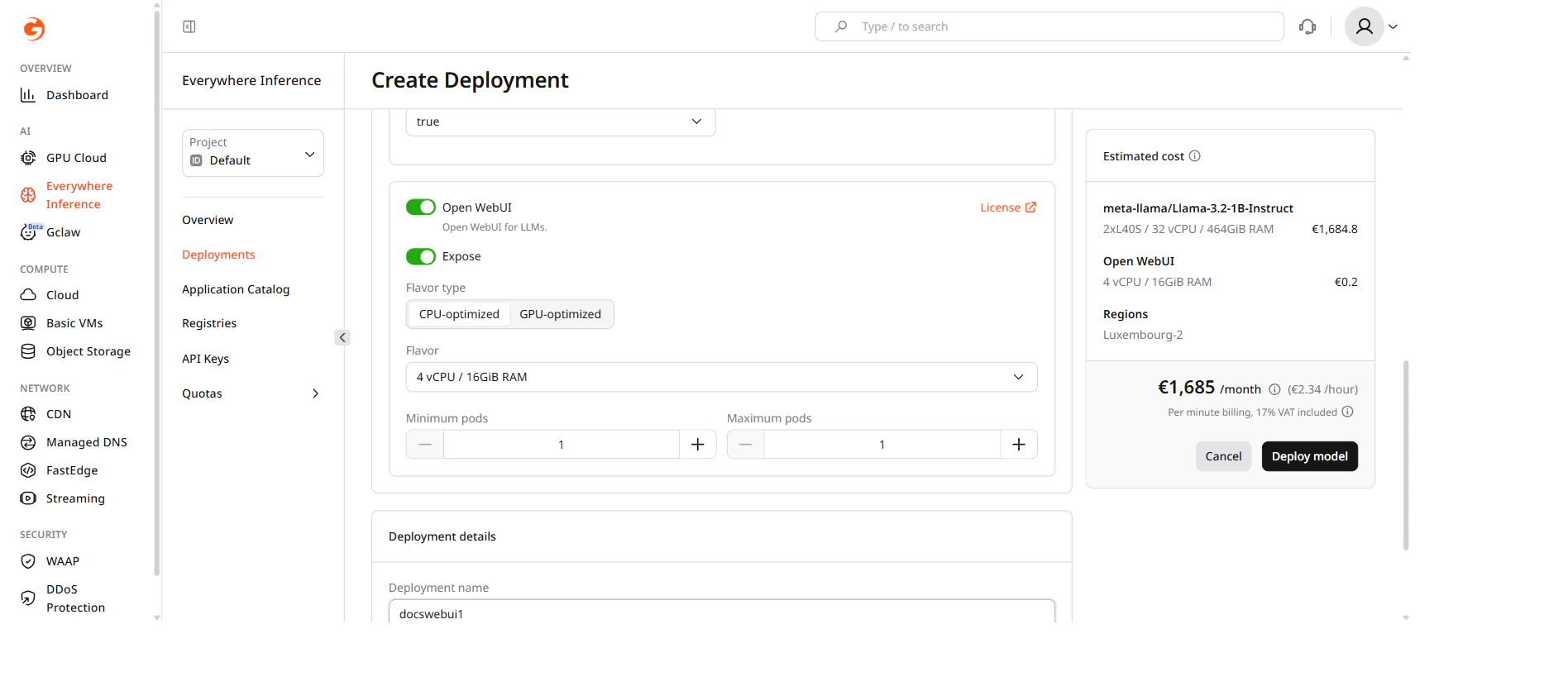 6. Under **Deployment details**, enter a name for the deployment.
Deployment names must be alphanumeric. Hyphens are not allowed.
7. Click **Deploy model**.
Gcore provisions both the model pod and the Open WebUI pod. The deployment list shows **Partially deployed** until both pods are ready, then switches to **Active**.
## Open WebUI URL
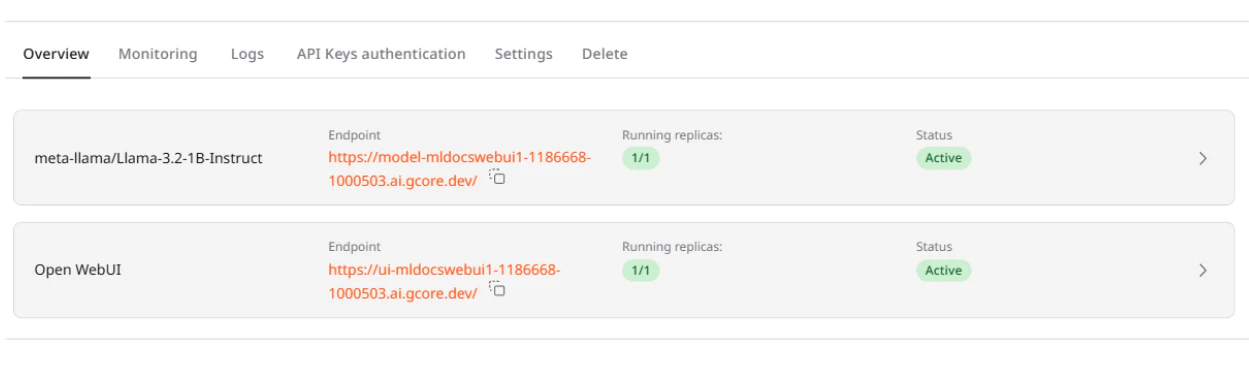
Once the deployment is **Active**, navigate to **Everywhere Inference > Deployments** and click the deployment name. On the **Overview** tab, the **Endpoints** section shows two URLs:
* `model--...ai.gcore.dev` — the OpenAI-compatible inference endpoint.
* `ui--...ai.gcore.dev` — the Open WebUI interface.
Copy the `ui-` URL and open it in a browser.
6. Under **Deployment details**, enter a name for the deployment.
Deployment names must be alphanumeric. Hyphens are not allowed.
7. Click **Deploy model**.
Gcore provisions both the model pod and the Open WebUI pod. The deployment list shows **Partially deployed** until both pods are ready, then switches to **Active**.
## Open WebUI URL
Once the deployment is **Active**, navigate to **Everywhere Inference > Deployments** and click the deployment name. On the **Overview** tab, the **Endpoints** section shows two URLs:
* `model--...ai.gcore.dev` — the OpenAI-compatible inference endpoint.
* `ui--...ai.gcore.dev` — the Open WebUI interface.
Copy the `ui-` URL and open it in a browser.
 ## Create an admin account
On first access, Open WebUI displays a sign-up form. The first registered user automatically becomes the administrator.
1. On the sign-in page, enter an email and a password.
2. Submit the form. Open WebUI creates the account and logs in immediately.
The admin account is local to this Open WebUI instance and is not linked to the Gcore account.
## Start a conversation
After signing in, Open WebUI opens the main chat interface with the deployed model pre-selected.
## Create an admin account
On first access, Open WebUI displays a sign-up form. The first registered user automatically becomes the administrator.
1. On the sign-in page, enter an email and a password.
2. Submit the form. Open WebUI creates the account and logs in immediately.
The admin account is local to this Open WebUI instance and is not linked to the Gcore account.
## Start a conversation
After signing in, Open WebUI opens the main chat interface with the deployed model pre-selected.
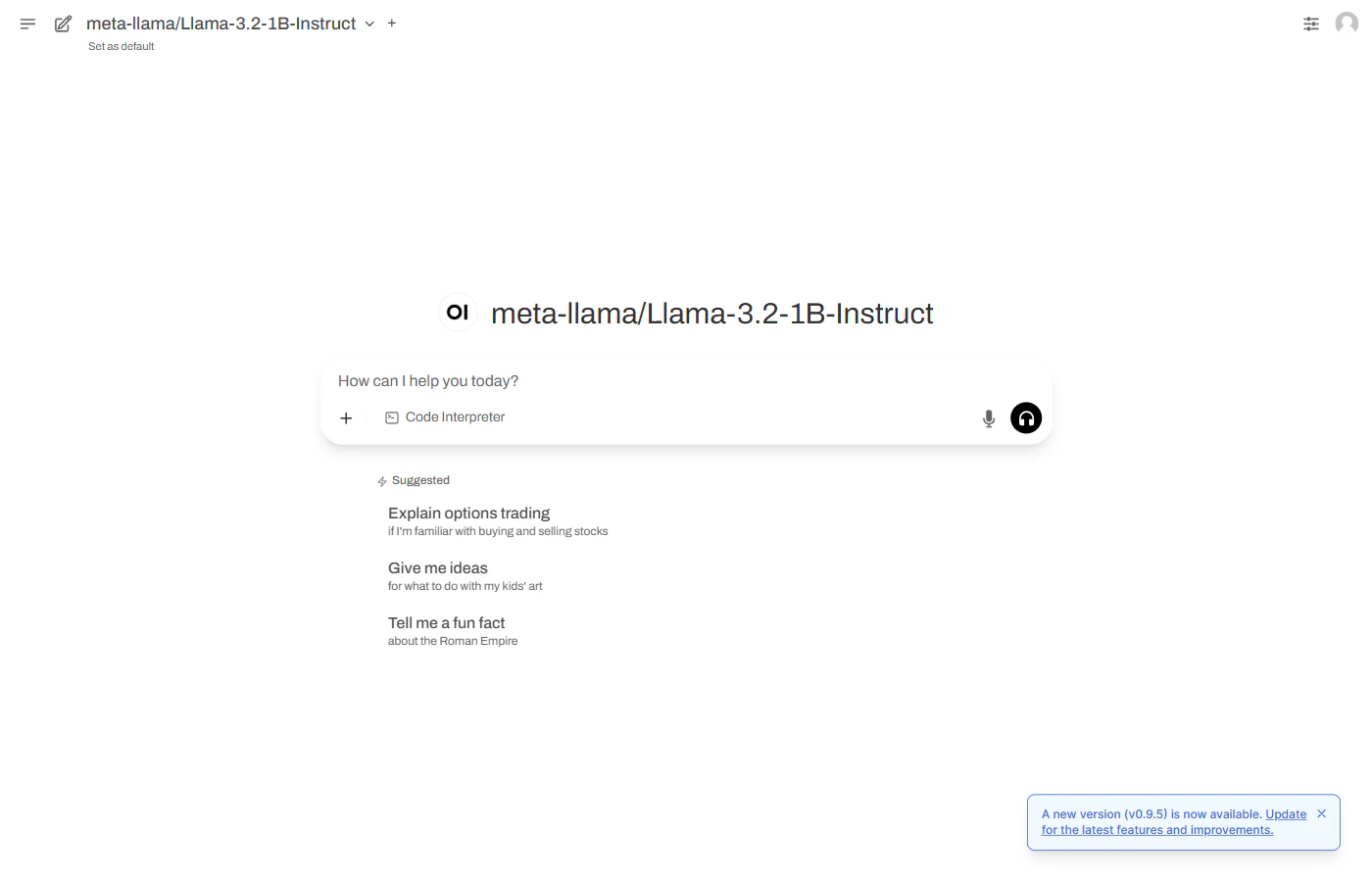 Type a message in the input box and press **Enter** to send it. The model responds in the chat window.
The `model-` endpoint accepts [OpenAI-compatible API requests](/edge-ai/everywhere-inference/ai-models/query-deployed-model) via curl, Python, or JavaScript. To restrict access, enable **API Key authentication** on the deployment **Settings** tab.
Type a message in the input box and press **Enter** to send it. The model responds in the chat window.
The `model-` endpoint accepts [OpenAI-compatible API requests](/edge-ai/everywhere-inference/ai-models/query-deployed-model) via curl, Python, or JavaScript. To restrict access, enable **API Key authentication** on the deployment **Settings** tab.