> ## Documentation Index
> Fetch the complete documentation index at: https://docs.gcore.com/llms.txt
> Use this file to discover all available pages before exploring further.
# Manage AI model deployments
The **Deployments** page in **Everywhere Inference** lists all active deployments with their statuses and endpoint URLs. Navigate to **Everywhere Inference** > **Deployments** in the [Gcore Customer Portal](https://portal.gcore.com/) to access it.
## Deployments list
The deployments table contains the following columns:
* **Name** — the deployment name; click it to open the detail page.
* **Modules** — the AI model or application deployed.
* **Endpoint** — the public URL for sending inference requests.
* **Created** — the date and time the deployment was created.
* **Deployment status** — the current provisioning state (*Deploying* / *Partially deployed* / *Deployed* / *Deleting*).
* **Running status** — the number of running pods out of the total requested (*0/1*, *1/1*).
## Overview tab
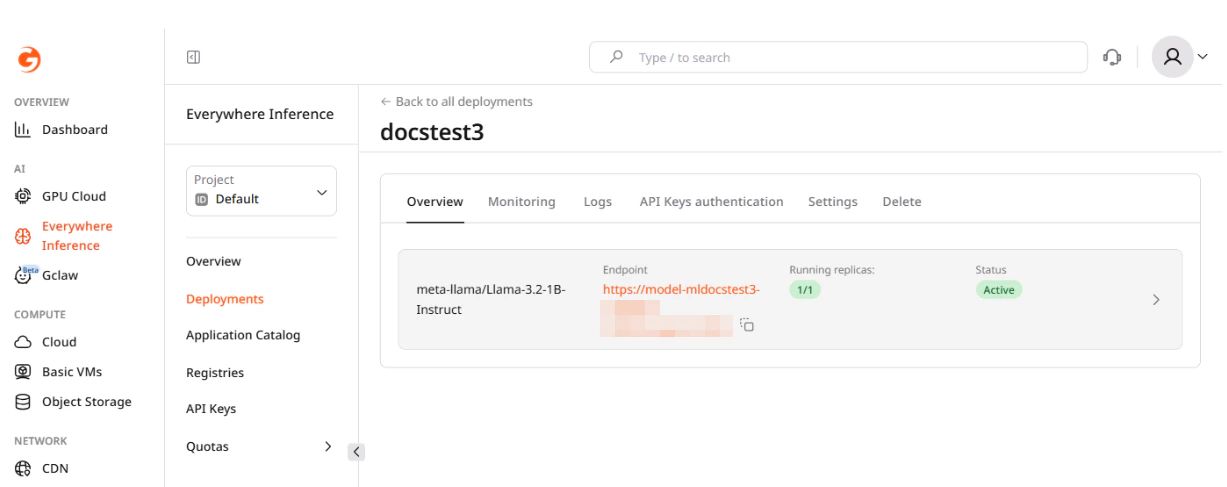
The detail page has the following tabs: **Overview**, **Monitoring**, **Logs**, **API Keys authentication**, **Settings**, and **Delete**.
The **Overview** tab shows the deployed modules with their endpoint URLs, running replica count, and deployment status. Click a module row to expand its configuration parameters.
 ## Monitoring
The **Monitoring** tab shows resource usage charts for the deployment. Use the **Time range** dropdown to adjust the displayed period.
## Monitoring
The **Monitoring** tab shows resource usage charts for the deployment. Use the **Time range** dropdown to adjust the displayed period.
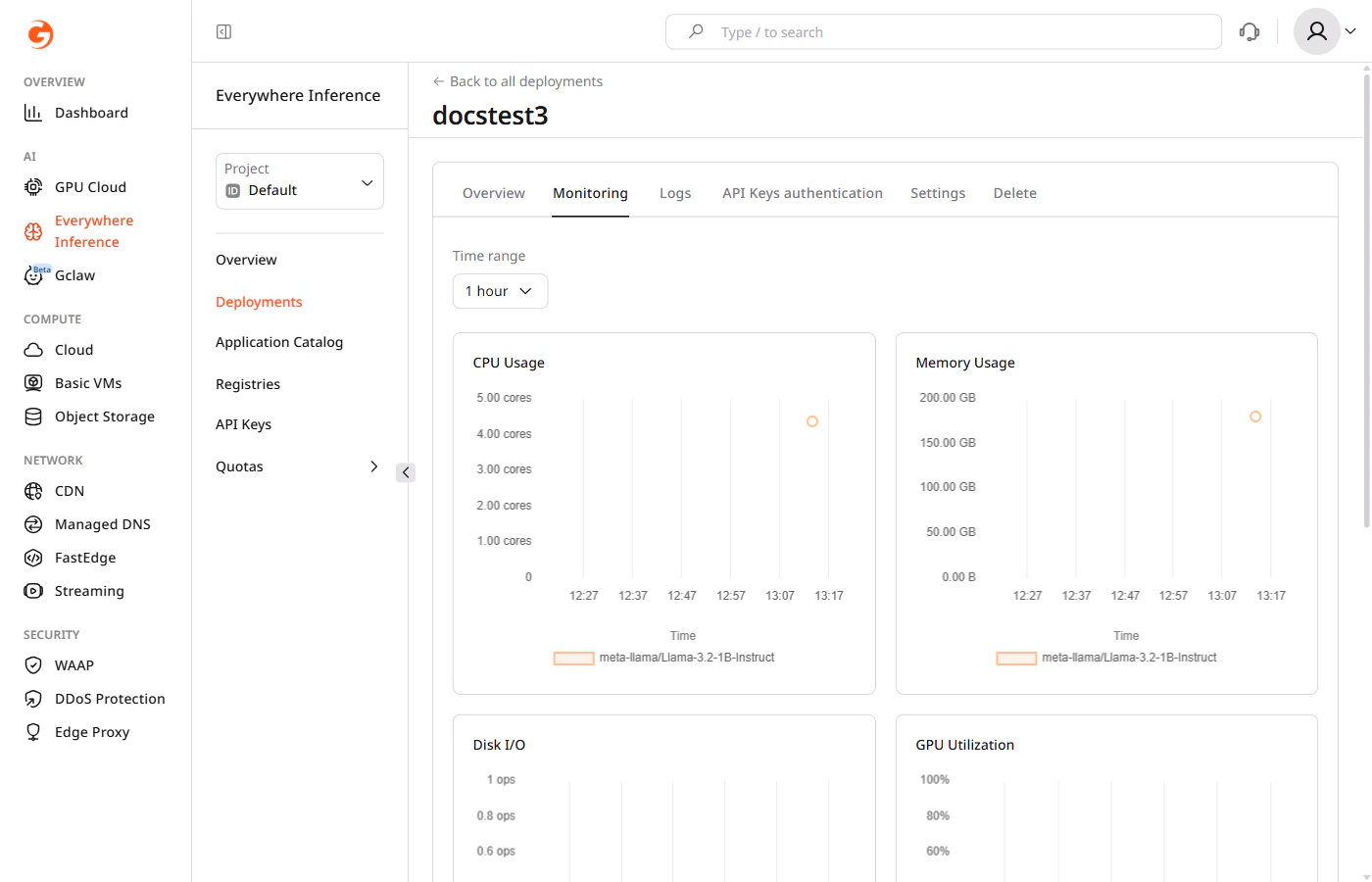 The following metrics are available:
* **CPU Usage** — CPU cores consumed over time.
* **Memory Usage** — RAM consumed over time.
* **Disk I/O** — read and write operations per second.
* **GPU Utilization** — GPU usage percentage over time.
## Deployment logs
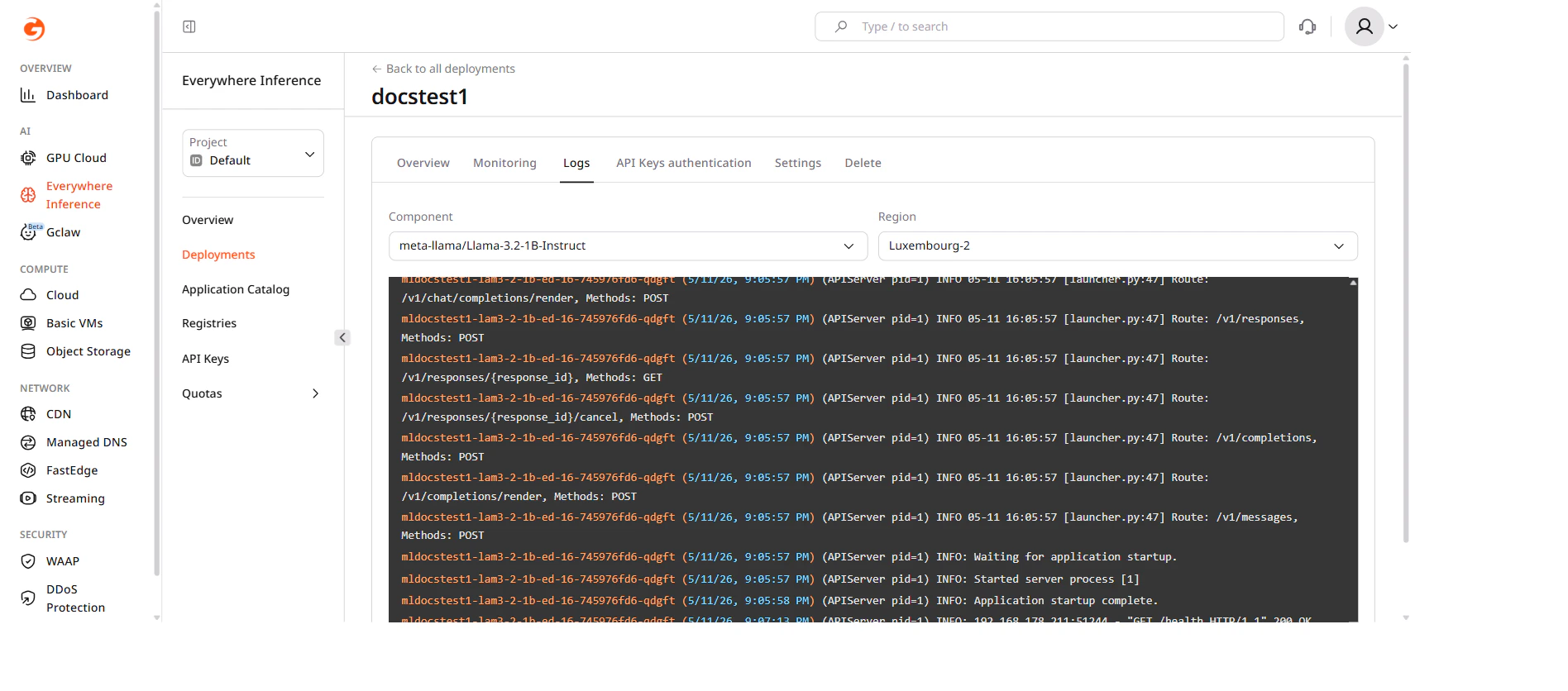
Click the **Logs** tab to view real-time output from the deployment pods. Use the **Component** dropdown to select the module and the **Region** dropdown to filter logs by deployment region.
The following metrics are available:
* **CPU Usage** — CPU cores consumed over time.
* **Memory Usage** — RAM consumed over time.
* **Disk I/O** — read and write operations per second.
* **GPU Utilization** — GPU usage percentage over time.
## Deployment logs
Click the **Logs** tab to view real-time output from the deployment pods. Use the **Component** dropdown to select the module and the **Region** dropdown to filter logs by deployment region.
 ## API Keys authentication
The **API Keys authentication** tab controls whether inference requests to the deployment endpoint require a valid API key. Toggle **Enable API Key authentication** on and click **Save changes** to restrict access. When enabled, requests without a valid key are rejected.
API keys are managed separately in [**Everywhere Inference** > **API Keys**](/edge-ai/everywhere-inference/api-keys/create-inference-deployment-with-auth).
## Settings
The **Settings** tab contains options for updating the deployment configuration. Changes are not applied automatically — click **Save changes** at the bottom of the tab to confirm.
### Routing placement
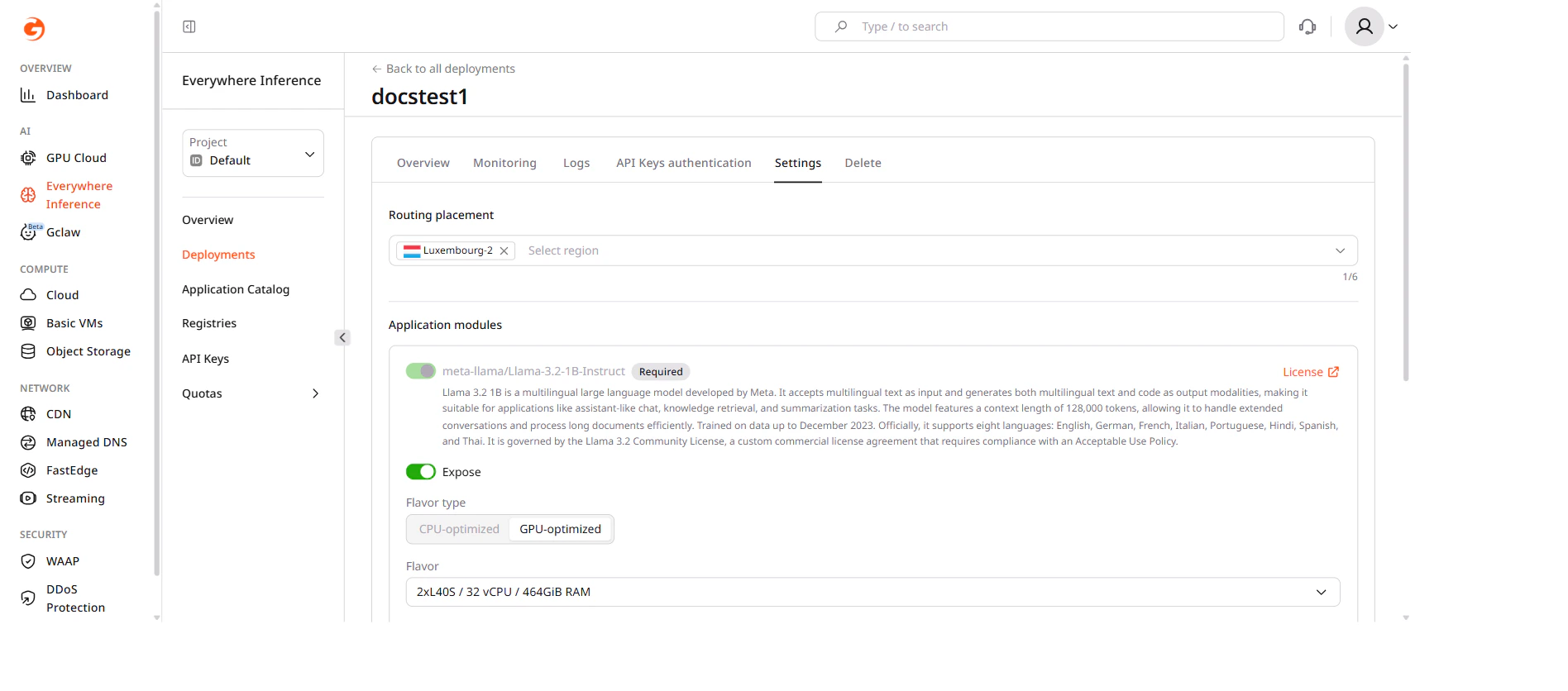
Select or deselect regions from the **Routing placement** dropdown to change where the deployment runs.
## API Keys authentication
The **API Keys authentication** tab controls whether inference requests to the deployment endpoint require a valid API key. Toggle **Enable API Key authentication** on and click **Save changes** to restrict access. When enabled, requests without a valid key are rejected.
API keys are managed separately in [**Everywhere Inference** > **API Keys**](/edge-ai/everywhere-inference/api-keys/create-inference-deployment-with-auth).
## Settings
The **Settings** tab contains options for updating the deployment configuration. Changes are not applied automatically — click **Save changes** at the bottom of the tab to confirm.
### Routing placement
Select or deselect regions from the **Routing placement** dropdown to change where the deployment runs.
 ### Flavor and pod configuration
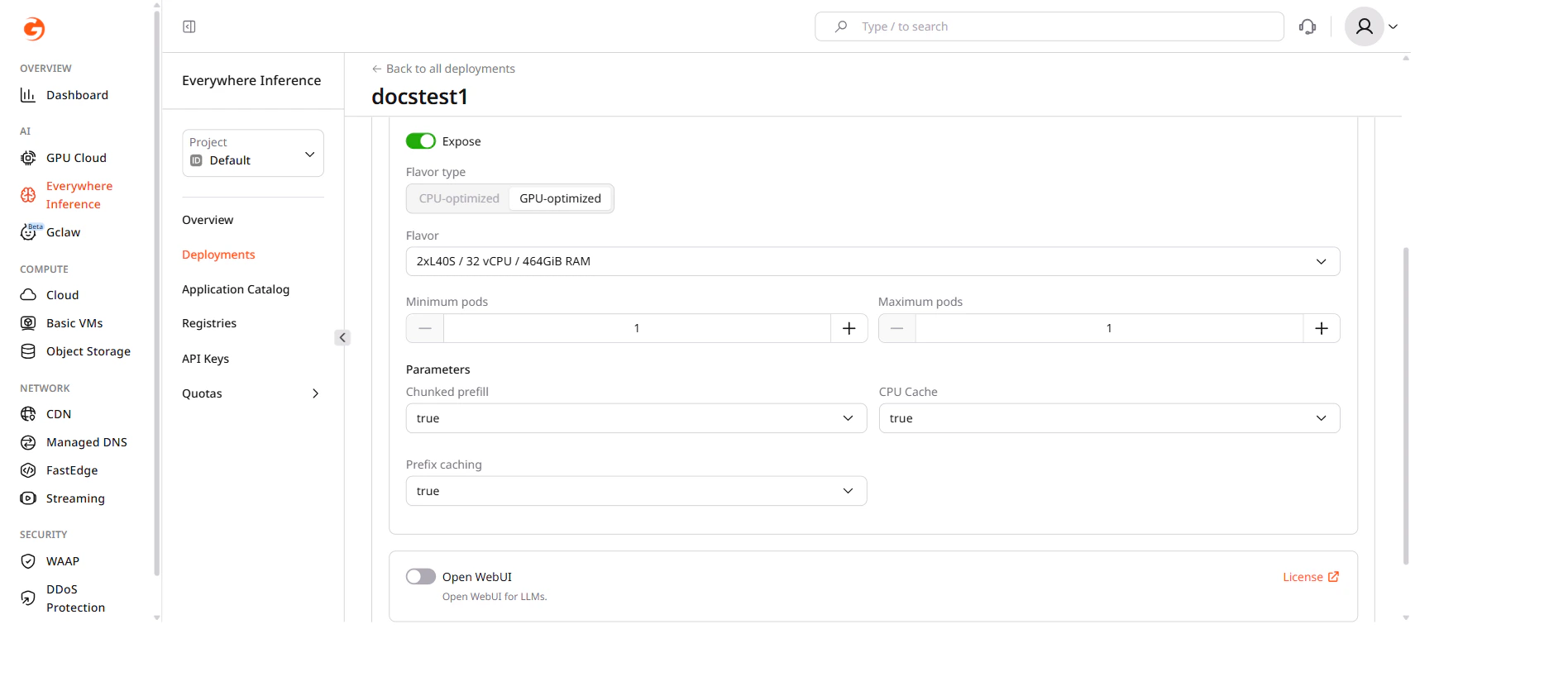
Under **Application modules**, change the hardware flavor and the number of pods:
* **Flavor type** — select **CPU-optimized** or **GPU-optimized**.
* **Flavor** — select the hardware configuration from the dropdown.
* **Minimum pods** — the minimum number of pods to keep running.
* **Maximum pods** — the maximum number of pods the autoscaler can create.
### Flavor and pod configuration
Under **Application modules**, change the hardware flavor and the number of pods:
* **Flavor type** — select **CPU-optimized** or **GPU-optimized**.
* **Flavor** — select the hardware configuration from the dropdown.
* **Minimum pods** — the minimum number of pods to keep running.
* **Maximum pods** — the maximum number of pods the autoscaler can create.
 A flavor change requires each running pod to restart, which may cause a brief interruption.
## Delete a deployment
Open the deployment detail page and click the **Delete** tab, or select **Delete** from the action menu on the deployments list.
A flavor change requires each running pod to restart, which may cause a brief interruption.
## Delete a deployment
Open the deployment detail page and click the **Delete** tab, or select **Delete** from the action menu on the deployments list.