> ## Documentation Index
> Fetch the complete documentation index at: https://docs.gcore.com/llms.txt
> Use this file to discover all available pages before exploring further.
# Redirect visitors by location
The geolocation redirect is a built-in FastEdge application that detects each visitor's country from Gcore's Geo-IP data and issues an HTTP 302 redirect to the corresponding URL. Redirect rules are configured through environment variables. No custom code or binary compilation is required.
A common use case is routing international visitors to regional landing pages, language-specific subdomains, or data-residency-compliant endpoints without client-side JavaScript or origin-side logic.
## Create the application
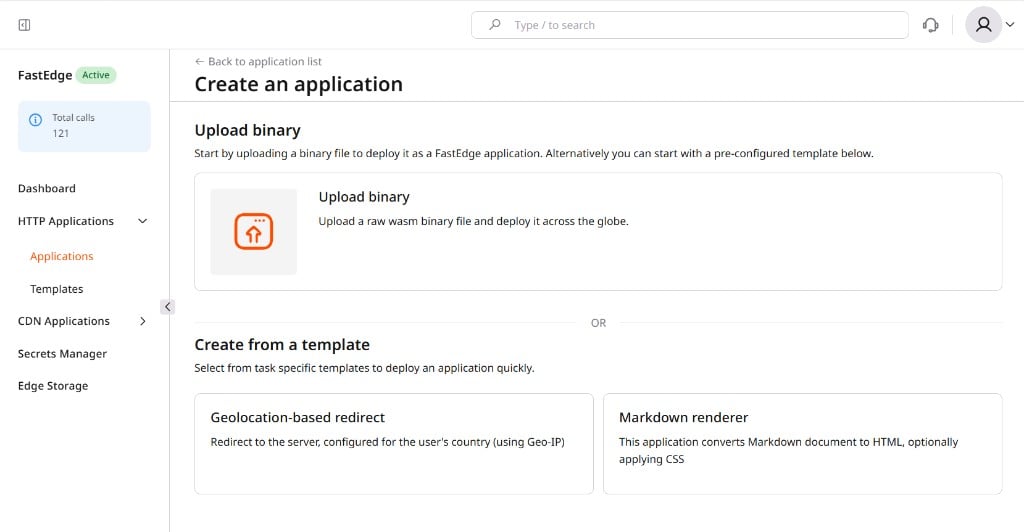
1. In the [Gcore Customer Portal](https://portal.gcore.com), navigate to **FastEdge** > **HTTP Applications** > **Applications** and click **Create new application**.
2. Scroll to **Create from a template** and click **Geolocation-based redirect**.
 3. Enter a **Name** for the application.
4. Set the **DEFAULT** variable in the **Template environment variables** section. This is the fallback redirect URL for visitors whose country does not match any rule — every deployment requires it.
3. Enter a **Name** for the application.
4. Set the **DEFAULT** variable in the **Template environment variables** section. This is the fallback redirect URL for visitors whose country does not match any rule — every deployment requires it.
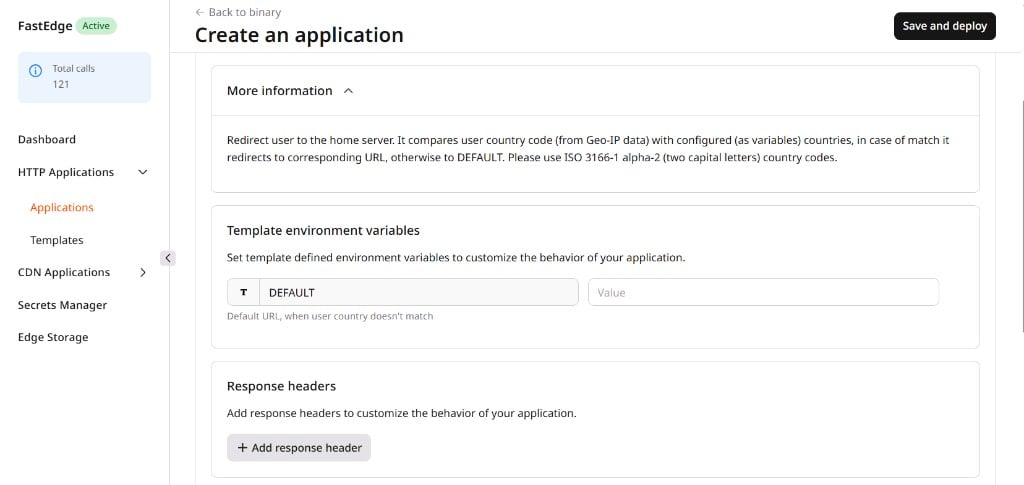 5. Add country rules in the **Environment variables** section. Each rule is one variable: country code as the key, redirect URL as the value. Visitors from countries not listed fall through to `DEFAULT`. For example:
| Variable | Value |
| --------- | ------------------------ |
| `DEFAULT` | `https://example.com/en` |
| `DE` | `https://example.com/de` |
| `FR` | `https://example.com/fr` |
| `JP` | `https://example.com/jp` |
6. (Optional) Configure response headers, secrets, or [Edge Storage](/fastedge/kv-stores/manage-kv-store) as needed.
7. Click **Save and deploy**.
The application details page opens with the deployment URL.
## Test the application
Send a request to the app URL and inspect the redirect response:
```sh theme={null}
curl -i https://-.fastedge.app/
```
When the request originates from a country with a matching rule, the response is:
```
HTTP/1.1 302 Found
location: https://example.com/de
```
When no country rule matches, the response redirects to `DEFAULT`:
```
HTTP/1.1 302 Found
location: https://example.com/en
```
The redirect applies to all URL paths — `/pricing`, `/contact`, and `/` all redirect using the same country logic. To restrict redirects to a specific path, use a [custom binary](/fastedge/getting-started/get-started-http) with a path check instead of this template.
Country codes, redirect targets, and `DEFAULT` can all be updated from the application management page without rebuilding or redeploying the application.
5. Add country rules in the **Environment variables** section. Each rule is one variable: country code as the key, redirect URL as the value. Visitors from countries not listed fall through to `DEFAULT`. For example:
| Variable | Value |
| --------- | ------------------------ |
| `DEFAULT` | `https://example.com/en` |
| `DE` | `https://example.com/de` |
| `FR` | `https://example.com/fr` |
| `JP` | `https://example.com/jp` |
6. (Optional) Configure response headers, secrets, or [Edge Storage](/fastedge/kv-stores/manage-kv-store) as needed.
7. Click **Save and deploy**.
The application details page opens with the deployment URL.
## Test the application
Send a request to the app URL and inspect the redirect response:
```sh theme={null}
curl -i https://-.fastedge.app/
```
When the request originates from a country with a matching rule, the response is:
```
HTTP/1.1 302 Found
location: https://example.com/de
```
When no country rule matches, the response redirects to `DEFAULT`:
```
HTTP/1.1 302 Found
location: https://example.com/en
```
The redirect applies to all URL paths — `/pricing`, `/contact`, and `/` all redirect using the same country logic. To restrict redirects to a specific path, use a [custom binary](/fastedge/getting-started/get-started-http) with a path check instead of this template.
Country codes, redirect targets, and `DEFAULT` can all be updated from the application management page without rebuilding or redeploying the application.