> ## Documentation Index
> Fetch the complete documentation index at: https://docs.gcore.com/llms.txt
> Use this file to discover all available pages before exploring further.
# View FastEdge statistics in Grafana
> Grafana panels for FastEdge application duration statistics.
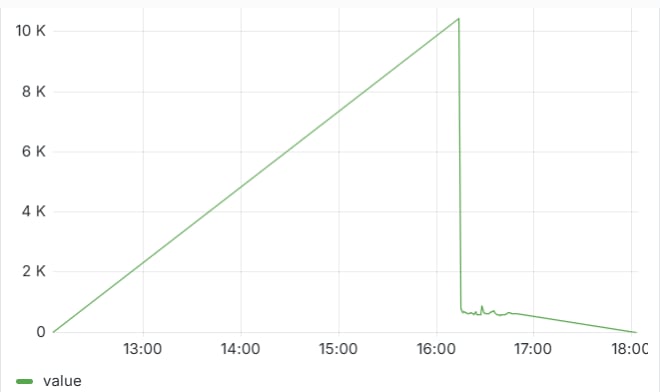
FastEdge application duration can be shown as Grafana time-series panels. The [Grafana plugin](/developer-tools/grafana/install-the-grafana-plugin) adds the **Gcore Platform-EN** data source.
## Configure a dashboard
The panel uses the connected **Gcore Platform-EN** data source.
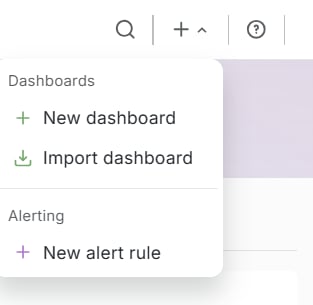
1. In the top bar, click **+**, then **New dashboard**.
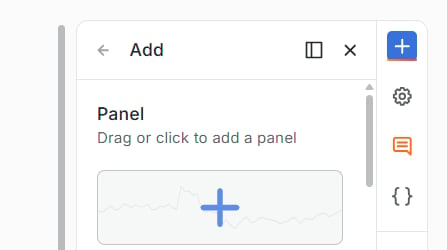
 2. The **Add** drawer opens on the right. Click **Panel**.
 3. Click **Edit visualization**.
4. Under **Data source**, select **Gcore Platform-EN**.
5. Under **Edge Network**, set **Service** to **FastEdge**.
6. Under **Query Props**, set **App Name**, **Metric**, and **Step (s)**. **Network** is optional.
7. Click **Save**. In **Save dashboard**, enter a title and click **Save**.
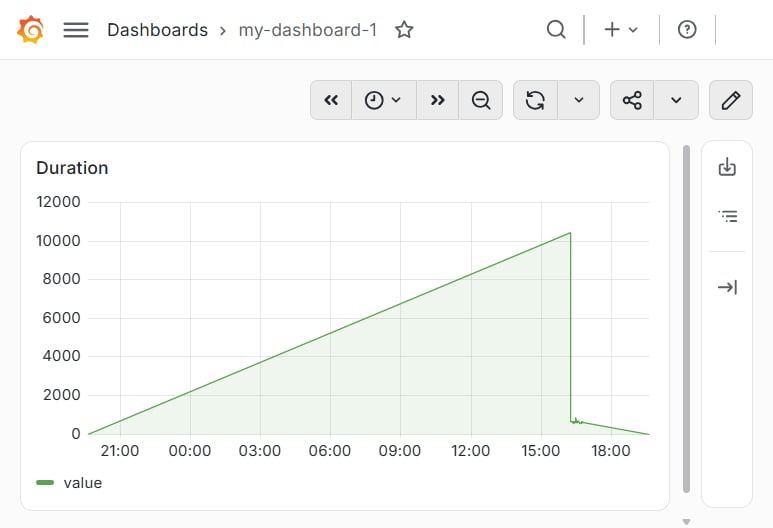
The saved dashboard shows the title and the panel.
3. Click **Edit visualization**.
4. Under **Data source**, select **Gcore Platform-EN**.
5. Under **Edge Network**, set **Service** to **FastEdge**.
6. Under **Query Props**, set **App Name**, **Metric**, and **Step (s)**. **Network** is optional.
7. Click **Save**. In **Save dashboard**, enter a title and click **Save**.
The saved dashboard shows the title and the panel.
 ## Query fields
A FastEdge query returns one duration series. The values are microseconds. An [alert rule](/developer-tools/grafana/create-an-alert-rule) on that series changes state when the duration crosses a threshold.
**App Name:** **All**, or one application. **All** includes every application. The table heading joins the selected name and the metric: `All avg`. The graph legend reads `value`.
**Metric:** `avg`, `min`, `max`, `median`, `perc75`, or `perc90`.
| Metric | Description |
| - | - |
| `avg` | Average duration |
| `min` | Shortest duration |
| `max` | Longest duration |
| `median` | Median duration |
| `perc75` | 75th percentile duration |
| `perc90` | 90th percentile duration |
**Step (s):** sampling interval in seconds. The default value is 60.
**Network:** optional network name. An empty field does not filter by network.
**All**, metric **avg**, and **Step (s)** set to 60:
## Query fields
A FastEdge query returns one duration series. The values are microseconds. An [alert rule](/developer-tools/grafana/create-an-alert-rule) on that series changes state when the duration crosses a threshold.
**App Name:** **All**, or one application. **All** includes every application. The table heading joins the selected name and the metric: `All avg`. The graph legend reads `value`.
**Metric:** `avg`, `min`, `max`, `median`, `perc75`, or `perc90`.
| Metric | Description |
| - | - |
| `avg` | Average duration |
| `min` | Shortest duration |
| `max` | Longest duration |
| `median` | Median duration |
| `perc75` | 75th percentile duration |
| `perc90` | 90th percentile duration |
**Step (s):** sampling interval in seconds. The default value is 60.
**Network:** optional network name. An empty field does not filter by network.
**All**, metric **avg**, and **Step (s)** set to 60: