> ## Documentation Index
> Fetch the complete documentation index at: https://docs.gcore.com/llms.txt
> Use this file to discover all available pages before exploring further.

# Bloom Filter

export const MethodSection = ({children}) => children ?? null;

export const MethodSwitch = ({children}) => {
  const tabs = React.Children.toArray(children).map(c => {
    if (!c || !c.props) return null;
    if (c.props.id) return c;
    const inner = c.props.children;
    if (inner && inner.props && inner.props.id) return inner;
    return null;
  }).filter(Boolean);
  const firstId = tabs.length > 0 ? tabs[0].props.id : "";
  const [active, setActive] = React.useState(firstId);
  React.useEffect(() => {
    try {
      const saved = localStorage.getItem("gcore_docs_method");
      if (saved && tabs.find(t => t.props.id === saved)) {
        setActive(saved);
      }
    } catch (_) {}
  }, []);
  React.useEffect(() => {
    try {
      document.querySelectorAll("h2[id], h3[id]").forEach(heading => {
        const visible = heading.offsetParent !== null;
        document.querySelectorAll(`a[href="#${heading.id}"]`).forEach(link => {
          if (link.closest("h1,h2,h3,h4,h5,h6")) return;
          const li = link.closest("li");
          if (li) li.style.display = visible ? "" : "none";
        });
      });
    } catch (_) {}
    window.dispatchEvent(new Event("scroll"));
  }, [active]);
  const handleClick = id => {
    setActive(id);
    try {
      localStorage.setItem("gcore_docs_method", id);
    } catch (_) {}
  };
  return <div>
      <div className="not-prose flex gap-0 border-b border-zinc-200 dark:border-zinc-800 mb-8 mt-2" role="tablist">
        {tabs.map(tab => {
    const isActive = active === tab.props.id;
    return <button key={tab.props.id} role="tab" aria-selected={isActive} onClick={() => handleClick(tab.props.id)} className={["px-4 py-2 text-sm font-medium border-b-2 -mb-px transition-colors cursor-pointer", isActive ? "border-primary text-primary" : "border-transparent text-zinc-500 hover:text-zinc-800 dark:hover:text-zinc-200"].join(" ")}>
              {tab.props.label}
            </button>;
  })}
      </div>

      {tabs.map(tab => <div key={tab.props.id} style={{
    display: active === tab.props.id ? "" : "none"
  }}>
          {tab.props.children}
        </div>)}
    </div>;
};

<MethodSwitch>
  <MethodSection id="portal" label="Customer Portal">
    <p>Bloom Filters are designed for fast membership checks on large datasets. Common use cases include IP blocklists, bot detection, deduplication, and cache pre-screening.</p>

    <p>Unlike a regular key-value store, applications do not use Bloom Filters to retrieve stored values. Instead, they answer one question: "Have I seen this value before?" Bloom Filters can return false positives — reporting a value as present when it is not — but never false negatives. Once a value is added, it cannot be removed individually.</p>

    ## Create a Bloom Filter

    <p>Open the [Gcore Customer Portal](https://portal.gcore.com/accounts/reports/dashboard), navigate to **FastEdge**, and select **Edge Storage** in the sidebar. Click the store name to open it.</p>

    1. Click **Insert item** and select **Bloom Filter**.

    <Frame>
      <img src="https://mintcdn.com/gcore/MFAXqa6tFHU8UZIW/images/docs/fastedge/kv-stores/bloom-filter/insert-bloom.png?fit=max&auto=format&n=MFAXqa6tFHU8UZIW&q=85&s=5cb0f6d39eec8a700f82c9a7928d6e62" alt="Edge Storage store view with Insert item dropdown showing Bloom Filter option" width="1536" height="730" data-path="images/docs/fastedge/kv-stores/bloom-filter/insert-bloom.png" />
    </Frame>

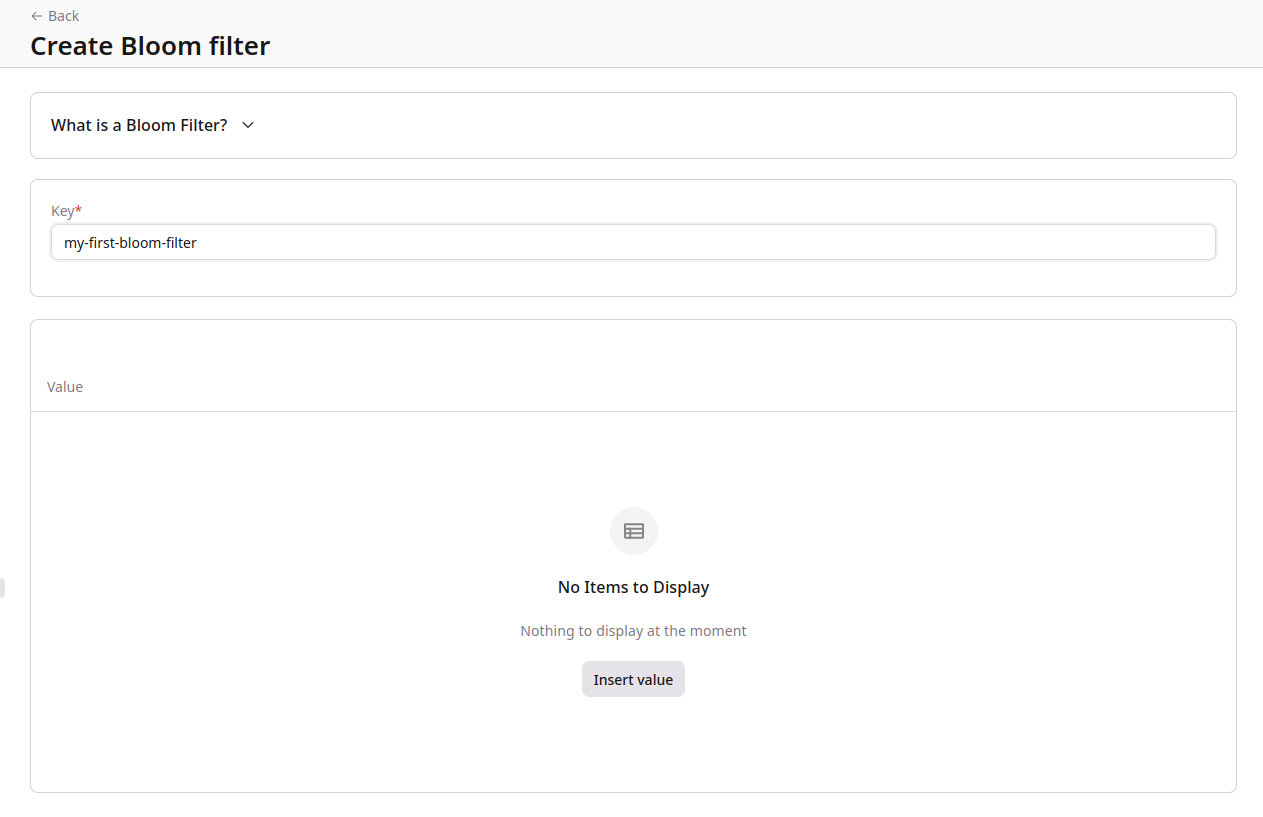
    2. Enter a key in the **Key** field.

    <Frame>
      <img src="https://mintcdn.com/gcore/ya83svzwxRUsGLmD/images/docs/fastedge/kv-stores/bloom-filter/create-bloom.png?fit=max&auto=format&n=ya83svzwxRUsGLmD&q=85&s=68c00eed8a6fb3b432477514d41b1009" alt="Create Bloom Filter form with Key field and empty values table" width="1263" height="817" data-path="images/docs/fastedge/kv-stores/bloom-filter/create-bloom.png" />
    </Frame>

    3. Click **Insert value**. In the panel that opens, enter a value in the **Value** field.

    <Frame>
      <img src="https://mintcdn.com/gcore/MFAXqa6tFHU8UZIW/images/docs/fastedge/kv-stores/bloom-filter/insert-bloom-values.png?fit=max&auto=format&n=MFAXqa6tFHU8UZIW&q=85&s=a1dd43f8826ca26bc88d3f4394634461" alt="Insert Bloom Filter values panel with Value fields and Add value button" width="1400" height="900" data-path="images/docs/fastedge/kv-stores/bloom-filter/insert-bloom-values.png" />
    </Frame>

    4. To add more values, click **+ Add value** and fill in the field.

    5. Click **Save** to create the Bloom Filter.

    <Info>
      Uploading a value from a file has a 1 MB size limit. File uploads replace the value in the portal with a hash of the file content.
    </Info>

    ## Edit a Bloom Filter

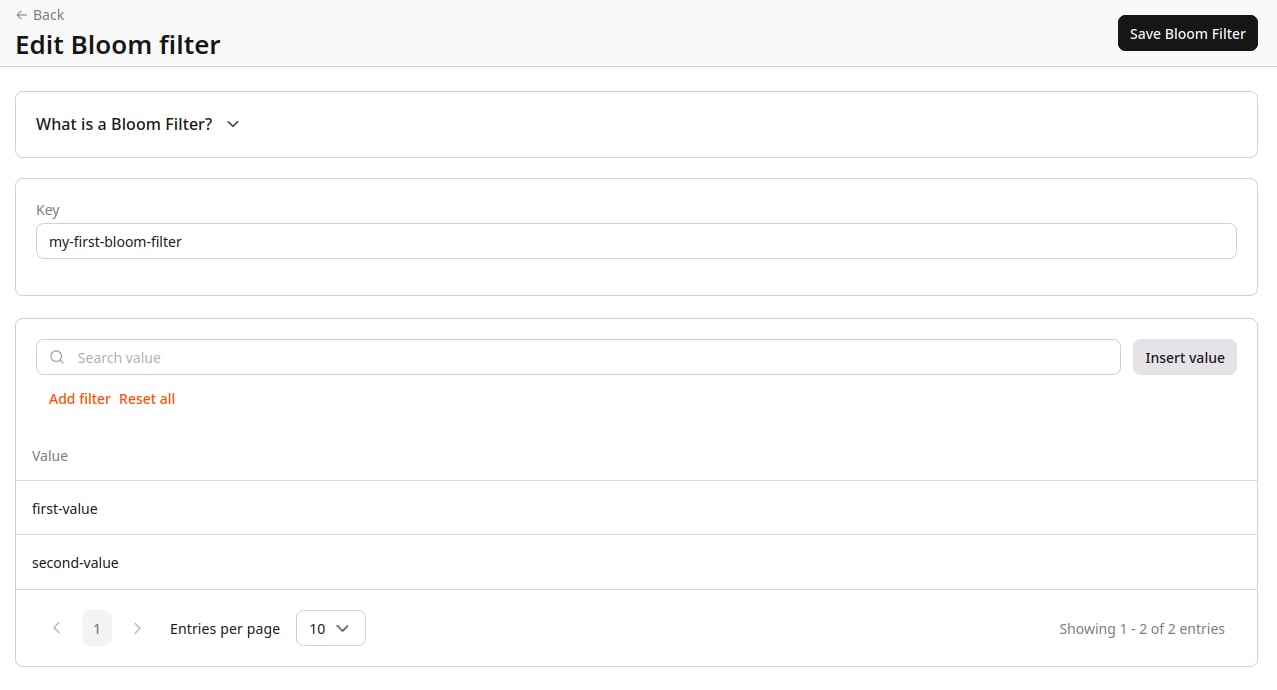
    <p>To edit a Bloom Filter, open the store that contains it. In the item list, click the three-dot icon next to the Bloom Filter and select **Edit**.</p>

    <Frame>
      <img src="https://mintcdn.com/gcore/MFAXqa6tFHU8UZIW/images/docs/fastedge/kv-stores/bloom-filter/edit-bloom-store.png?fit=max&auto=format&n=MFAXqa6tFHU8UZIW&q=85&s=2fa4820c59a8f81a45173e3346d1e22d" alt="Edge Storage store view with three-dot menu open on a Bloom Filter row showing Edit and Delete options" width="1536" height="730" data-path="images/docs/fastedge/kv-stores/bloom-filter/edit-bloom-store.png" />
    </Frame>

    <p>The editor lists the current values and a search box. Click **Insert value** to open the value panel, add entries, and click **Save Bloom Filter** to apply.</p>

    <Frame>
      <img src="https://mintcdn.com/gcore/ya83svzwxRUsGLmD/images/docs/fastedge/kv-stores/bloom-filter/edit-bloom-filter.png?fit=max&auto=format&n=ya83svzwxRUsGLmD&q=85&s=bf9e60ecbb6f9f113f3584331539520e" alt="Edit Bloom Filter page showing existing values list and Insert value button" width="1277" height="690" data-path="images/docs/fastedge/kv-stores/bloom-filter/edit-bloom-filter.png" />
    </Frame>

    <Info>
      Bloom Filters are append-only. Individual values cannot be edited or removed. To reset the filter, delete it and create a new one.
    </Info>

    ## Delete a Bloom Filter

    <p>To delete a Bloom Filter, open the store that contains it. Click the three-dot icon next to the Bloom Filter and select **Delete**. Confirm the deletion when prompted.</p>
  </MethodSection>

  <MethodSection id="api" label="REST API">
    <p>Bloom Filters are managed through the same data endpoint as key-value pairs. Use <code>datatype: bloom\_filter</code> in all operations.</p>

    <Info>
      An [API token](/account-settings/api-tokens) is required. Use the store ID from the store creation response or from the list endpoint.
    </Info>

    ```bash theme={null}
    export GCORE_API_KEY="{YOUR_API_KEY}"
    export STORE_ID="{YOUR_STORE_ID}"
    ```

    ## Create a Bloom Filter

    <p>A Bloom Filter is stored as a single key inside an Edge Storage store. The key identifies the filter, while the payload contains its values.</p>

    <p>Use <code>PUT /fastedge/v1/kv/{store_id}/data</code> with <code>op: add</code> to create a Bloom Filter. The <code>payload</code> is an array of values, each with an <code>encoding</code> and a <code>value</code> field.</p>

    ```bash theme={null}
    curl -X PUT "https://api.gcore.com/fastedge/v1/kv/$STORE_ID/data" \
      -H "Authorization: APIKey $GCORE_API_KEY" \
      -H "Content-Type: application/json" \
      -d '[
        {
          "op": "add",
          "key": "blocked-ips",
          "datatype": "bloom_filter",
          "payload": [
            { "encoding": "plain", "value": "192.168.1.1" },
            { "encoding": "plain", "value": "10.0.0.1" },
            { "encoding": "plain", "value": "172.16.0.5" }
          ]
        }
      ]'
    ```

    <p>The API returns write statistics:</p>

    ```json theme={null}
    {
      "write_count": 3,
      "del_count": 0,
      "write_size": 71,
      "store_size": 356,
      "revision": 602
    }
    ```

    ## Read a Bloom Filter

    <p>The API exposes the stored values for management and debugging purposes. Applications typically use Bloom Filters for membership checks rather than value retrieval.</p>

    <p>Retrieve the values stored in a Bloom Filter with <code>GET /fastedge/v1/kv/{store_id}/data/{key}</code>:</p>

    ```bash theme={null}
    curl "https://api.gcore.com/fastedge/v1/kv/$STORE_ID/data/blocked-ips" \
      -H "Authorization: APIKey $GCORE_API_KEY"
    ```

    <p>The API returns the full value list:</p>

    ```json theme={null}
    {
      "datatype": "bloom_filter",
      "key": "blocked-ips",
      "payload": [
        { "encoding": "plain", "value": "192.168.1.1" },
        { "encoding": "plain", "value": "10.0.0.1" },
        { "encoding": "plain", "value": "172.16.0.5" }
      ],
      "count": 3
    }
    ```

    ## Add values

    <p>Unlike sorted sets, Bloom Filters do not support updates or removals. New values can only be appended. Use the same <code>PUT</code> endpoint with <code>op: add</code> to add values to an existing filter. Values that are already present are ignored without error.</p>

    ```bash theme={null}
    curl -X PUT "https://api.gcore.com/fastedge/v1/kv/$STORE_ID/data" \
      -H "Authorization: APIKey $GCORE_API_KEY" \
      -H "Content-Type: application/json" \
      -d '[
        {
          "op": "add",
          "key": "blocked-ips",
          "datatype": "bloom_filter",
          "payload": [
            { "encoding": "plain", "value": "192.168.2.100" }
          ]
        }
      ]'
    ```

    <Warning>
      <code>del\_entries</code> is not supported for Bloom Filters. Removing individual values would introduce false negatives and break the fundamental guarantee of the data structure — Bloom Filters are append-only by design. To reset a filter, delete it with <code>op: del\_key</code> and recreate it.
    </Warning>

    ## Delete a Bloom Filter

    <p>Use <code>op: del\_key</code> to delete the entire Bloom Filter and all its values.</p>

    ```bash theme={null}
    curl -X PUT "https://api.gcore.com/fastedge/v1/kv/$STORE_ID/data" \
      -H "Authorization: APIKey $GCORE_API_KEY" \
      -H "Content-Type: application/json" \
      -d '[
        {
          "op": "del_key",
          "key": "blocked-ips",
          "datatype": "bloom_filter"
        }
      ]'
    ```

    <p>The API returns <code>del\_count: 1</code> on success.</p>
  </MethodSection>
</MethodSwitch>