> ## Documentation Index
> Fetch the complete documentation index at: https://docs.gcore.com/llms.txt
> Use this file to discover all available pages before exploring further.
# Getting started
Creating a Gclaw instance takes about a minute. Once ready, the chat interface opens and the assistant is available immediately.
## Launch an instance
To create and launch a Gclaw instance:
1. Sign in to the [Gcore Customer Portal](https://portal.gcore.com/) and navigate to **AI** > **Gclaw**. A Gcore account is required; [sign up](https://auth.gcore.com/login/signup) if needed.
 2. If this is the first time accessing Gclaw, review the Terms of Use and click **I Agree**.
3. Click **Get started**.
4. Wait approximately one minute for the instance to be prepared.
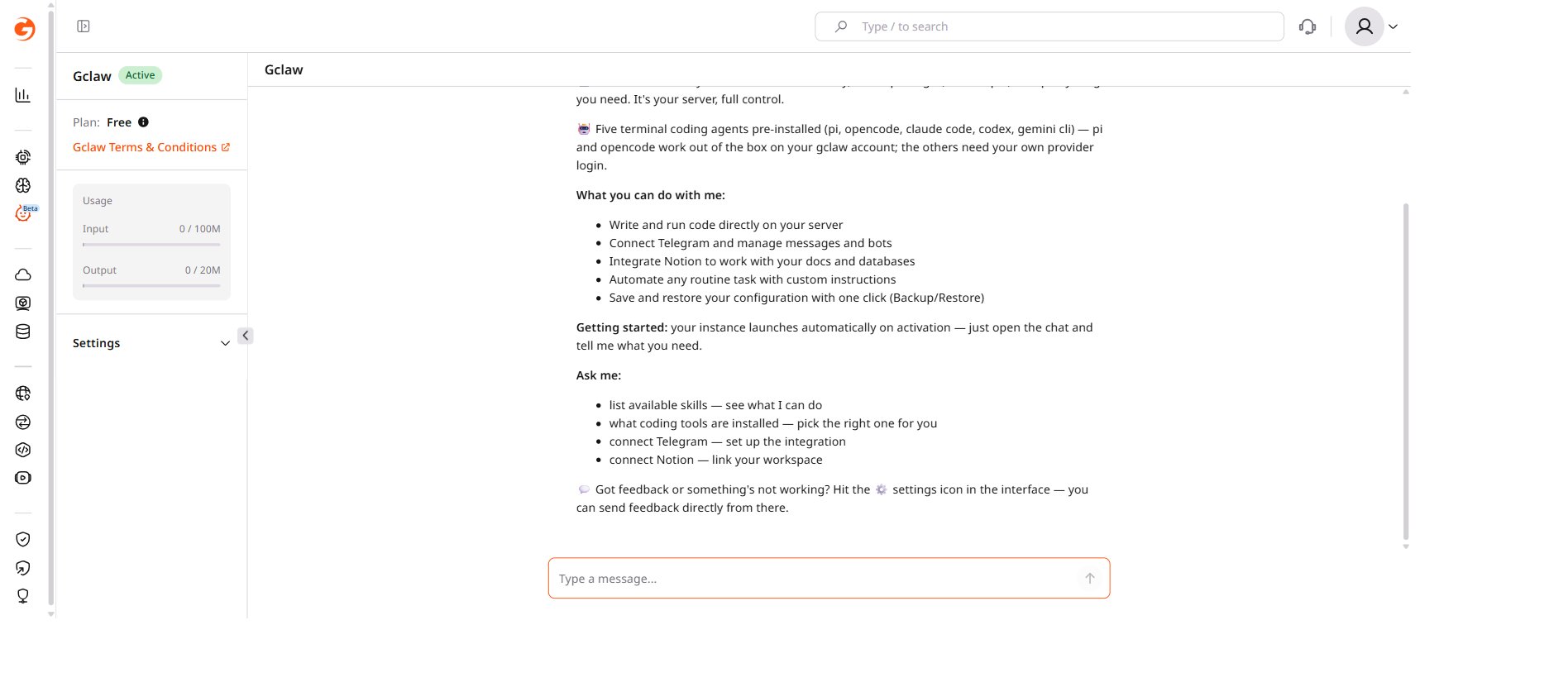
5. Once ready, a welcome message appears and the chat interface becomes active.
## Interface elements
The chat area displays the conversation with the AI assistant, including a welcome message with tips for getting started. The message input field at the bottom of the screen accepts text — press Enter or click **Send** to submit messages.
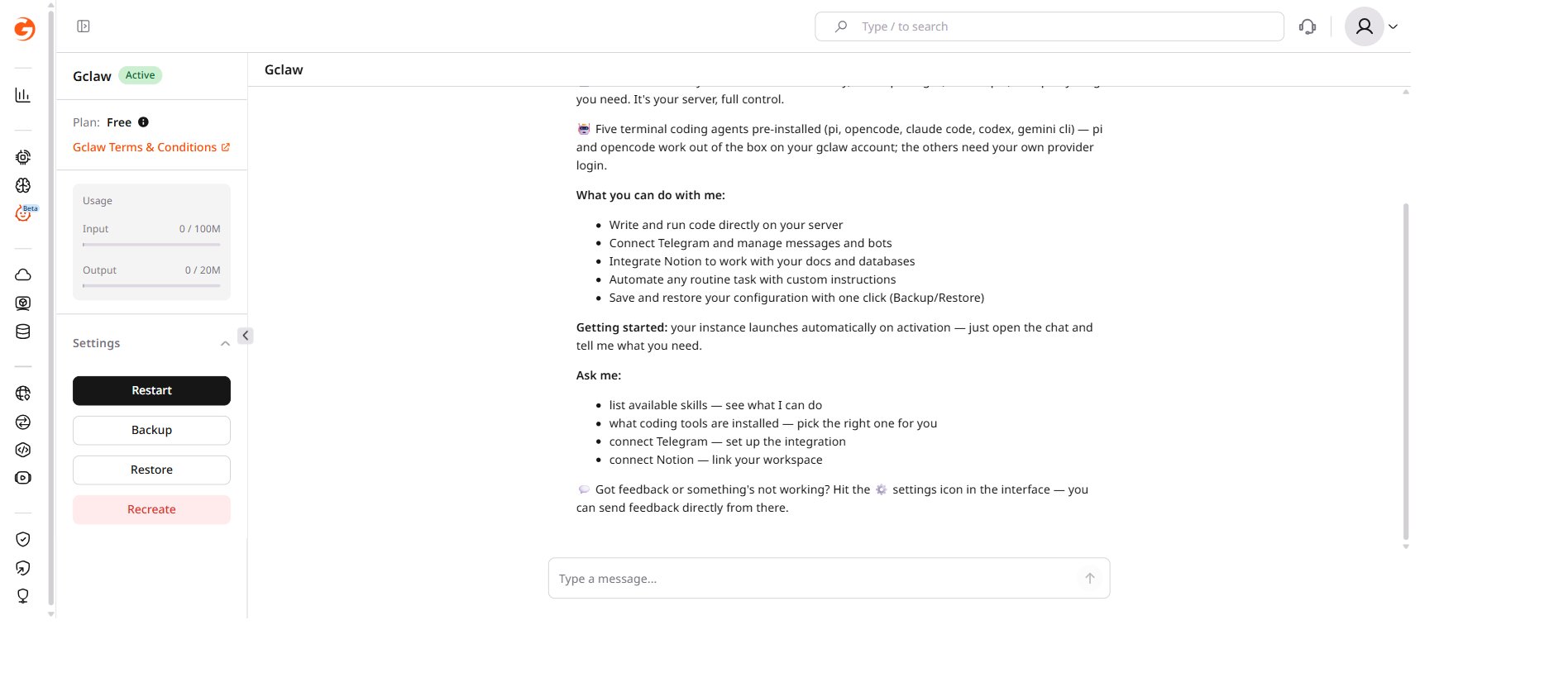
The **Settings** section in the left sidebar controls instance management. Expanding it reveals four actions: **Restart**, **Backup**, **Restore**, and **Recreate**.
2. If this is the first time accessing Gclaw, review the Terms of Use and click **I Agree**.
3. Click **Get started**.
4. Wait approximately one minute for the instance to be prepared.
5. Once ready, a welcome message appears and the chat interface becomes active.
## Interface elements
The chat area displays the conversation with the AI assistant, including a welcome message with tips for getting started. The message input field at the bottom of the screen accepts text — press Enter or click **Send** to submit messages.
The **Settings** section in the left sidebar controls instance management. Expanding it reveals four actions: **Restart**, **Backup**, **Restore**, and **Recreate**.
 ## Start chatting
The welcome message includes tips for working with Gclaw. Click **Settings** > **Backup** before making significant changes — this enables rollback if something breaks.
Ask the assistant for copy-paste config snippets to connect messaging platforms. To enable web search capabilities, add a [Brave Search API key](https://brave.com/search/api/) by asking the assistant "Help me enable web search."
Gclaw starts fresh each session and does not remember previous conversations by default. The assistant keeps notes in the workspace to build continuity over time.
## Start chatting
The welcome message includes tips for working with Gclaw. Click **Settings** > **Backup** before making significant changes — this enables rollback if something breaks.
Ask the assistant for copy-paste config snippets to connect messaging platforms. To enable web search capabilities, add a [Brave Search API key](https://brave.com/search/api/) by asking the assistant "Help me enable web search."
Gclaw starts fresh each session and does not remember previous conversations by default. The assistant keeps notes in the workspace to build continuity over time.