> ## Documentation Index
> Fetch the complete documentation index at: https://docs.gcore.com/llms.txt
> Use this file to discover all available pages before exploring further.
# Manage instance
Gclaw provides instance management through the **Settings** section in the left sidebar, including configuration backup and restore, instance restart, and full recreation. All data resides on a single dedicated VM with no centralized backup — if the VM fails, all configurations and chat history are lost.
Use the **Backup** feature regularly and store critical configuration details externally.
## Data persistence
Understanding what data persists across different operations helps prevent data loss.
| Data | Persists after restart | Persists after recreate |
| ----------------------------------------------------- | ---------------------- | ----------------------- |
| Workspace files (`/home/ubuntu/.openclaw/workspace/`) | Yes | No |
| Configuration (`openclaw.json`) | Yes | No |
| API keys and integrations | Yes | No |
| Installed skills | Yes | No |
| Web chat history | No (session-based) | No |
Workspace files include `MEMORY.md`, `SOUL.md`, `IDENTITY.md`, and any files created during conversations. These files persist across restarts but are lost when recreating the instance.
Chat history in the web interface is session-based — closing the browser or starting a new session clears the visible history. Conversations through external platforms (Telegram, Discord) are stored on those platforms and remain accessible.
Export important workspace files periodically. Ask the assistant to display file contents, then copy them to an external location.
## Access instance settings
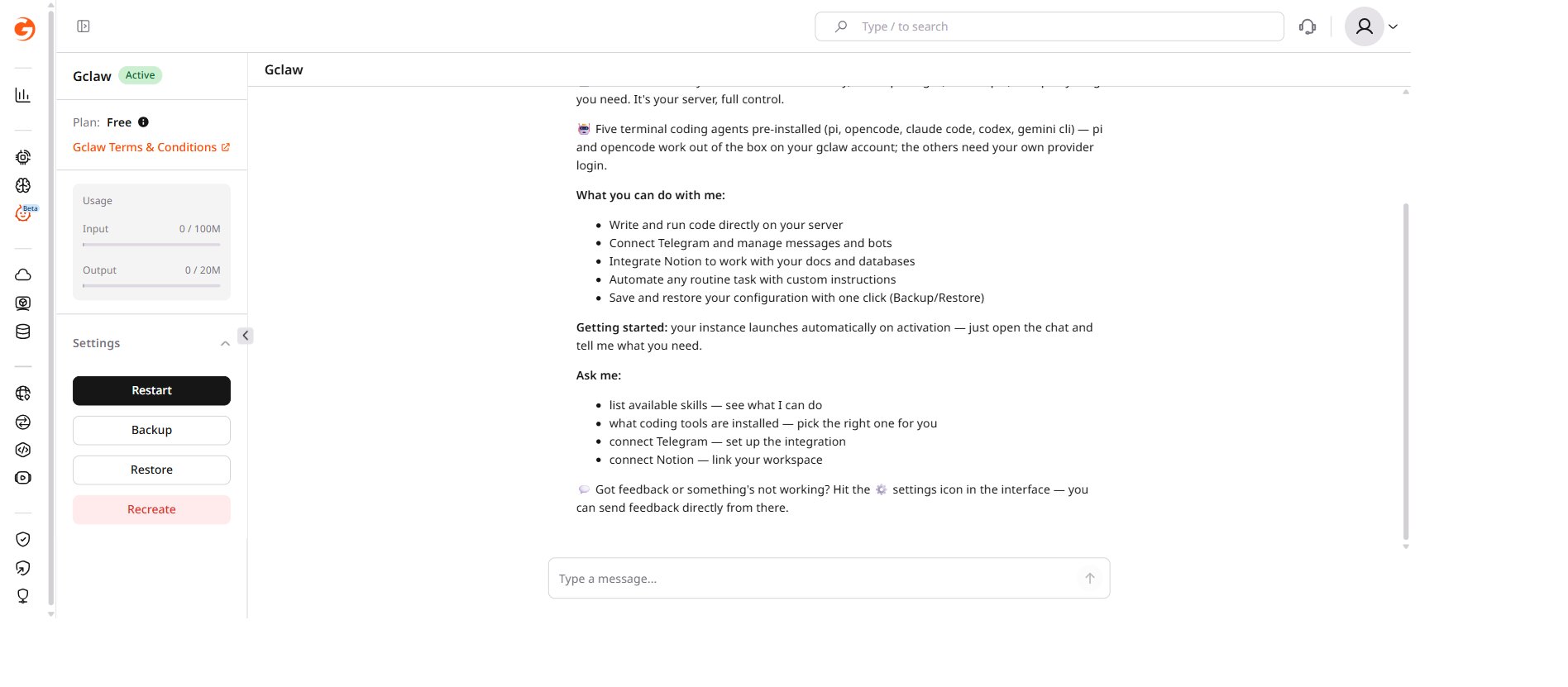
To access instance management options, open Gclaw in the [Gcore Customer Portal](https://portal.gcore.com/) and click **Settings** in the left sidebar. The section expands to show four actions: **Restart**, **Backup**, **Restore**, and **Recreate**.
 ## Back up configuration
Creating regular backups helps recover from misconfigurations or unwanted changes. The backup covers the OpenClaw configuration file (`openclaw.json`), including channel connections, API keys, installed skills, and custom settings. Workspace files (`MEMORY.md`, `SOUL.md`, `IDENTITY.md`, and any files created during conversations) are not included — back them up separately using the Git workflow described below.
Create a backup before making significant changes — adding new skills, connecting platforms, or modifying settings.
### Using the Settings section
To back up the configuration:
1. In the [Gcore Customer Portal](https://portal.gcore.com/), open Gclaw and click **Settings**.
2. Click **Backup**.
3. The current configuration is saved.
### Exporting configuration to JSON
To export the full configuration as JSON, ask the assistant to run the backup command:
> "Run openclaw config get and show me the output"
The assistant executes the command and displays the configuration. Copy the JSON output to an external file for safekeeping.
To restore from a JSON backup, provide the configuration to the assistant:
> "Restore this configuration: \[paste JSON here]"
### Git workflow for workspace backup
The workspace directory can be version-controlled with Git. Ask the assistant to initialize a repository and push to a remote:
> "Initialize a Git repo in the workspace and push to my GitHub repository"
The assistant can create commits, push changes, and pull updates, providing full version history and recovery options for workspace files.
## Restore configuration
If something goes wrong after making changes, restore the previous configuration.
To restore from a backup:
1. Click **Settings** in the left sidebar.
2. Click **Restore**.
3. The instance reverts to the most recent backup.
Restoring configuration overwrites current settings. Any changes made since the last backup are lost.
## Restart the instance
Restarting can help resolve temporary issues or apply configuration changes that require a restart.
To restart the instance:
1. Click **Settings** in the left sidebar.
2. Click **Restart**.
3. Wait for the instance to restart. This takes less than one minute.
Consider restarting when configuration changes do not take effect, the assistant becomes unresponsive, unexpected behavior occurs, or updates have been applied.
## Recreate the instance
Recreating the instance creates a fresh installation, removing all configurations and returning to the default state.
Recreating the instance permanently deletes all configurations, including channel connections, skills, and custom settings. This action cannot be undone. Create a backup before recreating to preserve settings.
To recreate the instance:
1. Click **Settings** in the left sidebar.
2. Click **Recreate**.
3. Confirm the action when prompted.
4. Wait for the new instance to be created. This takes about one minute.
Consider recreating when starting fresh with a clean configuration, the instance is in an unrecoverable state, or troubleshooting persistent issues that restart does not resolve.
## Recovery after restart or recreate
After a restart, all data remains intact and the instance continues from its previous state.
After recreating the instance, restore the previous configuration:
1. If a backup exists, click **Settings** > **Restore** to apply it.
2. If a JSON backup was exported, provide it to the assistant to restore settings.
3. If workspace files were backed up to Git, clone the repository:
> "Clone my workspace backup from \[repository URL]"
## Troubleshooting
For issues not resolved by restarting or restoring configuration, ask the Gclaw assistant directly. Describe the problem in the chat — the assistant can diagnose issues, suggest solutions, and apply configuration changes.
## Back up configuration
Creating regular backups helps recover from misconfigurations or unwanted changes. The backup covers the OpenClaw configuration file (`openclaw.json`), including channel connections, API keys, installed skills, and custom settings. Workspace files (`MEMORY.md`, `SOUL.md`, `IDENTITY.md`, and any files created during conversations) are not included — back them up separately using the Git workflow described below.
Create a backup before making significant changes — adding new skills, connecting platforms, or modifying settings.
### Using the Settings section
To back up the configuration:
1. In the [Gcore Customer Portal](https://portal.gcore.com/), open Gclaw and click **Settings**.
2. Click **Backup**.
3. The current configuration is saved.
### Exporting configuration to JSON
To export the full configuration as JSON, ask the assistant to run the backup command:
> "Run openclaw config get and show me the output"
The assistant executes the command and displays the configuration. Copy the JSON output to an external file for safekeeping.
To restore from a JSON backup, provide the configuration to the assistant:
> "Restore this configuration: \[paste JSON here]"
### Git workflow for workspace backup
The workspace directory can be version-controlled with Git. Ask the assistant to initialize a repository and push to a remote:
> "Initialize a Git repo in the workspace and push to my GitHub repository"
The assistant can create commits, push changes, and pull updates, providing full version history and recovery options for workspace files.
## Restore configuration
If something goes wrong after making changes, restore the previous configuration.
To restore from a backup:
1. Click **Settings** in the left sidebar.
2. Click **Restore**.
3. The instance reverts to the most recent backup.
Restoring configuration overwrites current settings. Any changes made since the last backup are lost.
## Restart the instance
Restarting can help resolve temporary issues or apply configuration changes that require a restart.
To restart the instance:
1. Click **Settings** in the left sidebar.
2. Click **Restart**.
3. Wait for the instance to restart. This takes less than one minute.
Consider restarting when configuration changes do not take effect, the assistant becomes unresponsive, unexpected behavior occurs, or updates have been applied.
## Recreate the instance
Recreating the instance creates a fresh installation, removing all configurations and returning to the default state.
Recreating the instance permanently deletes all configurations, including channel connections, skills, and custom settings. This action cannot be undone. Create a backup before recreating to preserve settings.
To recreate the instance:
1. Click **Settings** in the left sidebar.
2. Click **Recreate**.
3. Confirm the action when prompted.
4. Wait for the new instance to be created. This takes about one minute.
Consider recreating when starting fresh with a clean configuration, the instance is in an unrecoverable state, or troubleshooting persistent issues that restart does not resolve.
## Recovery after restart or recreate
After a restart, all data remains intact and the instance continues from its previous state.
After recreating the instance, restore the previous configuration:
1. If a backup exists, click **Settings** > **Restore** to apply it.
2. If a JSON backup was exported, provide it to the assistant to restore settings.
3. If workspace files were backed up to Git, clone the repository:
> "Clone my workspace backup from \[repository URL]"
## Troubleshooting
For issues not resolved by restarting or restoring configuration, ask the Gclaw assistant directly. Describe the problem in the chat — the assistant can diagnose issues, suggest solutions, and apply configuration changes.