> ## Documentation Index
> Fetch the complete documentation index at: https://docs.gcore.com/llms.txt
> Use this file to discover all available pages before exploring further.
# Set up two-factor authentication
## Enable two-factor authentication
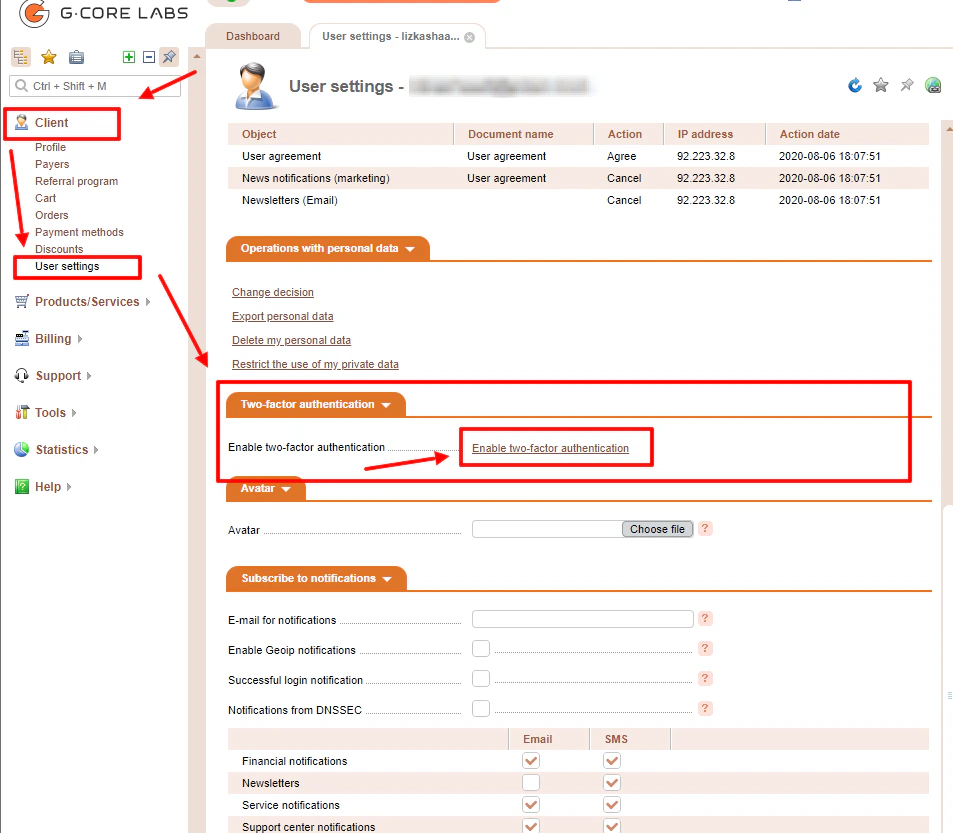
1\. In the user Settings section, go to two-factor authentication.
2\. Click Enable two-factor authentication.
 3\. Scan the QR code using the Google Authenticator app.
Important! If the QR code is not recognized, use the text data in the Key field to set up your account in the Google Authenticator app.
3\. Scan the QR code using the Google Authenticator app.
Important! If the QR code is not recognized, use the text data in the Key field to set up your account in the Google Authenticator app.
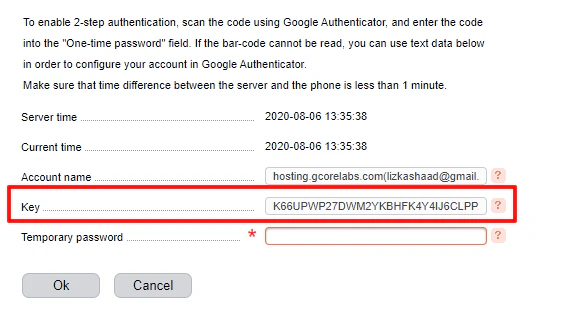 4\. Enter the six-digit code generated by the app in the Temporary password field.
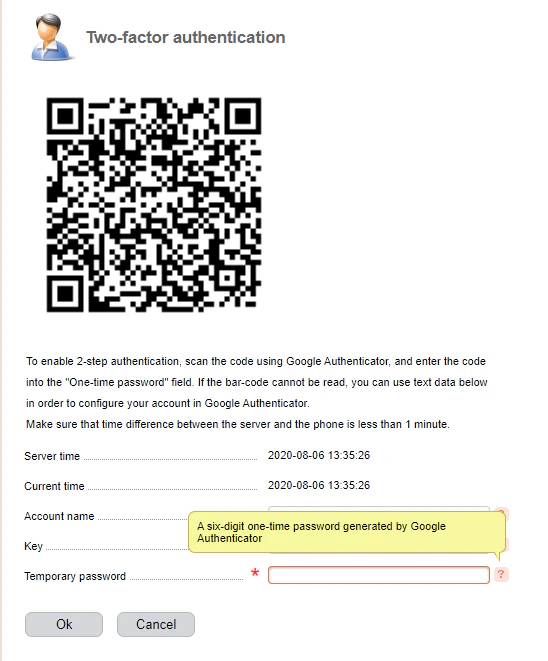 ! Make sure that the time difference between the server and the phone is less than 1 minute.
5\. Click OK.
## Authorize with two-factor authentication
1\. Enter your username and password.
2\. Specify the desired interface language.
3\. Click Log In.
! Make sure that the time difference between the server and the phone is less than 1 minute.
5\. Click OK.
## Authorize with two-factor authentication
1\. Enter your username and password.
2\. Specify the desired interface language.
3\. Click Log In.
 4\. On the confirmation page, enter the six-digit code from the Google Authenticator app in the Temporary password field.
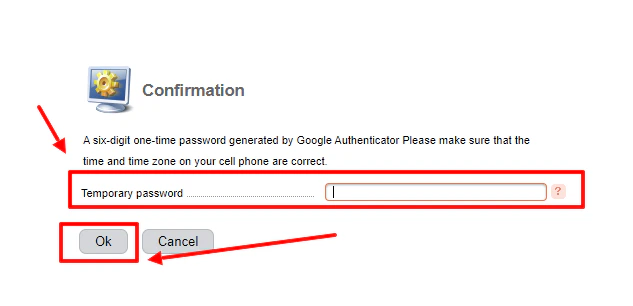 Important! Make sure that the exact time and time zone are set correctly on your phone.
5\. Click OK
## Disable two-step authentication
1\. In the user Settings section, go to two-factor authentication.
2\. Enter the six-digit code generated by the Google Authenticator app in the Disable two-factor authentication field.
Important! Make sure that the exact time and time zone are set correctly on your phone.
5\. Click OK
## Disable two-step authentication
1\. In the user Settings section, go to two-factor authentication.
2\. Enter the six-digit code generated by the Google Authenticator app in the Disable two-factor authentication field.
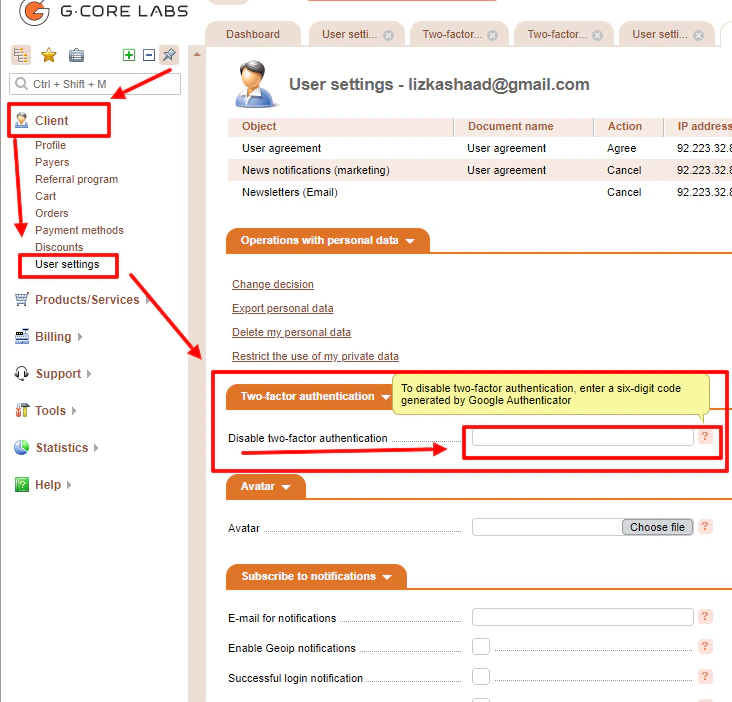 3\. Click OK to save your changes.
## Recover access
If for some reason after enabling two-factor authentication, you cannot enter the verification code from the app during authorization, please contact our technical support ([support@gcore.com](mailto:support@gcore.com)) and provide your first and last name and phone number that you pointed during registration.
3\. Click OK to save your changes.
## Recover access
If for some reason after enabling two-factor authentication, you cannot enter the verification code from the app during authorization, please contact our technical support ([support@gcore.com](mailto:support@gcore.com)) and provide your first and last name and phone number that you pointed during registration.