> ## Documentation Index
> Fetch the complete documentation index at: https://docs.gcore.com/llms.txt
> Use this file to discover all available pages before exploring further.
# Configure user rights
In the Control Panel, you can set the user rights, allowing or denying them access to the different sections and restricting the execution of operations.
To switch to the access rights editing mode, go to Client - Users. Select the user and click Perm.
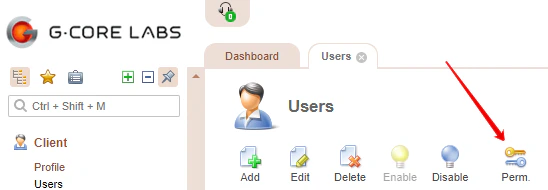 Rights are grouped by sections. In each section, you can give a user permission to edit forms and view data.
Double-click the attribute to configure the further rights.
To activate access to a subsection of the Control Panel, select the line with the desired attribute and click **Enable** in the top menu.
Rights are grouped by sections. In each section, you can give a user permission to edit forms and view data.
Double-click the attribute to configure the further rights.
To activate access to a subsection of the Control Panel, select the line with the desired attribute and click **Enable** in the top menu.
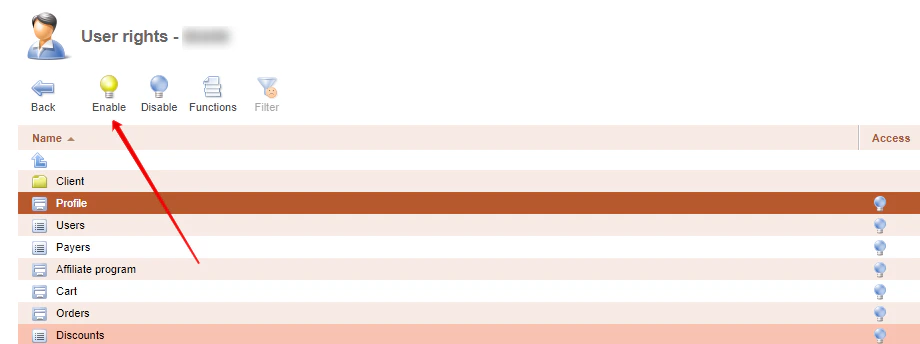 To remove the access permission select the string and click **Disable** in the top menu.
## Full and restricted user rights
To give the user full rights, choose the user you need in the "Users" section, then click **Edit**.
To remove the access permission select the string and click **Disable** in the top menu.
## Full and restricted user rights
To give the user full rights, choose the user you need in the "Users" section, then click **Edit**.
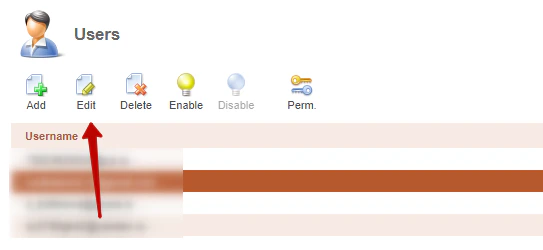 Tick the "Full access" permissions and press **Ok**.
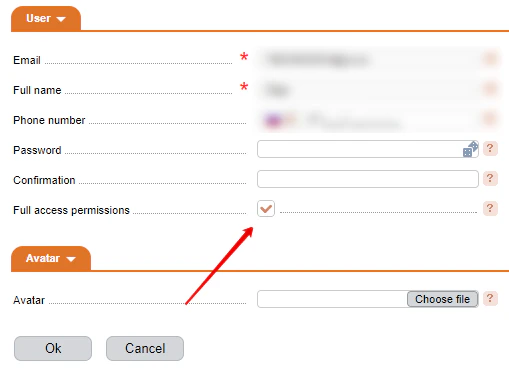 Note, that if the user has Full access permissions you will not be able to restrict his rights in Perm. section.
## User blocking
You can restrict the access to the Control Panel for a certain user. Choose the user and then click **Disable**.
Note, that if the user has Full access permissions you will not be able to restrict his rights in Perm. section.
## User blocking
You can restrict the access to the Control Panel for a certain user. Choose the user and then click **Disable**.
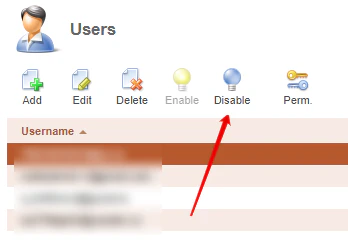 If the blocked user tries to login to the Control Panel, they will get "Invalid username or password" error.