> ## Documentation Index
> Fetch the complete documentation index at: https://docs.gcore.com/llms.txt
> Use this file to discover all available pages before exploring further.
# Connect to a Windows server
To connect to a Windows server, use the default Remote Desktop Connection application. You will need to enter the following information:
* Server URL—the IP address of your server
* Username
* Password
To find this information, follow these steps:
1. In the left menu, select **Products/Services** → **Dedicated servers** or **Virtual private servers**. 2. Click the server you want to connect to. 3. Click the **Instructions** menu in the upper menu bar to find the IP address, username, and password.
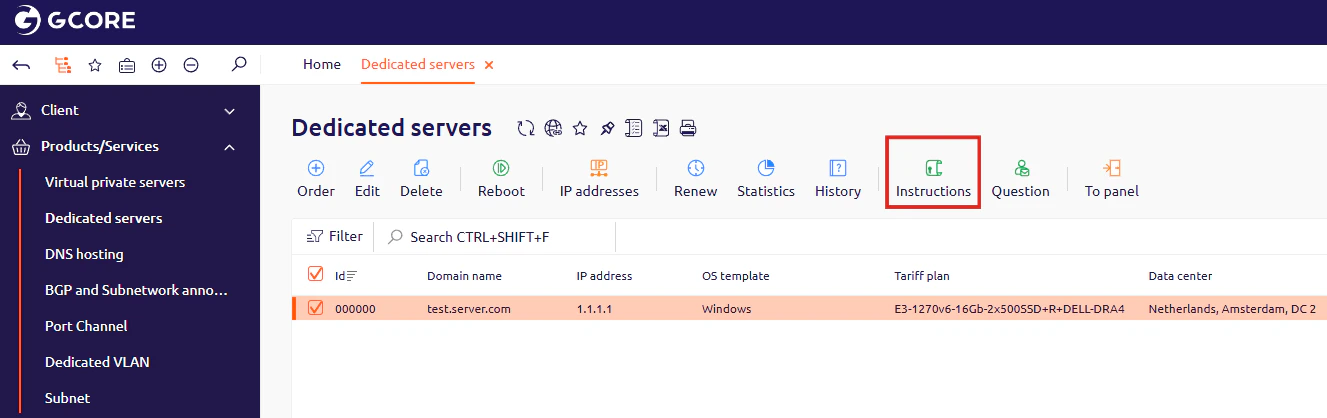 Alternatively, you can also find this information in the email you received after purchasing the server.