> ## Documentation Index
> Fetch the complete documentation index at: https://docs.gcore.com/llms.txt
> Use this file to discover all available pages before exploring further.

# Connect dedicated servers into a VLAN

VLAN - virtual local network that allows working in an internal network regardless of physical server locations.

In order to set up VLAN between your servers, you should use DCI Manager.

## VLAN initiation

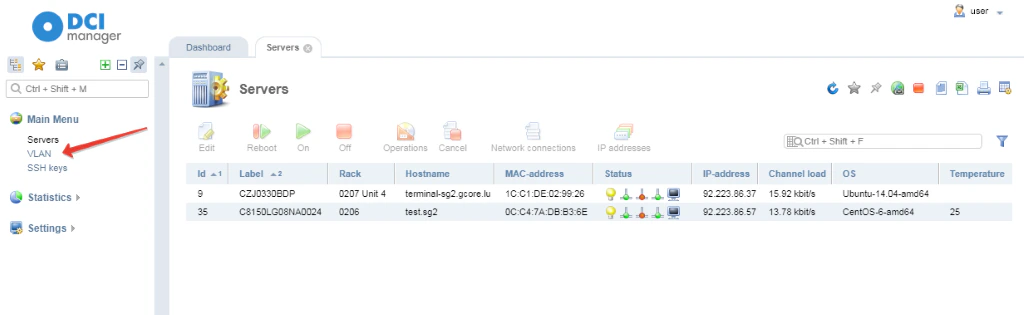
1\. Go to DCI manager and choose VLAN section.
<Frame>
  <img src="https://mintcdn.com/gcore/6c7rSEr5Xo1-o6lk/images/docs/hosting/dedicated-servers/manage/networking/connect-dedicated-servers-into-a-vlan/blobid0.png?fit=max&auto=format&n=6c7rSEr5Xo1-o6lk&q=85&s=31f893fef9ad63633f1eb20dbc01b2ea" alt="VLAN section." width="1024" height="315" data-path="images/docs/hosting/dedicated-servers/manage/networking/connect-dedicated-servers-into-a-vlan/blobid0.png" />
</Frame>

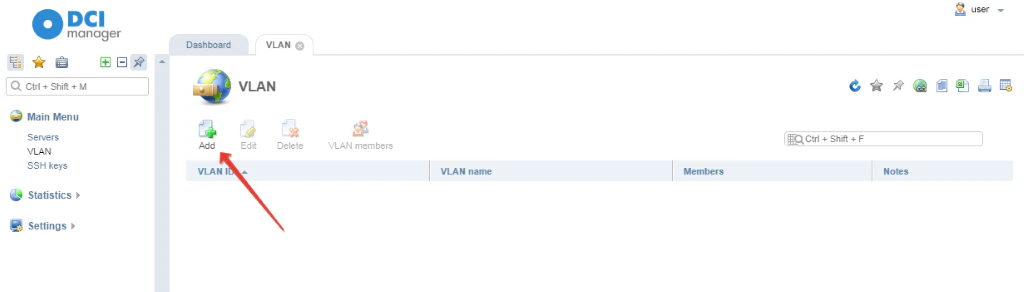
2\. Click **Add** button to create a new VLAN.
<Frame>
  <img src="https://mintcdn.com/gcore/6c7rSEr5Xo1-o6lk/images/docs/hosting/dedicated-servers/manage/networking/connect-dedicated-servers-into-a-vlan/blobid1.png?fit=max&auto=format&n=6c7rSEr5Xo1-o6lk&q=85&s=d4e90a43c9bee645a55ed77e2fcff5f7" alt="new VLAN" width="1024" height="292" data-path="images/docs/hosting/dedicated-servers/manage/networking/connect-dedicated-servers-into-a-vlan/blobid1.png" />
</Frame>

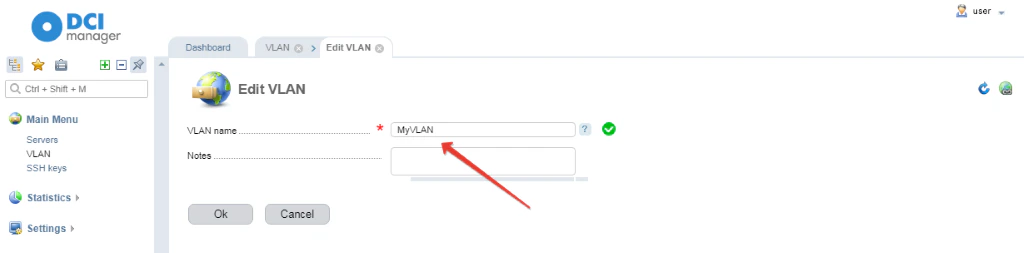
3\. Type a name for VLAN. For example, MyVLAN. Click ОК.
<Frame>
  <img src="https://mintcdn.com/gcore/6c7rSEr5Xo1-o6lk/images/docs/hosting/dedicated-servers/manage/networking/connect-dedicated-servers-into-a-vlan/blobid5.png?fit=max&auto=format&n=6c7rSEr5Xo1-o6lk&q=85&s=5d0c0ab64395be4f4b74447ee7ec06d7" alt="Type a name for VLAN" width="1024" height="253" data-path="images/docs/hosting/dedicated-servers/manage/networking/connect-dedicated-servers-into-a-vlan/blobid5.png" />
</Frame>

## Adding new members

You should add members to realize an interaction by virtual local network. VLAN can be set up only for servers that belong to one account.

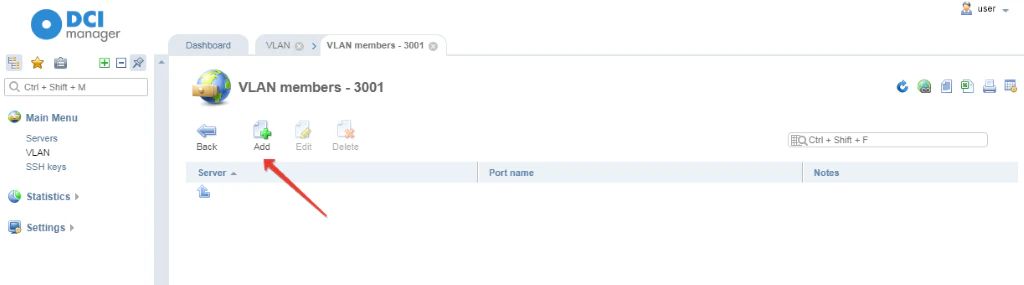
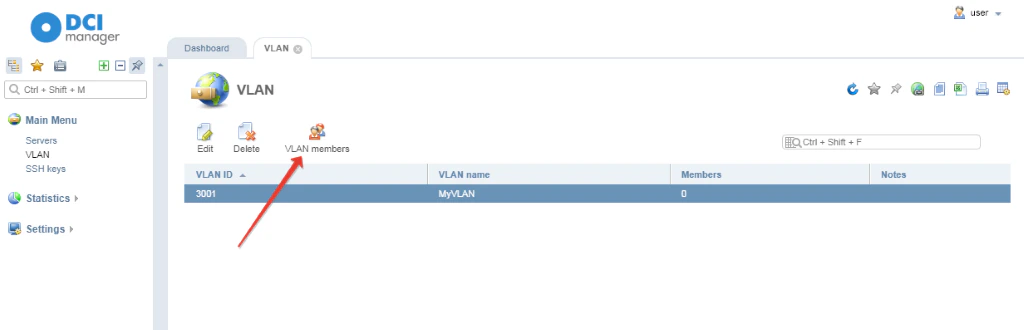
1\. Highlight a created VLAN and go to VLAN Members section.
<Frame>
  <img src="https://mintcdn.com/gcore/6c7rSEr5Xo1-o6lk/images/docs/hosting/dedicated-servers/manage/networking/connect-dedicated-servers-into-a-vlan/blobid6.png?fit=max&auto=format&n=6c7rSEr5Xo1-o6lk&q=85&s=ffa4ee49813b3c907144536922c3bbf0" alt="VLAN Members section." width="1024" height="330" data-path="images/docs/hosting/dedicated-servers/manage/networking/connect-dedicated-servers-into-a-vlan/blobid6.png" />
</Frame>

2\. Click **Add**.

<Frame>
  <img src="https://mintcdn.com/gcore/6c7rSEr5Xo1-o6lk/images/docs/hosting/dedicated-servers/manage/networking/connect-dedicated-servers-into-a-vlan/blobid7.png?fit=max&auto=format&n=6c7rSEr5Xo1-o6lk&q=85&s=2322df2058ac2c502be4b72be753725f" alt="Add" width="1024" height="285" data-path="images/docs/hosting/dedicated-servers/manage/networking/connect-dedicated-servers-into-a-vlan/blobid7.png" />
</Frame>

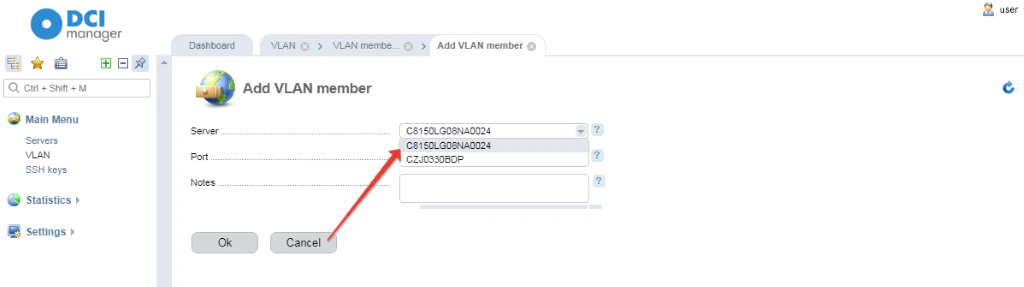
3\. Choose a server you need to add in a drop-down list.
<Frame>
  <img src="https://mintcdn.com/gcore/6c7rSEr5Xo1-o6lk/images/docs/hosting/dedicated-servers/manage/networking/connect-dedicated-servers-into-a-vlan/blobid8.png?fit=max&auto=format&n=6c7rSEr5Xo1-o6lk&q=85&s=2896908e92578ba714f140ffad624cce" alt="Choose a server you need to add in a drop-down list." width="1024" height="287" data-path="images/docs/hosting/dedicated-servers/manage/networking/connect-dedicated-servers-into-a-vlan/blobid8.png" />
</Frame>

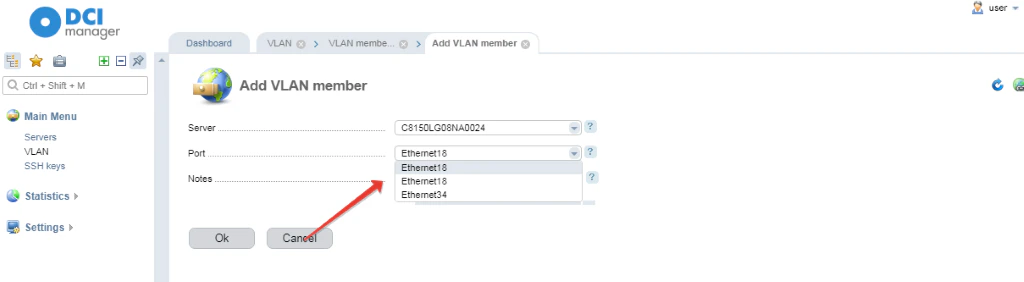
4\. In a Port section choose an interface of the server and click **OK**.
<Frame>
  <img src="https://mintcdn.com/gcore/6c7rSEr5Xo1-o6lk/images/docs/hosting/dedicated-servers/manage/networking/connect-dedicated-servers-into-a-vlan/blobid9.png?fit=max&auto=format&n=6c7rSEr5Xo1-o6lk&q=85&s=03ae67b444886f593fc8055f7909b236" alt=" Port section" width="1024" height="282" data-path="images/docs/hosting/dedicated-servers/manage/networking/connect-dedicated-servers-into-a-vlan/blobid9.png" />
</Frame>

After that VLAN is ready to use. A number of servers that can be added to VLAN is unlimited.