> ## Documentation Index
> Fetch the complete documentation index at: https://docs.gcore.com/llms.txt
> Use this file to discover all available pages before exploring further.

# Reboot a server

You can reboot your dedicated server from two interfaces: the Control Panel and DCImanager.

## Via the Control Panel

1. In the Control Panel, go to **Dedicated servers**.
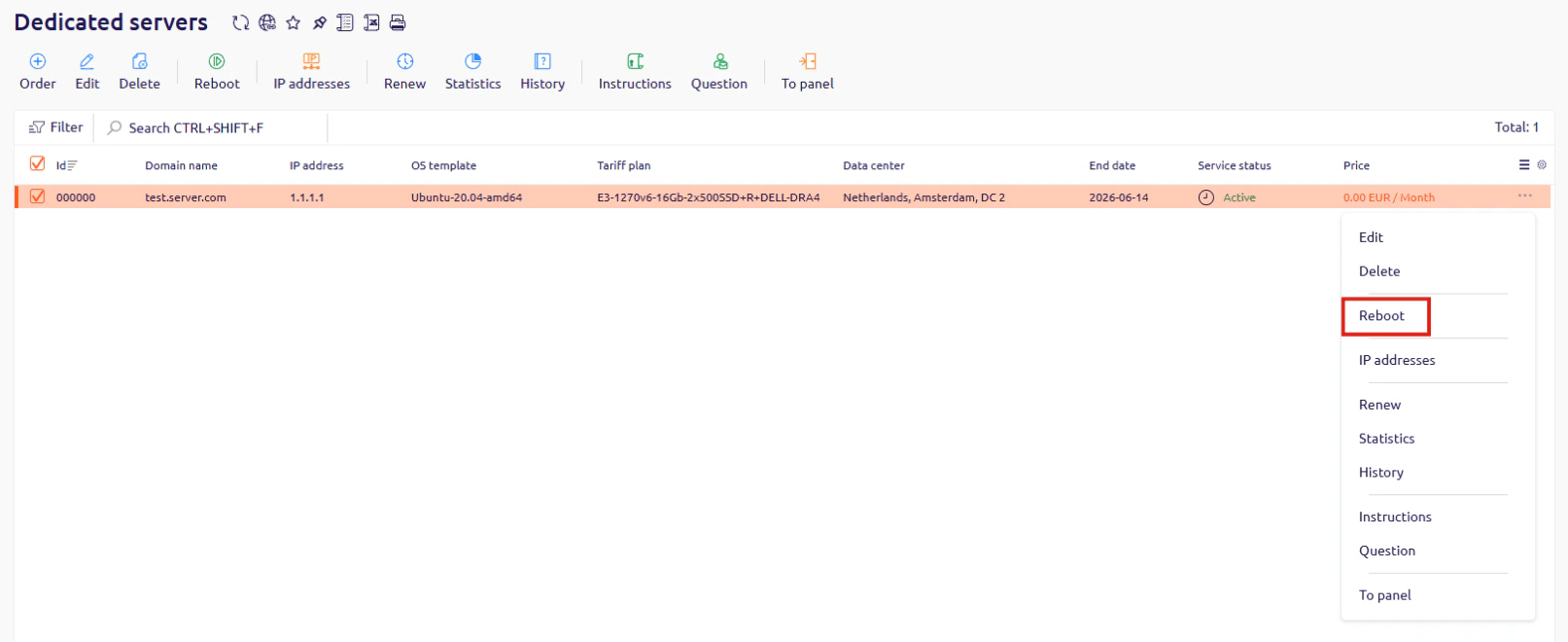
2. Find the server you want to reboot, click **...** at the end of its row, and select **Reboot**.
<Frame>
  <img src="https://mintcdn.com/gcore/wxUF-_fvWl5jf6hf/images/docs/hosting/dedicated-servers/manage/reboot-a-server/reboot-a-server-image1.png?fit=max&auto=format&n=wxUF-_fvWl5jf6hf&q=85&s=aebe82d324fd1d5a72a9545eae1f7862" alt="The Dedicated servers list in the Control Panel with the context menu open and the Reboot option highlighted" width="1613" height="660" data-path="images/docs/hosting/dedicated-servers/manage/reboot-a-server/reboot-a-server-image1.png" />
</Frame>

## Via DCImanager

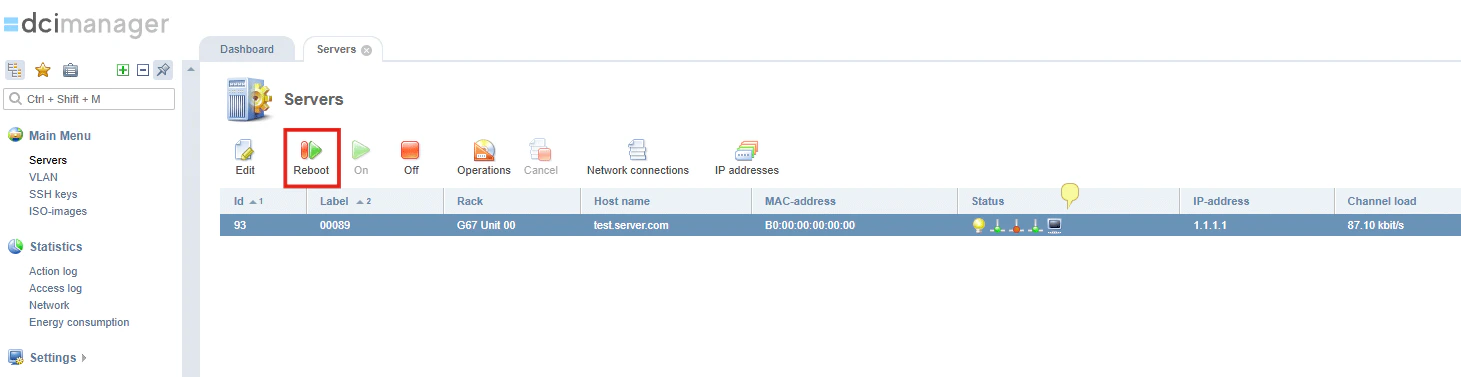
1. In DCImanager, go to **Servers**.
2. Select the server you want to reboot.
3. Click **Reboot** in the toolbar.
<Frame>
  <img src="https://mintcdn.com/gcore/wxUF-_fvWl5jf6hf/images/docs/hosting/dedicated-servers/manage/reboot-a-server/reboot-a-server-image2.png?fit=max&auto=format&n=wxUF-_fvWl5jf6hf&q=85&s=8e31bc10a8bb4e341442b6adb2e852d5" alt="The Servers list in DCImanager with a server selected and the Reboot button visible in the toolbar" width="1461" height="377" data-path="images/docs/hosting/dedicated-servers/manage/reboot-a-server/reboot-a-server-image2.png" />
</Frame>
