> ## Documentation Index
> Fetch the complete documentation index at: https://docs.gcore.com/llms.txt
> Use this file to discover all available pages before exploring further.
# Buy a Windows server
**Note** : Windows OS is available for any plan except KVM-SSD-1, KVM-SSD-2, and KVM-SSD-3.
## Buy a Windows server
1\. [Log in](https://hosting.gcore.com/billmgr) to your personal account. If you do not have a personal account yet, please sign up [here](https://hosting.gcore.com/billmgr?func=register\&lang=en).
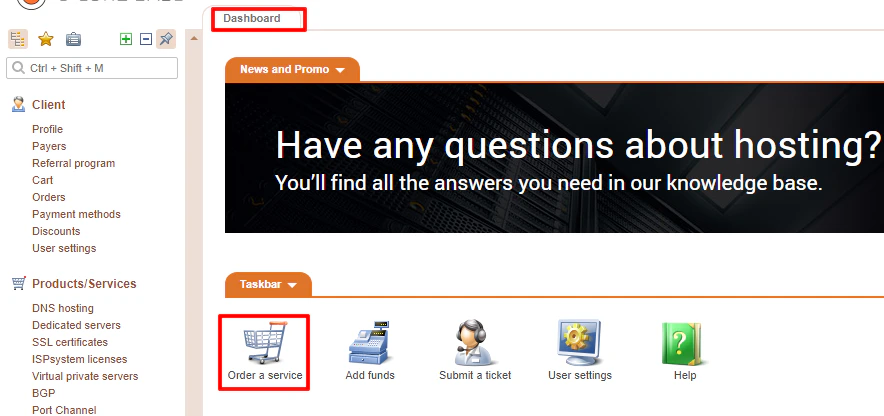
2\. Click **Order a service** on the "Dashboard".
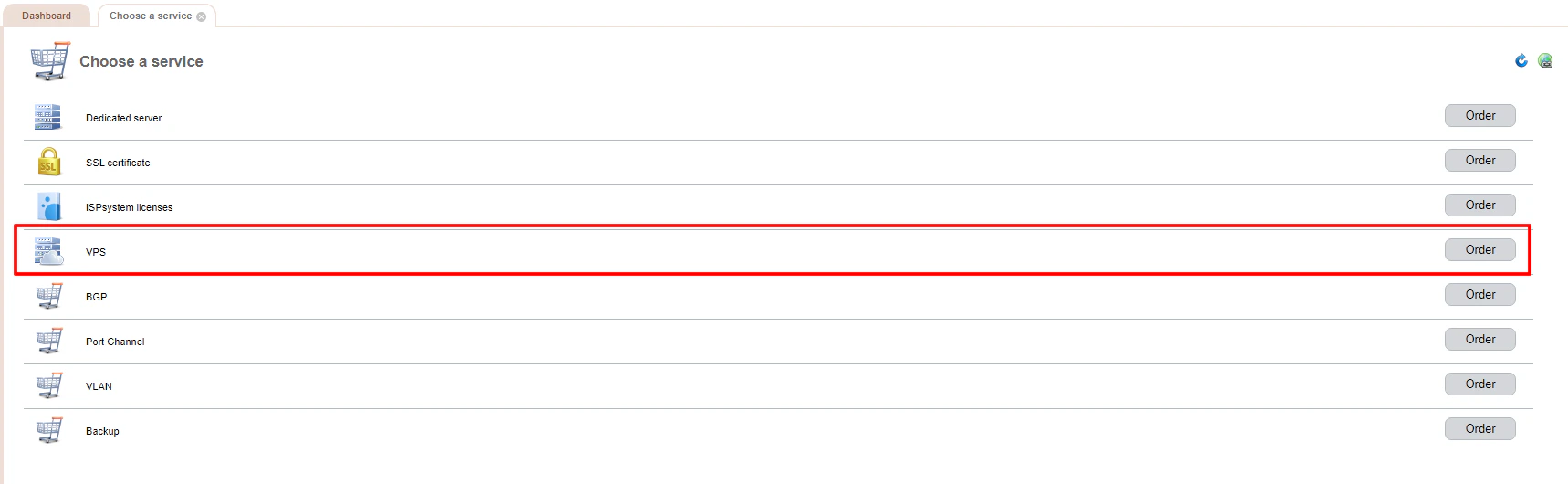
 3\. Choose **VPS**.
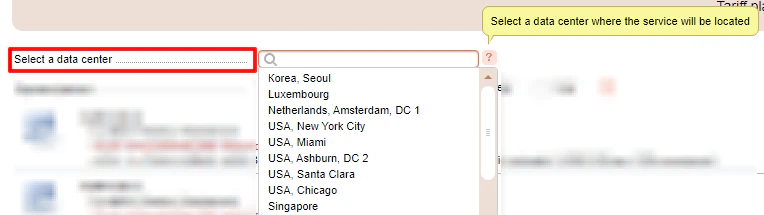
 4\. Then select a server data center.
 5\. Choose your payment period: you can pay a month, three months, six months, or a year up front.
 6\. Choose a server from the list below.
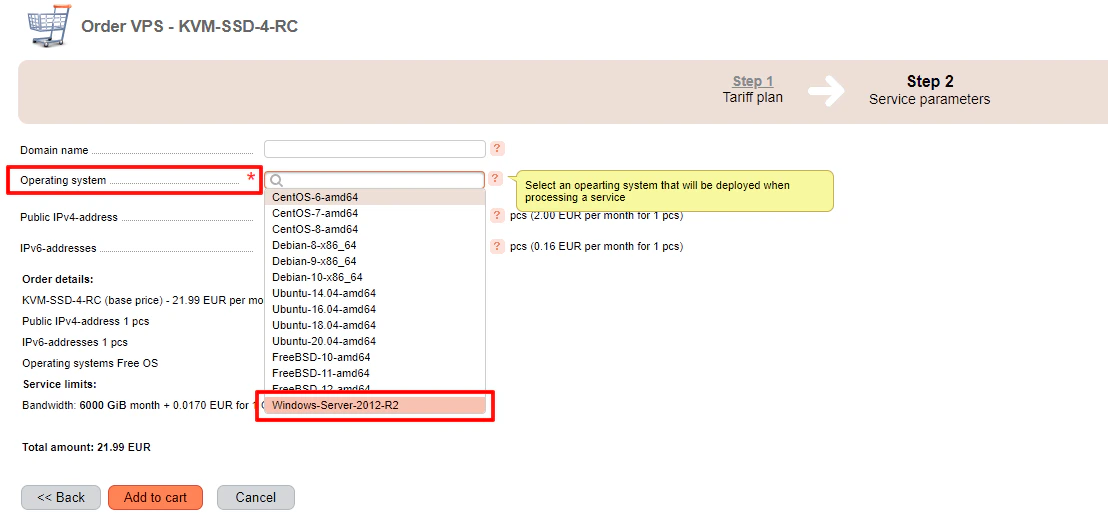
7\. Select the server configuration. In the "Operating system" field, choose **Windows Server**.
6\. Choose a server from the list below.
7\. Select the server configuration. In the "Operating system" field, choose **Windows Server**.
 ## Features of a Windows server
***
1. Windows can be installed only when you order a server.
2. If you purchase Windows 2012, you can reinstall it from the server control panel.
3. You can switch from Windows to another operating system [using templates](/hosting/virtual-servers/manage/operating-system/install-a-linux-os-from-a-template). **Important** : After reinstalling the operating system (from Windows to another one) the Windows OS license cost (25 €) will continue to be charged. We recommend purchasing a new server with the required OS instead of reinstalling the operating system.
## Features of a Windows server
***
1. Windows can be installed only when you order a server.
2. If you purchase Windows 2012, you can reinstall it from the server control panel.
3. You can switch from Windows to another operating system [using templates](/hosting/virtual-servers/manage/operating-system/install-a-linux-os-from-a-template). **Important** : After reinstalling the operating system (from Windows to another one) the Windows OS license cost (25 €) will continue to be charged. We recommend purchasing a new server with the required OS instead of reinstalling the operating system.