> ## Documentation Index
> Fetch the complete documentation index at: https://docs.gcore.com/llms.txt
> Use this file to discover all available pages before exploring further.
# Manage accounts
> Add a customer account, choose the products it shows, sign in as that customer, and request or cancel deletion.
An account has to exist before a customer can sign in to the Customer Portal and see products.
## Add an account
The form sets the sign-in details and which products the customer will see.
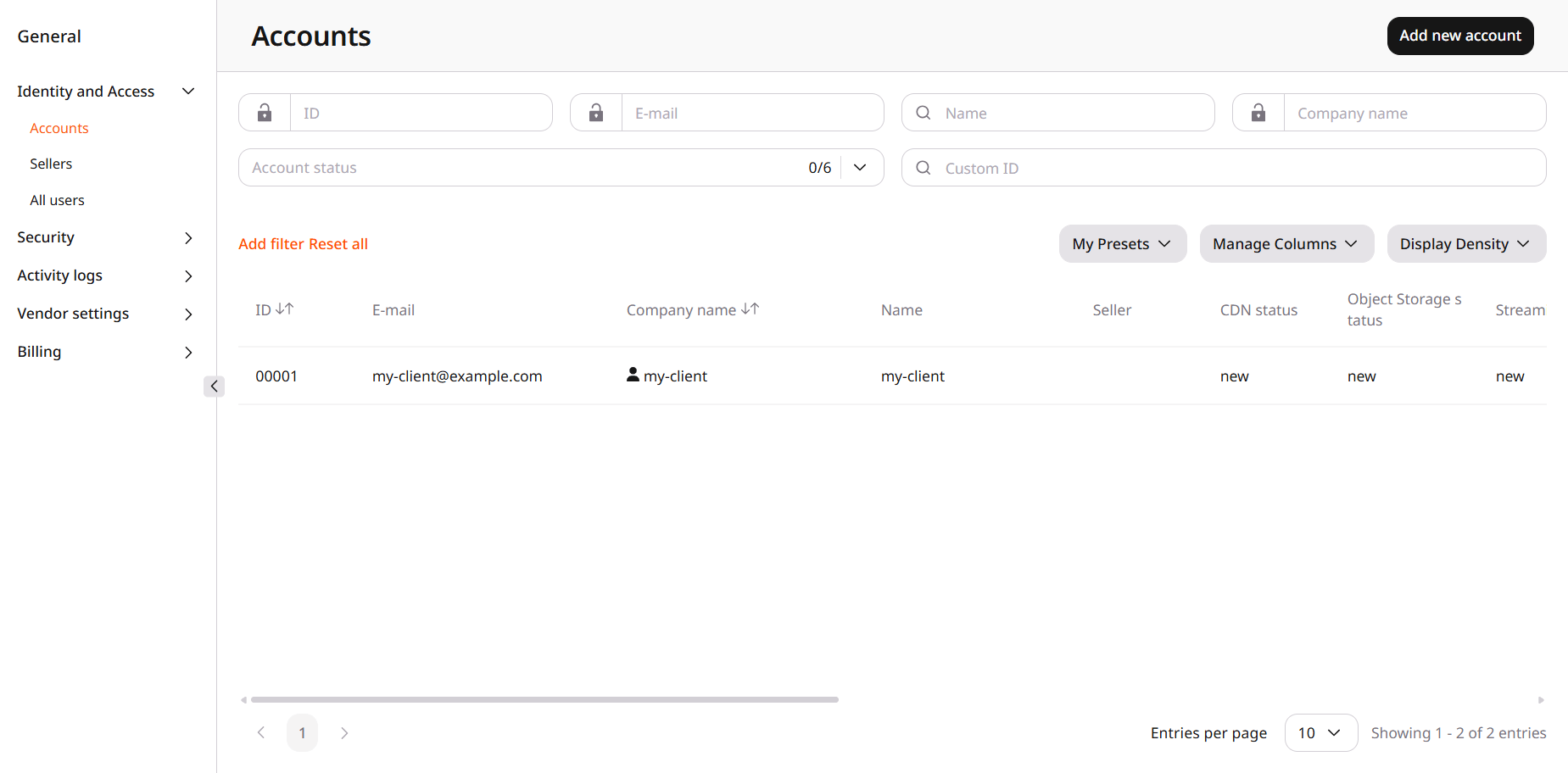
Navigate to **General** > **Identity and Access** > **Accounts** and click **Add new account**.
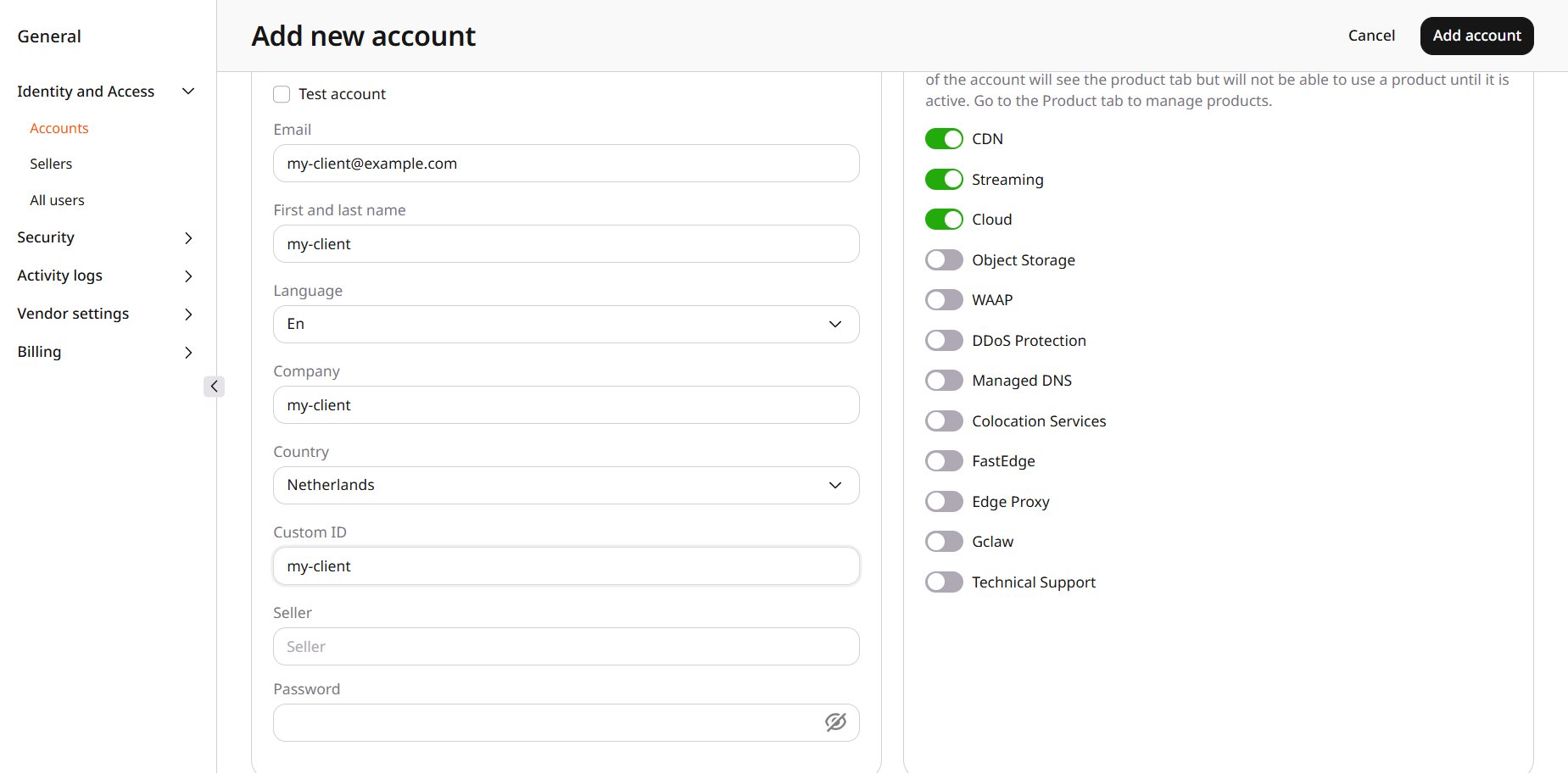
 Enter the email, first and last name, company, and country, and set a password. **Language** defaults to **En**, and **Country** defaults to **Netherlands**. Leave both, or pick another language and country. **Custom ID** and **Seller** can stay empty. **Seller** is typed in, not picked from a list.
Under **Products**, CDN, Streaming, and Cloud are already on. A product left on is visible to the customer. The customer starts it later from the Customer Portal. This form does not start it.
Enter the email, first and last name, company, and country, and set a password. **Language** defaults to **En**, and **Country** defaults to **Netherlands**. Leave both, or pick another language and country. **Custom ID** and **Seller** can stay empty. **Seller** is typed in, not picked from a list.
Under **Products**, CDN, Streaming, and Cloud are already on. A product left on is visible to the customer. The customer starts it later from the Customer Portal. This form does not start it.
 Click **Add account**.
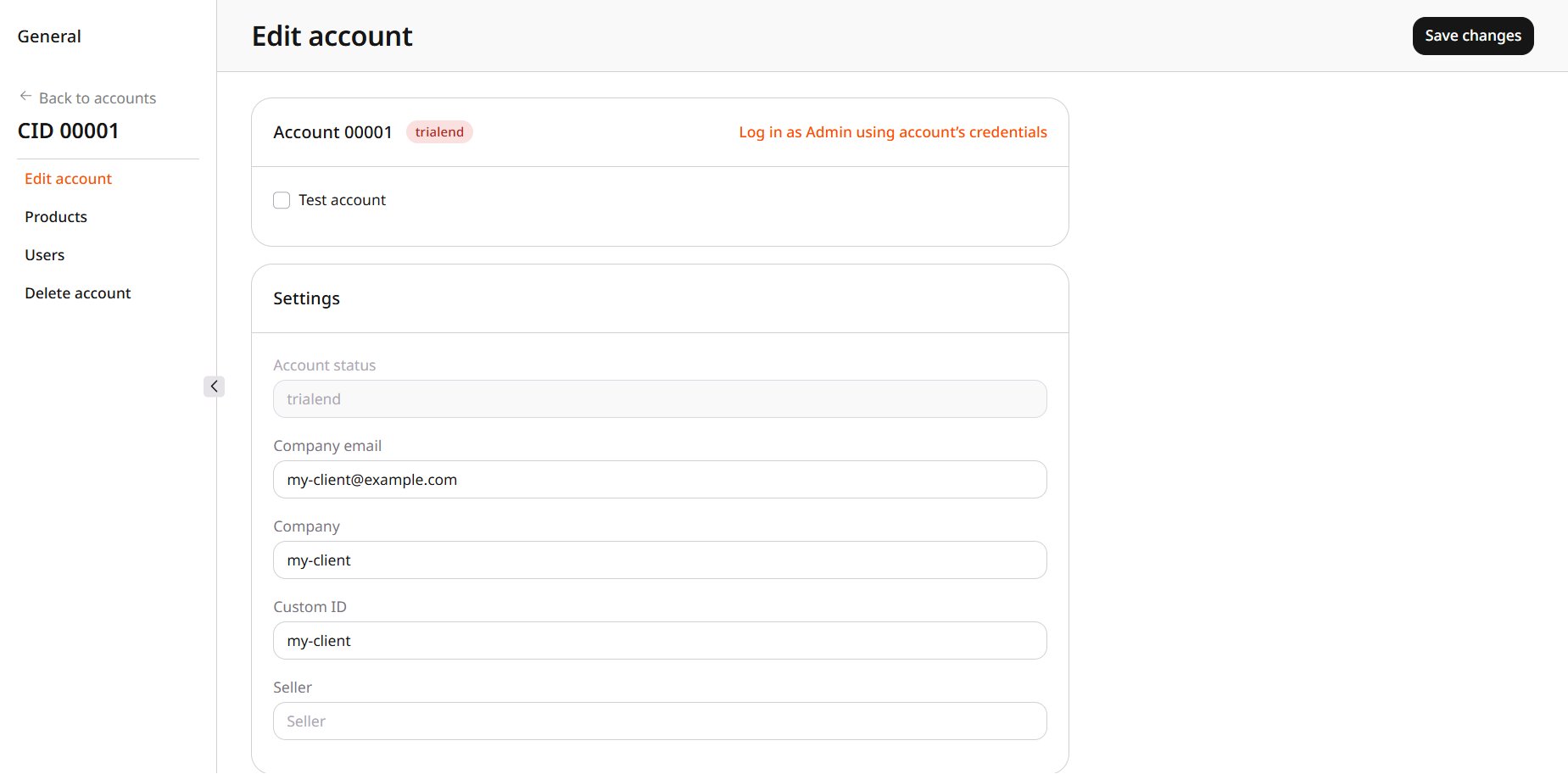
The account appears in **Accounts**. Click its ID to open **Edit account**. **Account status** is **preparation** and cannot be changed. **Company email**, **Company**, **Custom ID**, and **Seller** can be changed. The password and the name from the form are not on this page. The name is on the user created with the account.
Click **Add account**.
The account appears in **Accounts**. Click its ID to open **Edit account**. **Account status** is **preparation** and cannot be changed. **Company email**, **Company**, **Custom ID**, and **Seller** can be changed. The password and the name from the form are not on this page. The name is on the user created with the account.
 ## Products
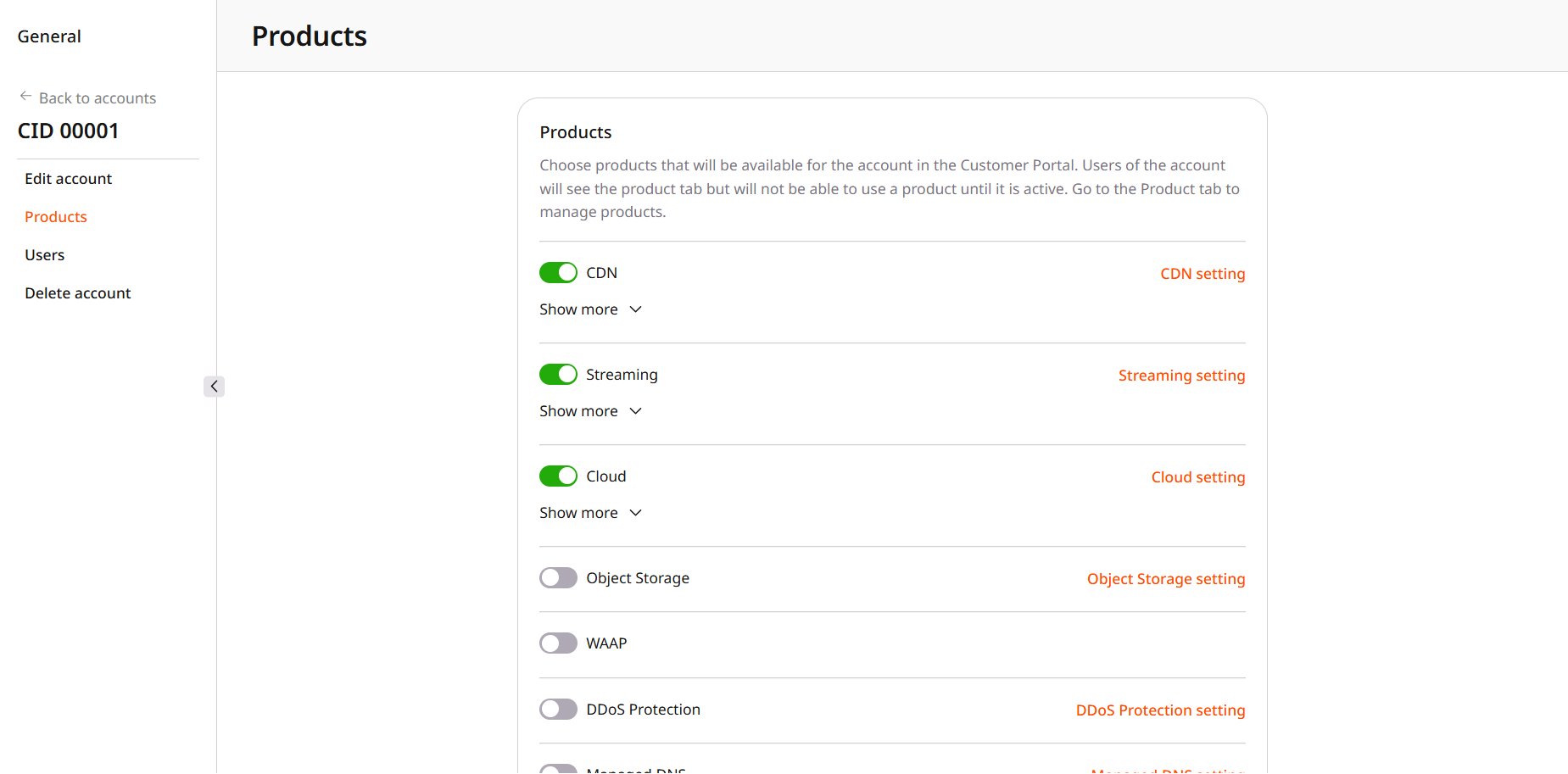
Open **Products** to change that set later. A product that is on shows status **New**, and its trial settings are disabled. Switch products on or off, then click **Save changes**. **CDN setting** opens CDN limits and features for this account. Starting the product is still done by the customer, not on this page.
## Products
Open **Products** to change that set later. A product that is on shows status **New**, and its trial settings are disabled. Switch products on or off, then click **Save changes**. **CDN setting** opens CDN limits and features for this account. Starting the product is still done by the customer, not on this page.
 ## Sign in as the customer
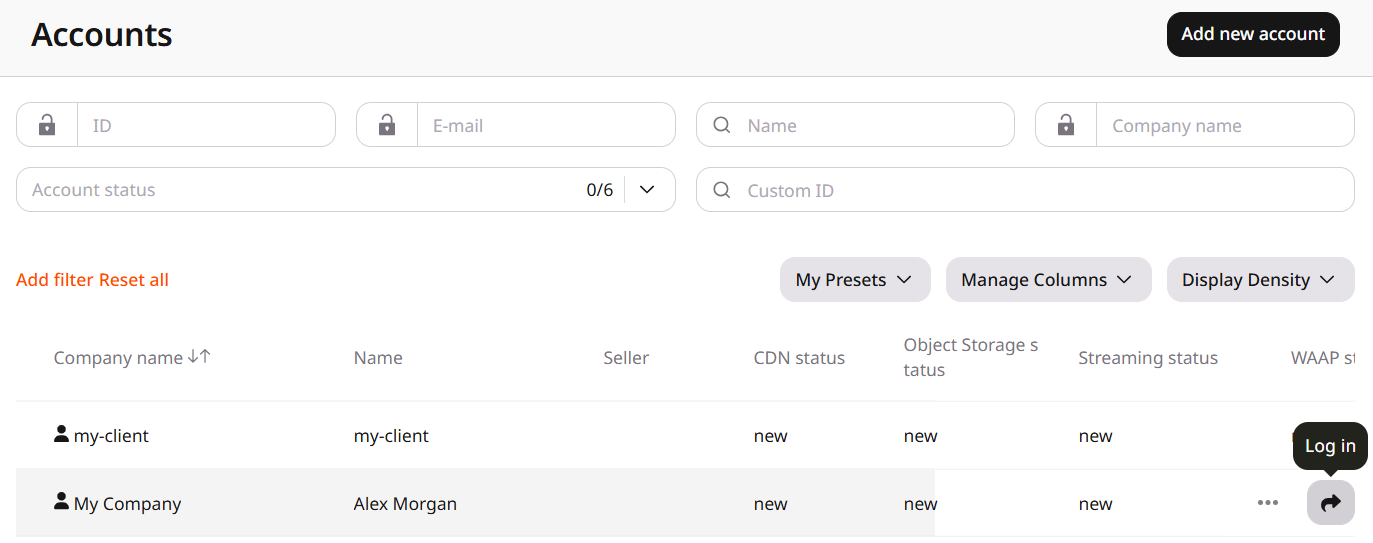
In **Actions**, rest on the arrow. It is labeled **Log in**. That control opens the Customer Portal without asking for the password. The three-dot menu on that row is **Edit** only.
## Sign in as the customer
In **Actions**, rest on the arrow. It is labeled **Log in**. That control opens the Customer Portal without asking for the password. The three-dot menu on that row is **Edit** only.
 On **Edit account**, **Log in as Admin using account’s credentials** opens the same place. The heading is **Welcome to Gcore**. CDN, Streaming, and Cloud appear as cards the customer can start. Other cards on that page are separate from the product switches on the account.
## Edit the user
The person named when the account was created is already listed on **Users**, in the group **Administrators**. Open the row menu and select **Edit**.
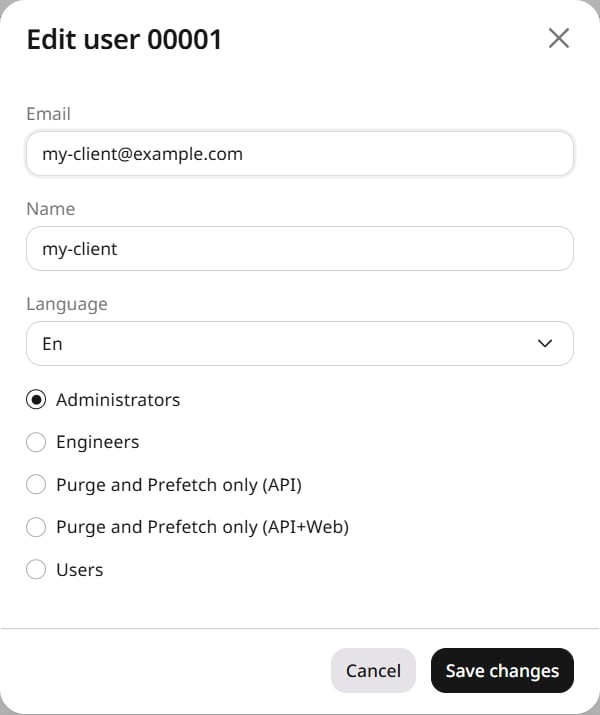
The dialog changes the email, name, and language, and sets one group: **Administrators**, **Engineers**, **Purge and Prefetch only (API)**, **Purge and Prefetch only (API+Web)**, or **Users**.
On **Edit account**, **Log in as Admin using account’s credentials** opens the same place. The heading is **Welcome to Gcore**. CDN, Streaming, and Cloud appear as cards the customer can start. Other cards on that page are separate from the product switches on the account.
## Edit the user
The person named when the account was created is already listed on **Users**, in the group **Administrators**. Open the row menu and select **Edit**.
The dialog changes the email, name, and language, and sets one group: **Administrators**, **Engineers**, **Purge and Prefetch only (API)**, **Purge and Prefetch only (API+Web)**, or **Users**.
 ## Delete an account
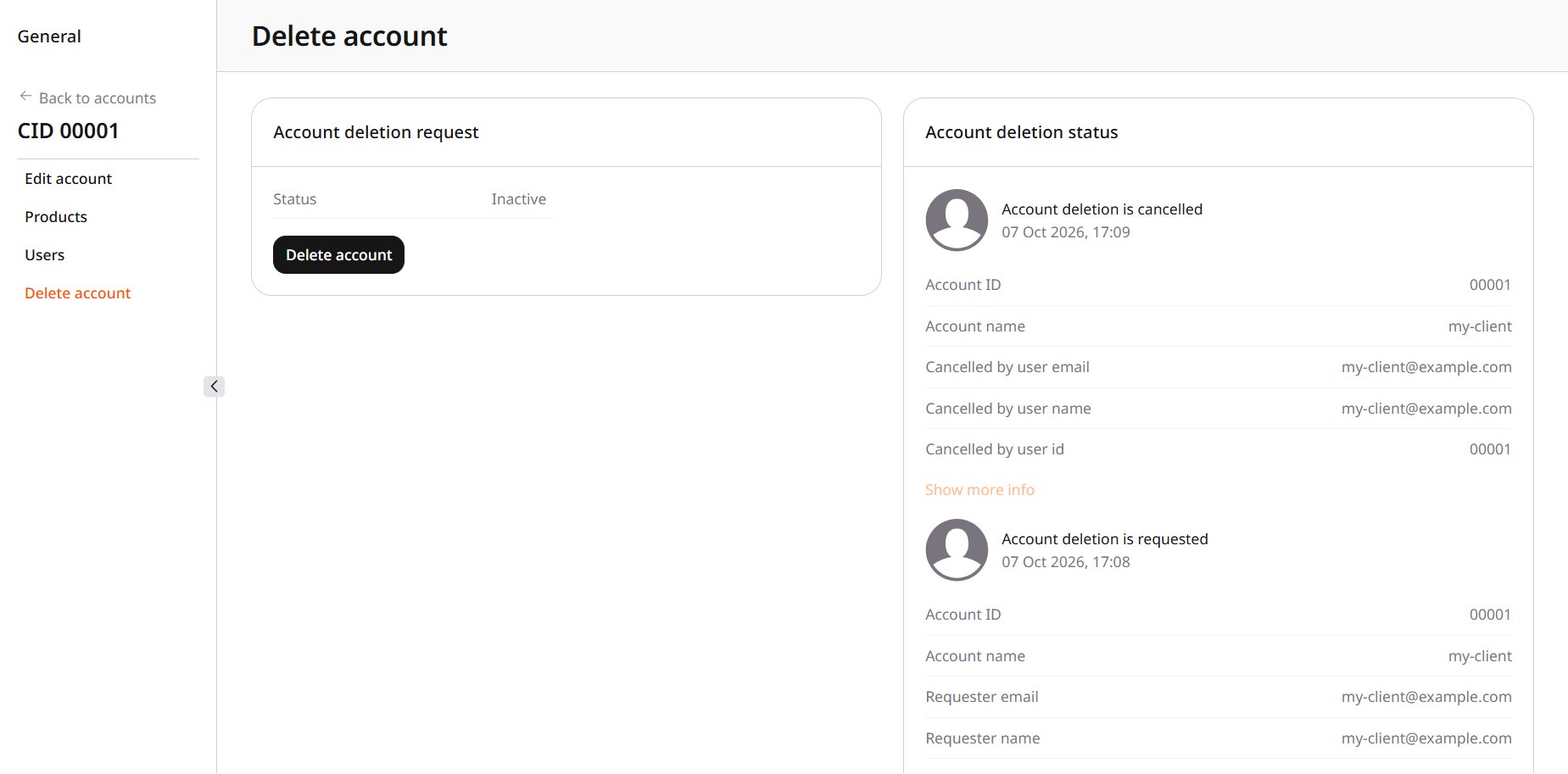
On **Delete account**, the status is **Inactive**. Click **Delete account**.
## Delete an account
On **Delete account**, the status is **Inactive**. Click **Delete account**.
 All products stop when the request is submitted. The account is permanently deleted 10 days after the support team approves the request.
Click **Yes, Delete**. The status changes to **In Progress**.
**Cancel the deletion request** asks for a reason. The status returns to **Inactive**, and the history keeps the request and the cancellation.
All products stop when the request is submitted. The account is permanently deleted 10 days after the support team approves the request.
Click **Yes, Delete**. The status changes to **In Progress**.
**Cancel the deletion request** asks for a reason. The status returns to **Inactive**, and the history keeps the request and the cancellation.