> ## Documentation Index
> Fetch the complete documentation index at: https://docs.gcore.com/llms.txt
> Use this file to discover all available pages before exploring further.
# CDN service management
export const Caution = ({children}) => {
return ;
};
## General CDN settings
To open the general CDN settings of a particular customer, go to the account settings:
1\. Go to Accounts and open the list of customers.
2\. Click on the ID of the customer. Or, click the three dots and then click **Edit**.
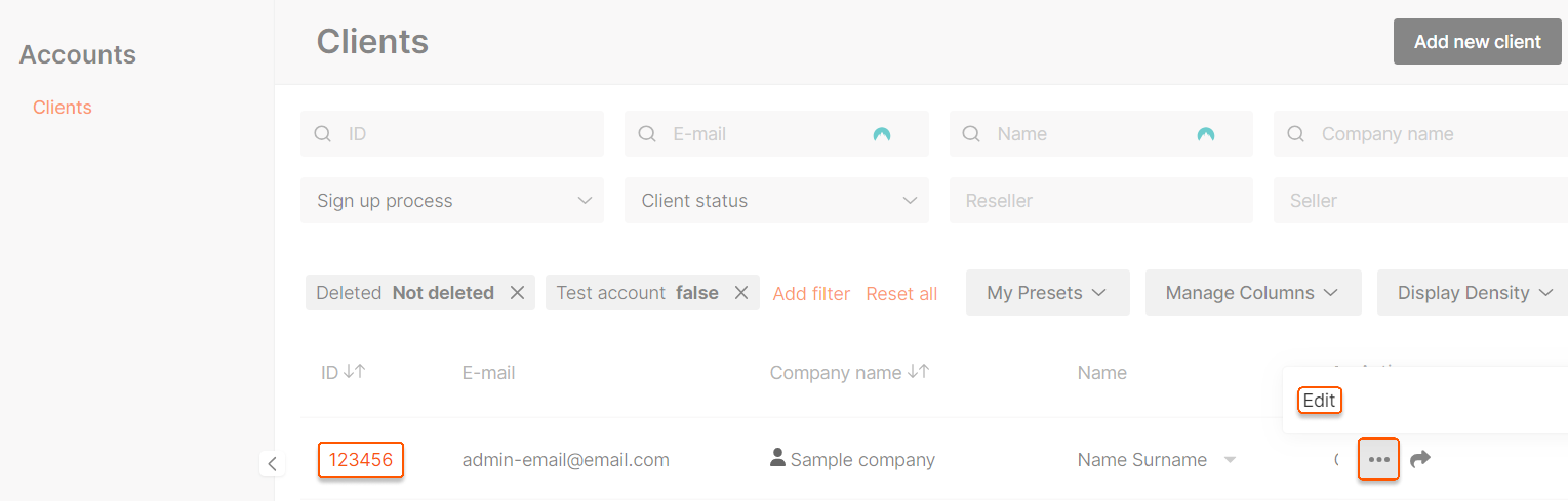 A new page will open.
## Manage general settings

### Activate CDN
1\. Go to the "Products" page.
2\. Click **Show more** to open settings.
3\. Enable the **Activate product** checkbox. Once the "Activate product" checkbox is enabled, the customer can create and manage CDN resources. You can deactivate the product by unchecking the checkbox. In this case, the customer will see a product activation request form on the CDN tab instead of the CDN resources list.
**Note**: Deactivating the "Activate product" checkbox may suspend the work of active resources.
### Transition to deleted status
The CDN product status switches from "TrialEnd"/"Paused" to "Deleted" after a specified number of days. The "Deleted" status means the customer's resources are deleted. You cannot change the number of days yourself. To change the number of days before deletion for a specific customer, email us at [support@gcore.com](mailto:support@gcore.com).
Don’t forget to click **Save changes** to apply them.
## Free and paid features
To see the list of available features, click **CDN settings**.

You can also access customer settings via the CDN application.
1\. Open the list of customers, in the "СDN" section.
2\. Click on the ID of the desired customer. Or, click the three dots and then click **Edit**.
3\. Navigate to the **Features** tab.

All available features will appear as a list with toggle buttons. Some features are free, while others are paid.
Free features can be identified by the "Show Origin, Shield, and CDN Traffic Separately" option. Enabling this option allows you to view the traffic data in your Customer Portal in a more detailed way. By default, this feature is turned off, which means all traffic data from the origin, shield, and Content Delivery Network (CDN) is displayed together as a combined report. However, if you enable this feature, you can see the traffic from the origin, shield, and CDN separately. Each of these categories will have its own individual report, allowing you to analyze and understand the traffic from each source more clearly.
Paid features include [advanced directory, user agents, geo statistics](/cdn/view-statistics-of-a-cdn-resource), [raw logs](/cdn/logs/raw-logs-export-cdn-resource-logs-to-your-storage), [origin shielding](/cdn/cdn-resource-options/general/enable-and-configure-origin-shielding) (to set the locations, contact technical support or your manager), and [Video Streaming](/cdn/video-cdn/hls).

After activation, don’t forget to save changes.
Certain features, such as resources with shared cache zone, wildcard purge, and Image Stack, can only be enabled by contacting the Gcore support team at [support@gcore.com](mailto:support@gcore.com). You can learn more about these features by hovering your cursor over the question mark by their name.
## Balancer
CDN servers are grouped into regions in [Geobalancer](/cdn/cdn-resource-options/determine-in-which-regions-the-content-will-be-delivered-with-geo-balancer-for-paid-tariffs): *North America*, *CIS*, *Australia*, *Middle East*, *Africa*, *Europe*, *Asia*, *Latin America*, and *World*. The *World* option means anycast addressing is used, so the content could be served from any region in the global network, depending on which server can deliver the content most efficiently at that particular moment.

### Set traffic balancer
By default, this feature is disabled. If you want to manage routing, e.g., exclude some regions from delivery if there are no end users in this region, enable the feature as follows:
1\. Click **Enable traffic balancer**.
2\. Ensure that “Enable IPv6 delivery” checkbox is checked if you want to include IPv6 addresses in responses (AAAA record). If you need only IPv4 addresses (A record)—uncheck it.
3\. Uncheck the checkboxes of the regions you want to exclude.
To disable regions for your customers, you must also disable the “World” region. Otherwise, the balancer won't work correctly.
4\. Save changes.

A new page will open.
## Manage general settings

### Activate CDN
1\. Go to the "Products" page.
2\. Click **Show more** to open settings.
3\. Enable the **Activate product** checkbox. Once the "Activate product" checkbox is enabled, the customer can create and manage CDN resources. You can deactivate the product by unchecking the checkbox. In this case, the customer will see a product activation request form on the CDN tab instead of the CDN resources list.
**Note**: Deactivating the "Activate product" checkbox may suspend the work of active resources.
### Transition to deleted status
The CDN product status switches from "TrialEnd"/"Paused" to "Deleted" after a specified number of days. The "Deleted" status means the customer's resources are deleted. You cannot change the number of days yourself. To change the number of days before deletion for a specific customer, email us at [support@gcore.com](mailto:support@gcore.com).
Don’t forget to click **Save changes** to apply them.
## Free and paid features
To see the list of available features, click **CDN settings**.

You can also access customer settings via the CDN application.
1\. Open the list of customers, in the "СDN" section.
2\. Click on the ID of the desired customer. Or, click the three dots and then click **Edit**.
3\. Navigate to the **Features** tab.

All available features will appear as a list with toggle buttons. Some features are free, while others are paid.
Free features can be identified by the "Show Origin, Shield, and CDN Traffic Separately" option. Enabling this option allows you to view the traffic data in your Customer Portal in a more detailed way. By default, this feature is turned off, which means all traffic data from the origin, shield, and Content Delivery Network (CDN) is displayed together as a combined report. However, if you enable this feature, you can see the traffic from the origin, shield, and CDN separately. Each of these categories will have its own individual report, allowing you to analyze and understand the traffic from each source more clearly.
Paid features include [advanced directory, user agents, geo statistics](/cdn/view-statistics-of-a-cdn-resource), [raw logs](/cdn/logs/raw-logs-export-cdn-resource-logs-to-your-storage), [origin shielding](/cdn/cdn-resource-options/general/enable-and-configure-origin-shielding) (to set the locations, contact technical support or your manager), and [Video Streaming](/cdn/video-cdn/hls).

After activation, don’t forget to save changes.
Certain features, such as resources with shared cache zone, wildcard purge, and Image Stack, can only be enabled by contacting the Gcore support team at [support@gcore.com](mailto:support@gcore.com). You can learn more about these features by hovering your cursor over the question mark by their name.
## Balancer
CDN servers are grouped into regions in [Geobalancer](/cdn/cdn-resource-options/determine-in-which-regions-the-content-will-be-delivered-with-geo-balancer-for-paid-tariffs): *North America*, *CIS*, *Australia*, *Middle East*, *Africa*, *Europe*, *Asia*, *Latin America*, and *World*. The *World* option means anycast addressing is used, so the content could be served from any region in the global network, depending on which server can deliver the content most efficiently at that particular moment.

### Set traffic balancer
By default, this feature is disabled. If you want to manage routing, e.g., exclude some regions from delivery if there are no end users in this region, enable the feature as follows:
1\. Click **Enable traffic balancer**.
2\. Ensure that “Enable IPv6 delivery” checkbox is checked if you want to include IPv6 addresses in responses (AAAA record). If you need only IPv4 addresses (A record)—uncheck it.
3\. Uncheck the checkboxes of the regions you want to exclude.
To disable regions for your customers, you must also disable the “World” region. Otherwise, the balancer won't work correctly.
4\. Save changes.
