> ## Documentation Index
> Fetch the complete documentation index at: https://docs.gcore.com/llms.txt
> Use this file to discover all available pages before exploring further.
# Corporate sign-in
> Connect a SAML identity provider so reseller and customer accounts can sign in with corporate credentials.
Single sign-on lets the reseller admin and customer accounts sign in through a corporate identity provider. Password sign-in remains available while **Username/Password login** stays on.
Navigate to **General** > **Security** > **Authorization**.
## Connect an identity provider
Gcore and the identity provider exchange SAML metadata. Import Gcore's metadata into the identity provider from `https://api.gcore.com/iam/auth/saml2/metadata`. That address returns the service provider XML.
In Gcore, enable **SSO login**. Keep **Username/Password login** on when password sign-in should remain available. The **Provider** section opens.
Enter a **Name**, the provider's **Entity ID**, and a corporate domain in **Domains**. Click **+** to add another domain. Under **SAML metadata**, click **Attach file** and upload the identity provider's metadata XML. **For the customer portal** and **For the admin portal** become available after the name, entity ID, a domain, and that file are filled in. Select **For the customer portal**, **For the admin portal**, or both, and click **Save**.
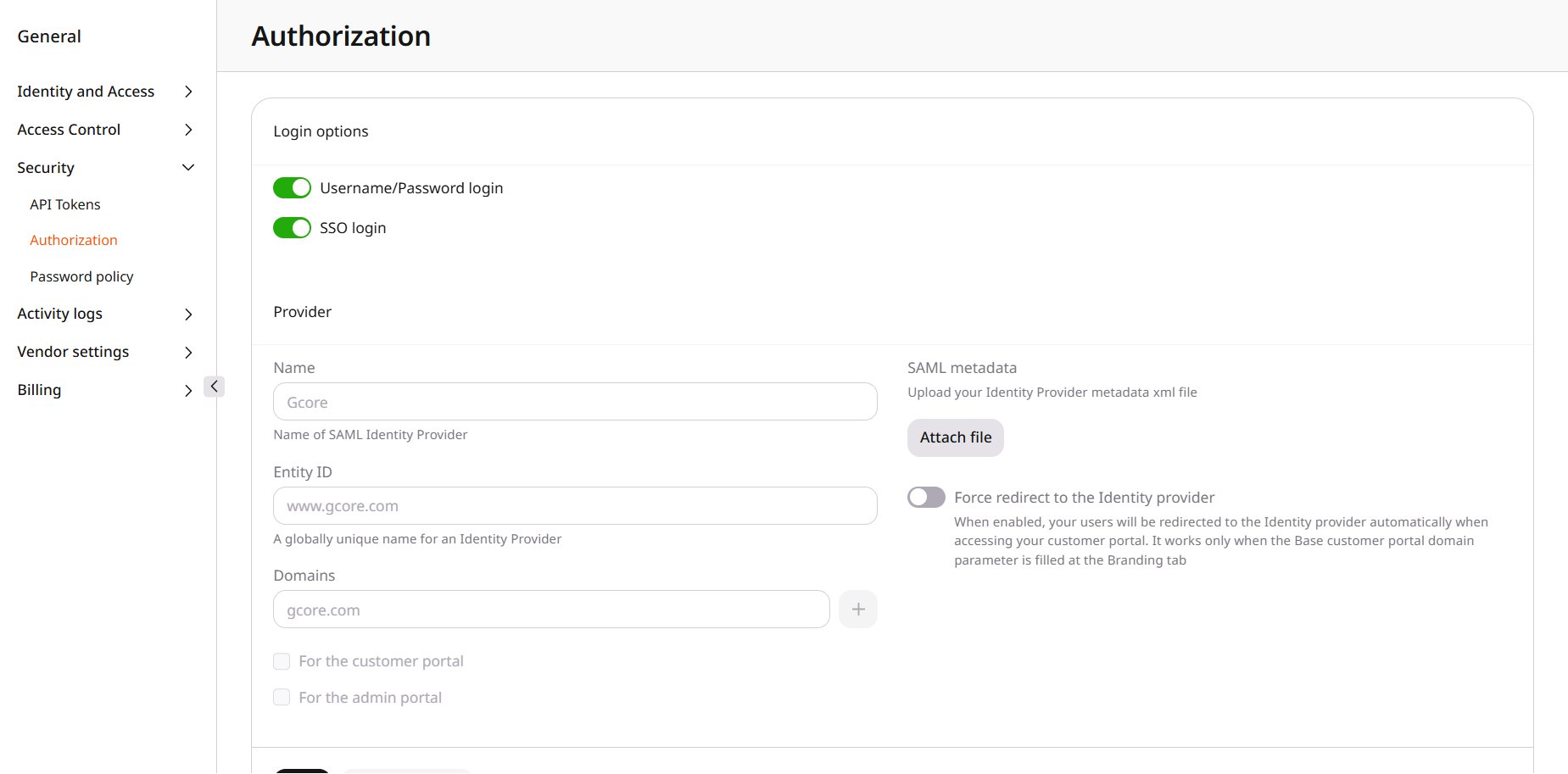 **Force redirect to the Identity provider** sends a customer straight to the identity provider and skips the domain prompt. It works only when **Base customer portal domain** is filled in on [Branding settings](/reseller-support/customer-portal/vendor-settings).
## Sign in with SAML
Click **Sign in with SAML SSO** and enter the **Work domain**. The identity provider completes the sign-in. When **Force redirect to the Identity provider** is on, the **Work domain** prompt is skipped.
## Sign in from the identity provider
A sign-in that starts at the identity provider is sent to Gcore first. Direct it to `https://auth.gcore.com`. When **Base customer portal domain** is `company.com`, the sign-in host is `https://auth.company.com`. **SSO login** is on, the provider is saved, and **Force redirect to the Identity provider** is on. Set the identity provider to require a service-provider sign-in, so it opens that Gcore address before authentication. Gcore then sends the account back to the identity provider, and the account opens in the customer portal.
**Force redirect to the Identity provider** sends a customer straight to the identity provider and skips the domain prompt. It works only when **Base customer portal domain** is filled in on [Branding settings](/reseller-support/customer-portal/vendor-settings).
## Sign in with SAML
Click **Sign in with SAML SSO** and enter the **Work domain**. The identity provider completes the sign-in. When **Force redirect to the Identity provider** is on, the **Work domain** prompt is skipped.
## Sign in from the identity provider
A sign-in that starts at the identity provider is sent to Gcore first. Direct it to `https://auth.gcore.com`. When **Base customer portal domain** is `company.com`, the sign-in host is `https://auth.company.com`. **SSO login** is on, the provider is saved, and **Force redirect to the Identity provider** is on. Set the identity provider to require a service-provider sign-in, so it opens that Gcore address before authentication. Gcore then sends the account back to the identity provider, and the account opens in the customer portal.