> ## Documentation Index
> Fetch the complete documentation index at: https://docs.gcore.com/llms.txt
> Use this file to discover all available pages before exploring further.
# Video streaming API tutorial
You can integrate your product to use the Video Streaming for unlimited video streaming and hosting services. In this guide, we'll take you through the API and webhook operations involved in integrating with the Video Streaming.
## How integration works
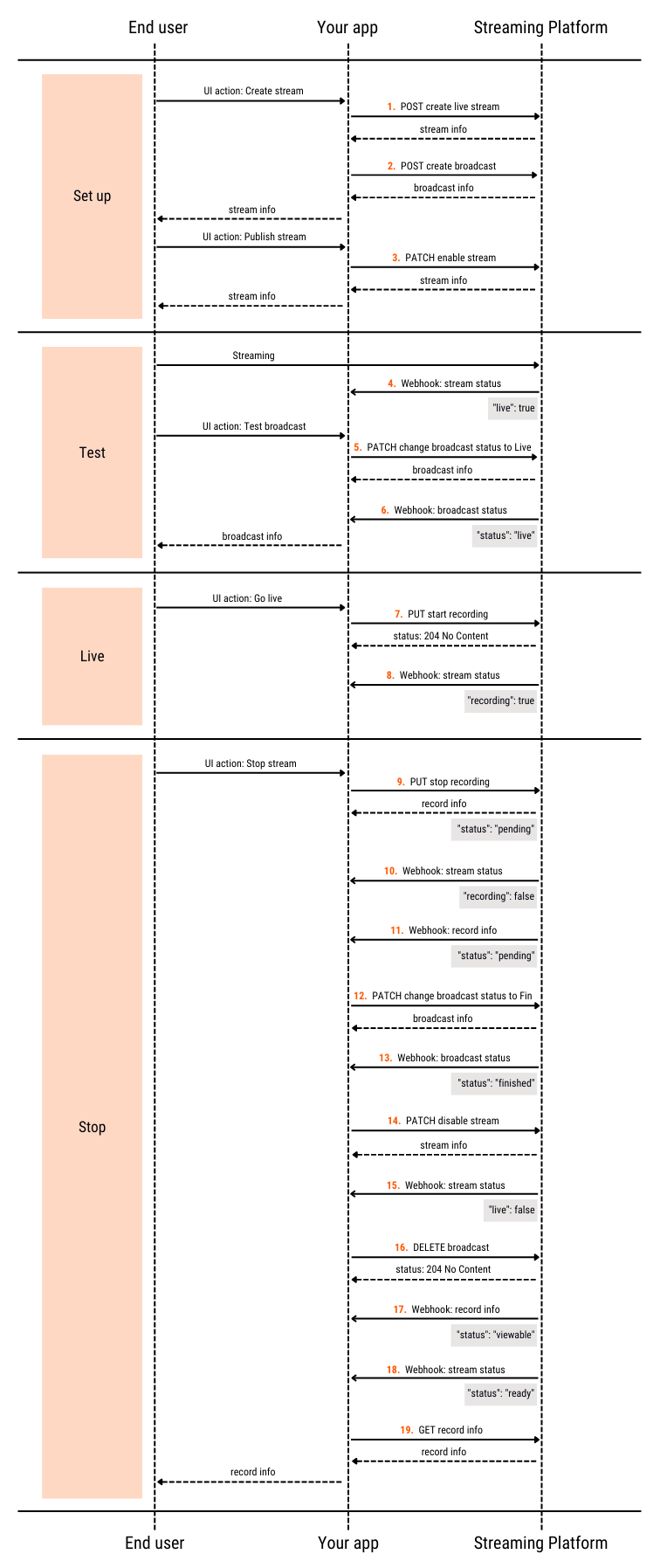
Typically, your app presents users with an interface through which they can create and manage a stream. Each user action represents a request to an endpoint in the Video Streaming API and a webhook. The following diagram shows the typical high-level sequence of the operations grouped into stages:
 You'll need to have:
* Your own video streaming interface created
* A Gcore account with an active [Streaming](/account-settings/account/create-account) subscription
* An [authentication](/api-reference/streaming) set up using the user credentials
* A [webhook](/streaming/extra-features/get-webhooks-from-the-streaming-platform) set up
## Basic operations
### Stage 1. Setup
#### Step 1. Create a stream
Use the [post\_streams\_id](/api-reference/streaming) method to create a stream object in the Video Streaming.
Sample request payload:
* To prevent errors due to the quota for concurrent active sessions, set the **active** property to **false**.
* Choose the right transcoding region based on the user's location.
```json theme={null}
{
"stream": {
"name": "test_stream",
"pull": false,
"uri": null,
"active": false,
"transcoding_region": "ix1",
"auto_record": false,
"webrtc": false,
"dvr_enabled": false,
"cdn_id": 53949,
"projection": "regular"
}
}
```
Sample response payload:
* If successful, the method returns information about the stream that you created.
* Save the returned **id** and other necessary data to use later.
```json theme={null}
{
"id": 320423,
"active": false
...
}
```
#### Step 2. Create a broadcast
Use the [post\_broadcasts](/api-reference/streaming) method to create a broadcast object.
Sample request payload:
* Set **stream\_ids** property to the returned id from Step 1 to bind the broadcast and stream together.
* Set **status** property to **pending**.
```json theme={null}
{
"broadcast": {
"name": "test_broadcast",
"status": "pending",
"share_url": "",
"custom_iframe_url": "",
"show_dvr_after_finish": false,
"pending_message": "Please wait ...",
"ad_id": null,
"stream_ids": [320423]
...
}
}
```
Sample response payload:
* If successful, the method returns information about the broadcast that you created.
* Save the returned **id** and other necessary data to use later.
```json theme={null}
{
"id": 192470,
"status": "pending",
"stream_ids": [320423],
...
}
```
#### Step 3. Enable the stream
Having received a successful response from your app, the user can now publish the stream. Use the [patch\_streams\_id](/api-reference/streaming) method to activate the stream.
Sample request payload:
```json theme={null}
{
"stream": {
"active": true
}
}
```
Sample response payload:
```json theme={null}
{
"id": 320423,
"active": true
...
}
```
#### Step 4. Send a webhook when the stream has started
The Video Streaming sends a webhook that contains **"live": true** to your subscribed endpoint.
Sample webhook payload:
```json theme={null}
{
"type": "stream",
"message": {
"stream": {
"id": 320423,
"live": true,
"recording": false
}
}
}
```
### Stage 2. Test
The user tests the broadcast at this stage.
#### Step 5. Change the broadcast status to live
Use the [patch\_broadcasts\_id](/api-reference/streaming) method to update the broadcast status to *Live*.
Sample request payload:
```json theme={null}
{
"broadcast": {
"status": "live"
}
}
```
Sample response payload:
```json theme={null}
{
"id": 192470,
"status": "live"
...
}
```
#### Step 6. Send a webhook when the broadcast has transitioned to Live status
The Video Streaming sends a webhook that contains **"status": live** to your subscribed endpoint.
Sample webhook payload:
```json theme={null}
{
"type": "broadcast",
"message": {
"broadcast": {
"id": 192470,
"status": "live"
}
}
}
```
### Stage 3. Live
The user starts streaming at this stage. The broadcast is visible to the audience.
#### Step 7. Start recording
Use the [put\_streams\_id\_start\_recording](/api-reference/streaming) method to begin recording.
If the returned HTTP status code is 204, the request is successful.
#### Step 8. Send a webhook when stream recording has started
The Video Streaming sends a webhook that contains **"recording": true** to your subscribed endpoint.
Sample webhook payload:
```json theme={null}
{
"type": "stream",
"message": {
"stream": {
"id": 320423,
"live": true,
"recording": true
}
}
}
```
### Stage 4. Stop
The user stops streaming at this stage.
#### Step 9. Stop recording
Use the [put\_streams\_id\_stop\_recording](/api-reference/streaming) method to stop recording
The response to this request contains information about the recorded video.
Sample response payload:
```json theme={null}
{
"id": 803111,
"name": "Stream Record: test_stream, 2022-06-03 13:25:16 +0000",
"recording_started_at": "2022-06-03T13:24:29.000Z",
"created_at": "2022-06-03T13:25:16.000Z",
...
}
```
#### Step 10. Send a webhook when stream recording has stopped
The Video Streaming sends a webhook that contains **"recording": false** to your subscribed endpoint.
Sample webhook payload:
```json theme={null}
{
"type": "stream",
"message": {
"stream": {
"id": 320423,
"live": true,
"recording": false
}
}
}
```
#### Step 11. Send a webhook when the recorded video is being processed
The Video Streaming sends a webhook that contains **"status": "pending"** to your subscribed endpoint.
Sample webhook payload:
```json theme={null}
{
"type": "video",
"message": {
"video": {
"id": 803111,
"slug": "MTdaAbW7IzBsjgvy",
"name": "Stream Record: test_stream, 2022-06-03 13:25:16 +0000",
"duration": 48410,
"status": "pending",
...
}
}
}
```
#### Step 12. Change broadcast status to finished
Use the [patch\_broadcasts\_id](/api-reference/streaming) method to update the broadcast status to Finished.
Sample request payload:
```json theme={null}
{
"broadcast": {
"status": "finished"
}
}
```
Sample response payload:
```json theme={null}
{
"id": 192470,
"status": "finished"
...
}
```
#### Step 13. Send a webhook when the broadcast has transitioned to finished status
The Video Streaming sends a webhook that contains **"status": "finished"** to your subscribed endpoint.
Sample webhook payload:
```json theme={null}
{
"type": "broadcast",
"message": {
"broadcast": {
"id": 192470,
"status": "finished"
}
}
}
```
#### Step 14. Disable the stream
Use the [patch\_streams\_id](/api-reference/streaming) method to deactivate the stream.
Sample request payload:
```json theme={null}
{
"stream": {
"active": false
}
}
```
Sample response payload:
```json theme={null}
{
"id": 320423,
"live": true,
"transcoded_qualities": ["360n", "480n", "720n"],
"transcoding_speed": 1.0,
"active": false,
"rtmp_play_url": [
"rtmp://pull-ix1.gvideo.co:1939/in/320423?4a5d279b6371c7bcc5ce47afb0f74637",
"rtmp://pull-ix1.gvideo.co:1939/out/58725_320423_360n?4a5d279b6371c7bcc5ce47afb0f74637?vhost=out",
"rtmp://pull-ix1.gvideo.co:1939/out/58725_320423_480n?4a5d279b6371c7bcc5ce47afb0f74637?vhost=out",
"rtmp://pull-ix1.gvideo.co:1939/out/58725_320423_720n?4a5d279b6371c7bcc5ce47afb0f74637?vhost=out"
],
"transcoding_enabled": true,
...
}
```
#### Step 15. Send a webhook when the stream has ended
The Video Streaming sends a webhook that contains **"live": false** to your subscribed endpoint.
Sample webhook payload:
```json theme={null}
{
"type": "stream",
"message": {
"stream": {
"id": 320423,
"live": false,
"recording": false
}
}
}
```
#### Step 16. Delete the broadcast
Use the [delete\_broadcasts\_id](/api-reference/streaming) method to delete the broadcast.
If the returned HTTP status code is 204, the request is successful.
#### Step 17. Send a webhook when the recorded video is partially processed
This indicates that one quality version of the video currently being processed is ready for the viewers to watch.
The Video Streaming sends a webhook that contains **"status": "viewable"** to your subscribed endpoint.
Sample webhook payload:
```json theme={null}
{
"type": "video",
"message": {
"video": {
"id": 803111,
"slug": "MTdaAbW7IzBsjgvy",
"name": "Stream Record: test_stream, 2022-06-03 13:25:16 +0000",
"duration": 48410,
"status": "viewable",
"converted_videos": [
{
"name": "vod720n",
"status": "complete"
},
{
"name": "vod480n",
"status": "processing"
},
{
"name": "vod360n",
"status": "processing"
},
{
"name": "vod240n",
"status": "processing"
}
]
}
}
}
```
#### Step 18. Send a webhook when the recorded video is completely processed
This indicates that all quality versions of the video are ready for viewers to watch.
The Video Streaming sends a webhook that contains **"status": "ready"** to your subscribed endpoint.
Sample webhook payload:
```json theme={null}
{
"type": "video",
"message": {
"video": {
"id": 803111,
"slug": "MTdaAbW7IzBsjgvy",
"name": "Stream Record: test_stream, 2022-06-03 13:25:16 +0000",
"duration": 48410,
"status": "ready",
"converted_videos": [
{
"name": "vod720n",
"status": "complete"
},
{
"name": "vod480n",
"status": "complete"
},
{
"name": "vod360n",
"status": "complete"
},
{
"name": "vod240n",
"status": "complete"
}
]
}
}
}
```
### Step 19. Get video information
Use the [get\_api\_videos\_id](/api-reference/streaming) method to retrieve detailed information about the video.
Sample response payload:
```json theme={null}
{
"id": 803111,
"name": "Stream Record: test_stream, 2022-06-03 13:25:16 +0000",
"client_id": 58725,
"duration": 48410,
"stream_id": 320423,
"recording_started_at": "2022-06-03T13:24:29.000Z",
"created_at": "2022-06-03T13:25:16.000Z",
"sprite": "https://s-ed1.cloud.gcore.lu/videoplatform/sprites/58725/803111_803111.mp4_sprite.jpg",
...
}
```
## Special cases
### Reuse of a stream
The user can reuse the same stream for each broadcast. In this case, you don't need to create a new one. Just update the stream using the [patch\_streams\_id](/api-reference/streaming) method with the appropriate transcoding region.
Sample request payload:
```json theme={null}
{
"stream": {
"transcoding_region": "dt1"
}
}
```
Sample response payload:
```json theme={null}
{
"id": 320423,
"live": false,
"backup_live": false,
"transcoded_qualities": ["360n", "480n", "720n"],
"transcoding_speed": 1.0,
"push_url": "rtmp://vp-push-dt1.gvideo.co/in/320423?6460e735eda6b61bd4c99e02abf0c8df",
"backup_push_url": "rtmp://vp-push-ix1.gvideo.co/in/320423b?6460e735eda6b61bd4c99e02abf0c8df",
"push_url_srt": "srt://vp-push-dt1-srt.gvideo.co:5001?streamid=320423#6460e735eda6b61bd4c99e02abf0c8df",
"backup_push_url_srt": "srt://vp-push-ix2-srt.gvideo.co:5001?streamid=320423b#6460e735eda6b61bd4c99e02abf0c8df",
...
}
```
### Interruption during streaming
* The Video Streaming sends a webhook when the stream is briefly interrupted.
Sample webhook payload:
```json theme={null}
{
"type": "stream",
"message": {
"stream": {
"id": 320423,
"live": false,
"recording": false
}
}
}
```
* You can also check for the stream status using the [get\_streams\_id](/api-reference/streaming) method. If the response contains **"active": false** and the stream wasn't manually interrupted, then you can call the [patch\_broadcasts\_id](/api-reference/streaming) method to transition the broadcast to "Paused" status.
Sample request payload:
```json theme={null}
{
"broadcast": {
"status": "paused"
}
}
```
Sample response payload:
```json theme={null}
{
"id": 192470,
"status": "paused",
...
}
```
* You can also [stop the recording](/api-reference/streaming) when the user has an interruption (even for a couple of minutes) during streaming. Your app can prompt the user to start the stream again. The stream recording will be broken into two files: data recorded up to the interruption and data recorded when the user renews streaming.
The Video Streaming can't currently reconnect without interrupting the recording if the stream gets temporary disruption. But we plan to implement this in the future.
### Stream deletion
You can delete streams that have been inactive for some time and are associated with a deleted user account. To do this, use the [delete\_api\_videos\_id](/api-reference/streaming) method.
If the returned HTTP status code is 204, the request is successful.
## Other API methods
Check out our Video Streaming API [documentation](/api-reference/streaming) for more methods that might come in handy for other use cases.
You'll need to have:
* Your own video streaming interface created
* A Gcore account with an active [Streaming](/account-settings/account/create-account) subscription
* An [authentication](/api-reference/streaming) set up using the user credentials
* A [webhook](/streaming/extra-features/get-webhooks-from-the-streaming-platform) set up
## Basic operations
### Stage 1. Setup
#### Step 1. Create a stream
Use the [post\_streams\_id](/api-reference/streaming) method to create a stream object in the Video Streaming.
Sample request payload:
* To prevent errors due to the quota for concurrent active sessions, set the **active** property to **false**.
* Choose the right transcoding region based on the user's location.
```json theme={null}
{
"stream": {
"name": "test_stream",
"pull": false,
"uri": null,
"active": false,
"transcoding_region": "ix1",
"auto_record": false,
"webrtc": false,
"dvr_enabled": false,
"cdn_id": 53949,
"projection": "regular"
}
}
```
Sample response payload:
* If successful, the method returns information about the stream that you created.
* Save the returned **id** and other necessary data to use later.
```json theme={null}
{
"id": 320423,
"active": false
...
}
```
#### Step 2. Create a broadcast
Use the [post\_broadcasts](/api-reference/streaming) method to create a broadcast object.
Sample request payload:
* Set **stream\_ids** property to the returned id from Step 1 to bind the broadcast and stream together.
* Set **status** property to **pending**.
```json theme={null}
{
"broadcast": {
"name": "test_broadcast",
"status": "pending",
"share_url": "",
"custom_iframe_url": "",
"show_dvr_after_finish": false,
"pending_message": "Please wait ...",
"ad_id": null,
"stream_ids": [320423]
...
}
}
```
Sample response payload:
* If successful, the method returns information about the broadcast that you created.
* Save the returned **id** and other necessary data to use later.
```json theme={null}
{
"id": 192470,
"status": "pending",
"stream_ids": [320423],
...
}
```
#### Step 3. Enable the stream
Having received a successful response from your app, the user can now publish the stream. Use the [patch\_streams\_id](/api-reference/streaming) method to activate the stream.
Sample request payload:
```json theme={null}
{
"stream": {
"active": true
}
}
```
Sample response payload:
```json theme={null}
{
"id": 320423,
"active": true
...
}
```
#### Step 4. Send a webhook when the stream has started
The Video Streaming sends a webhook that contains **"live": true** to your subscribed endpoint.
Sample webhook payload:
```json theme={null}
{
"type": "stream",
"message": {
"stream": {
"id": 320423,
"live": true,
"recording": false
}
}
}
```
### Stage 2. Test
The user tests the broadcast at this stage.
#### Step 5. Change the broadcast status to live
Use the [patch\_broadcasts\_id](/api-reference/streaming) method to update the broadcast status to *Live*.
Sample request payload:
```json theme={null}
{
"broadcast": {
"status": "live"
}
}
```
Sample response payload:
```json theme={null}
{
"id": 192470,
"status": "live"
...
}
```
#### Step 6. Send a webhook when the broadcast has transitioned to Live status
The Video Streaming sends a webhook that contains **"status": live** to your subscribed endpoint.
Sample webhook payload:
```json theme={null}
{
"type": "broadcast",
"message": {
"broadcast": {
"id": 192470,
"status": "live"
}
}
}
```
### Stage 3. Live
The user starts streaming at this stage. The broadcast is visible to the audience.
#### Step 7. Start recording
Use the [put\_streams\_id\_start\_recording](/api-reference/streaming) method to begin recording.
If the returned HTTP status code is 204, the request is successful.
#### Step 8. Send a webhook when stream recording has started
The Video Streaming sends a webhook that contains **"recording": true** to your subscribed endpoint.
Sample webhook payload:
```json theme={null}
{
"type": "stream",
"message": {
"stream": {
"id": 320423,
"live": true,
"recording": true
}
}
}
```
### Stage 4. Stop
The user stops streaming at this stage.
#### Step 9. Stop recording
Use the [put\_streams\_id\_stop\_recording](/api-reference/streaming) method to stop recording
The response to this request contains information about the recorded video.
Sample response payload:
```json theme={null}
{
"id": 803111,
"name": "Stream Record: test_stream, 2022-06-03 13:25:16 +0000",
"recording_started_at": "2022-06-03T13:24:29.000Z",
"created_at": "2022-06-03T13:25:16.000Z",
...
}
```
#### Step 10. Send a webhook when stream recording has stopped
The Video Streaming sends a webhook that contains **"recording": false** to your subscribed endpoint.
Sample webhook payload:
```json theme={null}
{
"type": "stream",
"message": {
"stream": {
"id": 320423,
"live": true,
"recording": false
}
}
}
```
#### Step 11. Send a webhook when the recorded video is being processed
The Video Streaming sends a webhook that contains **"status": "pending"** to your subscribed endpoint.
Sample webhook payload:
```json theme={null}
{
"type": "video",
"message": {
"video": {
"id": 803111,
"slug": "MTdaAbW7IzBsjgvy",
"name": "Stream Record: test_stream, 2022-06-03 13:25:16 +0000",
"duration": 48410,
"status": "pending",
...
}
}
}
```
#### Step 12. Change broadcast status to finished
Use the [patch\_broadcasts\_id](/api-reference/streaming) method to update the broadcast status to Finished.
Sample request payload:
```json theme={null}
{
"broadcast": {
"status": "finished"
}
}
```
Sample response payload:
```json theme={null}
{
"id": 192470,
"status": "finished"
...
}
```
#### Step 13. Send a webhook when the broadcast has transitioned to finished status
The Video Streaming sends a webhook that contains **"status": "finished"** to your subscribed endpoint.
Sample webhook payload:
```json theme={null}
{
"type": "broadcast",
"message": {
"broadcast": {
"id": 192470,
"status": "finished"
}
}
}
```
#### Step 14. Disable the stream
Use the [patch\_streams\_id](/api-reference/streaming) method to deactivate the stream.
Sample request payload:
```json theme={null}
{
"stream": {
"active": false
}
}
```
Sample response payload:
```json theme={null}
{
"id": 320423,
"live": true,
"transcoded_qualities": ["360n", "480n", "720n"],
"transcoding_speed": 1.0,
"active": false,
"rtmp_play_url": [
"rtmp://pull-ix1.gvideo.co:1939/in/320423?4a5d279b6371c7bcc5ce47afb0f74637",
"rtmp://pull-ix1.gvideo.co:1939/out/58725_320423_360n?4a5d279b6371c7bcc5ce47afb0f74637?vhost=out",
"rtmp://pull-ix1.gvideo.co:1939/out/58725_320423_480n?4a5d279b6371c7bcc5ce47afb0f74637?vhost=out",
"rtmp://pull-ix1.gvideo.co:1939/out/58725_320423_720n?4a5d279b6371c7bcc5ce47afb0f74637?vhost=out"
],
"transcoding_enabled": true,
...
}
```
#### Step 15. Send a webhook when the stream has ended
The Video Streaming sends a webhook that contains **"live": false** to your subscribed endpoint.
Sample webhook payload:
```json theme={null}
{
"type": "stream",
"message": {
"stream": {
"id": 320423,
"live": false,
"recording": false
}
}
}
```
#### Step 16. Delete the broadcast
Use the [delete\_broadcasts\_id](/api-reference/streaming) method to delete the broadcast.
If the returned HTTP status code is 204, the request is successful.
#### Step 17. Send a webhook when the recorded video is partially processed
This indicates that one quality version of the video currently being processed is ready for the viewers to watch.
The Video Streaming sends a webhook that contains **"status": "viewable"** to your subscribed endpoint.
Sample webhook payload:
```json theme={null}
{
"type": "video",
"message": {
"video": {
"id": 803111,
"slug": "MTdaAbW7IzBsjgvy",
"name": "Stream Record: test_stream, 2022-06-03 13:25:16 +0000",
"duration": 48410,
"status": "viewable",
"converted_videos": [
{
"name": "vod720n",
"status": "complete"
},
{
"name": "vod480n",
"status": "processing"
},
{
"name": "vod360n",
"status": "processing"
},
{
"name": "vod240n",
"status": "processing"
}
]
}
}
}
```
#### Step 18. Send a webhook when the recorded video is completely processed
This indicates that all quality versions of the video are ready for viewers to watch.
The Video Streaming sends a webhook that contains **"status": "ready"** to your subscribed endpoint.
Sample webhook payload:
```json theme={null}
{
"type": "video",
"message": {
"video": {
"id": 803111,
"slug": "MTdaAbW7IzBsjgvy",
"name": "Stream Record: test_stream, 2022-06-03 13:25:16 +0000",
"duration": 48410,
"status": "ready",
"converted_videos": [
{
"name": "vod720n",
"status": "complete"
},
{
"name": "vod480n",
"status": "complete"
},
{
"name": "vod360n",
"status": "complete"
},
{
"name": "vod240n",
"status": "complete"
}
]
}
}
}
```
### Step 19. Get video information
Use the [get\_api\_videos\_id](/api-reference/streaming) method to retrieve detailed information about the video.
Sample response payload:
```json theme={null}
{
"id": 803111,
"name": "Stream Record: test_stream, 2022-06-03 13:25:16 +0000",
"client_id": 58725,
"duration": 48410,
"stream_id": 320423,
"recording_started_at": "2022-06-03T13:24:29.000Z",
"created_at": "2022-06-03T13:25:16.000Z",
"sprite": "https://s-ed1.cloud.gcore.lu/videoplatform/sprites/58725/803111_803111.mp4_sprite.jpg",
...
}
```
## Special cases
### Reuse of a stream
The user can reuse the same stream for each broadcast. In this case, you don't need to create a new one. Just update the stream using the [patch\_streams\_id](/api-reference/streaming) method with the appropriate transcoding region.
Sample request payload:
```json theme={null}
{
"stream": {
"transcoding_region": "dt1"
}
}
```
Sample response payload:
```json theme={null}
{
"id": 320423,
"live": false,
"backup_live": false,
"transcoded_qualities": ["360n", "480n", "720n"],
"transcoding_speed": 1.0,
"push_url": "rtmp://vp-push-dt1.gvideo.co/in/320423?6460e735eda6b61bd4c99e02abf0c8df",
"backup_push_url": "rtmp://vp-push-ix1.gvideo.co/in/320423b?6460e735eda6b61bd4c99e02abf0c8df",
"push_url_srt": "srt://vp-push-dt1-srt.gvideo.co:5001?streamid=320423#6460e735eda6b61bd4c99e02abf0c8df",
"backup_push_url_srt": "srt://vp-push-ix2-srt.gvideo.co:5001?streamid=320423b#6460e735eda6b61bd4c99e02abf0c8df",
...
}
```
### Interruption during streaming
* The Video Streaming sends a webhook when the stream is briefly interrupted.
Sample webhook payload:
```json theme={null}
{
"type": "stream",
"message": {
"stream": {
"id": 320423,
"live": false,
"recording": false
}
}
}
```
* You can also check for the stream status using the [get\_streams\_id](/api-reference/streaming) method. If the response contains **"active": false** and the stream wasn't manually interrupted, then you can call the [patch\_broadcasts\_id](/api-reference/streaming) method to transition the broadcast to "Paused" status.
Sample request payload:
```json theme={null}
{
"broadcast": {
"status": "paused"
}
}
```
Sample response payload:
```json theme={null}
{
"id": 192470,
"status": "paused",
...
}
```
* You can also [stop the recording](/api-reference/streaming) when the user has an interruption (even for a couple of minutes) during streaming. Your app can prompt the user to start the stream again. The stream recording will be broken into two files: data recorded up to the interruption and data recorded when the user renews streaming.
The Video Streaming can't currently reconnect without interrupting the recording if the stream gets temporary disruption. But we plan to implement this in the future.
### Stream deletion
You can delete streams that have been inactive for some time and are associated with a deleted user account. To do this, use the [delete\_api\_videos\_id](/api-reference/streaming) method.
If the returned HTTP status code is 204, the request is successful.
## Other API methods
Check out our Video Streaming API [documentation](/api-reference/streaming) for more methods that might come in handy for other use cases.