> ## Documentation Index
> Fetch the complete documentation index at: https://docs.gcore.com/llms.txt
> Use this file to discover all available pages before exploring further.
# Fix the camera or microphone if they do not work
If no one can hear or see you in a video call, and the camera or microphone icons are crossed out, and clicking on them does not change anything, please follow the instructions below consistently.
## Ensure that real-time video supports your browser
Our video call service supports the following browser versions:
| **OS** | **Browser version** |
| ------- | ------------------------------------------- |
| Windows | Chrome 70+ Edge 79+ Firefox 70+ Opera 60+ |
| MacOS | Chrome 70+ Safari 12+ Firefox 70+ Opera 60+ |
| Android | Chrome 70+ |
| iOS | Safari iOS 13+ |
Check the version of your browser using the appropriate instructions for your device, and update the browser if the version is lower than the values from the table: [Chrome (Windows)](https://google.com/chrome/update), [Edge](https://support.microsoft.com/en-us/microsoft-edge/find-out-which-version-of-microsoft-edge-you-have-c726bee8-c42e-e472-e954-4cf5123497eb), [Firefox](https://support.mozilla.org/en-US/kb/find-what-version-firefox-you-are-using), [Opera](https://help.opera.com/en/latest/browser-window), [Safari (Mac)](https://support.apple.com/en-am/HT201541), [Chrome (Android)](https://support.google.com/chrome/answer/95414?co=GENIE.Platform%3DiOS\&oco=1), or [Safari (iOS)](https://support.apple.com/en-am/HT204204).
## Check your browser permissions and settings
Your camera and microphone may have been disabled in the browser settings. To check this, follow the instructions below for your browser:
### For Chrome
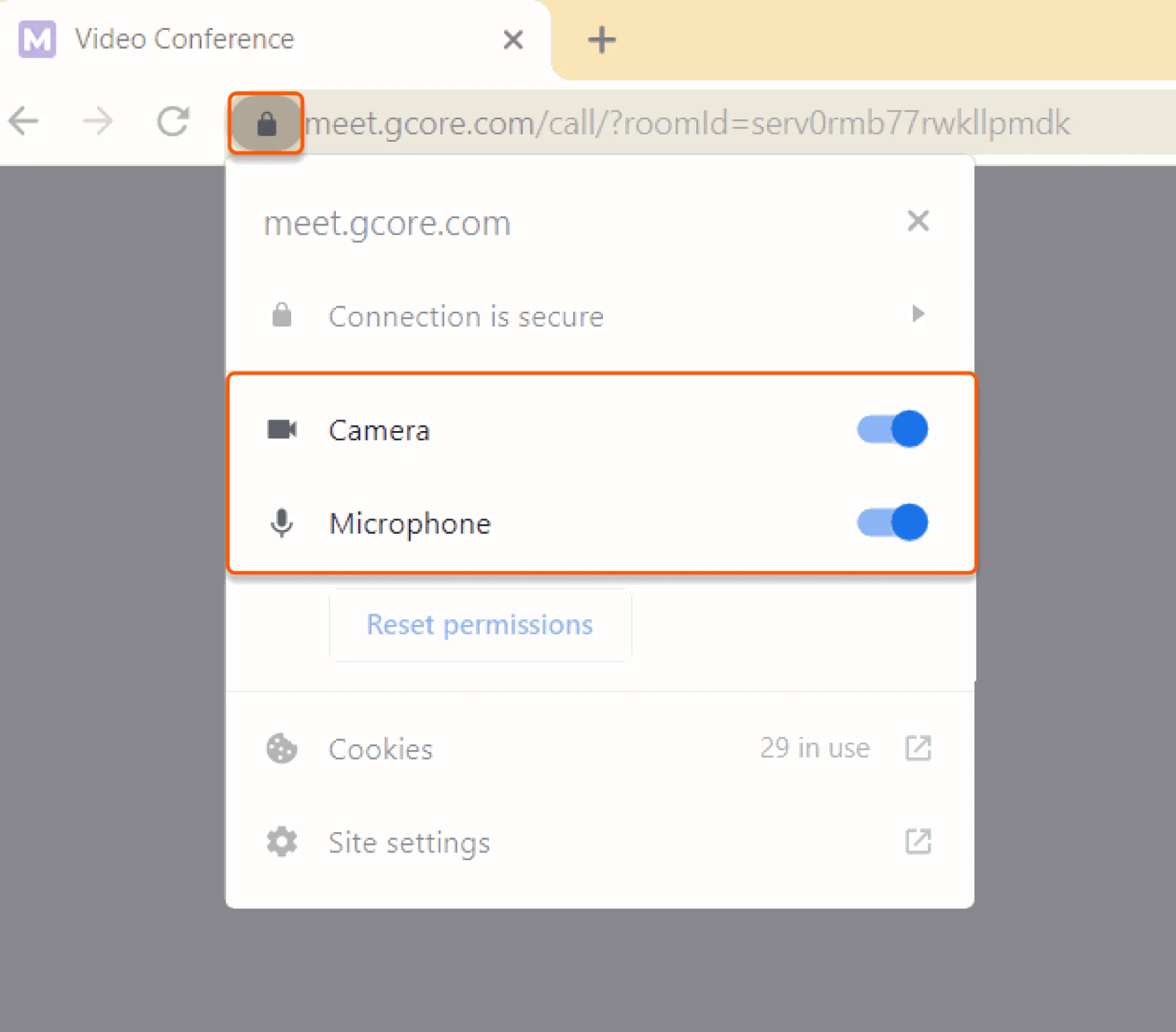
Click on the padlock icon in the browser's address bar to check browser permissions. If **Camera** or **Microphone** switchers are disabled, enable them as follows:
 To check the camera and microphone settings in Chrome:
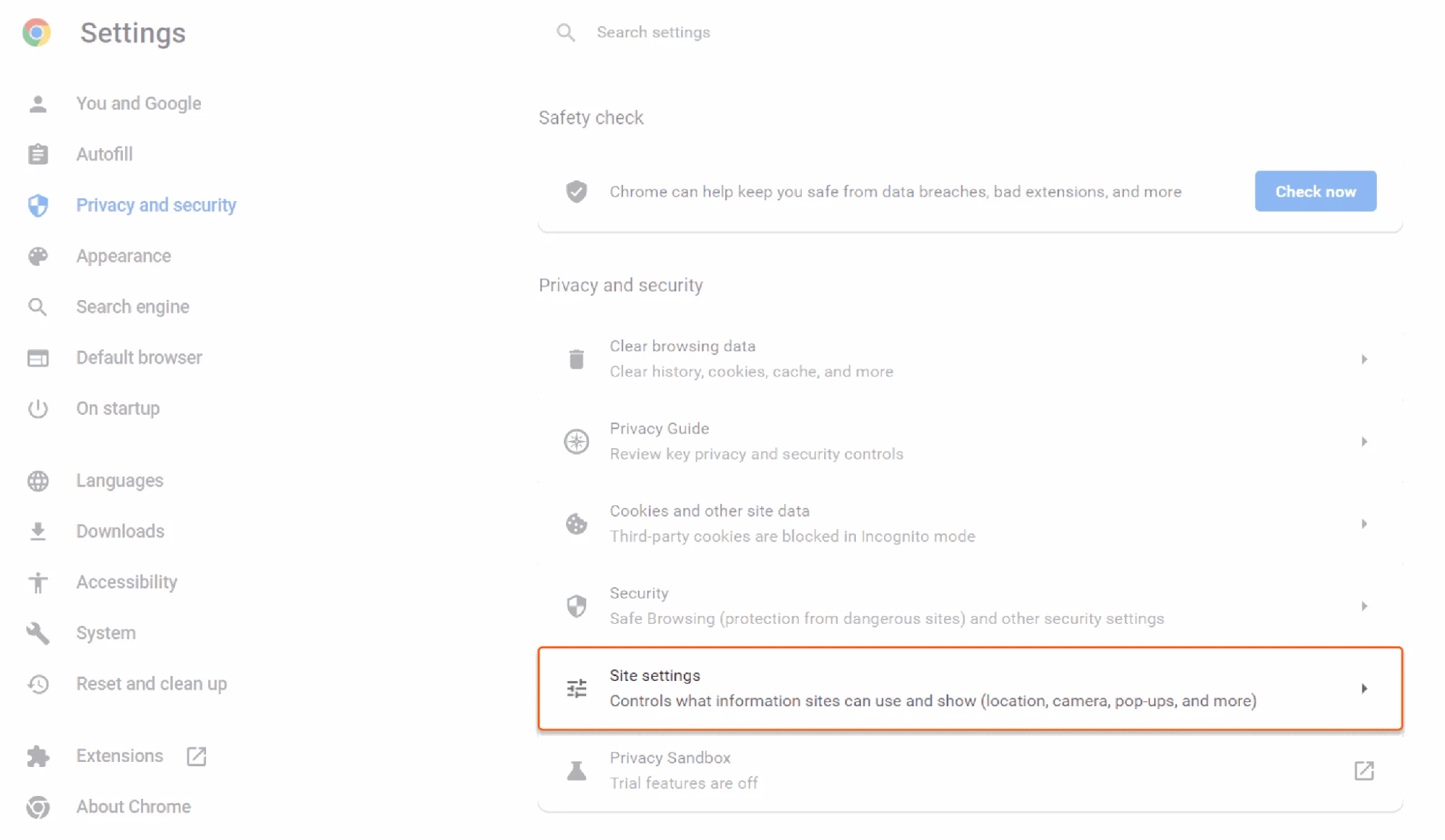
1\. Open the browser Settings, select the "Privacy and Security" tab, and go to the **Site settings**.
To check the camera and microphone settings in Chrome:
1\. Open the browser Settings, select the "Privacy and Security" tab, and go to the **Site settings**.
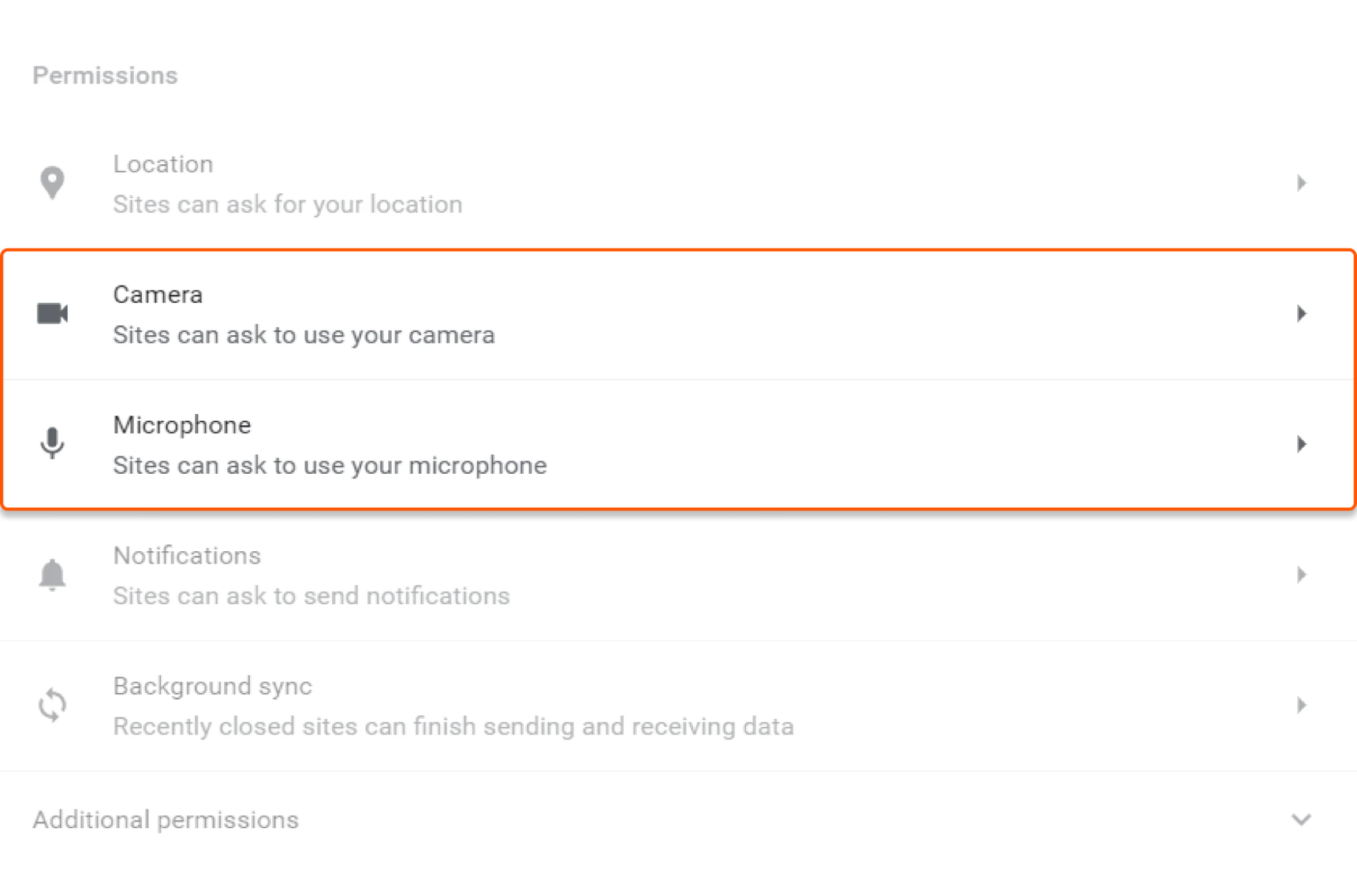
 2\. Check the Microphone and Camera permissions and make sure that `meet.gcore.com` is in the "Allowed to use your microphone" section.
 ### For Firefox
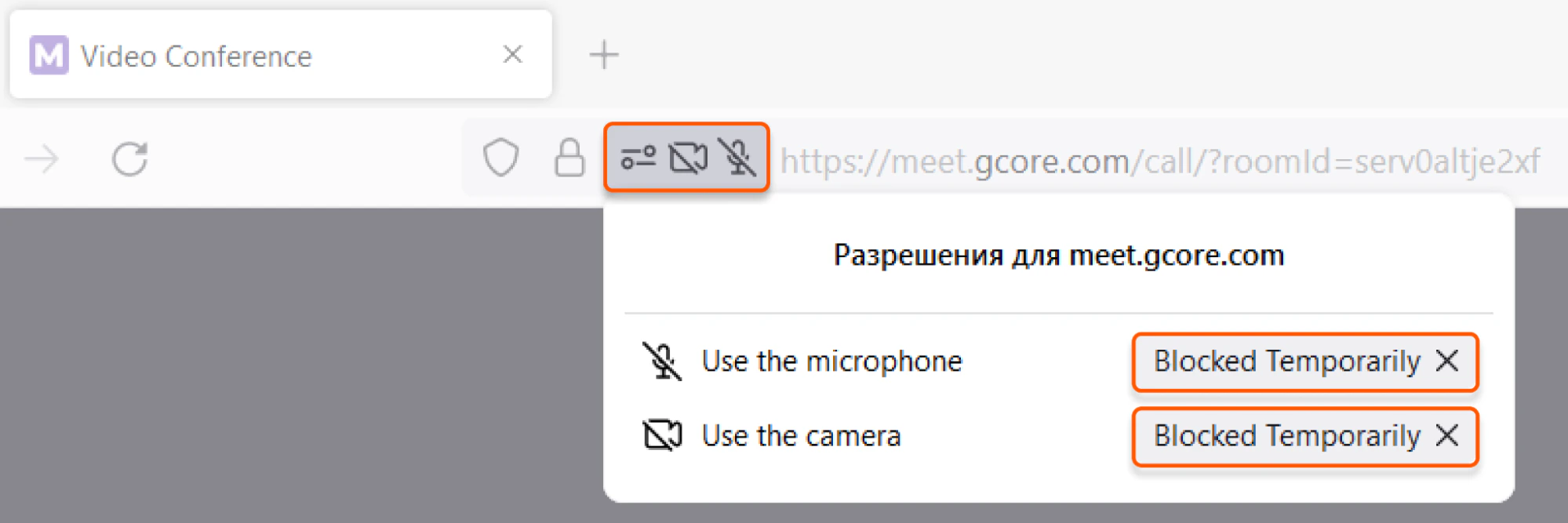
To check your browser permissions, click on the icons on the left side of the browser's address bar, as shown in the screenshot. If the "Use the camera" or "Use the microphone" field is temporarily blocked, click the **×** next to this value and reload the page.
### For Firefox
To check your browser permissions, click on the icons on the left side of the browser's address bar, as shown in the screenshot. If the "Use the camera" or "Use the microphone" field is temporarily blocked, click the **×** next to this value and reload the page.
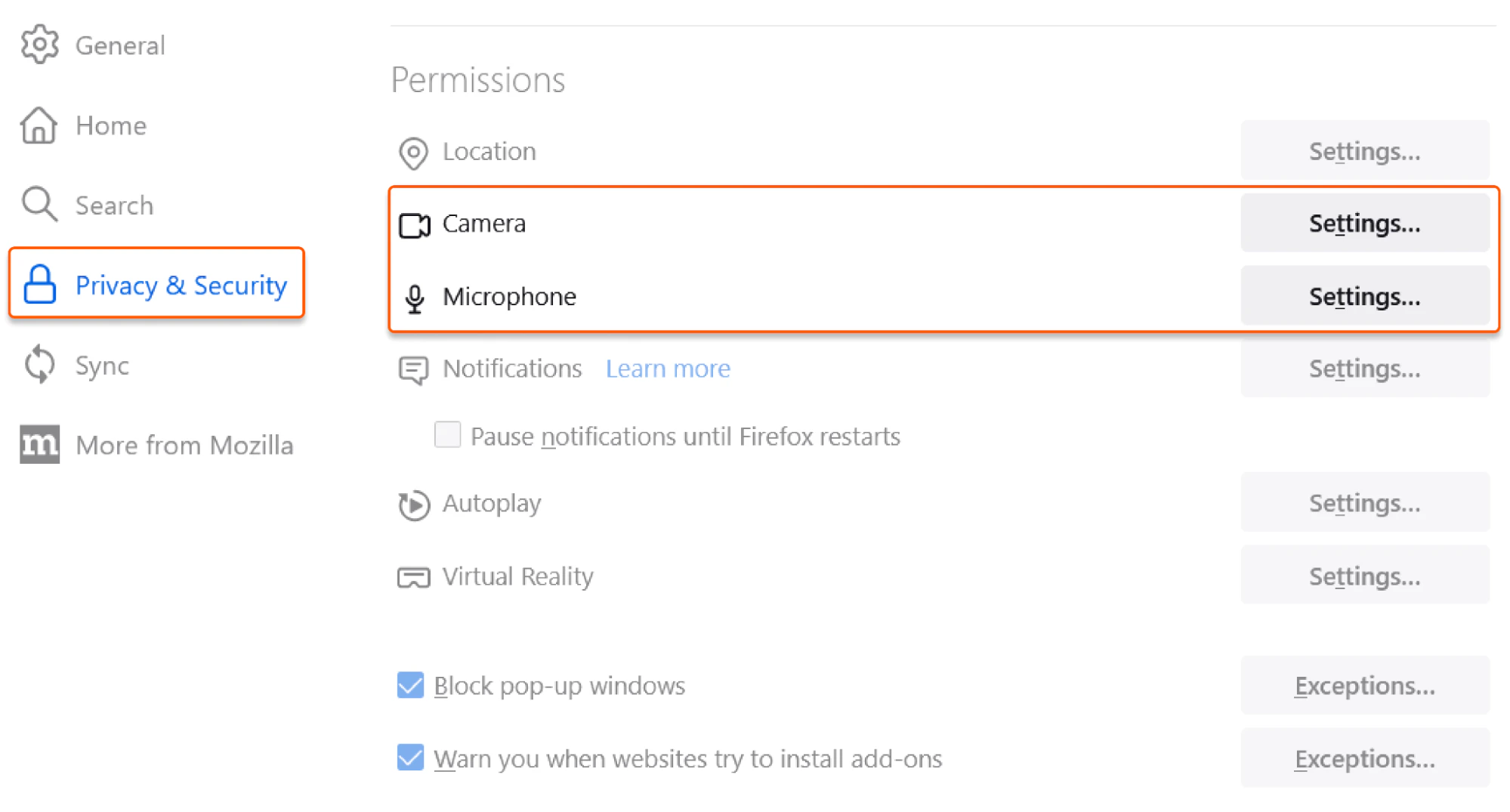
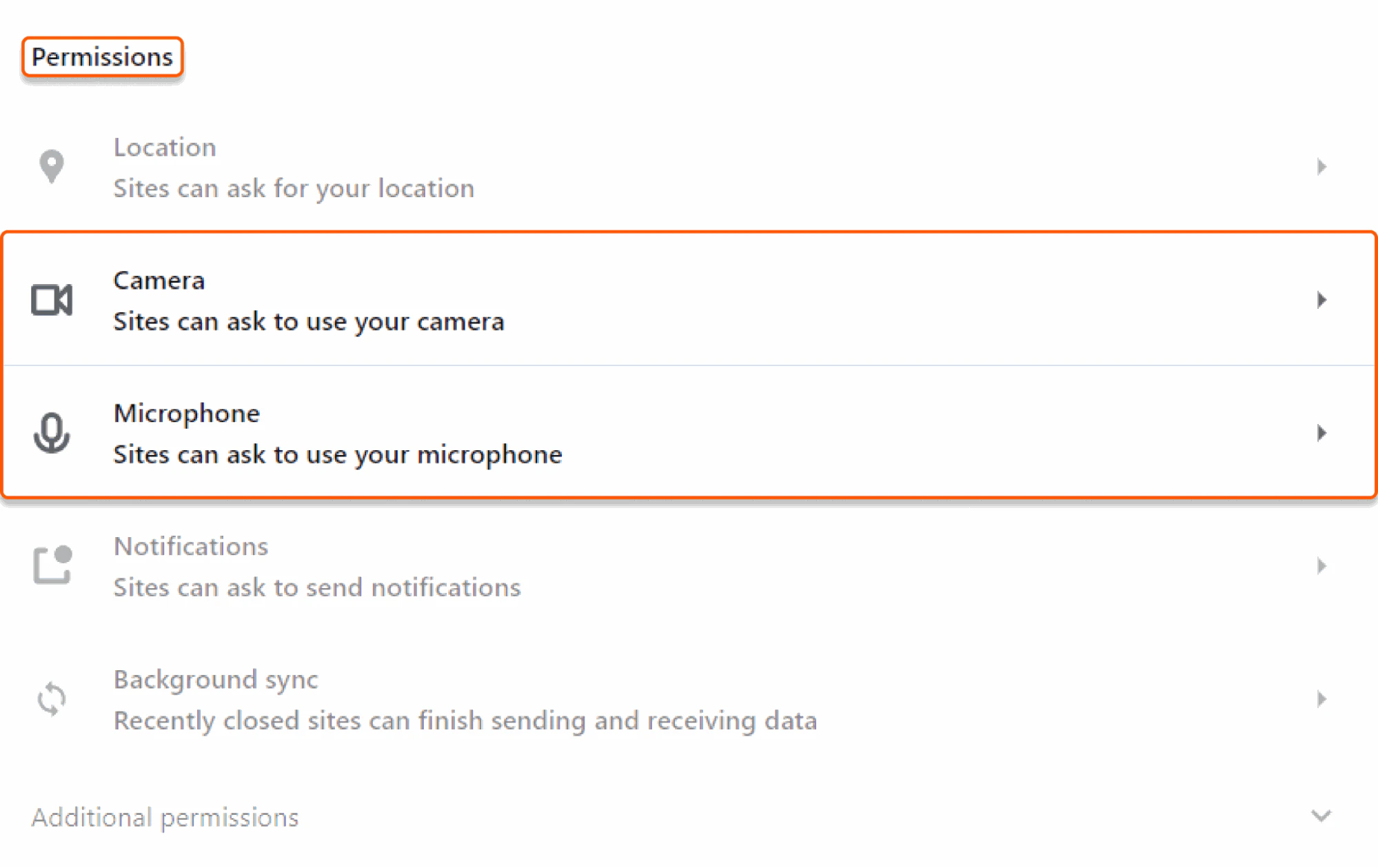
 To access Firefox's camera and microphone settings, go to the browser Settings and select the "Privacy & Security" section. In the **Permissions** block, open the "Camera" and "Microphone" settings and ensure that `meet.gcore.com` is not on the block list.
 ### For Opera
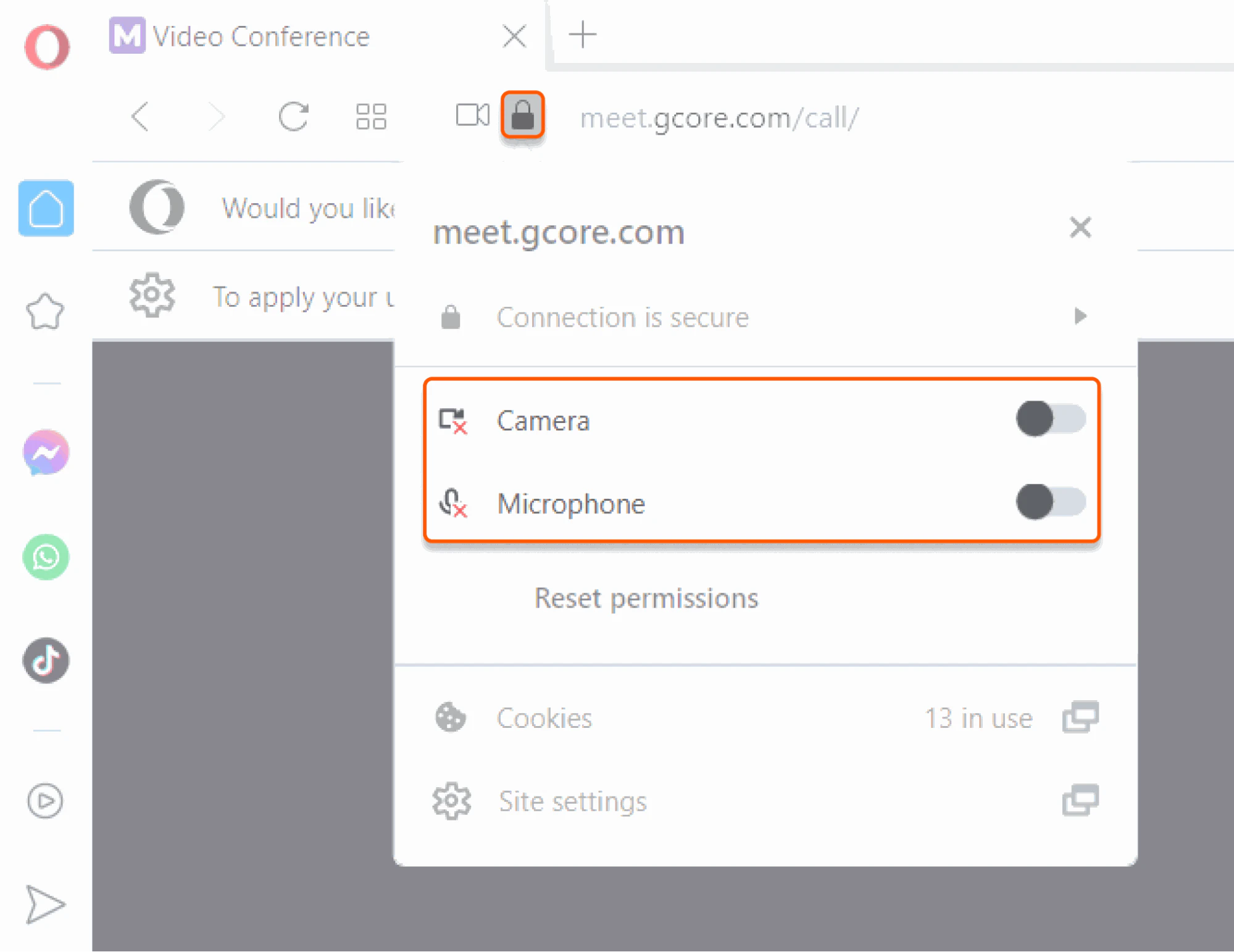
Click on the padlock icon in the browser's address bar to check browser permissions. If the window that appears indicates that access to the camera and microphone is disabled, enable the switchers and reload the page.
### For Opera
Click on the padlock icon in the browser's address bar to check browser permissions. If the window that appears indicates that access to the camera and microphone is disabled, enable the switchers and reload the page.
 To check the camera and microphone settings in Opera:
1\. Go to the browser Settings, select the "Privacy & security" section, and navigate to **Site settings**.
To check the camera and microphone settings in Opera:
1\. Go to the browser Settings, select the "Privacy & security" section, and navigate to **Site settings**.
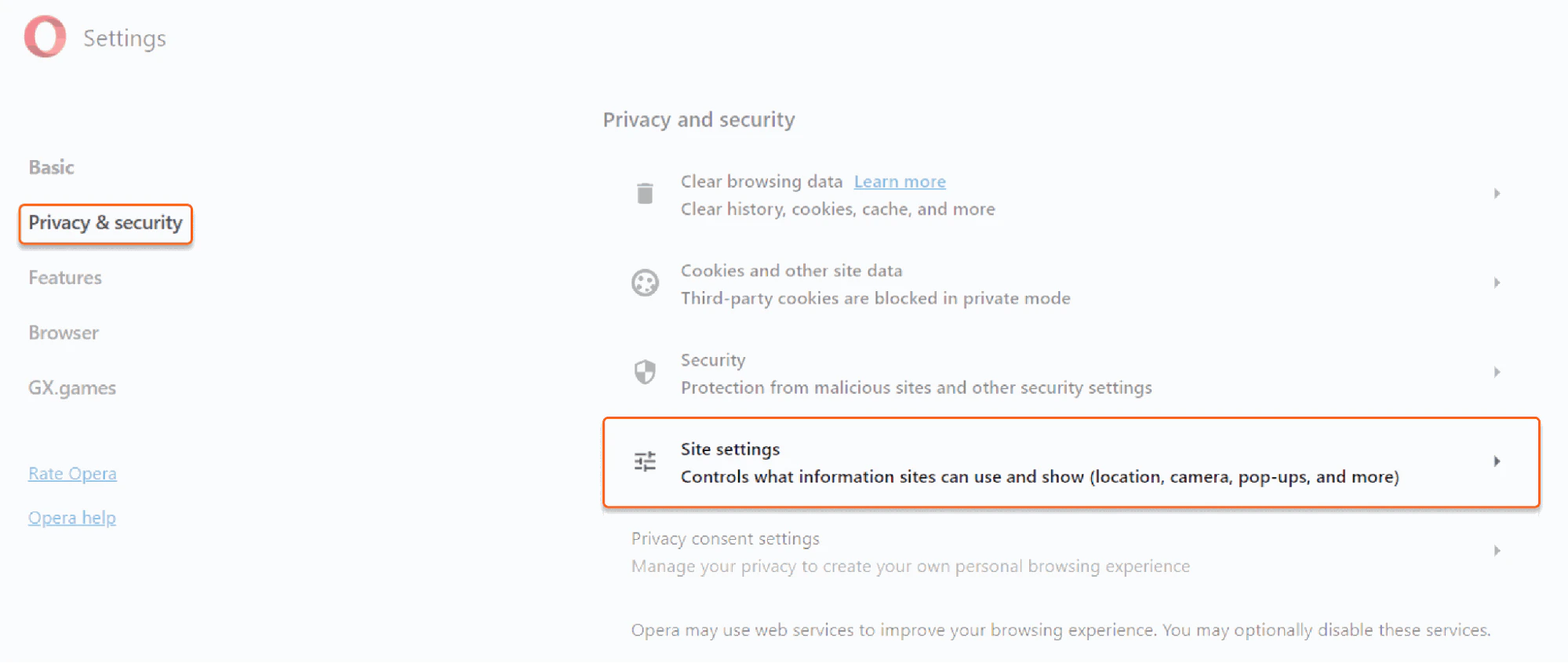 2\. In the "Permissions" section, open the **Camera** and **Microphone** settings and ensure that `meet.gcore.com` is not on the block list.
 ### For Safari
To set browser permissions, reload the page with Real-Time Video opened and click **Allow** in the pop-up.
### For Safari
To set browser permissions, reload the page with Real-Time Video opened and click **Allow** in the pop-up.
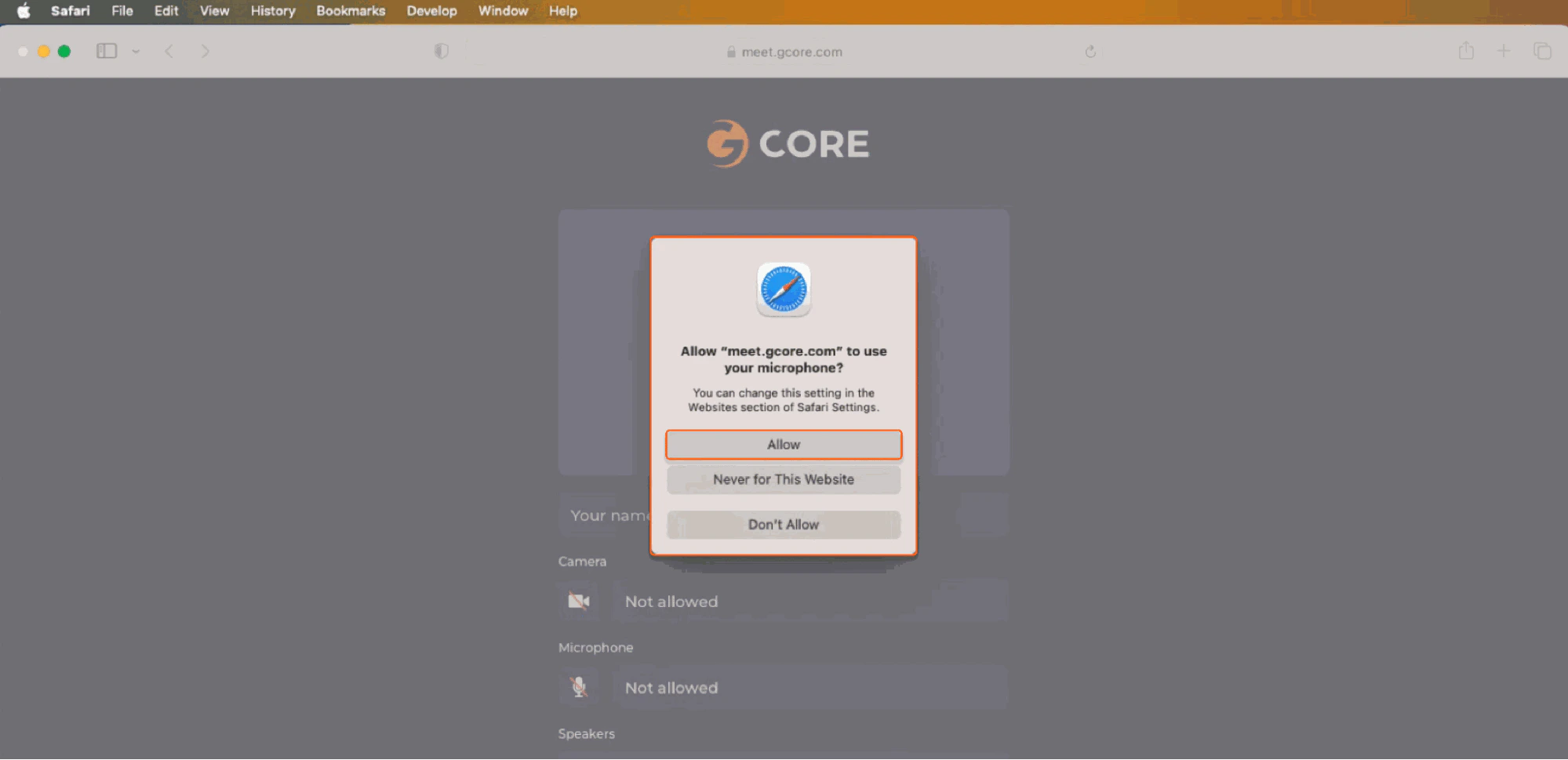 To check the camera and microphone settings in Safari, open the application settings, select "Camera" or "Microphone," and ensure that `meet.gcore.com` is not on the block list.
## Clear cache and cookies
If you're experiencing difficulties with video and audio delivery, it could be due to an outdated cookie file that's allowing other applications to use the camera and microphone instead of Real-Time Video.
We recommend clearing the cache and cookies for the entire browser and restarting your computer using the appropriate instructions for your browser: [Chrome](https://support.google.com/accounts/answer/32050?co=GENIE.Platform=Desktop\&hl=en), [Edge](https://support.microsoft.com/en-us/microsoft-edge/delete-cookies-in-microsoft-edge-63947406-40ac-c3b8-57b9-2a946a29ae09#:~:text=Select%20Settings%20%3E%20Privacy%2C%20search%2C,and%20then%20select%20Clear%20now.), [Firefox](https://support.mozilla.org/en-US/kb/clear-cookies-and-site-data-firefox), [Opera](https://opera.com/ru/use-cases/clean-browser-and-remove-trackers#:~:text=and%20site%20data-,Press%20Ctrl%2BShift%2BDel%20to%20open%20your%20Clear%20browsing%20data,Security%20and%20click%20Site%20settings.), [Safari (Mac)](https://support.apple.com/en-am/guide/safari/sfri11471/mac), or [Safari (iOS)](https://support.apple.com/en-us/HT201265).
## Check the installed browser extensions
Third-party extensions installed in your browser could also be causing problems with the camera and microphone on some websites. To ensure that extensions aren't blocking Real-Time Video's access to the camera and microphone, open `meet.gcore.com` in incognito or private browser mode. This will allow you to run the website without any extensions impacting it. If the website works correctly in this mode, issues with the camera or microphone were likely caused by one of the installed extensions.
Please note that there is no quick way to determine which extension is causing the issue. To solve the problem, it is recommended that you disable each installed extension one by one to determine which one is causing the trouble. Once you've identified the problematic extension, you can disable it each time you use Real-Time Video.
## Inspect the firewall settings
If you're experiencing firewall restrictions, it's possible that some browsers won't be able to connect through strict networks or firewalls (such as when you're calling through a corporate network). In this case, it's best to use a different browser to solve the issue.
## Check the camera and microphone settings in your OS
Your browser may have been mistakenly blocked from accessing the camera or microphone. To check and allow your browser to access these devices, follow these steps:
### MacOS
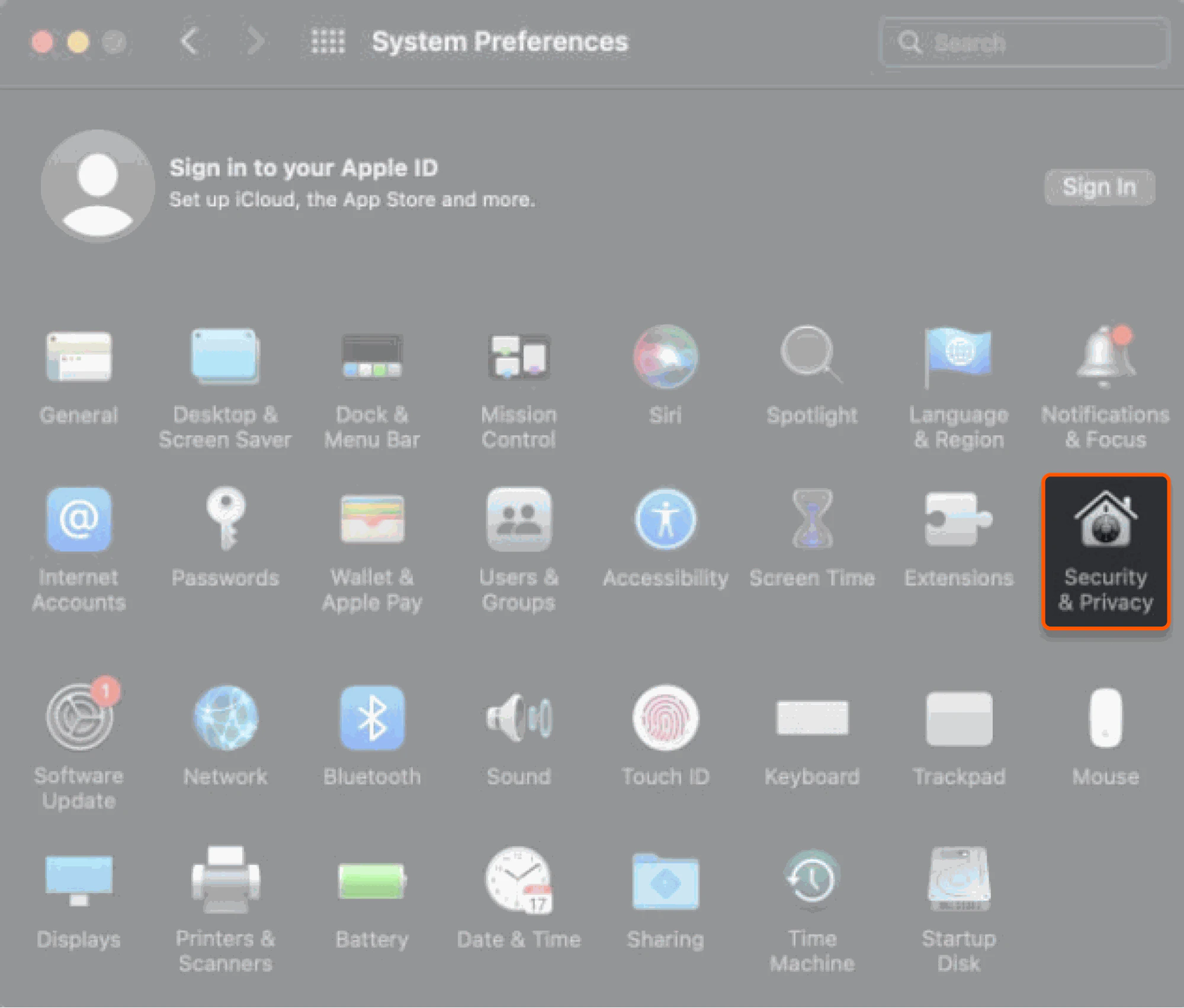
1\. Open **System Preferences** and go to the "Security & Privacy" section.
To check the camera and microphone settings in Safari, open the application settings, select "Camera" or "Microphone," and ensure that `meet.gcore.com` is not on the block list.
## Clear cache and cookies
If you're experiencing difficulties with video and audio delivery, it could be due to an outdated cookie file that's allowing other applications to use the camera and microphone instead of Real-Time Video.
We recommend clearing the cache and cookies for the entire browser and restarting your computer using the appropriate instructions for your browser: [Chrome](https://support.google.com/accounts/answer/32050?co=GENIE.Platform=Desktop\&hl=en), [Edge](https://support.microsoft.com/en-us/microsoft-edge/delete-cookies-in-microsoft-edge-63947406-40ac-c3b8-57b9-2a946a29ae09#:~:text=Select%20Settings%20%3E%20Privacy%2C%20search%2C,and%20then%20select%20Clear%20now.), [Firefox](https://support.mozilla.org/en-US/kb/clear-cookies-and-site-data-firefox), [Opera](https://opera.com/ru/use-cases/clean-browser-and-remove-trackers#:~:text=and%20site%20data-,Press%20Ctrl%2BShift%2BDel%20to%20open%20your%20Clear%20browsing%20data,Security%20and%20click%20Site%20settings.), [Safari (Mac)](https://support.apple.com/en-am/guide/safari/sfri11471/mac), or [Safari (iOS)](https://support.apple.com/en-us/HT201265).
## Check the installed browser extensions
Third-party extensions installed in your browser could also be causing problems with the camera and microphone on some websites. To ensure that extensions aren't blocking Real-Time Video's access to the camera and microphone, open `meet.gcore.com` in incognito or private browser mode. This will allow you to run the website without any extensions impacting it. If the website works correctly in this mode, issues with the camera or microphone were likely caused by one of the installed extensions.
Please note that there is no quick way to determine which extension is causing the issue. To solve the problem, it is recommended that you disable each installed extension one by one to determine which one is causing the trouble. Once you've identified the problematic extension, you can disable it each time you use Real-Time Video.
## Inspect the firewall settings
If you're experiencing firewall restrictions, it's possible that some browsers won't be able to connect through strict networks or firewalls (such as when you're calling through a corporate network). In this case, it's best to use a different browser to solve the issue.
## Check the camera and microphone settings in your OS
Your browser may have been mistakenly blocked from accessing the camera or microphone. To check and allow your browser to access these devices, follow these steps:
### MacOS
1\. Open **System Preferences** and go to the "Security & Privacy" section.
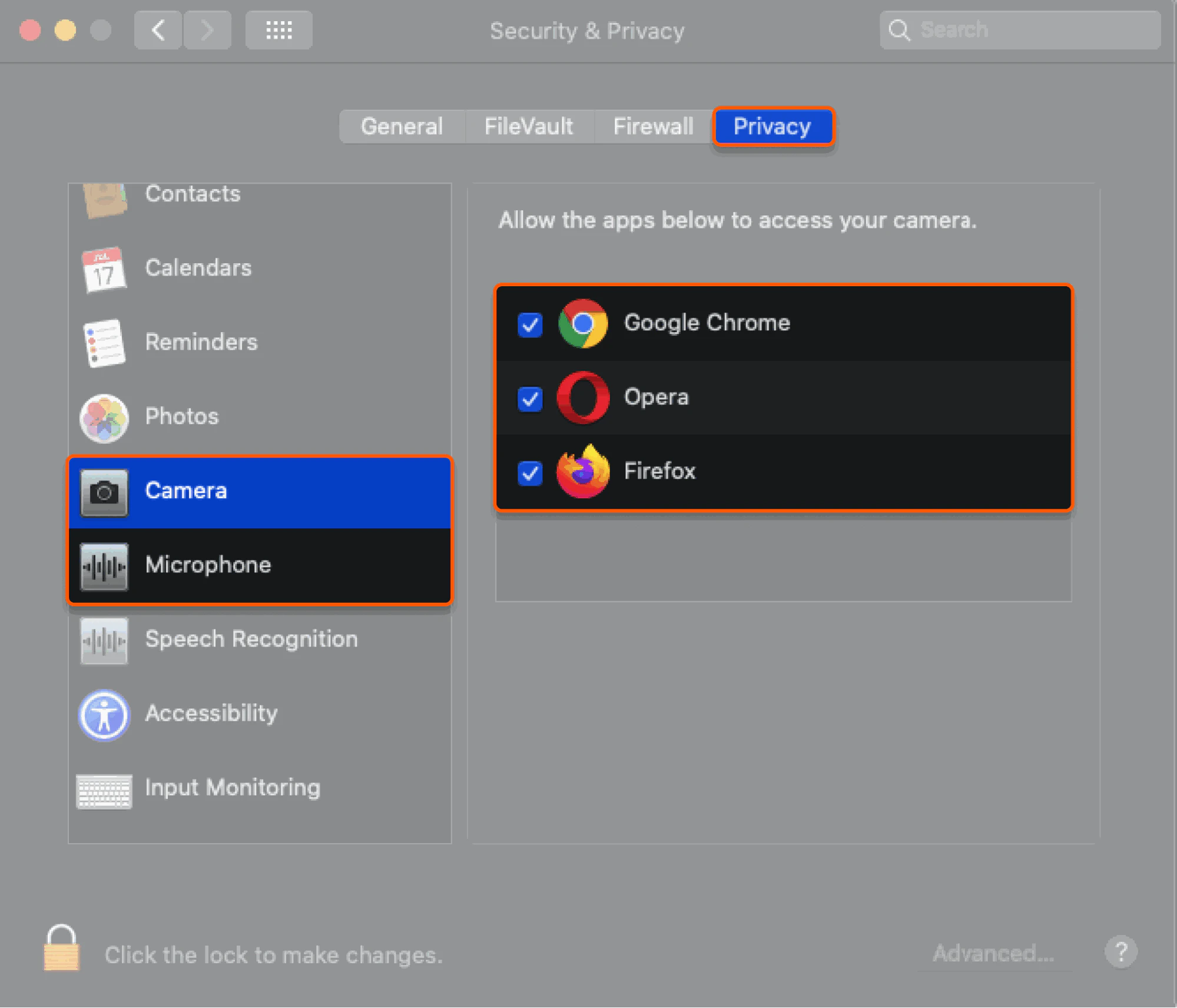
 2\. Select "Camera" or "Microphone" from the list of options, then go to the **Privacy** section and check the boxes next to your browser to allow access.
 Finally, restart the browser for the changes to take effect.
### Windows
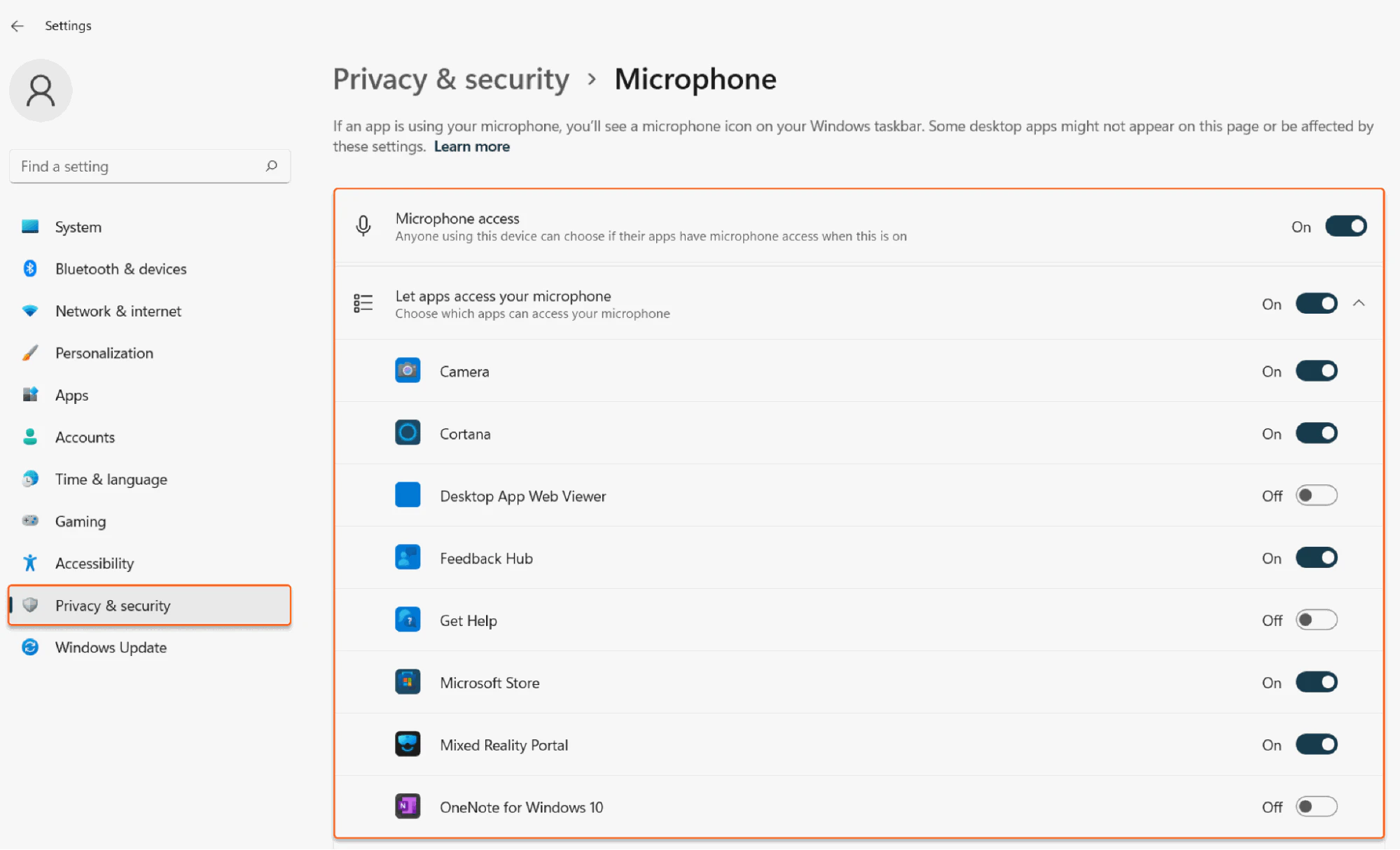
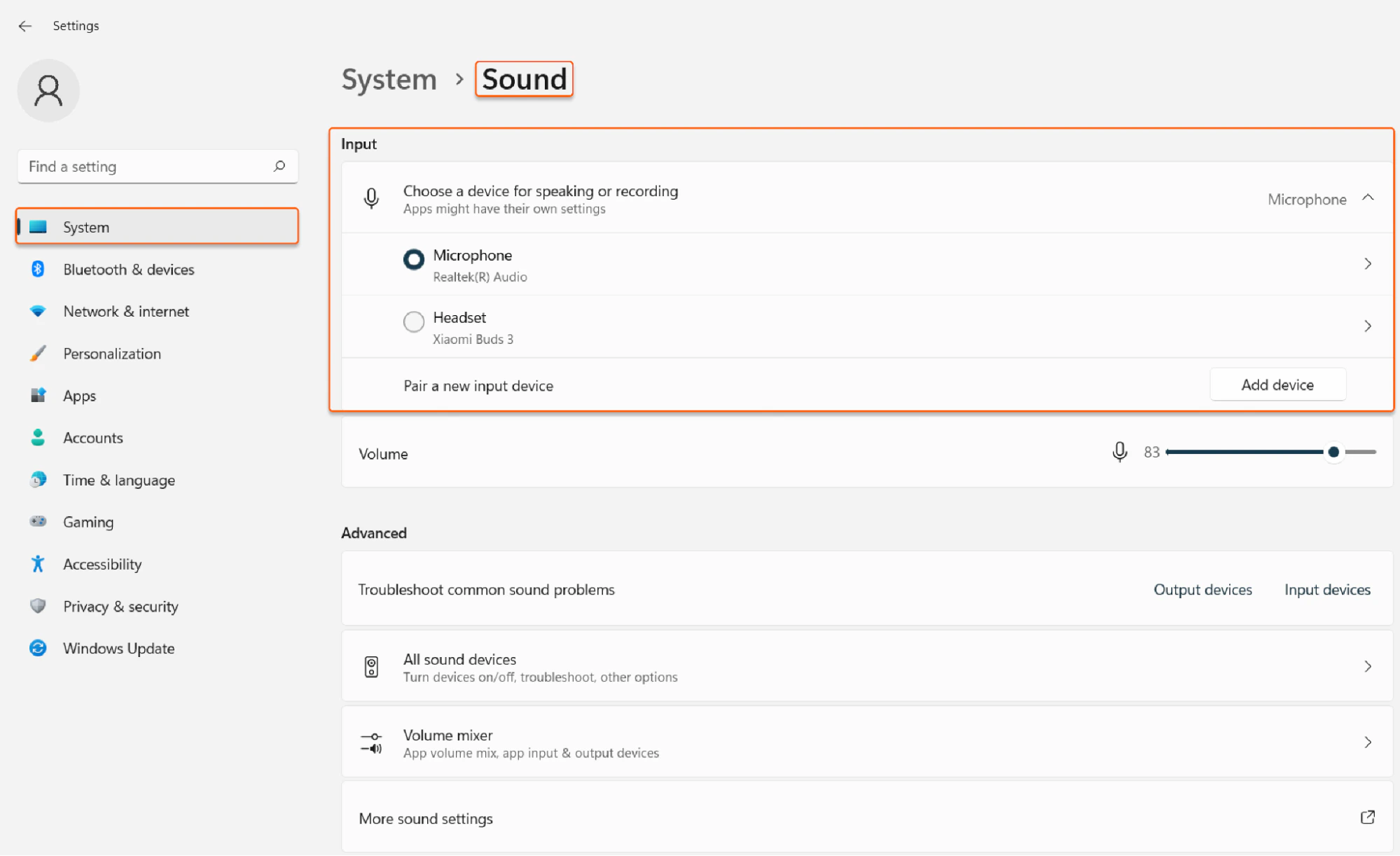
If you're using Windows 11, you can set the default microphone at the system level or check the microphone or camera access.
To set up the default microphone, go to the "System" settings and select the **Sound** section. In the Input settings section, choose the desired input device.
Finally, restart the browser for the changes to take effect.
### Windows
If you're using Windows 11, you can set the default microphone at the system level or check the microphone or camera access.
To set up the default microphone, go to the "System" settings and select the **Sound** section. In the Input settings section, choose the desired input device.
 To check and configure access to your microphone and camera, go to the "Privacy & Security" settings and select the **Camera** or **Microphone** sections. Ensure that your browser has permission to use the camera or microphone.