> ## Documentation Index
> Fetch the complete documentation index at: https://docs.gcore.com/llms.txt
> Use this file to discover all available pages before exploring further.
# Create and manage a live stream
Create and configure a live stream in the Gcore Customer Portal, then start broadcasting from your encoder, media server, or browser.
## Step 1. Check active stream limits
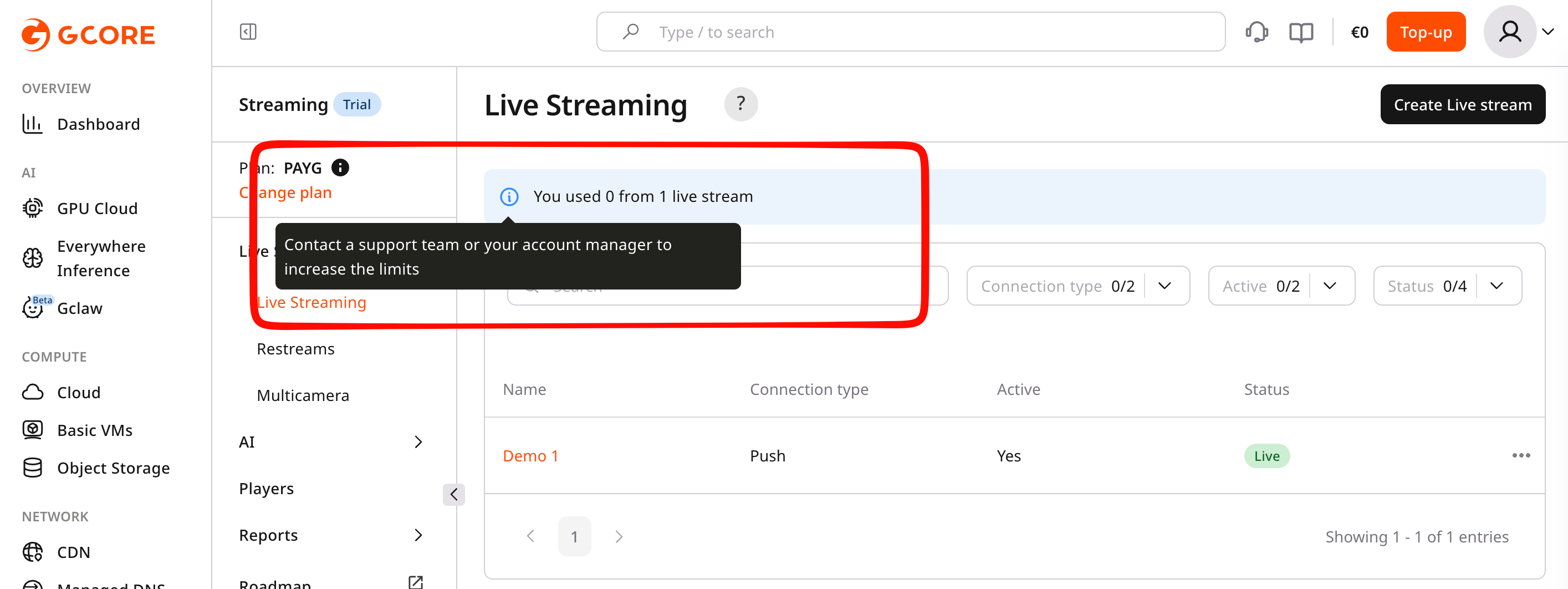
The live stream limit applies to active live streams, not to created live stream entities. Any number of live stream entities can be created, but only the allowed number can be enabled at the same time.
Before creating or enabling another stream, check the active-stream limit in the notification on the **Live Streaming** page.
 ## Step 2. Initiate the process
1\. In the **Gcore Customer Portal**, navigate to **Streaming** > [Live Streaming](https://portal.gcore.com/streaming/streaming).
2\. Click the **Create Live stream** button on the top right.
## Step 2. Initiate the process
1\. In the **Gcore Customer Portal**, navigate to **Streaming** > [Live Streaming](https://portal.gcore.com/streaming/streaming).
2\. Click the **Create Live stream** button on the top right.
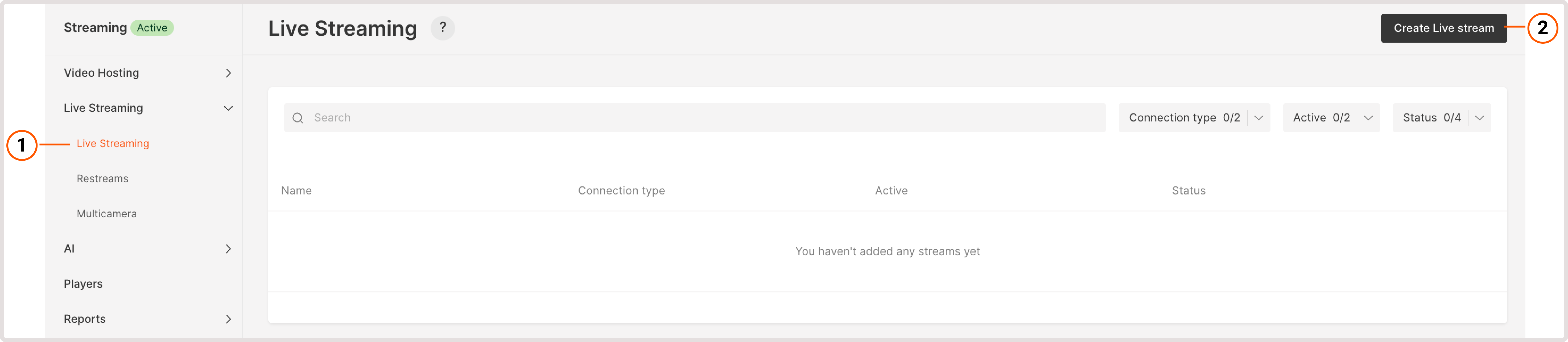 If the button is non-responsive, you have exceeded your live stream limit. To create a new stream, remove an existing stream from the list or request [technical support](mailto:support@gcore.com) to increase your limits.
2. Enter the name of your live stream in the window that appears and click the **Create** button.
If the button is non-responsive, you have exceeded your live stream limit. To create a new stream, remove an existing stream from the list or request [technical support](mailto:support@gcore.com) to increase your limits.
2. Enter the name of your live stream in the window that appears and click the **Create** button.
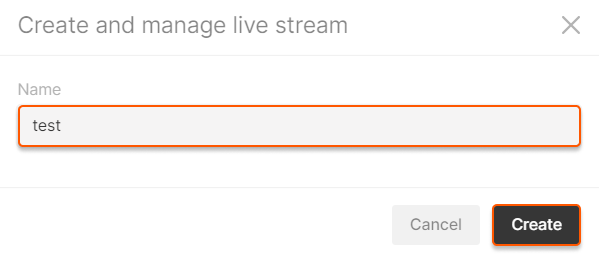 A new page will appear. Perform the remaining steps there.
## Step 3. Set the ingest type and additional features
A new page will appear. Perform the remaining steps there.
## Step 3. Set the ingest type and additional features
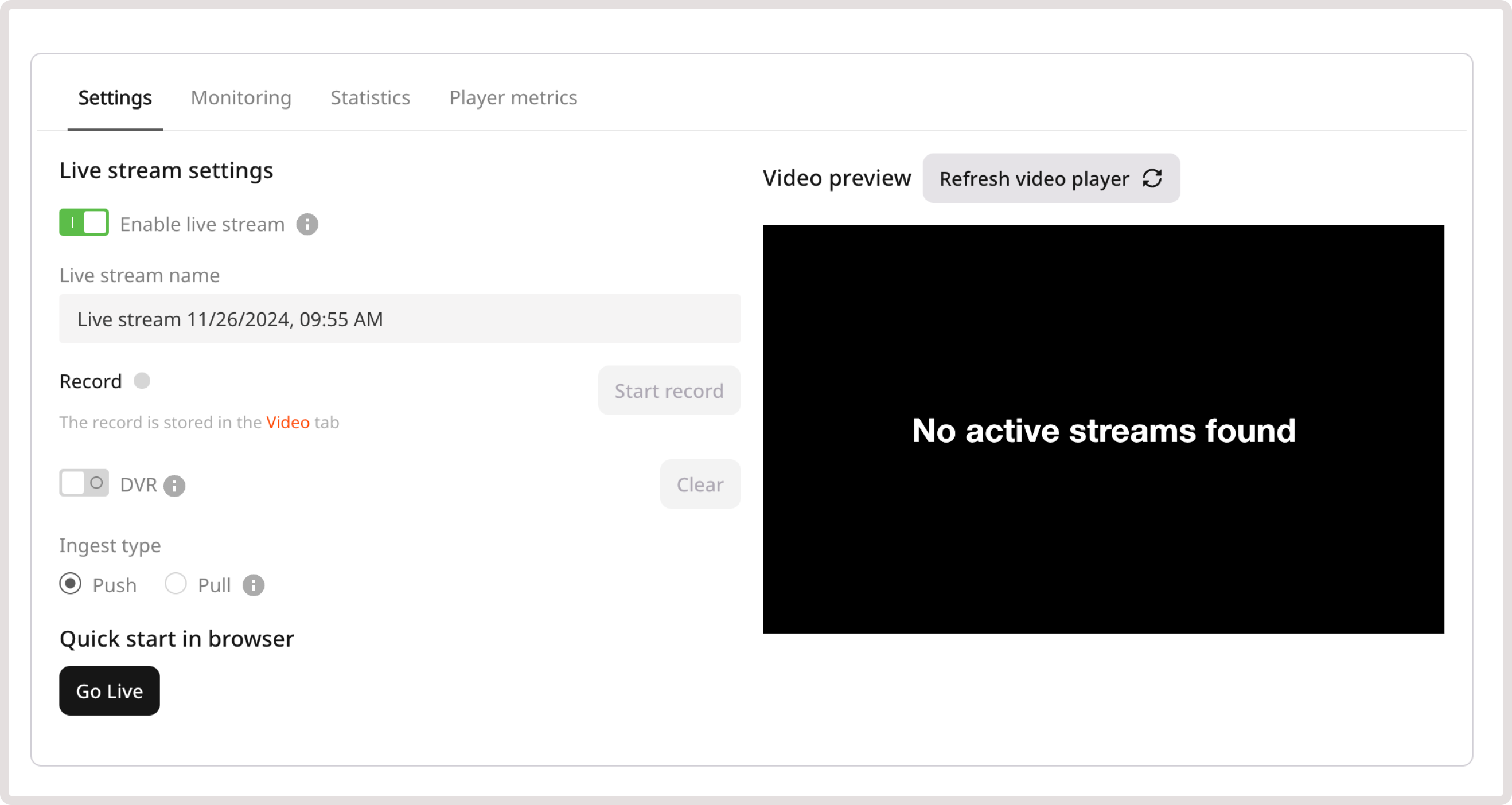 1\. Make sure that the **Enable live stream** toggle is on.
By default, we offer live streams with low latency (a 4–5 second delay.) Low latency is available in two protocols: LL-DASH ([compatible with all devices except iOS](/streaming/live-streaming/how-low-latency-streaming-works)) and LL-HLS (compatible with iOS). This feature is active from the start for all users, including those on the trial period or free tier, with no plan upgrades required. You can also obtain legacy HLS with MPEGTS format segments, in which case, please read [our article](/streaming/live-streaming/how-low-latency-streaming-works).
2\. Review the live stream name and update it if needed.
3\. Enable additional features:
* [Record](/streaming/live-streaming/record-your-live-streams-and-save-them-as-videos) for live stream recording. It will be active when you start streaming. Remember to enable the toggle if you require a record of your stream.
* [DVR](/streaming/live-streaming/pause-and-rewind-the-live-streams) for an improved user experience. When the DVR feature is enabled, your viewers can pause and rewind the broadcast.
4\. Select the relevant **Ingest type**: **Push** or **Pull**.
### When to choose Push vs Pull
**Choose Push if:**
* You generate a live stream from your web-cam, mobile device or computer
* You're using a streaming encoder OBS, Streamlabs, vMix, or any other software and hardware encoder
* You don't have your own streaming server
**How it works:**
1. Configure your encoder with Gcore's server URL and stream key
2. Your encoder sends (pushes) the stream to our server via RTMP, SRT, WebRTC WHIP
3. Gcore transcodes the stream into multiple quality levels
4. Gcore delivers via CDN in HLS and MPEG-DASH formats
**Choose Pull if:**
* Stream is already running on some server
* You know the URL of the stream
* You want Gcore to fetch your stream and redistribute it
**How it works:**
1. You provide your existing stream URL (e.g., `rtmp://1.1.1.1/live/stream`)
2. Gcore pulls (fetches) the stream from your server
3. Gcore transcodes the stream into ABR (adaptive bitrate) up to 1080p
4. Gcore delivers via CDN in HLS and MPEG-DASH formats
**Example Pull URLs:**
* RTMP: `rtmp://1.1.1.1/live/stream`
* SRT: `srt://1.1.1.1/live/stream`
* HLS: `https://1.1.1.1/live/stream.m3u8`
## Step 4. Configure your stream
Depending on the selected ingest type and protocol, your settings will differ.
### For PUSH streams
Refer to specific protocol pages for detailed configuration:
* [RTMP/RTMPS](protocols/rtmp)
* [SRT](protocols/srt)
* [WebRTC to HLS](protocols/webrtc)
### For PULL streams (step-by-step)
If you selected **Pull** as your ingest type:
1. **Prepare your source stream URL**
* Ensure your stream is already running on your server
* Copy the complete URL (e.g., `https://1.1.1.1/live/stream.m3u8`)
2. **Enter the URL in the PULL URL field**
* Paste your stream URL into the "PULL URL" field
* You can enter multiple URLs separated by spaces for failover (optional)
* Example with backup: `rtmp://1.1.1.1/live/stream rtmp://1.1.1.2/live/stream`
3. **Select geo-distributed pull point (optional)**
* Contact [support](mailto:support@gcore.com) to configure the optimal pull location
* This minimizes latency by pulling from a server closer to your origin
4. **Enable the stream**
* Make sure the **Enable live stream** toggle is **ON** (should be green)
* Click the **Save** button in the top right corner
5. **Wait for activation**
* The stream will become active within approximately **15 seconds**
* You'll see a preview on the Live Stream Settings page when ready
* The first webhook notification indicates the stream is available for playback
**Troubleshooting:** If the stream doesn't appear after 2 minutes, verify:
* Your source stream is actively running and accessible
* The URL is correct and publicly reachable
* Your firewall allows Gcore's servers to access your stream
## Step 5. Start the stream
Start a live stream on your media server or encoder. You will see a streaming preview on the **Live Stream Settings** page if everything is configured correctly.
## Step 6. Embed the stream to your app
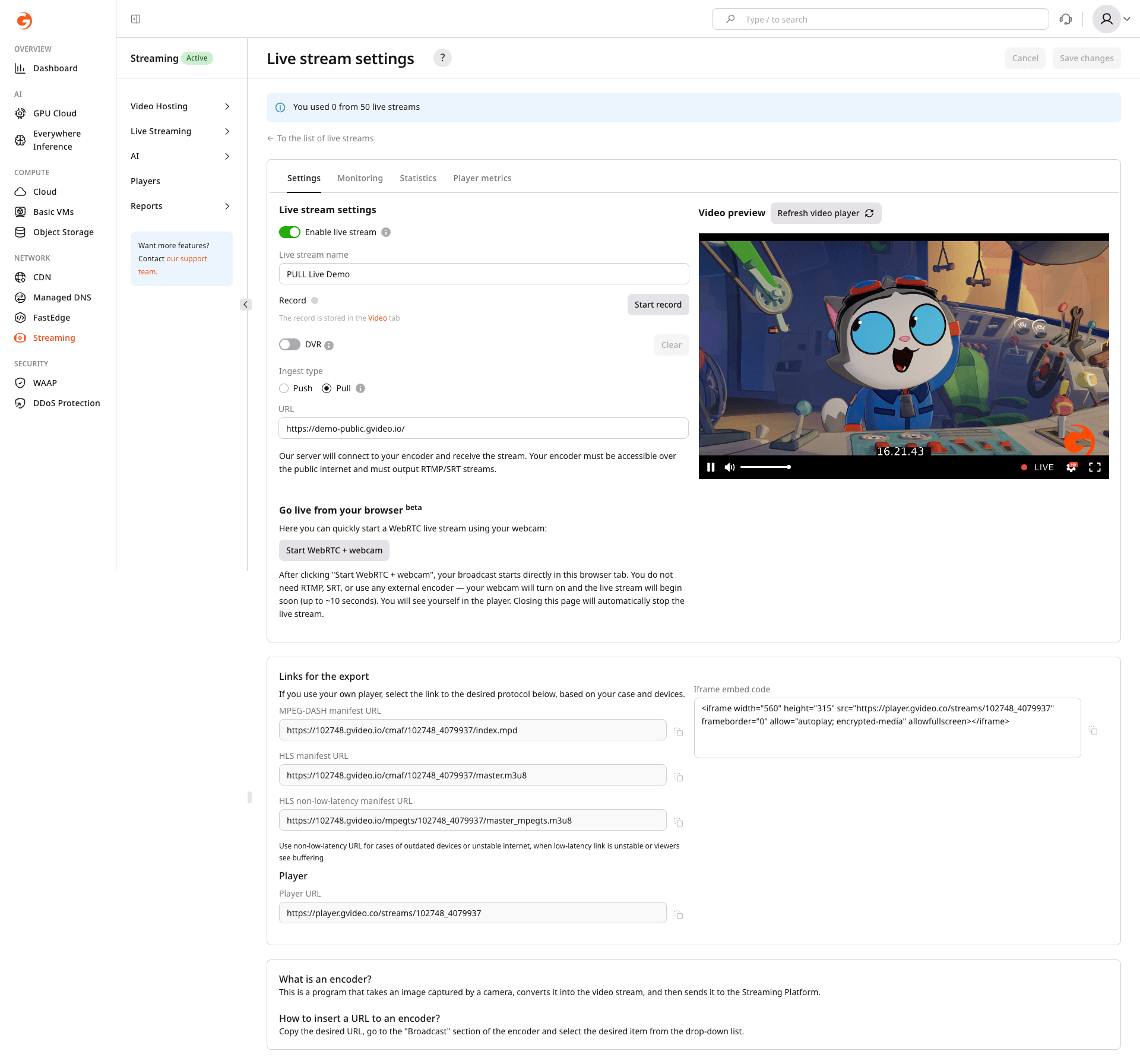
After configuring your stream, you can embed it into your app or website. The **Live stream settings** page in the Gcore Customer Portal provides the export links and player embed options you need.
1\. Make sure that the **Enable live stream** toggle is on.
By default, we offer live streams with low latency (a 4–5 second delay.) Low latency is available in two protocols: LL-DASH ([compatible with all devices except iOS](/streaming/live-streaming/how-low-latency-streaming-works)) and LL-HLS (compatible with iOS). This feature is active from the start for all users, including those on the trial period or free tier, with no plan upgrades required. You can also obtain legacy HLS with MPEGTS format segments, in which case, please read [our article](/streaming/live-streaming/how-low-latency-streaming-works).
2\. Review the live stream name and update it if needed.
3\. Enable additional features:
* [Record](/streaming/live-streaming/record-your-live-streams-and-save-them-as-videos) for live stream recording. It will be active when you start streaming. Remember to enable the toggle if you require a record of your stream.
* [DVR](/streaming/live-streaming/pause-and-rewind-the-live-streams) for an improved user experience. When the DVR feature is enabled, your viewers can pause and rewind the broadcast.
4\. Select the relevant **Ingest type**: **Push** or **Pull**.
### When to choose Push vs Pull
**Choose Push if:**
* You generate a live stream from your web-cam, mobile device or computer
* You're using a streaming encoder OBS, Streamlabs, vMix, or any other software and hardware encoder
* You don't have your own streaming server
**How it works:**
1. Configure your encoder with Gcore's server URL and stream key
2. Your encoder sends (pushes) the stream to our server via RTMP, SRT, WebRTC WHIP
3. Gcore transcodes the stream into multiple quality levels
4. Gcore delivers via CDN in HLS and MPEG-DASH formats
**Choose Pull if:**
* Stream is already running on some server
* You know the URL of the stream
* You want Gcore to fetch your stream and redistribute it
**How it works:**
1. You provide your existing stream URL (e.g., `rtmp://1.1.1.1/live/stream`)
2. Gcore pulls (fetches) the stream from your server
3. Gcore transcodes the stream into ABR (adaptive bitrate) up to 1080p
4. Gcore delivers via CDN in HLS and MPEG-DASH formats
**Example Pull URLs:**
* RTMP: `rtmp://1.1.1.1/live/stream`
* SRT: `srt://1.1.1.1/live/stream`
* HLS: `https://1.1.1.1/live/stream.m3u8`
## Step 4. Configure your stream
Depending on the selected ingest type and protocol, your settings will differ.
### For PUSH streams
Refer to specific protocol pages for detailed configuration:
* [RTMP/RTMPS](protocols/rtmp)
* [SRT](protocols/srt)
* [WebRTC to HLS](protocols/webrtc)
### For PULL streams (step-by-step)
If you selected **Pull** as your ingest type:
1. **Prepare your source stream URL**
* Ensure your stream is already running on your server
* Copy the complete URL (e.g., `https://1.1.1.1/live/stream.m3u8`)
2. **Enter the URL in the PULL URL field**
* Paste your stream URL into the "PULL URL" field
* You can enter multiple URLs separated by spaces for failover (optional)
* Example with backup: `rtmp://1.1.1.1/live/stream rtmp://1.1.1.2/live/stream`
3. **Select geo-distributed pull point (optional)**
* Contact [support](mailto:support@gcore.com) to configure the optimal pull location
* This minimizes latency by pulling from a server closer to your origin
4. **Enable the stream**
* Make sure the **Enable live stream** toggle is **ON** (should be green)
* Click the **Save** button in the top right corner
5. **Wait for activation**
* The stream will become active within approximately **15 seconds**
* You'll see a preview on the Live Stream Settings page when ready
* The first webhook notification indicates the stream is available for playback
**Troubleshooting:** If the stream doesn't appear after 2 minutes, verify:
* Your source stream is actively running and accessible
* The URL is correct and publicly reachable
* Your firewall allows Gcore's servers to access your stream
## Step 5. Start the stream
Start a live stream on your media server or encoder. You will see a streaming preview on the **Live Stream Settings** page if everything is configured correctly.
## Step 6. Embed the stream to your app
After configuring your stream, you can embed it into your app or website. The **Live stream settings** page in the Gcore Customer Portal provides the export links and player embed options you need.
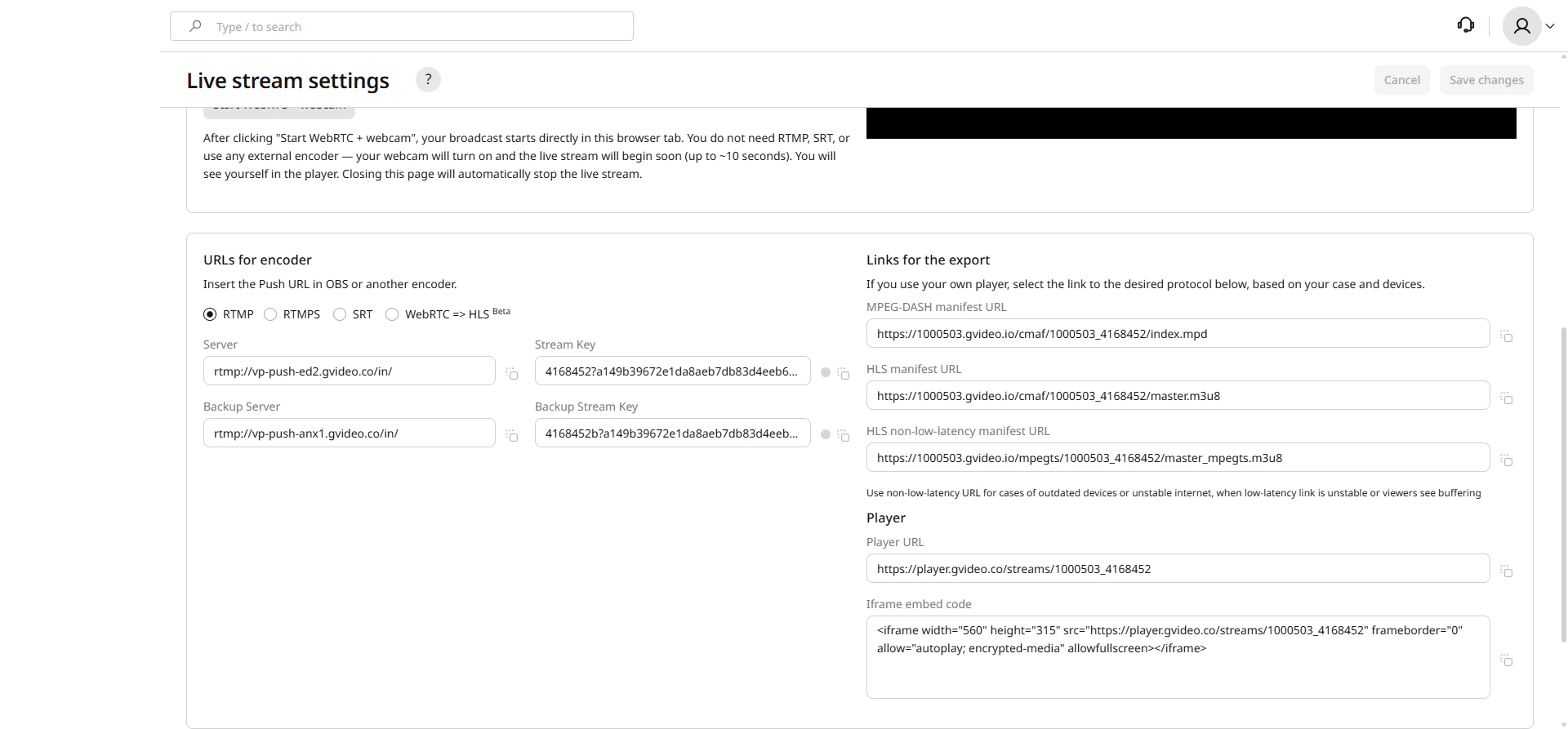 ### Links for the export
If you use your own player, select the appropriate link based on your use case and target devices:
| Link | Description |
| ------------------------------------ | ------------------------------------------------------------------------------------------------------------------------------------------------- |
| **MPEG-DASH manifest URL** | Low-latency adaptive bitrate streaming. Compatible with most modern devices except iOS Safari. |
| **HLS manifest URL** | Low-latency HLS (LL-HLS) with CMAF segments. Compatible with all devices including iOS. |
| **HLS non-low-latency manifest URL** | Traditional HLS with MPEG-TS segments. Use this for outdated devices or unstable internet connections when the low-latency link causes buffering. |
Low-latency streaming reduces delay to 4-5 seconds. Traditional HLS has 15-20 second delay but works better on unstable connections. Details: [How low-latency streaming works](/streaming/live-streaming/how-low-latency-streaming-works).
### Player
To quickly embed the stream using the Gcore player:
| Option | Description |
| --------------------- | ----------------------------------------------------------------------------------------------------------------------------------------------------------------------------------------------------------------------------------------------------------------------------------------------------------------------------------------------------------------------------------- |
| **Player URL** | Direct link to the hosted player page. Share this link with viewers or use it for testing. |
| **Iframe embed code** | Copy and paste this code into your website or CMS to embed the player directly. To change the player behavior (disable low latency, change colors, etc.), see [Customize appearance of the built-in player](/streaming/extra-features/customize-appearance-of-the-built-in-player). If something doesn't work in your player, contact [our support team](mailto:support@gcore.com). |
That’s it. Your viewers can see the live stream.
## UI elements on the Live Stream Settings page
After creating a stream, the Live Stream Settings page provides the following:
* Stream settings
* Playback URL
* Embed code
* Live stream monitoring
* Statistics
### Links for the export
If you use your own player, select the appropriate link based on your use case and target devices:
| Link | Description |
| ------------------------------------ | ------------------------------------------------------------------------------------------------------------------------------------------------- |
| **MPEG-DASH manifest URL** | Low-latency adaptive bitrate streaming. Compatible with most modern devices except iOS Safari. |
| **HLS manifest URL** | Low-latency HLS (LL-HLS) with CMAF segments. Compatible with all devices including iOS. |
| **HLS non-low-latency manifest URL** | Traditional HLS with MPEG-TS segments. Use this for outdated devices or unstable internet connections when the low-latency link causes buffering. |
Low-latency streaming reduces delay to 4-5 seconds. Traditional HLS has 15-20 second delay but works better on unstable connections. Details: [How low-latency streaming works](/streaming/live-streaming/how-low-latency-streaming-works).
### Player
To quickly embed the stream using the Gcore player:
| Option | Description |
| --------------------- | ----------------------------------------------------------------------------------------------------------------------------------------------------------------------------------------------------------------------------------------------------------------------------------------------------------------------------------------------------------------------------------- |
| **Player URL** | Direct link to the hosted player page. Share this link with viewers or use it for testing. |
| **Iframe embed code** | Copy and paste this code into your website or CMS to embed the player directly. To change the player behavior (disable low latency, change colors, etc.), see [Customize appearance of the built-in player](/streaming/extra-features/customize-appearance-of-the-built-in-player). If something doesn't work in your player, contact [our support team](mailto:support@gcore.com). |
That’s it. Your viewers can see the live stream.
## UI elements on the Live Stream Settings page
After creating a stream, the Live Stream Settings page provides the following:
* Stream settings
* Playback URL
* Embed code
* Live stream monitoring
* Statistics