> ## Documentation Index
> Fetch the complete documentation index at: https://docs.gcore.com/llms.txt
> Use this file to discover all available pages before exploring further.
# Create and configure a restream
## About restreams
Restreams is a feature that helps to broadcast your [live stream](/streaming/live-streaming/create-a-live-stream) or playlists to external video platforms like YouTube, Facebook, Twitch, and other RTMP, RTMPS, or SRT target points.
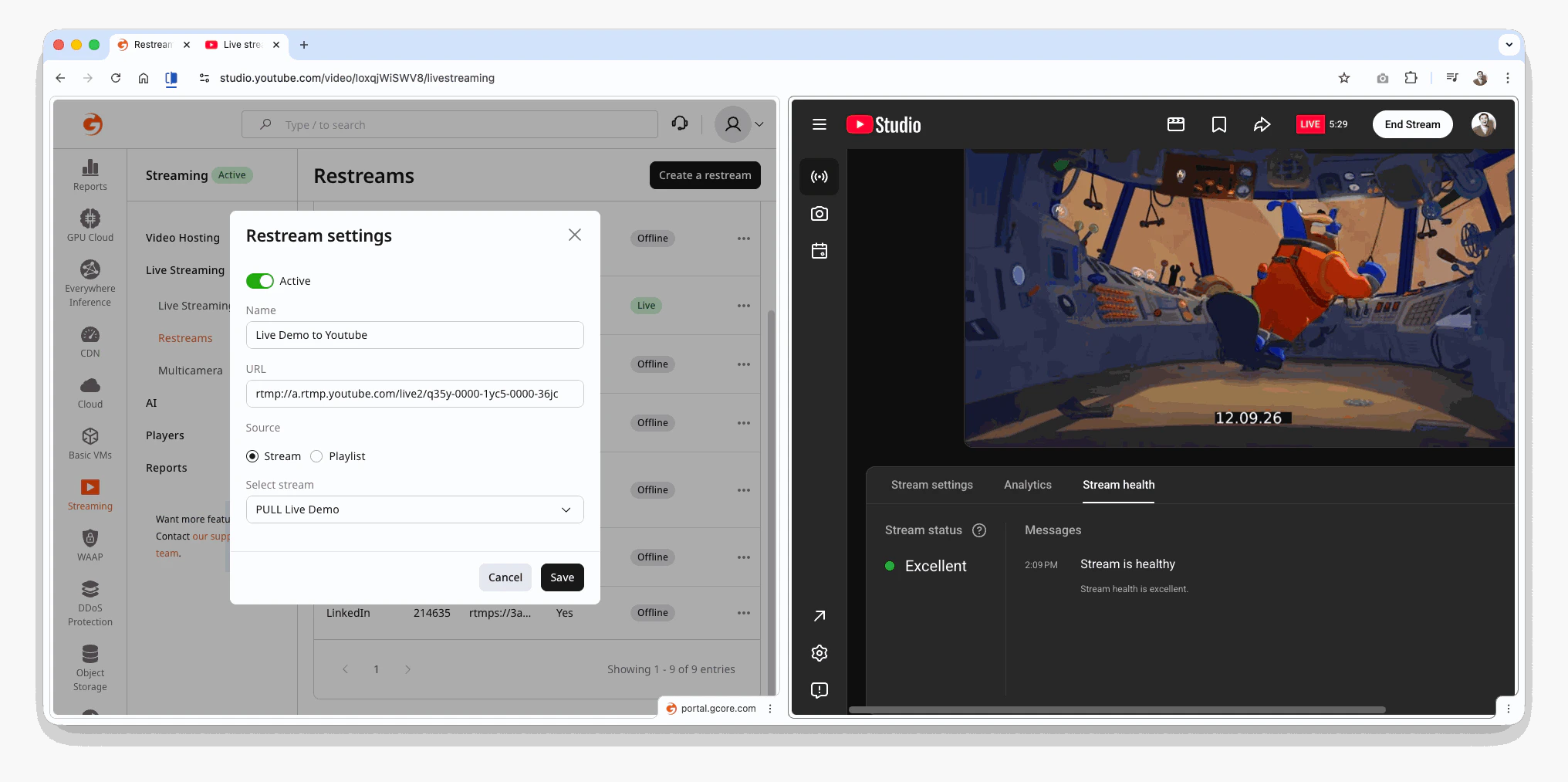 Why use restreams? Use this feature when you want to show the same live event in several places at once, for example on your website, YouTube, and Facebook. Instead of setting up a separate broadcast for each platform, you send one live stream to Gcore Streaming, and we distribute it to the platforms you choose. This makes the workflow simpler and reduces the risk of configuration errors during the broadcast.
## How restreams work
You get the credentials from the target platform or target media server: stream URL and stream key, or an SRT target URL. Then create a restream in the Gcore Customer Portal. When creating the restream, add the target URL and choose the appropriate live stream. The setup is complete. You can begin the live stream; it will be broadcast on our player and the target platform or server.
Here's how retransmission looks schematically: one stream at the input, many restreams at the output:
```text theme={null}
+-----------------------+
RTMP/RTMPS | | --------> Facebook (RTMP)
or ------> | Gcore Streaming | --------> YouTube (RTMPS)
SRT | | --------> Media server (SRT)
+-----------------------+ --------> Other RTMP/SRT targets
```
**Features.** Restreams can be broadcast on an unlimited number of platforms. The price of the service depends on how many platforms you want to stream to. The fewer platforms there are, the cheaper it is. By default, when you enable the feature, you will be able to stream to one platform. To increase the number of platforms, contact technical support. We will change the limit and the price of the service.
Supported restreaming combinations:
* RTMP → RTMP
* RTMPS → RTMPS
* RTMP → SRT
* SRT → SRT
* SRT → RTMP
For SRT target URLs, only `mode=caller` is supported. Gcore initiates the outbound connection to the external SRT or RTMP target point, so restreaming works as a PUSH from Gcore to your destination.
Restreaming sends the source stream to the destination as is. Make sure the source bitrate, codecs, resolution, keyframe interval, and audio format match the destination requirements.
## When to use RTMP or SRT targets
Use RTMP or RTMPS for social platforms and short, stable network paths where the destination requires RTMP ingest. It's a common, useful, and well-known protocol for sending master-streams, if it satisfies your requirements then use it.
For cross-country and cross-continental delivery where RTMP can become unstable, switching to SRT ensures stable retransmission. Also, SRT allows you to tune the recovery window explicitly with `latency`. For more details, see [RTMP vs SRT](/streaming/live-streaming/protocols/rtmp-srt).
### RTMP target URL format
For RTMP and RTMPS targets, enter the URL and stream key as follows:
```text theme={null}
rtmp://[:]//
```
For example, our stream URL is: *rtmp\://a.rtmp.youtube.com/live2* and stream key is: *ab123-cde4-f56g-hi78-90j*. So, in the URL field, we should add the following:
Why use restreams? Use this feature when you want to show the same live event in several places at once, for example on your website, YouTube, and Facebook. Instead of setting up a separate broadcast for each platform, you send one live stream to Gcore Streaming, and we distribute it to the platforms you choose. This makes the workflow simpler and reduces the risk of configuration errors during the broadcast.
## How restreams work
You get the credentials from the target platform or target media server: stream URL and stream key, or an SRT target URL. Then create a restream in the Gcore Customer Portal. When creating the restream, add the target URL and choose the appropriate live stream. The setup is complete. You can begin the live stream; it will be broadcast on our player and the target platform or server.
Here's how retransmission looks schematically: one stream at the input, many restreams at the output:
```text theme={null}
+-----------------------+
RTMP/RTMPS | | --------> Facebook (RTMP)
or ------> | Gcore Streaming | --------> YouTube (RTMPS)
SRT | | --------> Media server (SRT)
+-----------------------+ --------> Other RTMP/SRT targets
```
**Features.** Restreams can be broadcast on an unlimited number of platforms. The price of the service depends on how many platforms you want to stream to. The fewer platforms there are, the cheaper it is. By default, when you enable the feature, you will be able to stream to one platform. To increase the number of platforms, contact technical support. We will change the limit and the price of the service.
Supported restreaming combinations:
* RTMP → RTMP
* RTMPS → RTMPS
* RTMP → SRT
* SRT → SRT
* SRT → RTMP
For SRT target URLs, only `mode=caller` is supported. Gcore initiates the outbound connection to the external SRT or RTMP target point, so restreaming works as a PUSH from Gcore to your destination.
Restreaming sends the source stream to the destination as is. Make sure the source bitrate, codecs, resolution, keyframe interval, and audio format match the destination requirements.
## When to use RTMP or SRT targets
Use RTMP or RTMPS for social platforms and short, stable network paths where the destination requires RTMP ingest. It's a common, useful, and well-known protocol for sending master-streams, if it satisfies your requirements then use it.
For cross-country and cross-continental delivery where RTMP can become unstable, switching to SRT ensures stable retransmission. Also, SRT allows you to tune the recovery window explicitly with `latency`. For more details, see [RTMP vs SRT](/streaming/live-streaming/protocols/rtmp-srt).
### RTMP target URL format
For RTMP and RTMPS targets, enter the URL and stream key as follows:
```text theme={null}
rtmp://[:]//
```
For example, our stream URL is: *rtmp\://a.rtmp.youtube.com/live2* and stream key is: *ab123-cde4-f56g-hi78-90j*. So, in the URL field, we should add the following:
 where:
* *rtmp\://a.rtmp.youtube.com/live2* is the URL
* */* is the connecting symbol
* *ab123-cde4-f56g-hi78-90j* is the KEY
### SRT target URL parameters
For SRT restreams, add the parameters required by your target point directly to the SRT URL query string. Common parameters include:
* `mode=caller`
* `latency`
* `send_buffer_size`
* `pkt_size`
* `passphrase`
* `streamid`
Example:
```text theme={null}
srt://target.example.com:5001?streamid=1&mode=caller&latency=2500000&passphrase=secret
```
The target media server defines which parameters are required.
### SRT latency
For SRT restreams, specify `&latency=N` explicitly in the SRT target URL instead of relying on a default value. It helps size the recovery buffer for round-trip time, jitter, and packet loss on the route to the target site.
Selecting the right latency is crucial for delivering a smooth live stream. It depends on the geographic distance and network conditions between Gcore and your target platform, especially if they are located on different continents.
The target platform can have different recommendations for latency, and you should follow them.
| Network Conditions | Recommended Latency |
| ------------------ | ------------------- |
| Cross-region | 1-2 seconds |
| Public internet | 2-5 seconds |
For details, see [Best practices for configuring SRT latency](/streaming/live-streaming/protocols/srt#best-practices-for-configuring-srt-latency).
Your target SRT server can accept latency format in seconds, milliseconds, or microseconds.
Find out what format your target SRT server accepts in its documentation.
For example:
* Seconds: `2.5`
* Milliseconds: `2500`
* Microseconds: `2500000`
## Configure a restream
1\. Get credentials from the target platform or media server for the restream. Our guides for popular platforms describe how to do it: [Facebook](https://en-gb.facebook.com/help/587160588142067?helpref=faq_content), [YouTube](https://support.google.com/youtube/answer/2907883?hl=en) and [Twitch](https://help.twitch.tv/s/article/twitch-stream-key-faq). For SRT targets, get the SRT host, port, and any required query parameters from the target media server administrator.
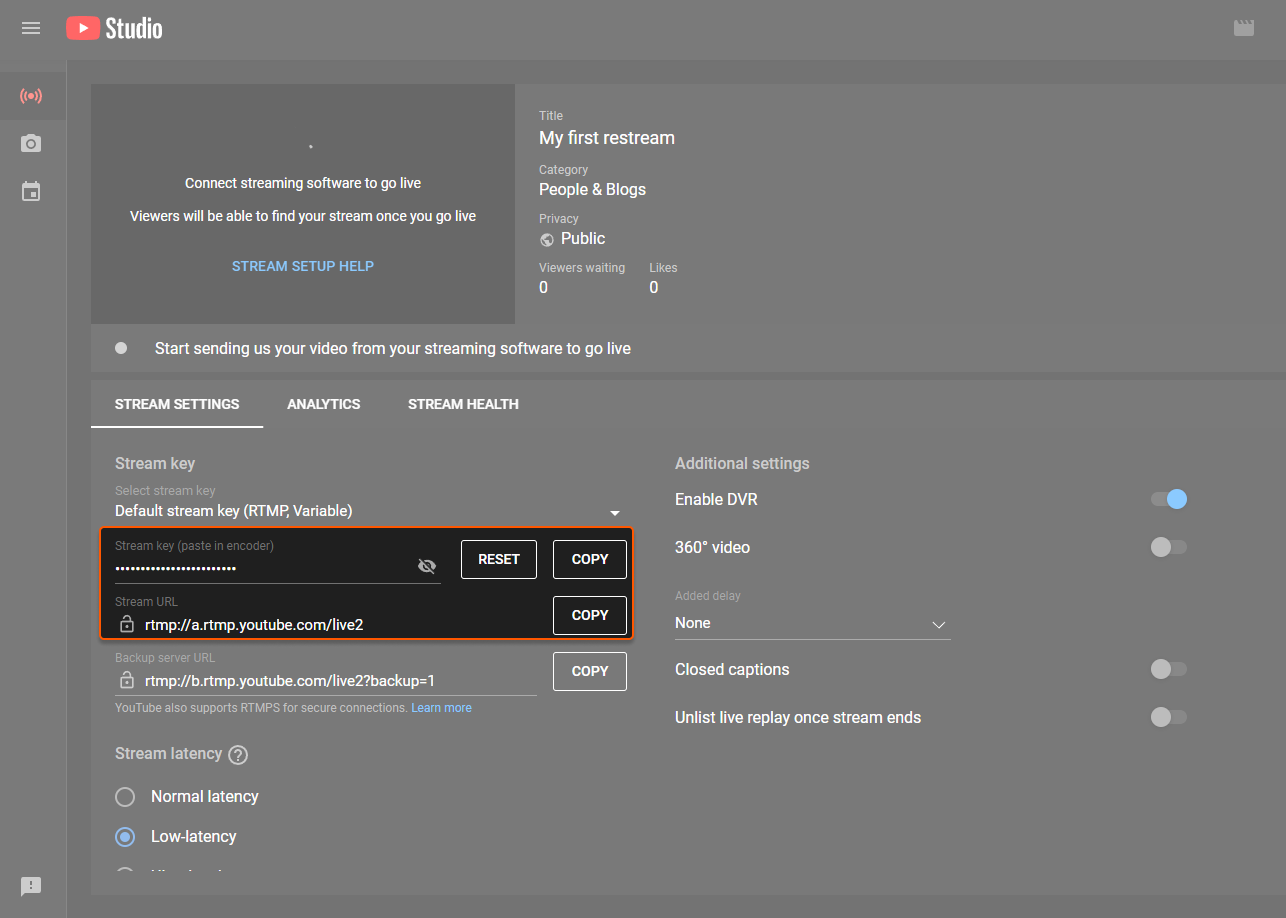
For example, we want to broadcast our live stream on YouTube. To do so, we should go to [YouTube](https://youtube.com) and click **Go live**. Then select a Streaming software solution. There we will need the credentials of stream URL and stream key. We will use them in step 5 of this guide.
In YouTube Studio, open the live stream you created. The stream key appears in the upper-right corner, where you can copy it by clicking **Copy**.
where:
* *rtmp\://a.rtmp.youtube.com/live2* is the URL
* */* is the connecting symbol
* *ab123-cde4-f56g-hi78-90j* is the KEY
### SRT target URL parameters
For SRT restreams, add the parameters required by your target point directly to the SRT URL query string. Common parameters include:
* `mode=caller`
* `latency`
* `send_buffer_size`
* `pkt_size`
* `passphrase`
* `streamid`
Example:
```text theme={null}
srt://target.example.com:5001?streamid=1&mode=caller&latency=2500000&passphrase=secret
```
The target media server defines which parameters are required.
### SRT latency
For SRT restreams, specify `&latency=N` explicitly in the SRT target URL instead of relying on a default value. It helps size the recovery buffer for round-trip time, jitter, and packet loss on the route to the target site.
Selecting the right latency is crucial for delivering a smooth live stream. It depends on the geographic distance and network conditions between Gcore and your target platform, especially if they are located on different continents.
The target platform can have different recommendations for latency, and you should follow them.
| Network Conditions | Recommended Latency |
| ------------------ | ------------------- |
| Cross-region | 1-2 seconds |
| Public internet | 2-5 seconds |
For details, see [Best practices for configuring SRT latency](/streaming/live-streaming/protocols/srt#best-practices-for-configuring-srt-latency).
Your target SRT server can accept latency format in seconds, milliseconds, or microseconds.
Find out what format your target SRT server accepts in its documentation.
For example:
* Seconds: `2.5`
* Milliseconds: `2500`
* Microseconds: `2500000`
## Configure a restream
1\. Get credentials from the target platform or media server for the restream. Our guides for popular platforms describe how to do it: [Facebook](https://en-gb.facebook.com/help/587160588142067?helpref=faq_content), [YouTube](https://support.google.com/youtube/answer/2907883?hl=en) and [Twitch](https://help.twitch.tv/s/article/twitch-stream-key-faq). For SRT targets, get the SRT host, port, and any required query parameters from the target media server administrator.
For example, we want to broadcast our live stream on YouTube. To do so, we should go to [YouTube](https://youtube.com) and click **Go live**. Then select a Streaming software solution. There we will need the credentials of stream URL and stream key. We will use them in step 5 of this guide.
In YouTube Studio, open the live stream you created. The stream key appears in the upper-right corner, where you can copy it by clicking **Copy**.
 2\. Go to the [Restreams](https://portal.gcore.com/streaming/restreams/list) section and click **Create a restream**.
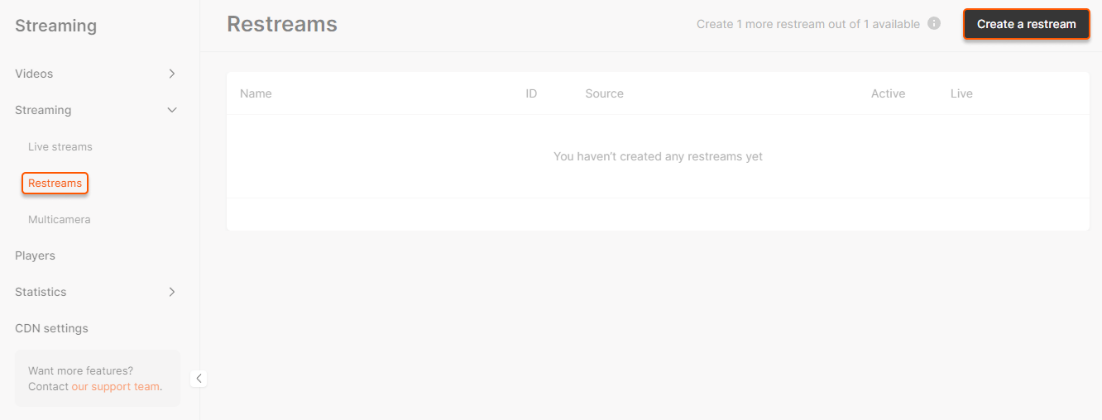 The configuration page opens. Complete the remaining steps in it.
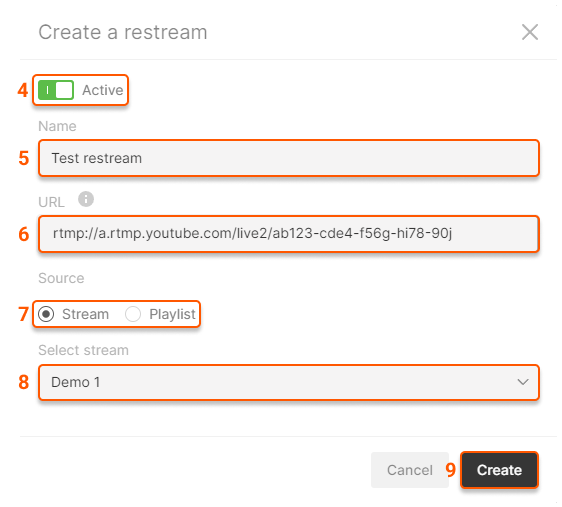 3\. Turn on the **Active** toggle if you want to broadcast your video content after configuration. If you don't turn the toggle off, an inactive restream won't be broadcasted.
4\. Give a name to your restream.
5\. Enter the credentials from step 1 of this guide.
6\. Select which type of video content you want to restream. You can broadcast live streams and playlists.
**Note** : Playlists must be looped so that you can restream them.
7\. Pick a stream or playlist that you want to broadcast from the drop-down list.
8\. Save changes.
Then you should enable the live stream or playlist (depending on your choice), wait several minutes while the settings are applied, and restart the [Restreams](https://portal.gcore.com/streaming/restreams/list) page. If everything was set up correctly, you would see the **Live** label.
3\. Turn on the **Active** toggle if you want to broadcast your video content after configuration. If you don't turn the toggle off, an inactive restream won't be broadcasted.
4\. Give a name to your restream.
5\. Enter the credentials from step 1 of this guide.
6\. Select which type of video content you want to restream. You can broadcast live streams and playlists.
**Note** : Playlists must be looped so that you can restream them.
7\. Pick a stream or playlist that you want to broadcast from the drop-down list.
8\. Save changes.
Then you should enable the live stream or playlist (depending on your choice), wait several minutes while the settings are applied, and restart the [Restreams](https://portal.gcore.com/streaming/restreams/list) page. If everything was set up correctly, you would see the **Live** label.
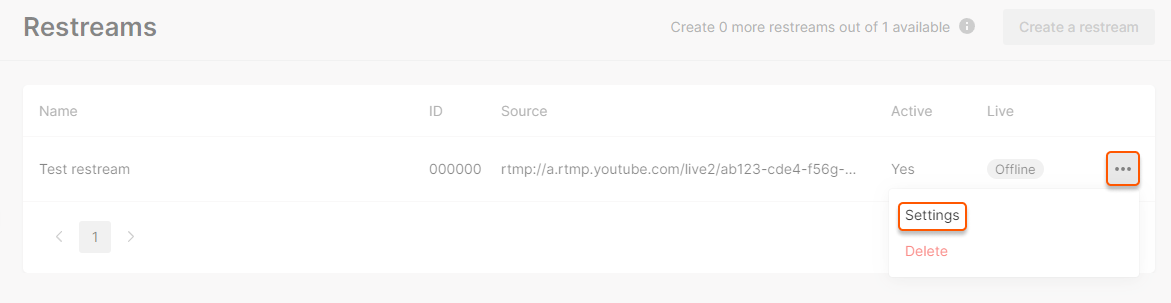
 You can do this if the live stream or playlist is over, but you want to restream it again in a while. If the key and URL were not changed, and the restream still exists in the Gcore Customer Portal, there are no additional settings. If the key or URL were changed, you should add current credentials in the configuration of restream.
 ## Multiple restreaming
Technically, the number of restreams is not limited. By default, we enable one available restream per account. If you want to use more than one, contact technical support and specify the number of restreams.
We will notify you when the feature is activated. After that, you will be able to use it for your account.
## Restream failover
Just like for regular streams, restreams have a failover algorithm too.
If there is a problem getting the original stream, it will be re-requested multiple times.
**Restream retry algorithm:**
1. Original stream is active
2. If the original stream is unavailable and is down for more than ±3 seconds:
1. The system will activate the retry mechanism.
3. The system will attempt to re-request (PULL) the original stream for approximately 60 minutes.
1. If original stream is back, the timer is reset to zero and the restream is restored.
2. Otherwise the restream stops permanently. To resume it, you will have to activate it manually or via API.
## Restream troubleshooting
### RTMP targets
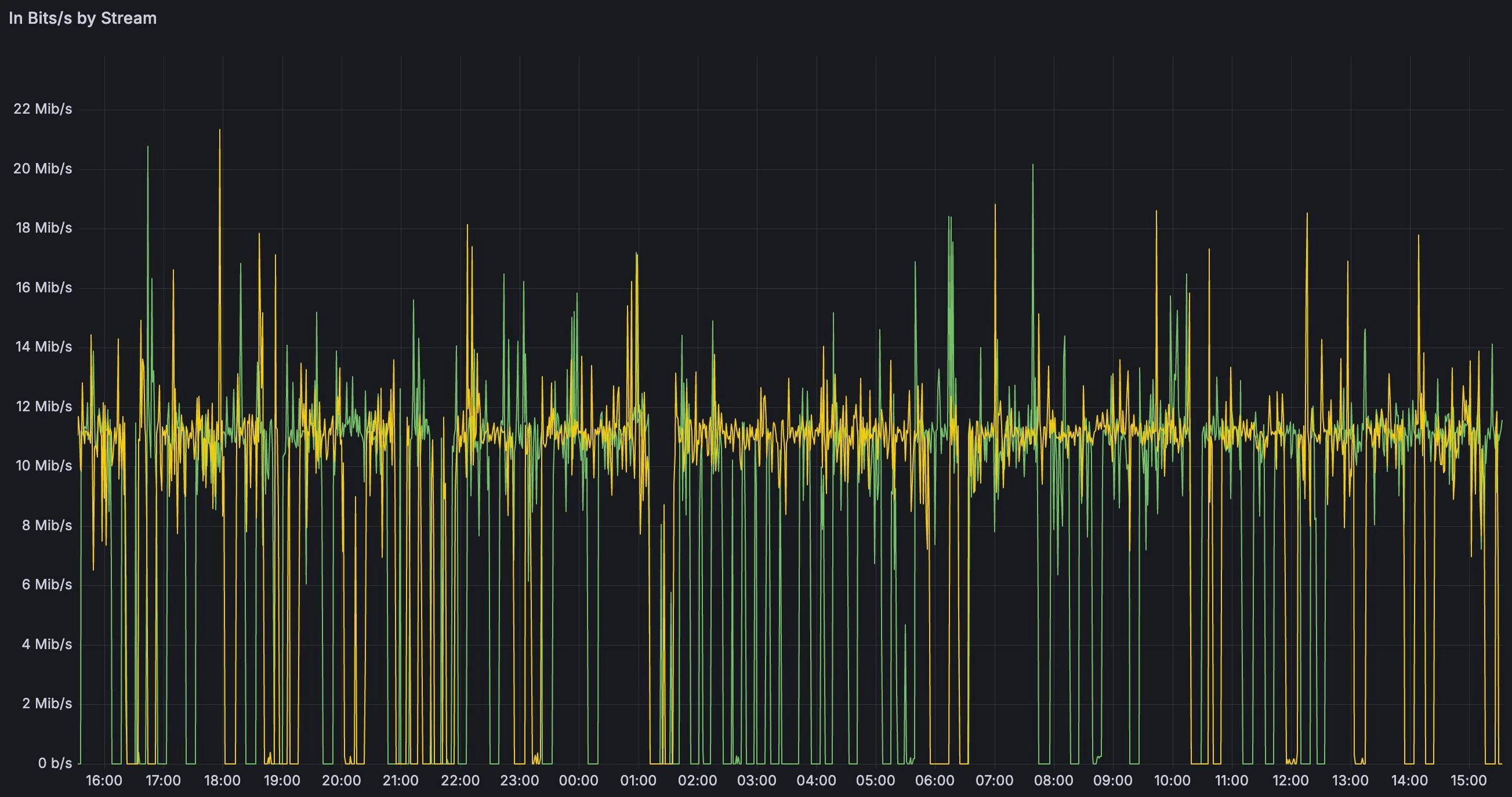
The main risk with RTMP targets is that the destination can terminate the stream when delivery becomes too slow or unstable. RTMP works best for short, stable paths and moderate bitrates. For public internet restreaming, a practical bitrate is usually around **1-3 Mbps**, depending on route quality and the target server. If a restreamed stream's bitrate is higher than 5 Mbps you can face with stream interruptions.
If the problem is caused by latency, jitter, packet loss, or insufficient bandwidth on a long-distance route, use SRT instead of RTMP.
Typical comb with packet loss in RTMP for long distance:
## Multiple restreaming
Technically, the number of restreams is not limited. By default, we enable one available restream per account. If you want to use more than one, contact technical support and specify the number of restreams.
We will notify you when the feature is activated. After that, you will be able to use it for your account.
## Restream failover
Just like for regular streams, restreams have a failover algorithm too.
If there is a problem getting the original stream, it will be re-requested multiple times.
**Restream retry algorithm:**
1. Original stream is active
2. If the original stream is unavailable and is down for more than ±3 seconds:
1. The system will activate the retry mechanism.
3. The system will attempt to re-request (PULL) the original stream for approximately 60 minutes.
1. If original stream is back, the timer is reset to zero and the restream is restored.
2. Otherwise the restream stops permanently. To resume it, you will have to activate it manually or via API.
## Restream troubleshooting
### RTMP targets
The main risk with RTMP targets is that the destination can terminate the stream when delivery becomes too slow or unstable. RTMP works best for short, stable paths and moderate bitrates. For public internet restreaming, a practical bitrate is usually around **1-3 Mbps**, depending on route quality and the target server. If a restreamed stream's bitrate is higher than 5 Mbps you can face with stream interruptions.
If the problem is caused by latency, jitter, packet loss, or insufficient bandwidth on a long-distance route, use SRT instead of RTMP.
Typical comb with packet loss in RTMP for long distance:
 ### SRT targets
**Common Issues**
* **Wrong SRT mode**: Gcore supports only `mode=caller` for SRT restream targets. The destination must listen for the incoming SRT connection.
* **Latency is too low for the route**: Long-distance paths can have high RTT, jitter, or packet loss. If `latency` is too low, retransmitted packets can arrive too late and the target may report TS loss, service loss, or dejitter buffer resets.
* **Target bandwidth is lower than the source bitrate**: Restreaming sends the source stream as is. If the target site cannot reliably receive an 11 Mbps source, use a lower-bitrate source or create a separate transcoded stream for that destination.
* **Firewall or UDP filtering**: SRT uses UDP, so the target host and network must allow inbound UDP on the configured SRT port.
* **Encryption parameter mismatch**: If the target requires encryption, `passphrase` and related parameters such as `pbkeylen` must match the target configuration.
**Solutions**
* Use `mode=caller` in the SRT target URL.
* Increase `latency` 2-3 or more seconds for long public internet routes and test under real traffic conditions.
* Confirm that the target can receive the full source bitrate without sustained packet drops.
* Verify UDP reachability to the target SRT port.
* Match all required target parameters, including `streamid`, `passphrase`, `pbkeylen`, `pkt_size`, and buffer settings.
### Facebook
**Common Issues**
* **Expired or invalid stream key/token**\
The RTMP connection is rejected if the event is marked as finished in the Facebook UI or if the token/stream key has been regenerated.
* **Keyframe interval exceeds 4 seconds**\
Facebook enforces a maximum GOP size of 4 seconds; exceeding this value results in rejection.
* **Unstable or insufficient bitrate**\
Significant bitrate drops may cause Facebook to terminate the stream.
* **Incorrect event configuration**\
Using an outdated or incorrect stream key leads to immediate connection failure.
**Solutions**
* Confirm the stream key is active and the event is in *Live* or *Preview* state.
* Set keyframe interval to **2 seconds (recommended)** or 4 seconds (maximum).
* Maintain a stable, constant bitrate.
* Update stream keys after Facebook regenerates them.
* Verify correct ingest server selection.
Facebook documentation: [https://www.facebook.com/business/help/162540111070395?id=1123223941353904](https://www.facebook.com/business/help/162540111070395?id=1123223941353904)
### YouTube
**Common Issues**
* **Invalid stream key or inactive event**\
YouTube rejects connections when the key is incorrect or the event is not yet open.
* **Unsupported codec or profile**\
YouTube requires H.264 (Baseline/Main/High) and AAC audio.
* **Unstable input bitrate**\
Bitrate drops cause buffering and disconnects.
* **High keyframe interval**\
YouTube recommends a GOP of **2 seconds**.
**Solutions**
* Verify the stream key and event status before connecting.
* Use standard H.264 + AAC encoding.
* Keep keyframe interval at **2 seconds**.
* Ensure encoder output is stable and avoids bitrate spikes.
* Enable low-latency only if supported reliably by your pipeline.
Youtube documentation: [https://support.google.com/youtube/answer/2853702](https://support.google.com/youtube/answer/2853702)
### Twitch
**Common Issues**
* **Rate limiting or ingest overload**\
Frequent connection attempts may trigger temporary limits.
* **Excessive bitrate for account type**\
Twitch generally recommends a maximum of **6,000 Kbps** for non-partners.
* **Unsupported codec settings**\
Twitch requires H.264 + AAC.
* **Disconnects due to unstable upstream**\
Twitch is sensitive to jitter and packet loss.
**Solutions**
* Follow Twitch bitrate and profile recommendations.
* Use a **2-second** keyframe interval.
* Select the closest ingest server.
* Reduce connection retries to avoid rate limiting.
* Use CBR and ensure stable network paths.
Twitch documentation: [https://help.twitch.tv/s/article/broadcasting-guidelines](https://help.twitch.tv/s/article/broadcasting-guidelines)
### Other Social Platforms
**Common Issues**
* Stream keys are frequently rotated.
* Strict GOP/keyframe interval requirements (often **2 seconds**).
* Dynamic regional ingest endpoints.
* Some platforms accept only RTMP or specific RTMP variants.
**Solutions**
* Validate the latest stream key before restreaming.
* Use a standard **2-second** keyframe interval unless specified otherwise.
* Maintain consistent bitrate and resolution.
* Review platform-specific RTMP error codes for precise causes.
### SRT targets
**Common Issues**
* **Wrong SRT mode**: Gcore supports only `mode=caller` for SRT restream targets. The destination must listen for the incoming SRT connection.
* **Latency is too low for the route**: Long-distance paths can have high RTT, jitter, or packet loss. If `latency` is too low, retransmitted packets can arrive too late and the target may report TS loss, service loss, or dejitter buffer resets.
* **Target bandwidth is lower than the source bitrate**: Restreaming sends the source stream as is. If the target site cannot reliably receive an 11 Mbps source, use a lower-bitrate source or create a separate transcoded stream for that destination.
* **Firewall or UDP filtering**: SRT uses UDP, so the target host and network must allow inbound UDP on the configured SRT port.
* **Encryption parameter mismatch**: If the target requires encryption, `passphrase` and related parameters such as `pbkeylen` must match the target configuration.
**Solutions**
* Use `mode=caller` in the SRT target URL.
* Increase `latency` 2-3 or more seconds for long public internet routes and test under real traffic conditions.
* Confirm that the target can receive the full source bitrate without sustained packet drops.
* Verify UDP reachability to the target SRT port.
* Match all required target parameters, including `streamid`, `passphrase`, `pbkeylen`, `pkt_size`, and buffer settings.
### Facebook
**Common Issues**
* **Expired or invalid stream key/token**\
The RTMP connection is rejected if the event is marked as finished in the Facebook UI or if the token/stream key has been regenerated.
* **Keyframe interval exceeds 4 seconds**\
Facebook enforces a maximum GOP size of 4 seconds; exceeding this value results in rejection.
* **Unstable or insufficient bitrate**\
Significant bitrate drops may cause Facebook to terminate the stream.
* **Incorrect event configuration**\
Using an outdated or incorrect stream key leads to immediate connection failure.
**Solutions**
* Confirm the stream key is active and the event is in *Live* or *Preview* state.
* Set keyframe interval to **2 seconds (recommended)** or 4 seconds (maximum).
* Maintain a stable, constant bitrate.
* Update stream keys after Facebook regenerates them.
* Verify correct ingest server selection.
Facebook documentation: [https://www.facebook.com/business/help/162540111070395?id=1123223941353904](https://www.facebook.com/business/help/162540111070395?id=1123223941353904)
### YouTube
**Common Issues**
* **Invalid stream key or inactive event**\
YouTube rejects connections when the key is incorrect or the event is not yet open.
* **Unsupported codec or profile**\
YouTube requires H.264 (Baseline/Main/High) and AAC audio.
* **Unstable input bitrate**\
Bitrate drops cause buffering and disconnects.
* **High keyframe interval**\
YouTube recommends a GOP of **2 seconds**.
**Solutions**
* Verify the stream key and event status before connecting.
* Use standard H.264 + AAC encoding.
* Keep keyframe interval at **2 seconds**.
* Ensure encoder output is stable and avoids bitrate spikes.
* Enable low-latency only if supported reliably by your pipeline.
Youtube documentation: [https://support.google.com/youtube/answer/2853702](https://support.google.com/youtube/answer/2853702)
### Twitch
**Common Issues**
* **Rate limiting or ingest overload**\
Frequent connection attempts may trigger temporary limits.
* **Excessive bitrate for account type**\
Twitch generally recommends a maximum of **6,000 Kbps** for non-partners.
* **Unsupported codec settings**\
Twitch requires H.264 + AAC.
* **Disconnects due to unstable upstream**\
Twitch is sensitive to jitter and packet loss.
**Solutions**
* Follow Twitch bitrate and profile recommendations.
* Use a **2-second** keyframe interval.
* Select the closest ingest server.
* Reduce connection retries to avoid rate limiting.
* Use CBR and ensure stable network paths.
Twitch documentation: [https://help.twitch.tv/s/article/broadcasting-guidelines](https://help.twitch.tv/s/article/broadcasting-guidelines)
### Other Social Platforms
**Common Issues**
* Stream keys are frequently rotated.
* Strict GOP/keyframe interval requirements (often **2 seconds**).
* Dynamic regional ingest endpoints.
* Some platforms accept only RTMP or specific RTMP variants.
**Solutions**
* Validate the latest stream key before restreaming.
* Use a standard **2-second** keyframe interval unless specified otherwise.
* Maintain consistent bitrate and resolution.
* Review platform-specific RTMP error codes for precise causes.