> ## Documentation Index
> Fetch the complete documentation index at: https://docs.gcore.com/llms.txt
> Use this file to discover all available pages before exploring further.
# Timeline hover previews: use with players and Roku devices
## What are timeline hover previews?
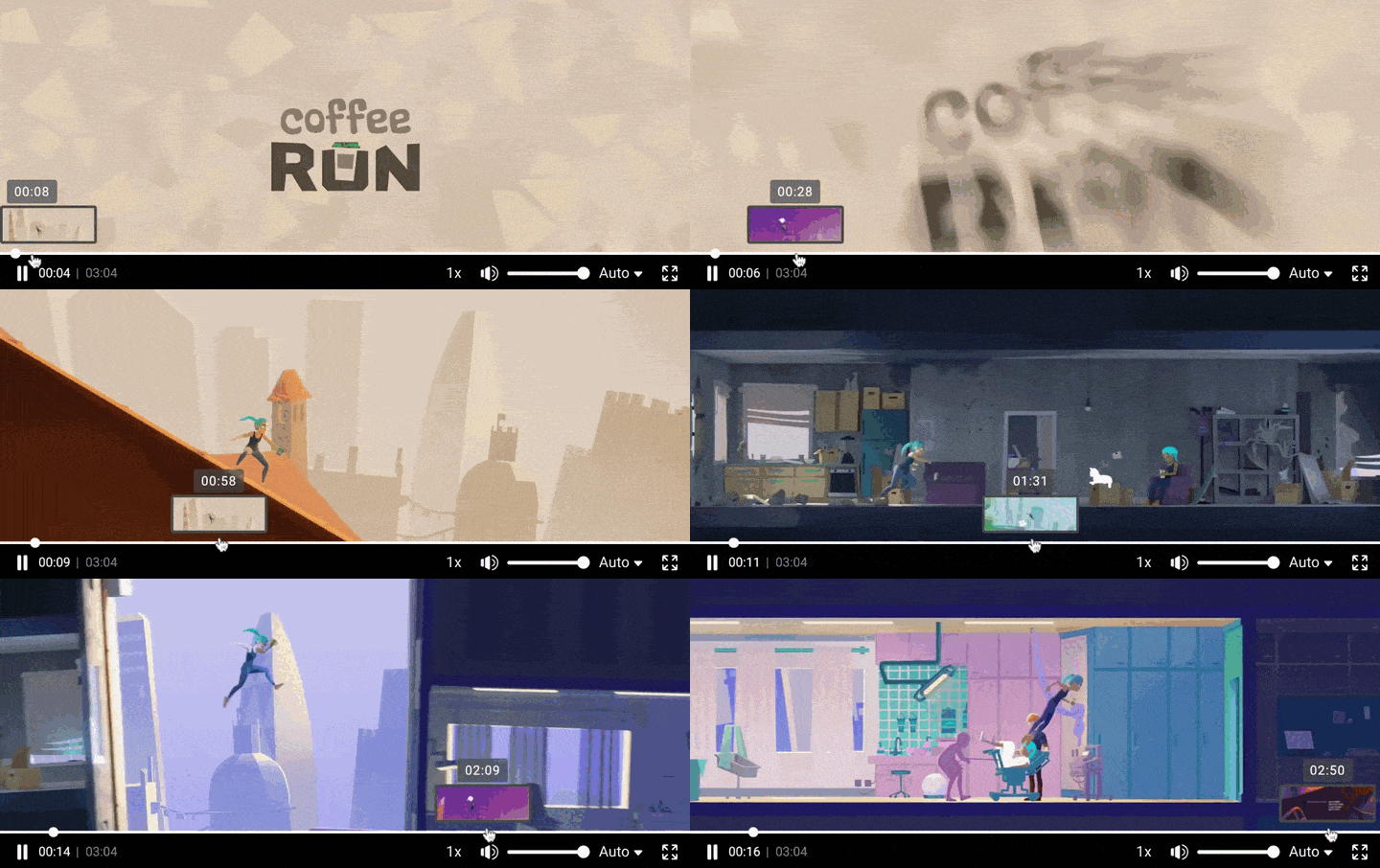
Timeline hover previews, or trick play, is an option that makes it easier to rewind and find a specific moment in a video. It shows users previews when they point their cursor to any specific point on the video's timeline. For example:
 ## What do the previews consist of?
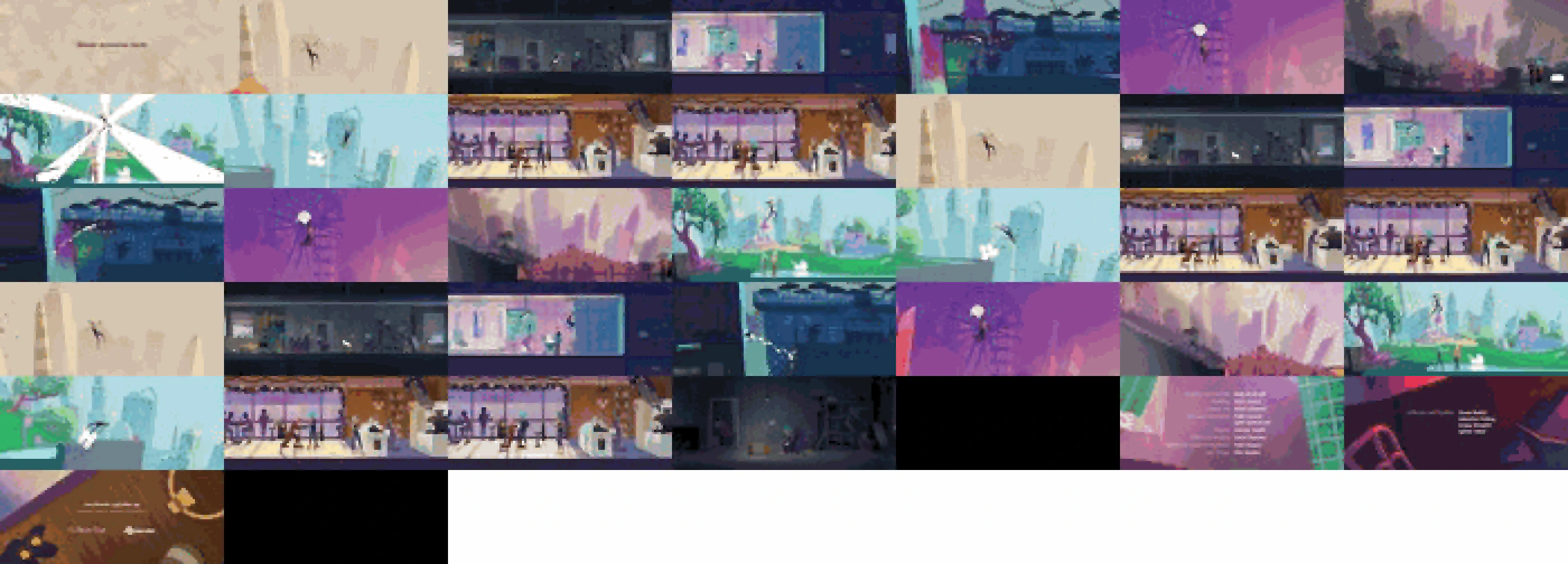
In the [Gcore Streaming Platform](https://gcore.com/streaming-platform), we use time-based preview. During the transcoding process, the video is divided into equal segments, and screenshots are taken. These screenshots are called *tiles*.
All tiles are collected in a single array— *storyboard*. A storyboard is a large JPEG image of tiles chronologically arranged one after another. Here is an example of the storyboard for Blender Studio's cartoon "Coffee Run":
## What do the previews consist of?
In the [Gcore Streaming Platform](https://gcore.com/streaming-platform), we use time-based preview. During the transcoding process, the video is divided into equal segments, and screenshots are taken. These screenshots are called *tiles*.
All tiles are collected in a single array— *storyboard*. A storyboard is a large JPEG image of tiles chronologically arranged one after another. Here is an example of the storyboard for Blender Studio's cartoon "Coffee Run":
 **Note** : We create storyboards for all videos automatically.
## Adding timeline hover previews to players
### Gcore player
Timeline hover previews are embedded into Gcore's Player by default, so previews are displayed automatically. For example:
For external players, previews are available in two ways:
* [WebVTT format](/streaming/video-hosting/timeline-hover-previews-use-in-players-and-roku-devices#webvtt-format-in-api)
* [Roku trick play](/streaming/video-hosting/timeline-hover-previews-use-in-players-and-roku-devices#roku-trick-play)
### WebVTT format in API
The [Get video API request](/api-reference/streaming/videos/get-video) returns information about the video, including two additional fields:
* `sprite`: link to the storyboard, which contains the tiles
* `sprite_vtt`: description of tiles in VTT format
Example:
`GET https://api.gcore.com/streaming/videos/{video_id}/`
```
"sprite": "https://demo-public.gvideo.io/static/videoplatform/sprites/2675/2474723_FnlHXwA16ZMxmUr.mp4_sprite.jpg",
"sprite_vtt": "1
00:00:00,000 --> 00:00:05,000
FnlHXwA16ZMxmUr_sprite.jpg#xywh=0,0,100,42
...
16
00:01:15,000 --> 00:01:20,000
FnlHXwA16ZMxmUr_sprite.jpg#xywh=100,84,100,42
17
00:01:20,000 --> 00:01:25,000
FnlHXwA16ZMxmUr_sprite.jpg#xywh=200,84,100,42
18
00:01:25,000 --> 00:01:30,000
FnlHXwA16ZMxmUr_sprite.jpg#xywh=300,84,100,42
...
```
The VTT field structure is:
* Tile number, e.g., `17`
* Timing when a tile is displayed, e.g., `00:01:20,000 --> 00:01:25,000`
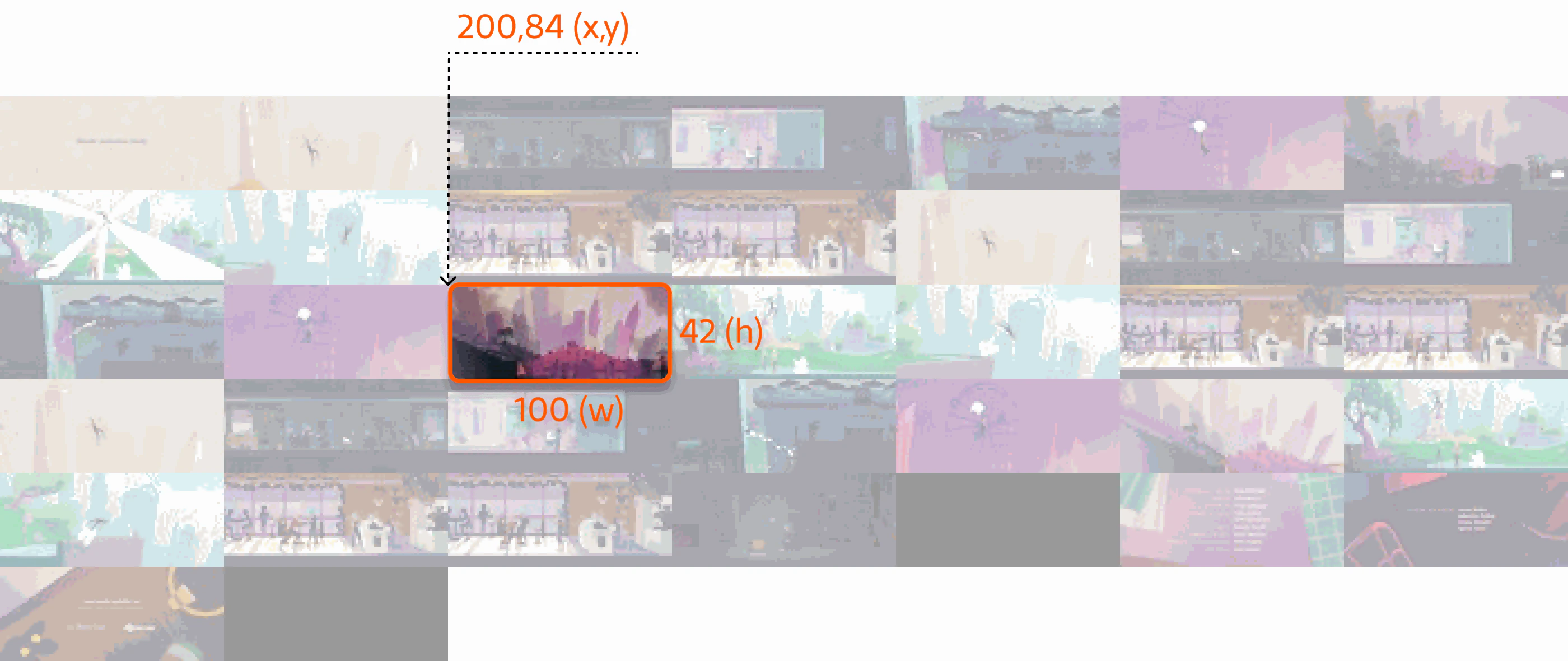
* The coordinates of the upper left corner and the size of the tile from a storyboard (format is "xywh"): `xywh=200,84,100,42`
**Note** : Tiles are read from left to right, top to bottom.
In the picture below, the 17th tile (third one from left, third from top) is highlighted in VTT format:
**Note** : We create storyboards for all videos automatically.
## Adding timeline hover previews to players
### Gcore player
Timeline hover previews are embedded into Gcore's Player by default, so previews are displayed automatically. For example:
For external players, previews are available in two ways:
* [WebVTT format](/streaming/video-hosting/timeline-hover-previews-use-in-players-and-roku-devices#webvtt-format-in-api)
* [Roku trick play](/streaming/video-hosting/timeline-hover-previews-use-in-players-and-roku-devices#roku-trick-play)
### WebVTT format in API
The [Get video API request](/api-reference/streaming/videos/get-video) returns information about the video, including two additional fields:
* `sprite`: link to the storyboard, which contains the tiles
* `sprite_vtt`: description of tiles in VTT format
Example:
`GET https://api.gcore.com/streaming/videos/{video_id}/`
```
"sprite": "https://demo-public.gvideo.io/static/videoplatform/sprites/2675/2474723_FnlHXwA16ZMxmUr.mp4_sprite.jpg",
"sprite_vtt": "1
00:00:00,000 --> 00:00:05,000
FnlHXwA16ZMxmUr_sprite.jpg#xywh=0,0,100,42
...
16
00:01:15,000 --> 00:01:20,000
FnlHXwA16ZMxmUr_sprite.jpg#xywh=100,84,100,42
17
00:01:20,000 --> 00:01:25,000
FnlHXwA16ZMxmUr_sprite.jpg#xywh=200,84,100,42
18
00:01:25,000 --> 00:01:30,000
FnlHXwA16ZMxmUr_sprite.jpg#xywh=300,84,100,42
...
```
The VTT field structure is:
* Tile number, e.g., `17`
* Timing when a tile is displayed, e.g., `00:01:20,000 --> 00:01:25,000`
* The coordinates of the upper left corner and the size of the tile from a storyboard (format is "xywh"): `xywh=200,84,100,42`
**Note** : Tiles are read from left to right, top to bottom.
In the picture below, the 17th tile (third one from left, third from top) is highlighted in VTT format:
 ### Roku trick play
According to the [Roku specification](https://developer.roku.com/en-gb/docs/developer-program/media-playback/trick-mode/hls-and-dash.md), we can embed tiles directly in .m3u8 files. Here's the format for requesting a video master manifest with embedded tiles:
```sh theme={null}
https://domain.com/videos/{client_id}_{video_id}/master[-img].m3u8
```
Where:
* `{client_id}`: your account ID
* `{video_id}`: identifier of the video or live stream
* `[-img]`: variable suffix, when specified, information about tiles is added to the manifest
You can use the result by adding the `[-img]` suffix. It will add a special preview tag to the master manifest `#EXT-X-IMAGE-STREAM-INF`, which points to an additional tiles manifest containing a link to a storyboard file, tile size, how often tiles should replace each other, and other information.
Example of a master manifest with the suffix for tiles:
```sh theme={null}
curl https://demo-public.gvideo.io/videos/2675_FnlHXwA16ZMxmUr/master-img.m3u8
```
```sh theme={null}
#EXTM3U
#EXT-X-STREAM-INF:PROGRAM-ID=1,BANDWIDTH=1928000,RESOLUTION=1720x720,FRAME-RATE=24.000,CODECS="avc1.640020,mp4a.40.2",VIDEO-RANGE=SDR
index-svod720n-v1-a1.m3u8
...
#EXT-X-IMAGE-STREAM-INF:BANDWIDTH=4200,RESOLUTION=100x42,CODECS=jpeg,URI=tiles.m3u8
```
Example of a tiles manifest:
```sh theme={null}
curl https://demo-public.gvideo.io/videos/2675_FnlHXwA16ZMxmUr/tiles.m3u8
```
```sh theme={null}
#EXTM3U
#EXT-X-TARGETDURATION:5
#EXT-X-VERSION:7
#EXT-X-MEDIA-SEQUENCE:1
#EXT-X-PLAYLIST-TYPE:VOD
#EXT-X-IMAGES-ONLY
#EXTINF:245,
#EXT-X-TILES:RESOLUTION=100x42,LAYOUT=7x7,DURATION=5 https://demo-public.gvideo.io/static/videoplatform/sprites/2675/2474723_FnlHXwA16ZMxmUr.mp4_sprite.jpg
#EXT-X-ENDLIST
```
### Roku trick play
According to the [Roku specification](https://developer.roku.com/en-gb/docs/developer-program/media-playback/trick-mode/hls-and-dash.md), we can embed tiles directly in .m3u8 files. Here's the format for requesting a video master manifest with embedded tiles:
```sh theme={null}
https://domain.com/videos/{client_id}_{video_id}/master[-img].m3u8
```
Where:
* `{client_id}`: your account ID
* `{video_id}`: identifier of the video or live stream
* `[-img]`: variable suffix, when specified, information about tiles is added to the manifest
You can use the result by adding the `[-img]` suffix. It will add a special preview tag to the master manifest `#EXT-X-IMAGE-STREAM-INF`, which points to an additional tiles manifest containing a link to a storyboard file, tile size, how often tiles should replace each other, and other information.
Example of a master manifest with the suffix for tiles:
```sh theme={null}
curl https://demo-public.gvideo.io/videos/2675_FnlHXwA16ZMxmUr/master-img.m3u8
```
```sh theme={null}
#EXTM3U
#EXT-X-STREAM-INF:PROGRAM-ID=1,BANDWIDTH=1928000,RESOLUTION=1720x720,FRAME-RATE=24.000,CODECS="avc1.640020,mp4a.40.2",VIDEO-RANGE=SDR
index-svod720n-v1-a1.m3u8
...
#EXT-X-IMAGE-STREAM-INF:BANDWIDTH=4200,RESOLUTION=100x42,CODECS=jpeg,URI=tiles.m3u8
```
Example of a tiles manifest:
```sh theme={null}
curl https://demo-public.gvideo.io/videos/2675_FnlHXwA16ZMxmUr/tiles.m3u8
```
```sh theme={null}
#EXTM3U
#EXT-X-TARGETDURATION:5
#EXT-X-VERSION:7
#EXT-X-MEDIA-SEQUENCE:1
#EXT-X-PLAYLIST-TYPE:VOD
#EXT-X-IMAGES-ONLY
#EXTINF:245,
#EXT-X-TILES:RESOLUTION=100x42,LAYOUT=7x7,DURATION=5 https://demo-public.gvideo.io/static/videoplatform/sprites/2675/2474723_FnlHXwA16ZMxmUr.mp4_sprite.jpg
#EXT-X-ENDLIST
```