> ## Documentation Index
> Fetch the complete documentation index at: https://docs.gcore.com/llms.txt
> Use this file to discover all available pages before exploring further.
# Upload a video and embed it into your app
Upload a video to Gcore Video Hosting, update its playback settings, and embed it into your app or website with the Gcore player, iframe code, or direct playback links.
## Step 1. Upload a video to the customer portal
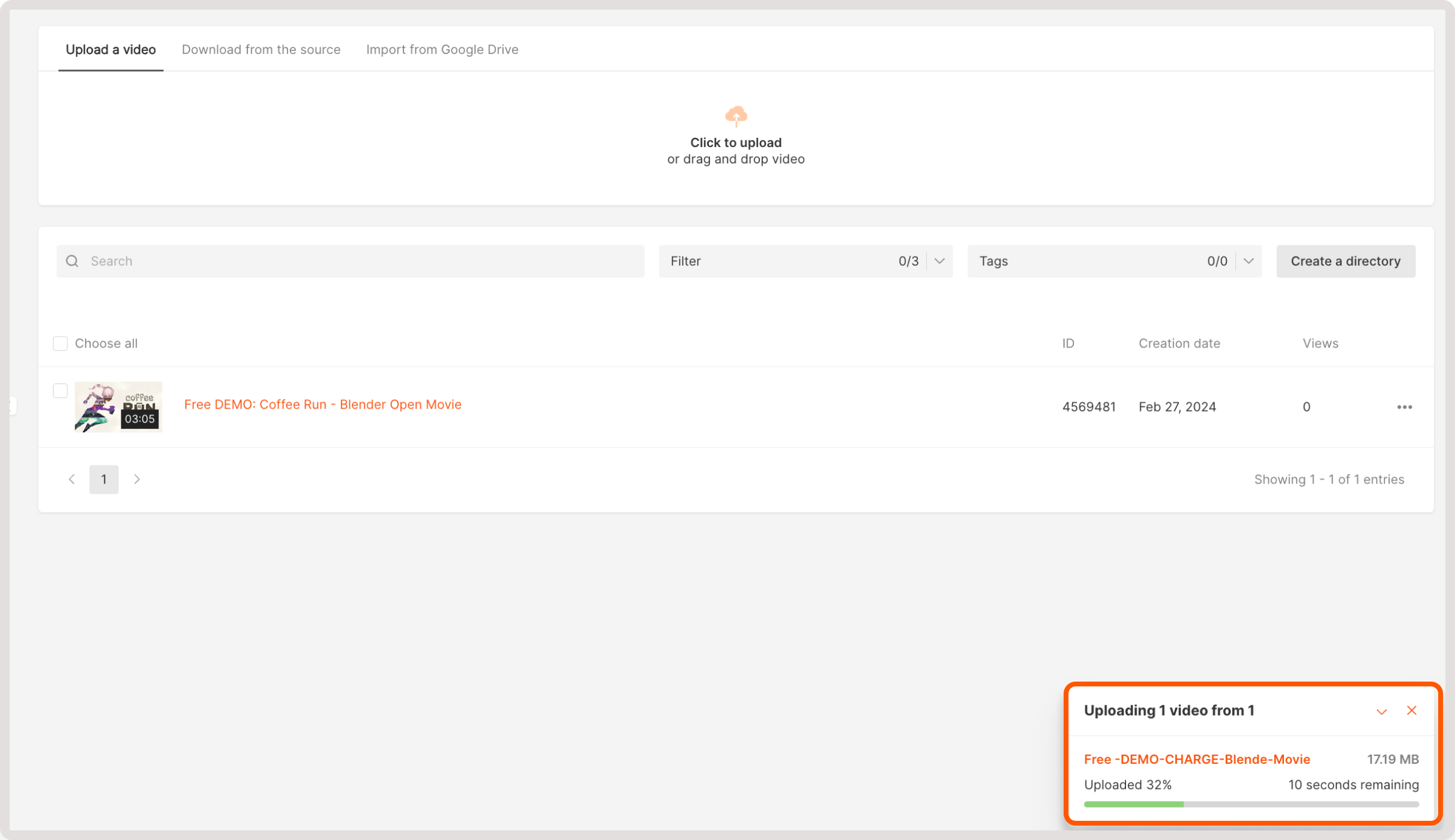
Navigate to the [Video Hosting](https://portal.gcore.com/streaming/video/list) tab and upload a video using one of the following actions:
* **Upload the video**. On this tab, you can add locally stored videos. Either click the **Click to upload** button or drag and drop your files to the designated upload area.
 * **Download from the source**. Here you can upload a video from the origin by specifying the video title and video origin URL.
 * **Import from Google Drive**. To add a video, click the **Click here** area, sign in to your Google account, and then choose the required video from your Google Drive.
 Wait until your video is uploaded and processed. Waiting time varies depending on video size and internet speed.
| Status | What it means |
| ---------- | -------------------------------------------------------------------------------------------------------------------------- |
| `empty` | The video entity was created, but the source file is still being received by upload, import, or download from your source. |
| `pending` | The source file was received and is being prepared for processing. |
| `viewable` | The video can already be watched in one of the available qualities. |
| `ready` | The video is fully prepared and available in all processed qualities. |
| `error` | The video could not be uploaded or prepared. Check the file and try again. |
For more details, see [Video Lifecycle and Statuses](/streaming/video-hosting/vod-status).
Wait until your video is uploaded and processed. Waiting time varies depending on video size and internet speed.
| Status | What it means |
| ---------- | -------------------------------------------------------------------------------------------------------------------------- |
| `empty` | The video entity was created, but the source file is still being received by upload, import, or download from your source. |
| `pending` | The source file was received and is being prepared for processing. |
| `viewable` | The video can already be watched in one of the available qualities. |
| `ready` | The video is fully prepared and available in all processed qualities. |
| `error` | The video could not be uploaded or prepared. Check the file and try again. |
For more details, see [Video Lifecycle and Statuses](/streaming/video-hosting/vod-status).
 If a video enters `Error` status after upload, first inspect the original file itself. Some failures are caused by technical parameter changes inside the source file, such as pixel format or color range changing near the end. In such cases, retrying the same file usually does not help. Re-export or trim the source and upload the corrected file again.
## Step 2. Update video settings
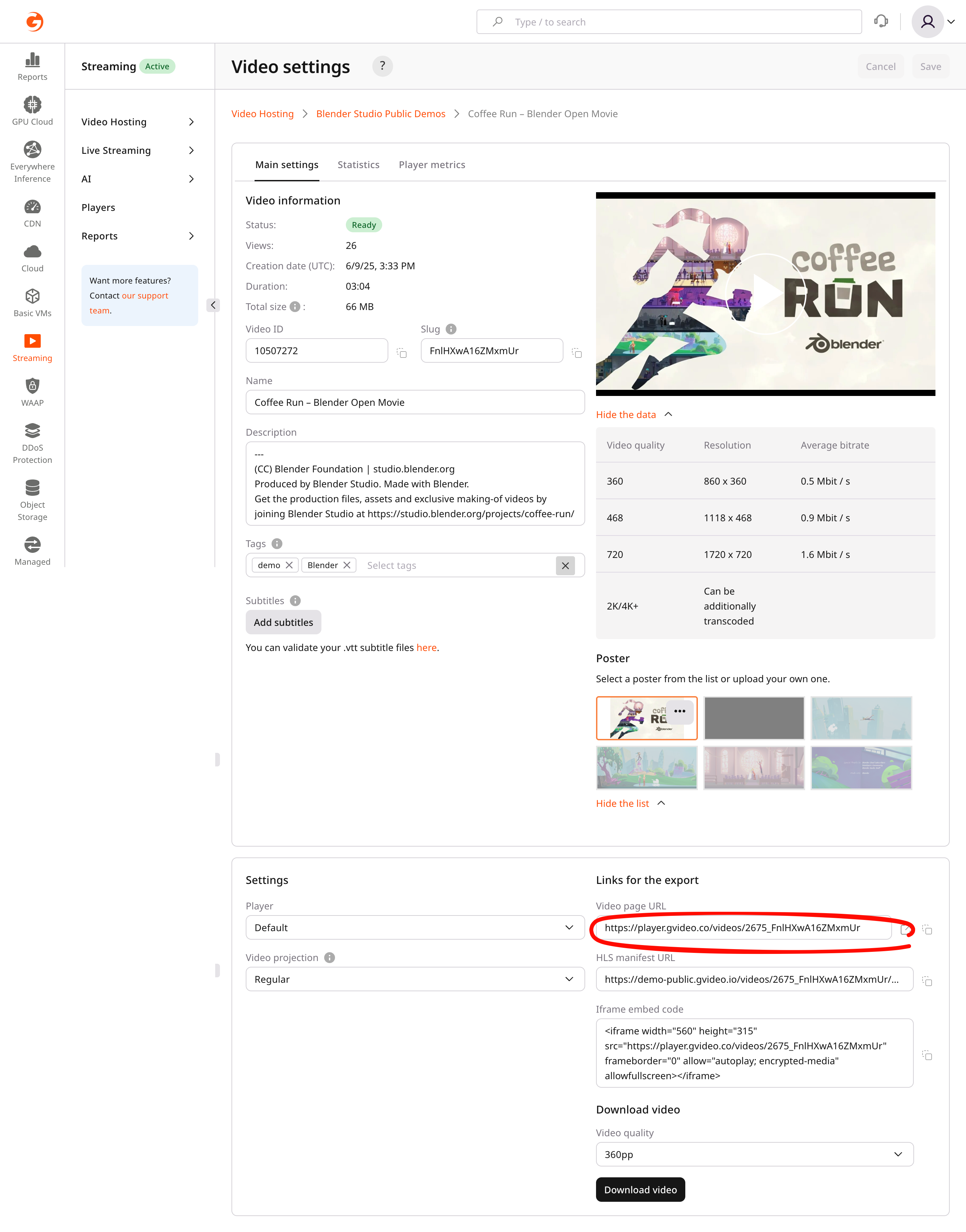
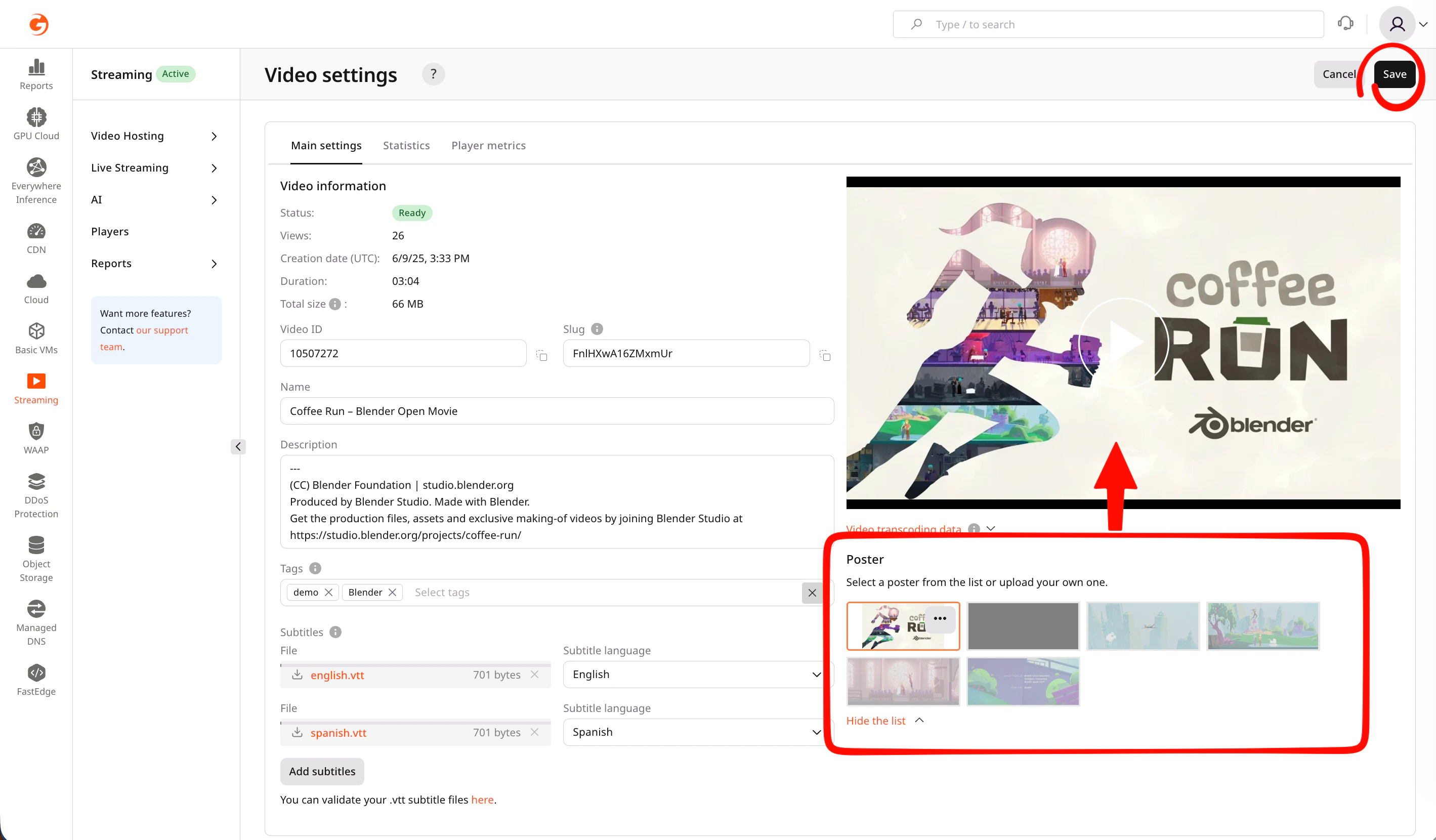
If you need to adjust some video configuration, get links to export the video or set up subtitles and tags. You can do so on the **Main settings** tab:
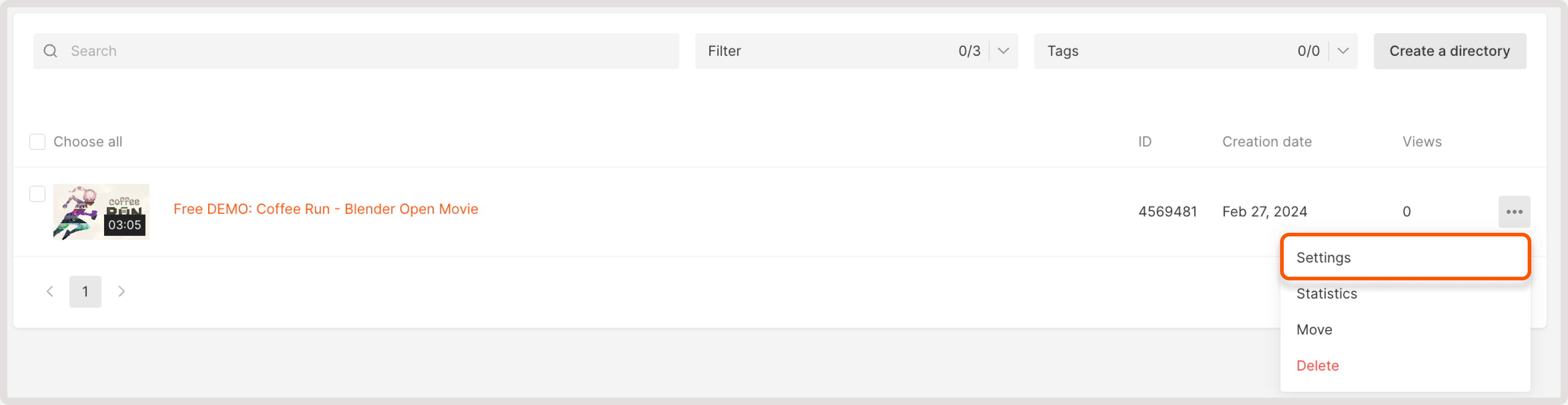
1\. Open video settings by clicking the video name or the three-dot icon next to it.
If a video enters `Error` status after upload, first inspect the original file itself. Some failures are caused by technical parameter changes inside the source file, such as pixel format or color range changing near the end. In such cases, retrying the same file usually does not help. Re-export or trim the source and upload the corrected file again.
## Step 2. Update video settings
If you need to adjust some video configuration, get links to export the video or set up subtitles and tags. You can do so on the **Main settings** tab:
1\. Open video settings by clicking the video name or the three-dot icon next to it.
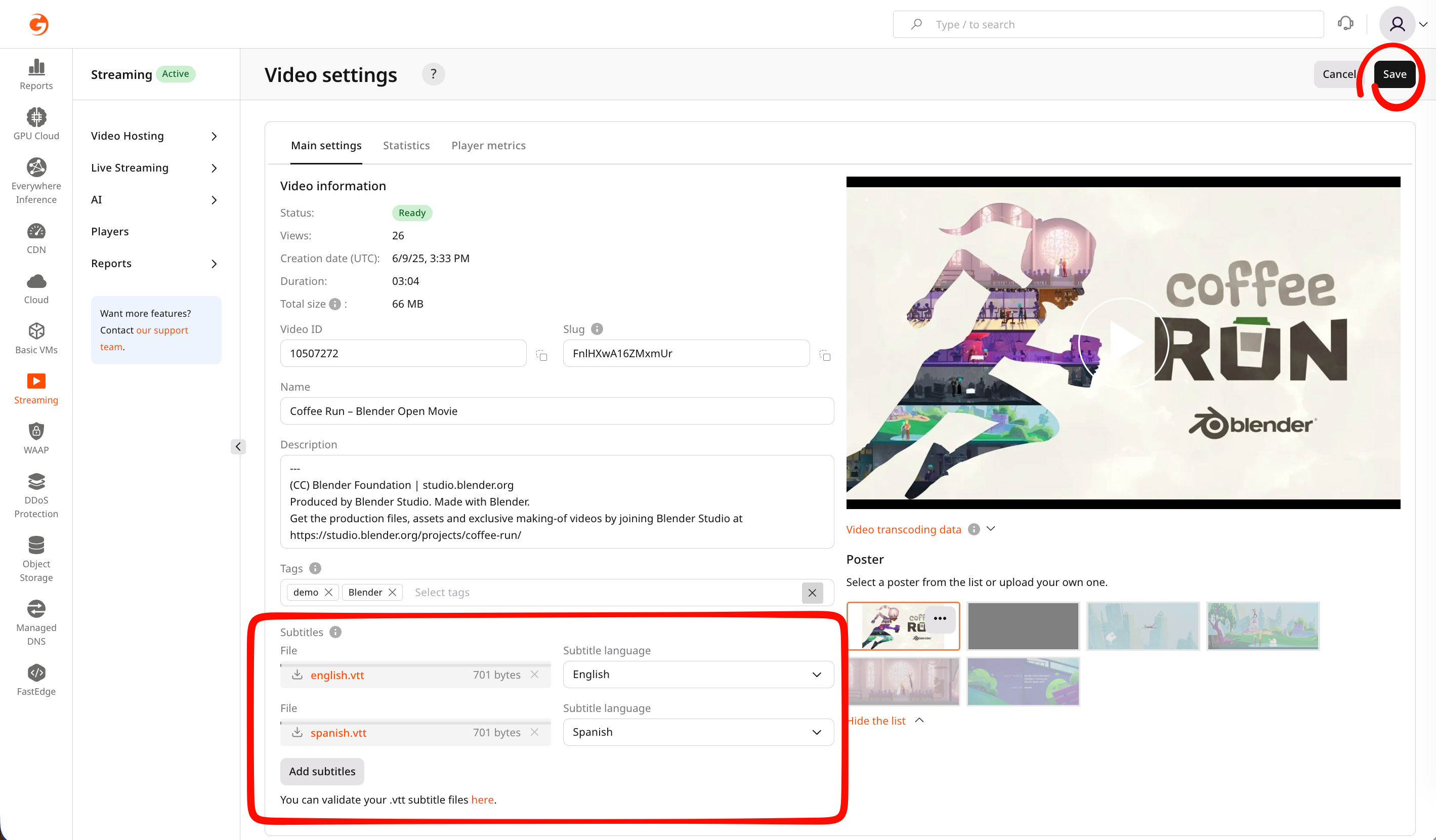
 2\. Update the following video settings if necessary:
* **Name** : Change its name (it will be displayed in the Gcore Customer Portal)
* **Description** : Enter a description (it will be displayed in the Gcore Customer Portal)
* **Player** : Select custom player, if you enabled the [Players](/streaming/extra-features/customize-appearance-of-the-built-in-player) feature
* **Tags** : Select [tags](/streaming/video-hosting/organize-uploaded-videos#how-to-use-tags) for a video
* **Subtitles** : Add [subtitles and choose a subtitle language](/streaming/video-hosting/subtitles-and-closed-captions-for-vod#control-panel)
* **Screensaver** : Select a screensaver from screenshots or upload a screensaver from your computer
2\. Update the following video settings if necessary:
* **Name** : Change its name (it will be displayed in the Gcore Customer Portal)
* **Description** : Enter a description (it will be displayed in the Gcore Customer Portal)
* **Player** : Select custom player, if you enabled the [Players](/streaming/extra-features/customize-appearance-of-the-built-in-player) feature
* **Tags** : Select [tags](/streaming/video-hosting/organize-uploaded-videos#how-to-use-tags) for a video
* **Subtitles** : Add [subtitles and choose a subtitle language](/streaming/video-hosting/subtitles-and-closed-captions-for-vod#control-panel)
* **Screensaver** : Select a screensaver from screenshots or upload a screensaver from your computer
 3\. (Optional) After you upload the video, it'll be transсoded with different qualities and bitrates. Click the **Video transcoding data** link under the video to check the transcoding details.
4\. Select one of the automatically created video posters or upload a new one from your local storage.
3\. (Optional) After you upload the video, it'll be transсoded with different qualities and bitrates. Click the **Video transcoding data** link under the video to check the transcoding details.
4\. Select one of the automatically created video posters or upload a new one from your local storage.
 ## Step 3. Choose a player UI customization and video projection
Customize the functionality and appearance of a [built-in HTML web player](/streaming/extra-features/customize-appearance-of-the-built-in-player) for the uploaded video. Note that these settings apply only to the built-in player and won't affect viewers using external or OS-native players.
In the **Player** dropdown, you can choose the existing configuration. To add a new built-in player and customize its settings, refer to our [dedicated guide](/streaming/extra-features/customize-appearance-of-the-built-in-player).
## Step 4. Export video
In the **Links for export** section, choose the relevant export method:
* **Video page URL** : A Web player URL to access and play the video directly from a website.
* **HLS manifest URL** : A URL to a master playlist HLS (master.m3u8) with MPEGTS container.
* **iFrame embed code** : A URL to our HTML video player with the video inside. It can be inserted into an iframe on your website and the video will automatically play on all browsers.
In the Links for export section, you can also choose the video size and download the uploaded video in the required quality by selecting its bitrate and clicking **Download video**.
## Step 3. Choose a player UI customization and video projection
Customize the functionality and appearance of a [built-in HTML web player](/streaming/extra-features/customize-appearance-of-the-built-in-player) for the uploaded video. Note that these settings apply only to the built-in player and won't affect viewers using external or OS-native players.
In the **Player** dropdown, you can choose the existing configuration. To add a new built-in player and customize its settings, refer to our [dedicated guide](/streaming/extra-features/customize-appearance-of-the-built-in-player).
## Step 4. Export video
In the **Links for export** section, choose the relevant export method:
* **Video page URL** : A Web player URL to access and play the video directly from a website.
* **HLS manifest URL** : A URL to a master playlist HLS (master.m3u8) with MPEGTS container.
* **iFrame embed code** : A URL to our HTML video player with the video inside. It can be inserted into an iframe on your website and the video will automatically play on all browsers.
In the Links for export section, you can also choose the video size and download the uploaded video in the required quality by selecting its bitrate and clicking **Download video**.