Limits
The caps are what the customer is allowed to create. A customer can add CDN resources only up to Maximum CDN resources limit, and each resource can have only as many rules as Maximum rules limit. Zero in either field means no cap. The fields show the current caps and cannot be edited.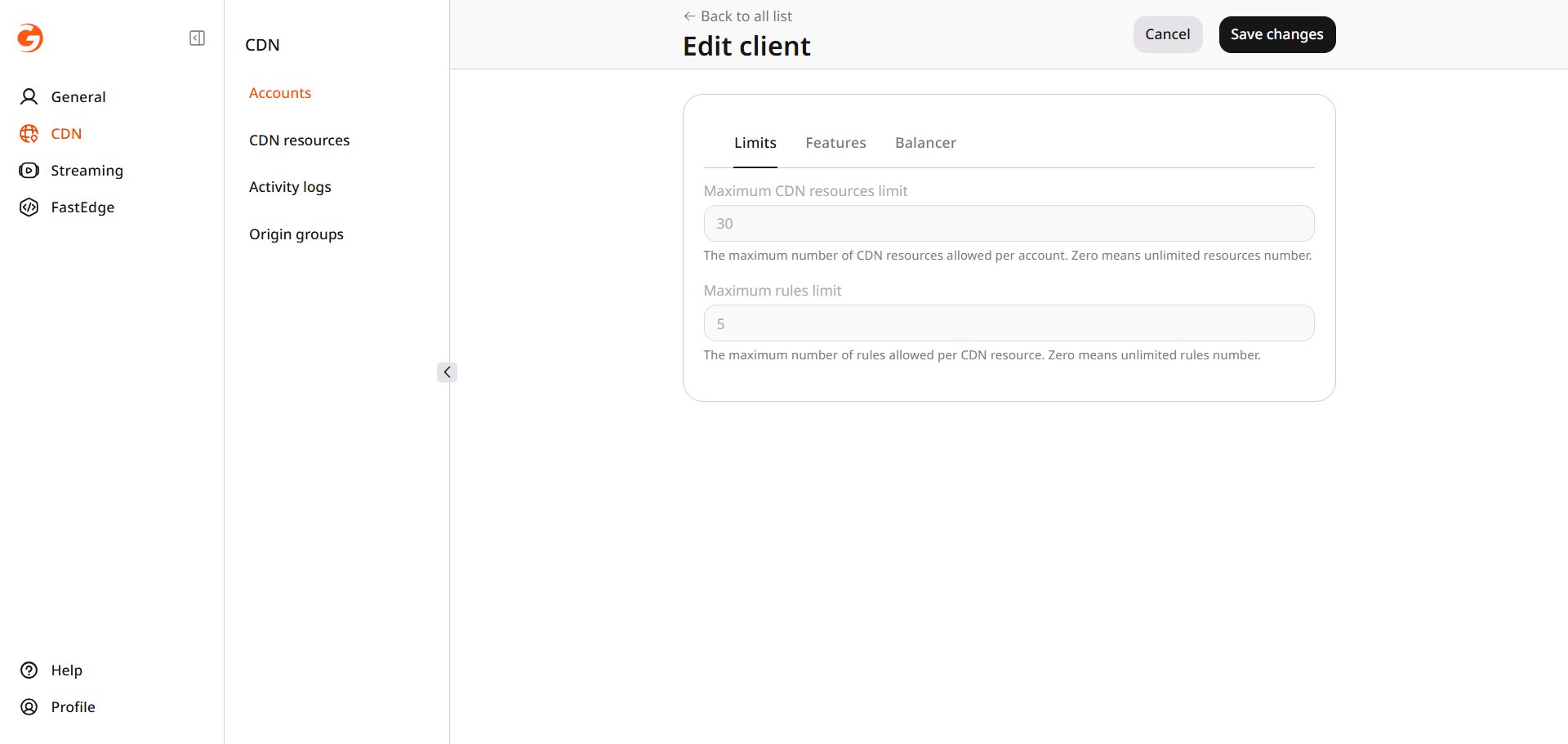
Features
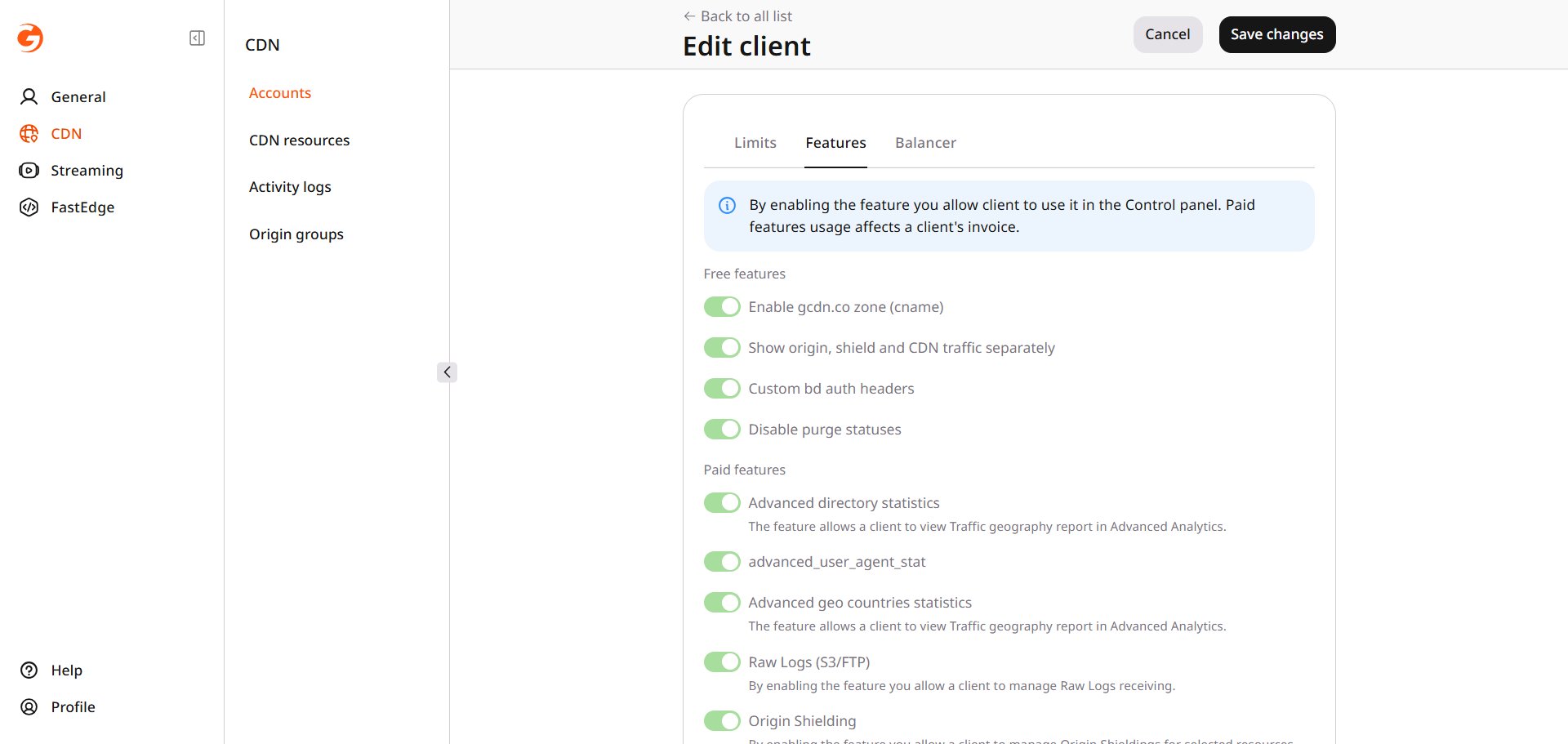
Whether the customer can use a capability is set on the account. A feature that is not available cannot be used by the customer. Use of a paid feature is charged on the customer’s invoice. The switches show what is available and cannot be changed. The notes below are for names that do not already state the result. The tab lists the other features as well.- Enable gcdn.co zone (cname) allows the customer to create a CDN resource with a name in the gcdn.co zone, and a shared SSL certificate is applied to that name.
- Advanced geo countries statistics is the Traffic geography report in Advanced Analytics.
- Raw Logs (S3/FTP) exports request logs.
- Logs Uploader exports request and cache logs on a set interval.
- Origin Shielding applies to selected resources.
- Streaming delivers
.tsand.m3u8files. - Image Stack optimizes images on selected resources.
- Prefetch loads files into the cache before they are requested.
Delivery regions and IPv6
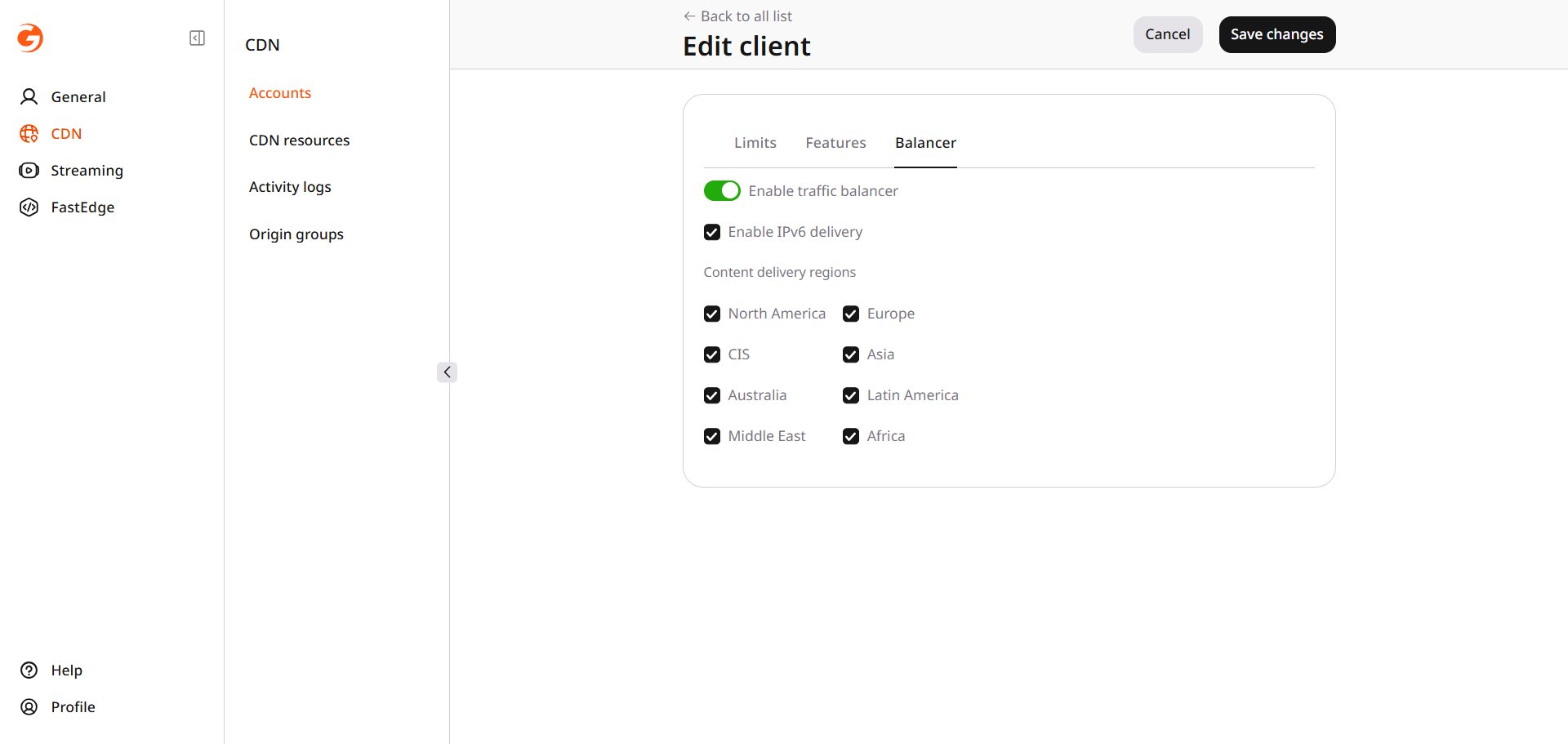
These settings decide where the customer’s traffic is delivered and whether that delivery includes IPv6. This is the part of the page that can be changed. On Balancer, clear a region under Content delivery regions to leave that region out of delivery. The list applies while Enable traffic balancer is on. Enable IPv6 delivery adds IPv6 and does not change the regions. Click Save changes to keep the change.