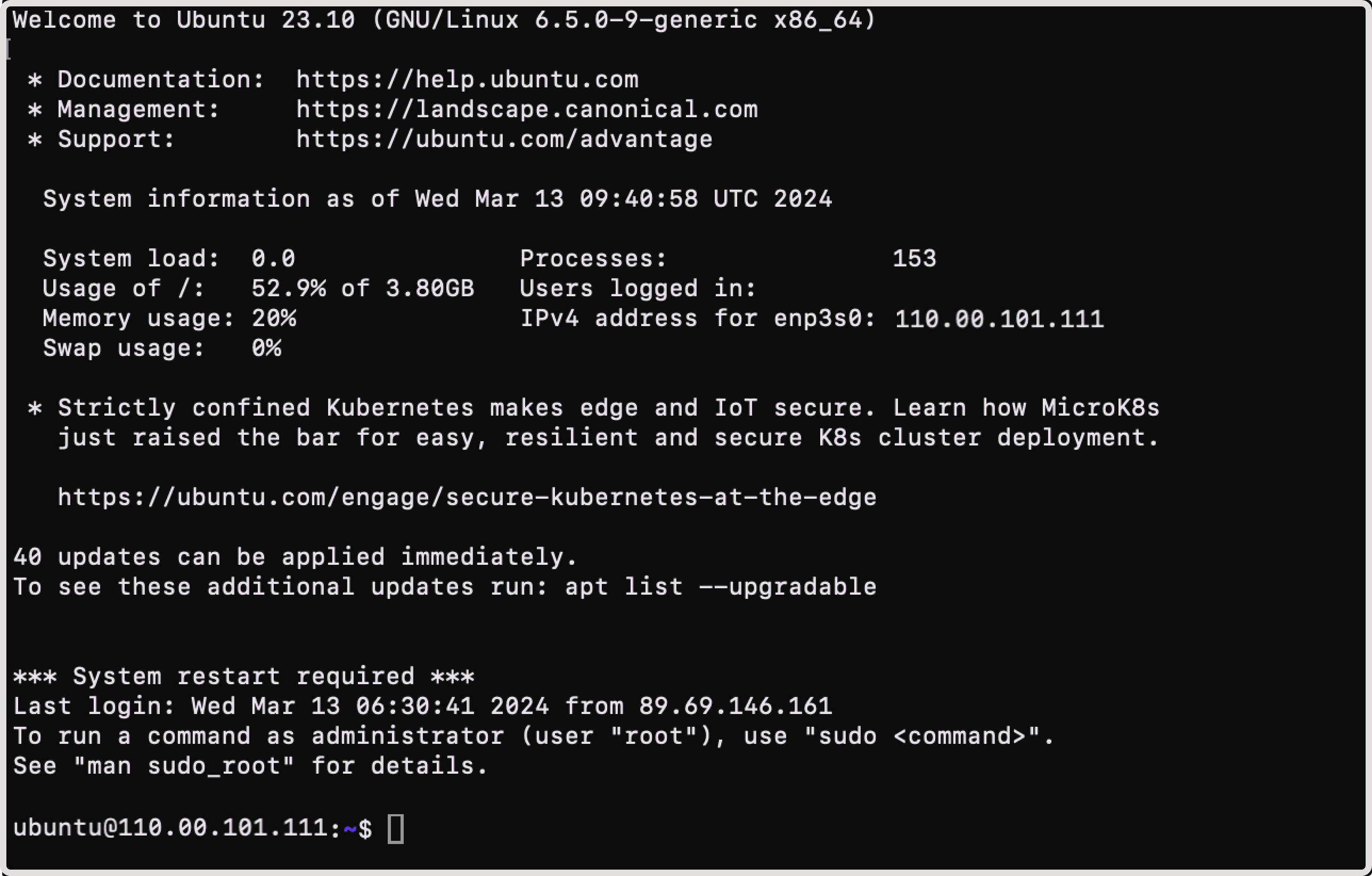
The VNC console in the Gcore Customer Portal provides browser-based access to a Virtual Machine (VM) without requiring internet access on the VM — useful for troubleshooting connectivity issues. Both Windows and Linux VMs are supported. Connecting to a Linux Virtual Machine via the Customer Portal requires a password set during VM creation. Without one, use SSH keys instead.
On Windows VMs, the password is set in the Access field during VM creation — the User data field cannot be used for passwords on Windows. Enter that password at the login screen.
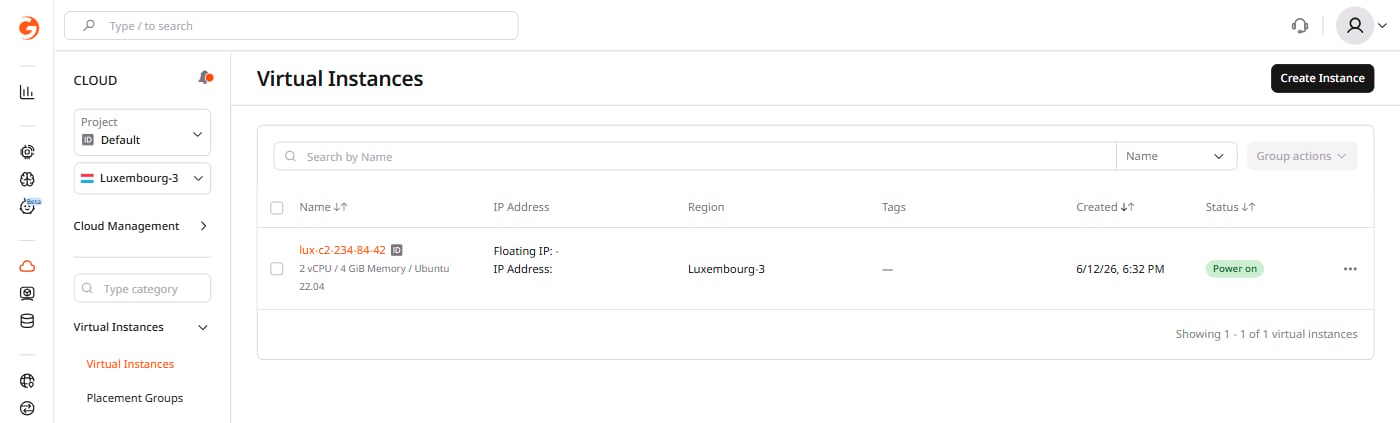
To connect to a Virtual Machine:1. In the Customer Portal, navigate to Cloud > Virtual Instances.2. Find the VM to access and click its name to open it.
Virtual Instances list in the Gcore Customer Portal
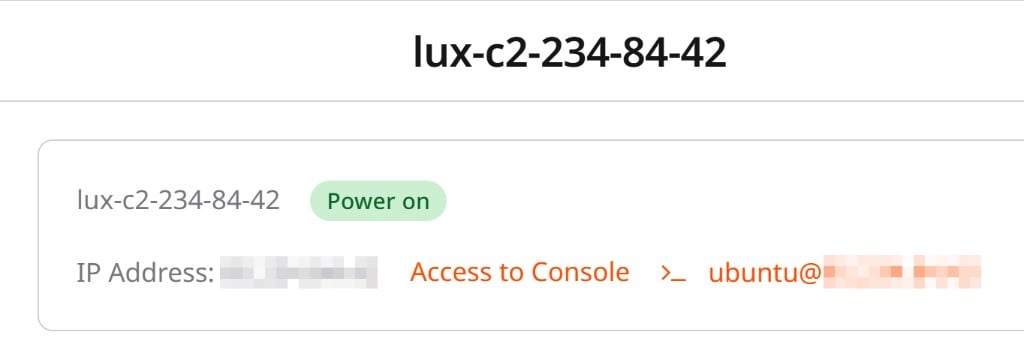
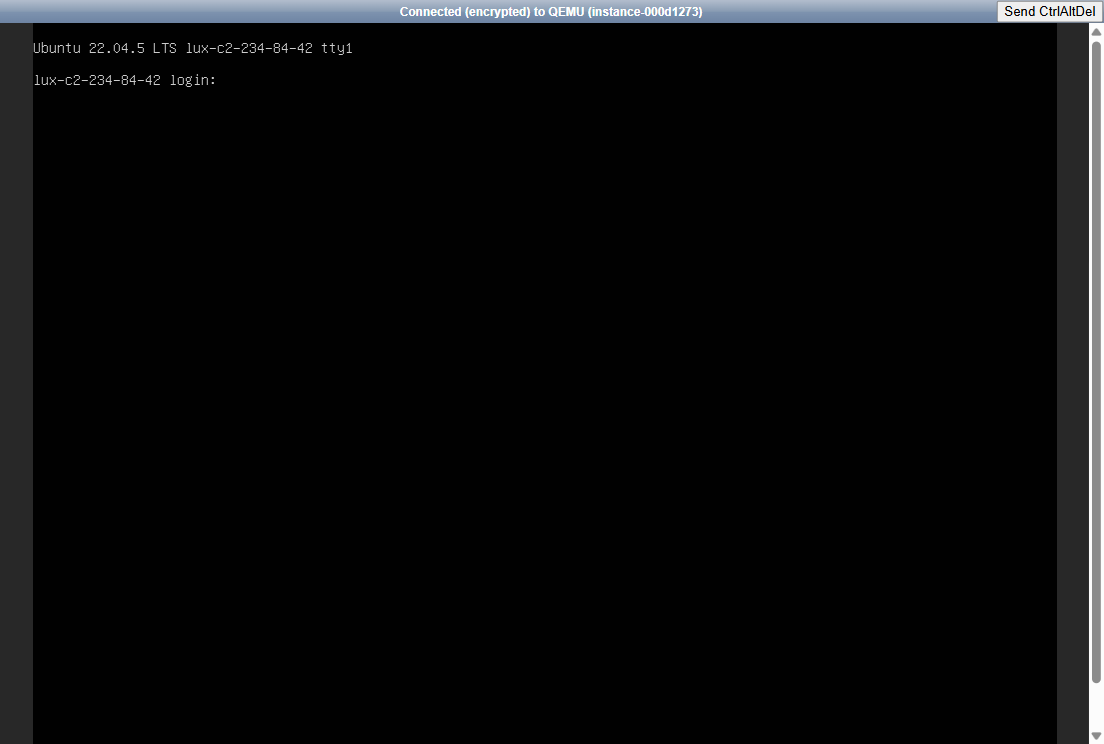
3. Next to the VM’s IP address, select the Access to Console link. The VNC console will open.
VM overview with IP address, Access to Console button, and SSH login link
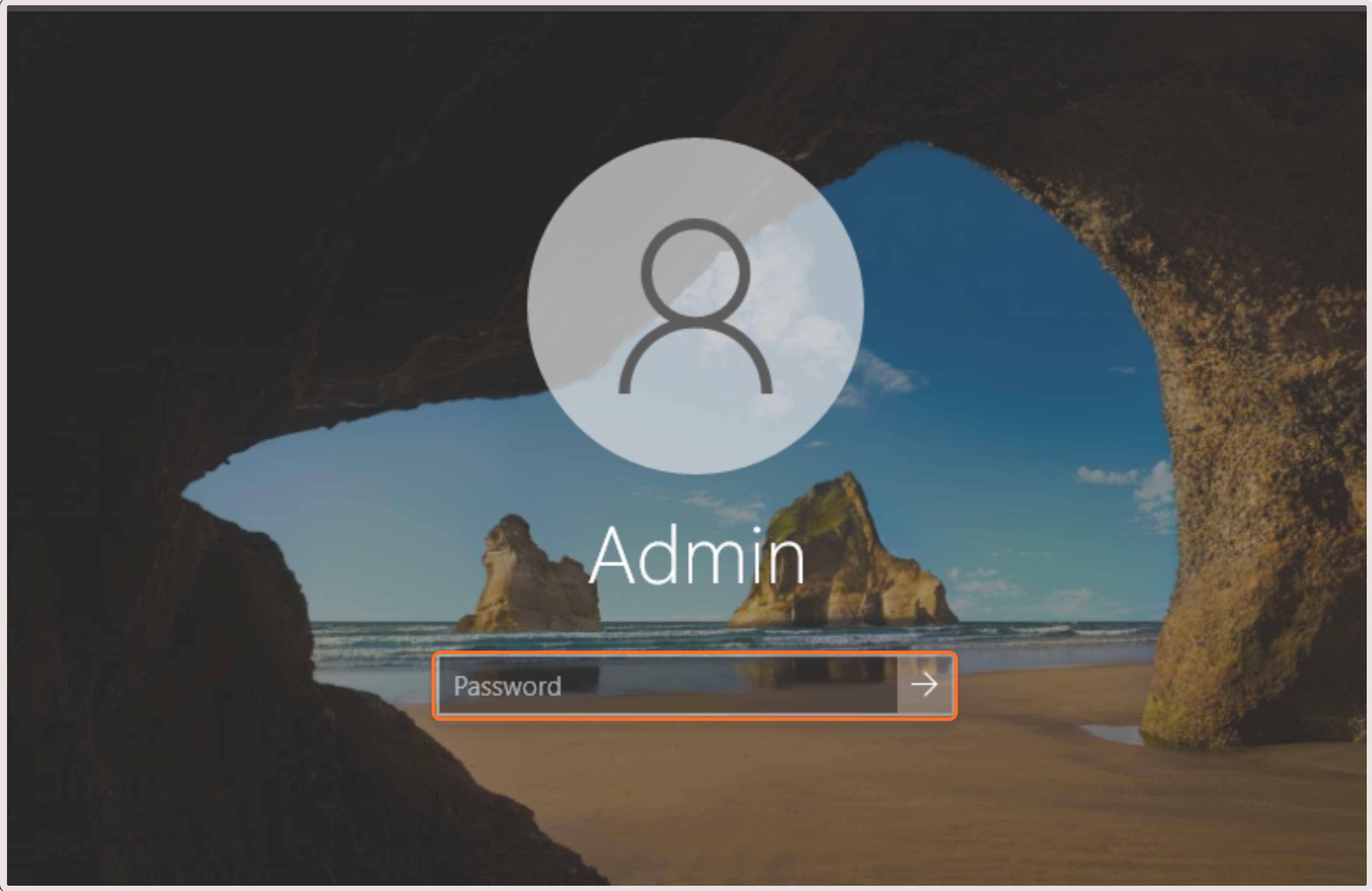
4. In the top-right corner of the screen, click Send CtrlAltDel.5. Enter the password set during VM creation. The username for all Windows VMs is Admin.
Windows login screen
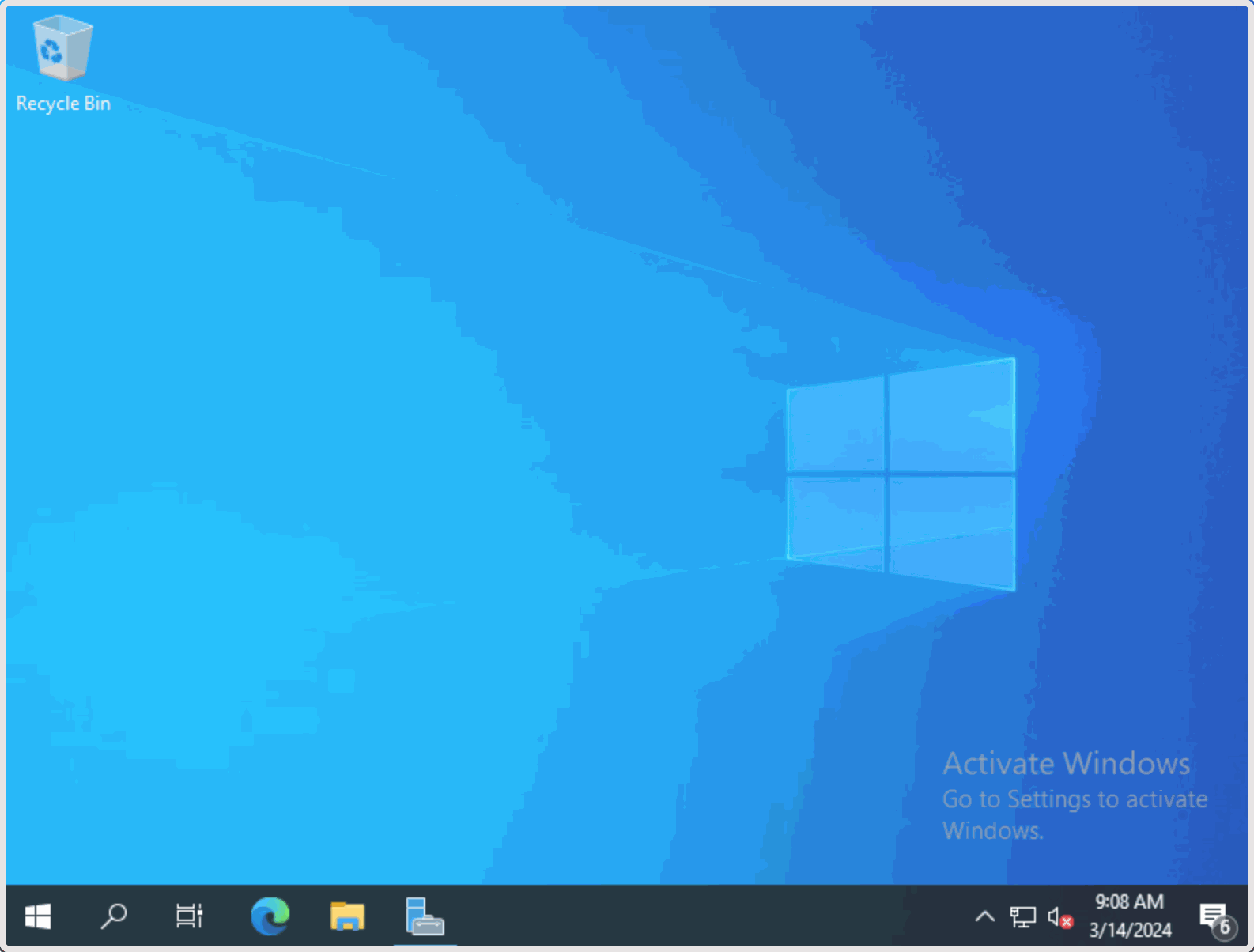
The VM connection is established.
Windows desktop after connecting to the VM