Protected servers
Navigate to Security → Edge Proxy → Protected servers to view all configured servers. Each server card shows:Enable and disable protection
Use the toggle next to the server name to pause or resume protection without deleting the server.- Toggle on — starts activation. The card shows Processing (~3 min) while Gcore provisions the proxy. Once complete, status changes to Online and traffic routes through the proxy IP.
- Toggle off — protection pauses immediately. Status changes to Stopped. The proxy IP remains assigned but stops forwarding traffic.
Edit a server
Click Edit protection on the server card to open the Edit server panel.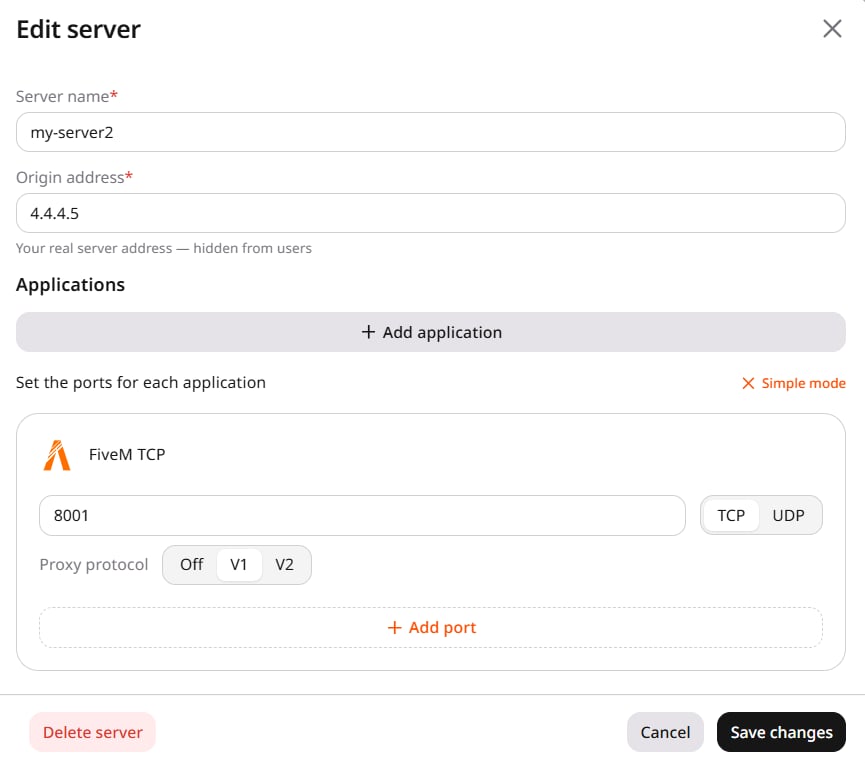
Click Advanced to set Proxy protocol on a port — V1 (TCP) or V2 (TCP and UDP), same control as in Setup and configuration. Leave the setting Off when the origin application does not support the selected version.
Click Save changes.
Delete a server
Click Delete server inside the edit panel. A confirmation dialog appears with the server name and the message “This will permanently remove [name] and all its application configurations.” Click Delete to confirm. Alternatively, click Delete protection on the server card in the Protected servers list and confirm in the same dialog.Monitor traffic
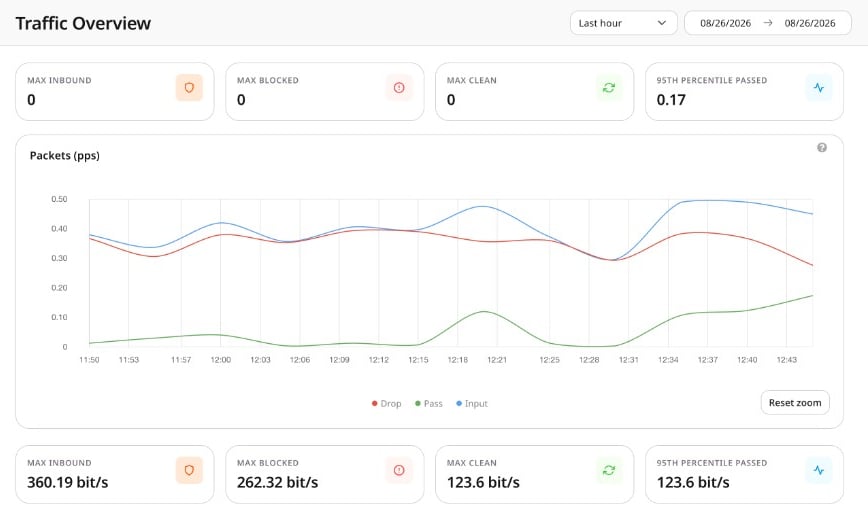
Traffic Overview (Security → Edge Proxy → Traffic Overview) displays aggregated traffic across all active servers.