Set up the branded domain
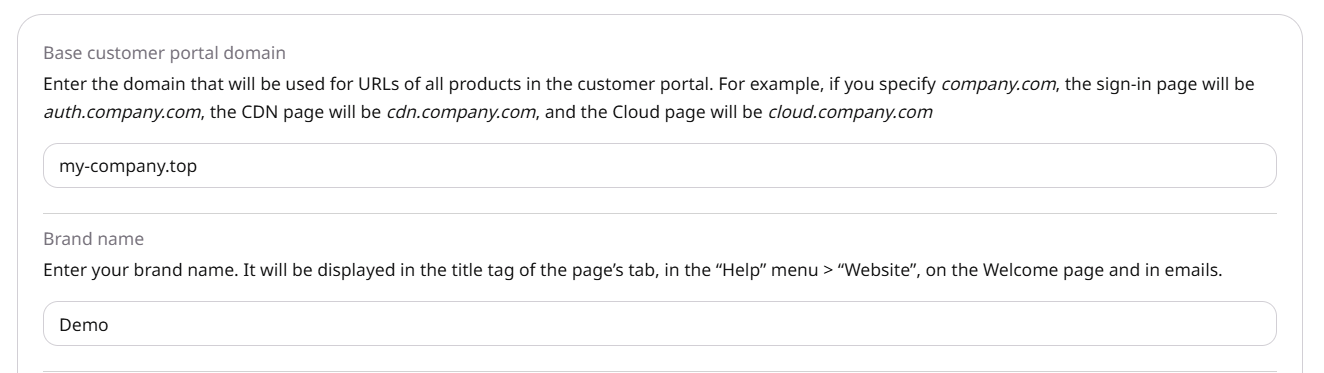
Customers access the sign-in page, Customer Portal, and Gcore products through your company’s domain. Contact your account manager and provide the domain you want to use for your customer portal. Create the DNS records the account manager specifies. Forexample.com, those records use the hosts below. Product URLs lists the hosts of the other products.
Gcore then completes the setup and sets Base customer portal domain to that domain.
On Branding settings, read Base customer portal domain. The field shows the domain you sent to the account manager after Gcore writes it there. That is the sign that this part of the setup is finished.
Customize the portal appearance
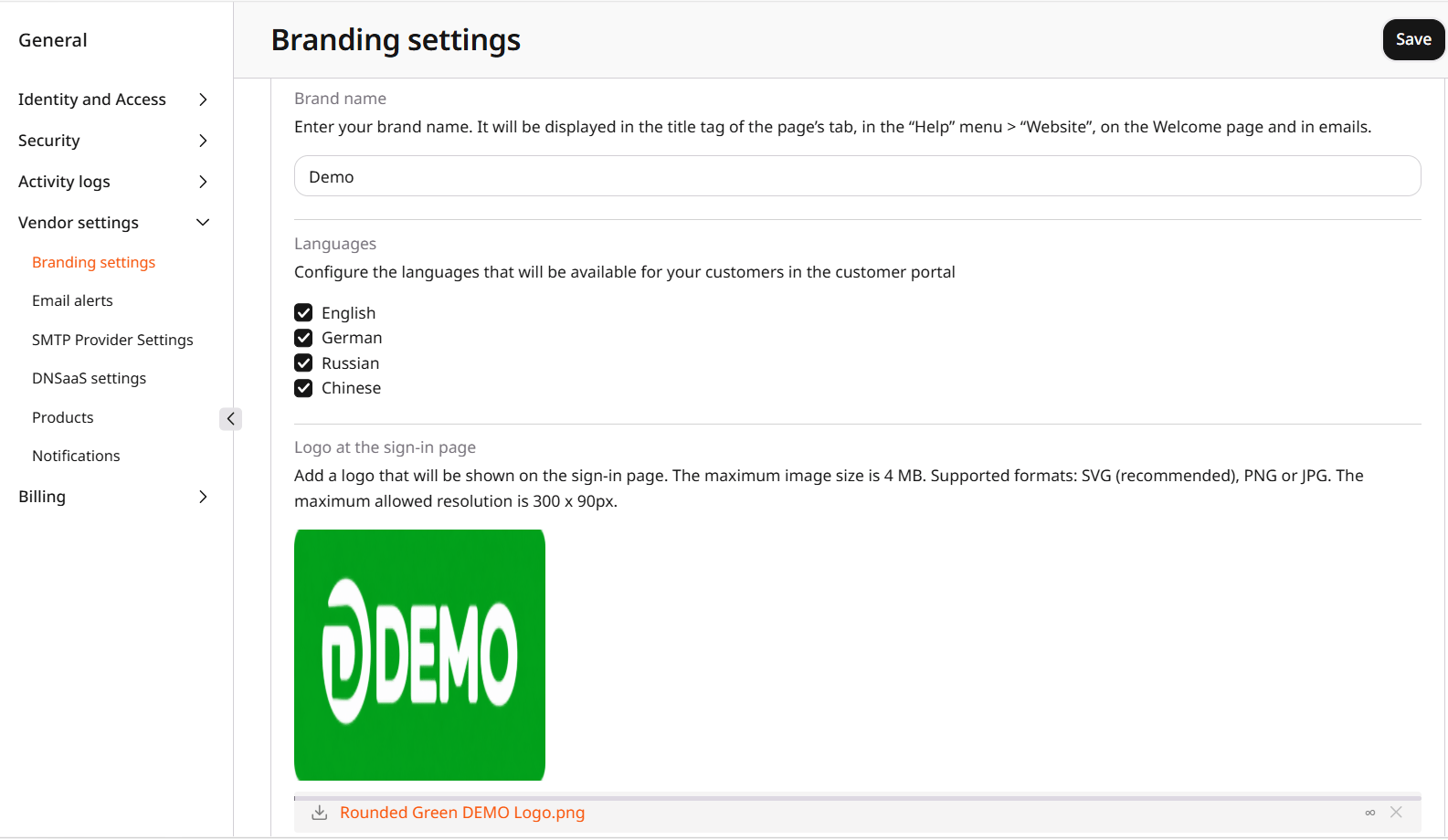
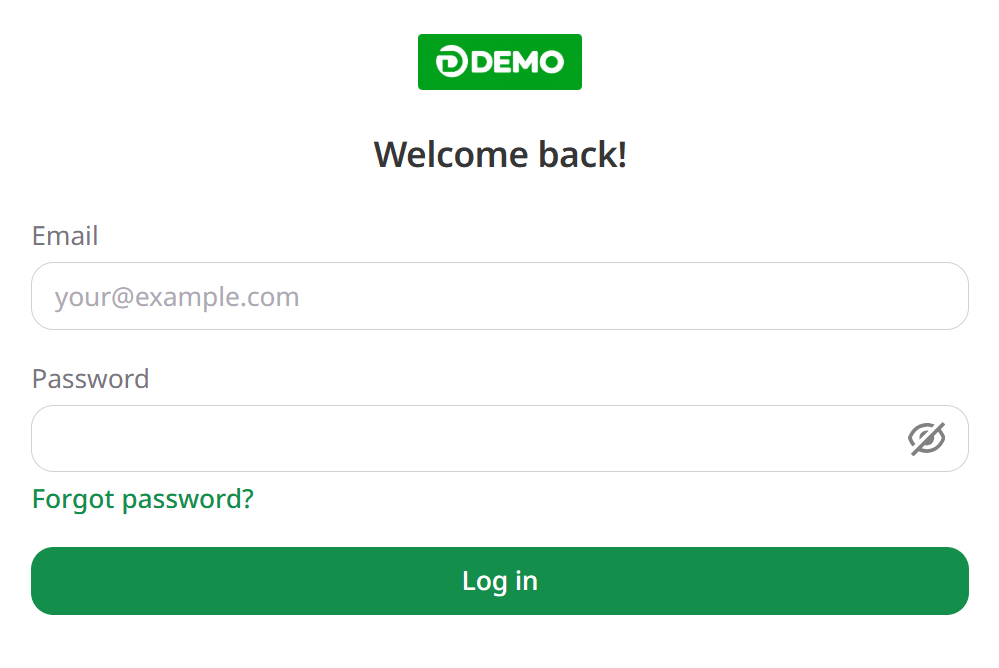
Enter the company name in Brand name. It appears on the welcome page, in the browser tab, as the sender name in emails, and in the Website item of the Help menu. Upload your logos and favicon using the following fields:
Select a Brand color for the Log in button, selected menu items, and links and product icons on hover.
Click Save.
Configure customer support and Help links
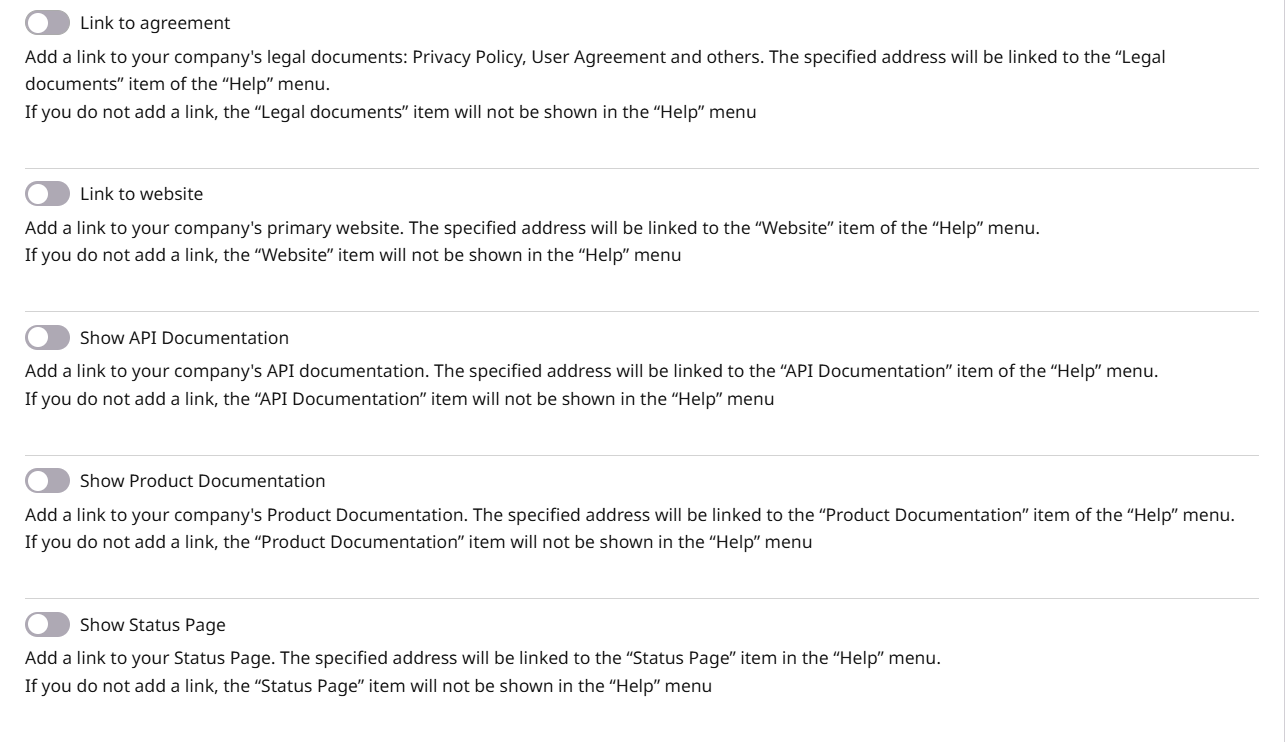
Enter Support phone number and Support email to add your contact details to the Help menu. To add links, enable the corresponding options and enter their URLs. Link to agreement appears as Legal documents, and Link to website appears as Website. Links without a URL or with their option disabled are hidden. Click Save.