

Integration overview
A typical integration exposes a streaming interface to end users. Each user action maps to a Video Streaming API request and a corresponding webhook notification. The following diagram shows the high-level sequence grouped into stages: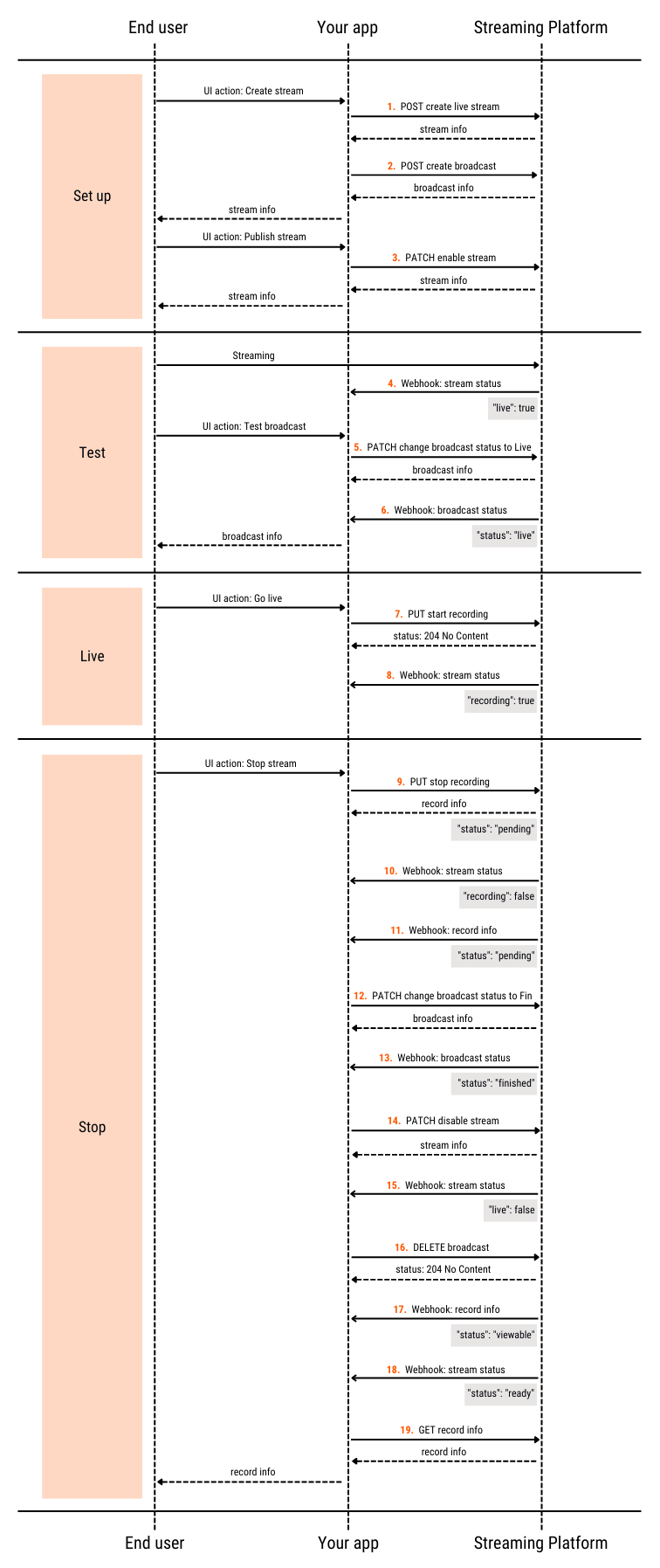
- A Gcore account with an active Streaming subscription — the API endpoints are only accessible with an active subscription
- API authentication configured — all requests require a valid API key
- A webhook endpoint registered to receive event notifications — without it, stream and broadcast status transitions are not delivered to the integration
The Broadcasts API used in this tutorial is deprecated and will be replaced by the Multicamera API. Existing integrations continue to work, but the Multicamera API will eventually replace the broadcast object and the create, status-change, and deletion operations used in this workflow. New integrations should monitor Gcore announcements for the migration path before building on this workflow.
Basic operations
Stage 1. Setup
1
Create a stream
The Create live stream endpoint (If successful, the endpoint returns information about the stream created. Save the returned
POST /streaming/streams) creates a stream object.- To prevent errors due to the quota for concurrent active sessions, set the
activeproperty tofalse. - Select the transcoding region based on the user’s location.
id and other necessary data for later steps.2
Create a broadcast
The Create broadcast endpoint (If successful, the endpoint returns information about the broadcast created. Save the returned
POST /streaming/broadcasts) creates a broadcast object.- Set the
stream_idsproperty to theidreturned from step 1 to bind the broadcast and stream together. - Set the
statusproperty topending.
id and other necessary data for later steps.3
Enable the stream
Once the stream and broadcast are created, the user can publish the stream. Setting
active to true makes the stream ready to receive ingest from the encoder. The Change live stream endpoint (PATCH /streaming/streams/{id}) activates the stream.4
Receive a webhook: stream started
The Video Streaming sends a webhook that contains
"live": true to the subscribed endpoint.Stage 2. Test
The user tests the broadcast at this stage.1
Change the broadcast status to live
The Change broadcast endpoint (
PATCH /streaming/broadcasts/{id}) updates the broadcast status to live.2
Receive a webhook: broadcast live
The Video Streaming sends a webhook that contains
"status": "live" to the subscribed endpoint.Stage 3. Live
The stream and broadcast are now live and visible to the audience. Start recording if the session should be saved as a video.1
Start recording
The Start recording endpoint (
PUT /streaming/streams/{id}/start_recording) begins recording.If the returned HTTP status code is 204, the request is successful.2
Receive a webhook: recording started
The Video Streaming sends a webhook that contains
"recording": true to the subscribed endpoint.Stage 4. Stop
The user stops streaming at this stage.1
Stop recording
The Stop recording endpoint (
PUT /streaming/streams/{id}/stop_recording) stops recording.The response contains information about the recorded video.2
Receive a webhook: recording stopped
The Video Streaming sends a webhook that contains
"recording": false to the subscribed endpoint.3
Receive a webhook: video processing started
The Video Streaming sends a webhook that contains
"status": "pending" to the subscribed endpoint.4
Change broadcast status to finished
The Change broadcast endpoint (
PATCH /streaming/broadcasts/{id}) updates the broadcast status to finished.5
Receive a webhook: broadcast finished
The Video Streaming sends a webhook that contains
"status": "finished" to the subscribed endpoint.6
Disable the stream
7
Receive a webhook: stream ended
The response may still show
"live": true while the stream transitions to inactive. Wait for the subsequent webhook with "live": false to confirm that streaming has ended.The Video Streaming sends a webhook that contains "live": false to the subscribed endpoint.8
Delete the broadcast
The Delete broadcast endpoint (
DELETE /streaming/broadcasts/{id}) deletes the broadcast.If the returned HTTP status code is 204, the request is successful.9
Receive a webhook: video partially processed
One quality version of the recorded video is ready for viewers to watch. The Video Streaming sends a webhook that contains
"status": "viewable" to the subscribed endpoint.10
Receive a webhook: video fully processed
All quality versions of the recorded video are ready for viewers to watch. The Video Streaming sends a webhook that contains
"status": "ready" to the subscribed endpoint.11
Get video information
The Get video endpoint (
GET /streaming/videos/{id}) retrieves detailed information about the recorded video.Special cases
Reuse of a stream
The same stream can be reused for multiple broadcasts — this avoids recreating push URLs and reconfiguring the encoder between sessions. Instead of creating a new stream, update the existing one with the Change live stream endpoint (PATCH /streaming/streams/{id}) to set the appropriate transcoding region.
Interruption during streaming
- The Video Streaming sends a webhook when the stream is briefly interrupted.
- The Get live stream endpoint (
GET /streaming/streams/{id}) returns the current stream state. If the response contains"active": falseand the stream was not manually interrupted, the Change broadcast endpoint (PATCH /streaming/broadcasts/{id}) transitions the broadcast topausedstatus.
- Stop recording (
PUT /streaming/streams/{id}/stop_recording) when an interruption occurs (even for a couple of minutes). After the stream resumes, the recording splits into two files: data recorded before the interruption and data recorded after the stream resumes.
Recording deletion
Recorded videos associated with a deleted user account can be removed using the Delete video endpoint (DELETE /streaming/videos/{id}).
If the returned HTTP status code is 204, the request is successful.