

Payment terms
Accounts under a signed contract pay by bank transfer, while an account opened through self-service signup pays with a card or wallet. Gcore issues an invoice dated the last day of the month, and payment is due on the last day of the following month. For contract accounts, the account manager can arrange payment by card instead of bank transfer, a different due date, or invoicing at the start of the month. When a contract invoice stays unpaid past the due date, Gcore sends payment reminders and then suspends the services.Payment history
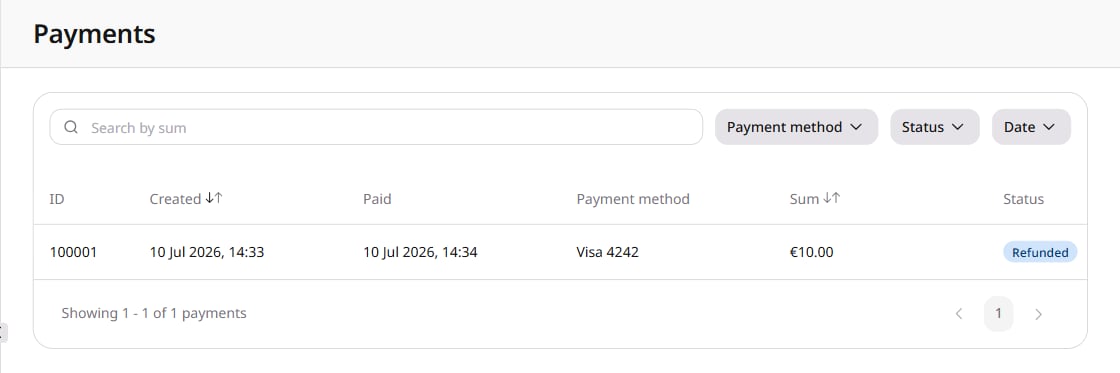
To view payment history:- In the Gcore Customer Portal, click the profile icon in the top-right corner.
- Select Profile.
- Navigate to Billing > Payments.
Payment statuses
The Status column shows one of five processing states.Payment filters
Filter the Payments table by payment method, date, or status.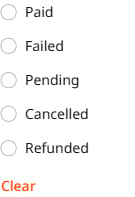
Payment methods
Cards and wallets are added, verified, and removed on the Payment methods page. A self-service account pays with them, and a contract account uses them when a card was agreed instead of bank transfer. To open the page:- Click the profile icon in the top-right corner.
- Select Profile.
- Navigate to Account > Payment methods.

Add a payment method
To add a card or wallet on the Payment methods page:- Select the payment system to use (Credit or debit card, PayPal, Google Pay, or Apple Pay). The form expands.
- Enter the payment information.
The payment method address is separate from the billing address, so changes made on one page do not affect the other.
- Click Confirm information to apply the changes.
Payment method verification
Adding a payment card triggers a verification hold of about 1 EUR or 1 USD to confirm the card can be charged. This is not a fee. The hold is released automatically, usually at once or within 24 hours. It may take the bank 3–7 business days to reflect the release. Each attempt to add a card creates a separate hold, and each hold is released.Primary and backup payment methods
Each account can have one primary payment method and one backup payment method. Click Add payment method if a second method is needed. On a method that is not Primary, click the three-dot icon and select Set as backup or Set as primary.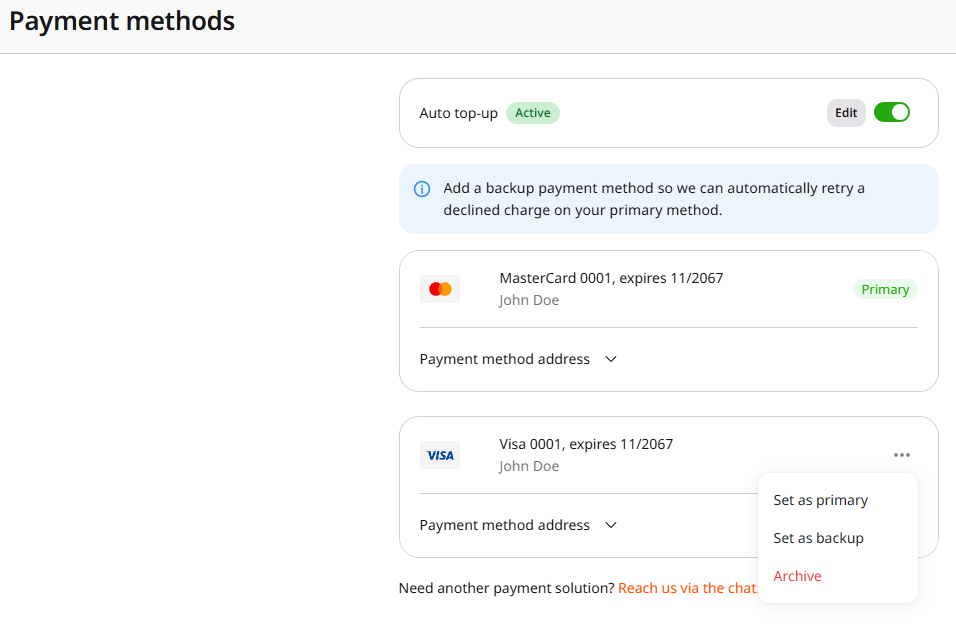
Archive a payment method
Archive removes a saved method from the account. On a method that is not Primary, click the three-dot icon and select Archive. If the card shows Primary, select Set as primary on another card first.Balance top-ups
A top-up is separate from the renewal charge: it adds funds to the account balance, either manually or when the balance falls below a set amount.Manual top-up
To top up the balance:- In the Customer Portal, click Top-up in the upper-right corner.

- In the Recharge now? window, open the Payment method list. Select a saved method, Add new payment method and pay, or Pay once with AliPay. A saved method shows a Primary or Backup badge when that role is assigned.
The recharge form may request card or billing details again, depending on the selected method.
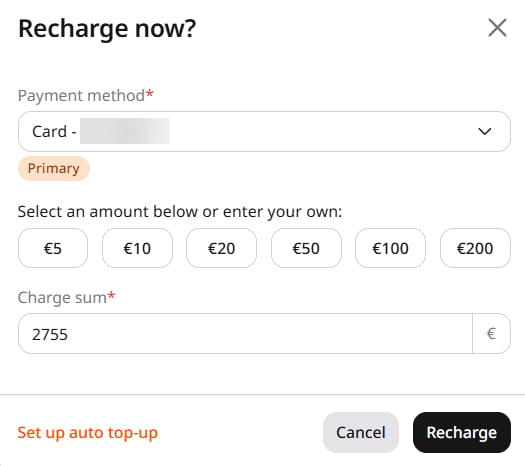
- Select a preset amount or enter a custom amount in the Charge sum field.
- Click Recharge and complete the payment.

Auto top-up
Auto top-up adds funds to the account balance when the balance falls below a set amount. To set it up:- Click Top-up and select Set up auto top-up. The Payment methods page shows the current status on the Auto top-up row.

- In the Auto top-up dialog, set When balance falls below, Top up balance to, and Payment method. The dialog fills in suggested amounts and, when the account has spending history, says Suggested values have been applied based on your usage parameters. With no spending history, the details say No spending history available. Using minimum values.
Only active cards and digital wallet payment methods can be used for auto top-up; bank payment methods are not supported.
Auto top-up statuses
The auto top-up row shows one of these statuses.
A suspended auto top-up becomes Active after the payment method is updated or verified.