Email address changes are not available for accounts created with Google or GitHub authentication.
Request the change
1
Open My profile
In the Gcore Customer Portal, click the avatar in the top-right corner and select Profile.
2
Enter the new address
In General, enter the new address in Email and click Save.
3
Confirm the current password
Enter the current password in the dialog and click Confirm. When two-factor authentication is enabled, enter the code from the authenticator app as well.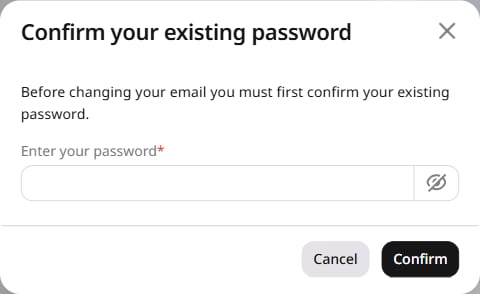
Approve from the current address
Open the email sent to the current address and follow the approval link. If you requested the change, click Approve change.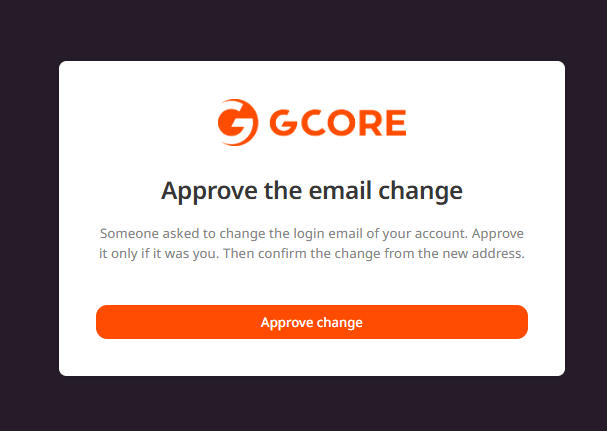
Confirm from the new address
Open the confirmation link sent to the new address and confirm the change. Sign-in then uses the new email address.Cancel an unexpected change
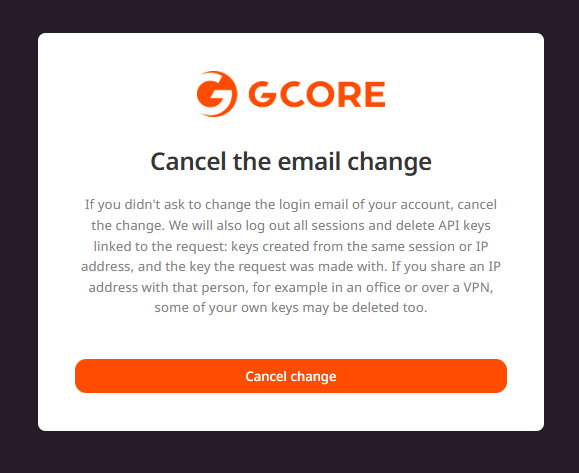
If you did not request the email change, open the cancellation link in the message sent to your current address and click Cancel change. Cancel change logs out every session and deletes the API keys linked to the request: keys created from the same session or IP address, and the key the request was made with. A shared IP address on an office network or a VPN can include some of the owner’s own keys.