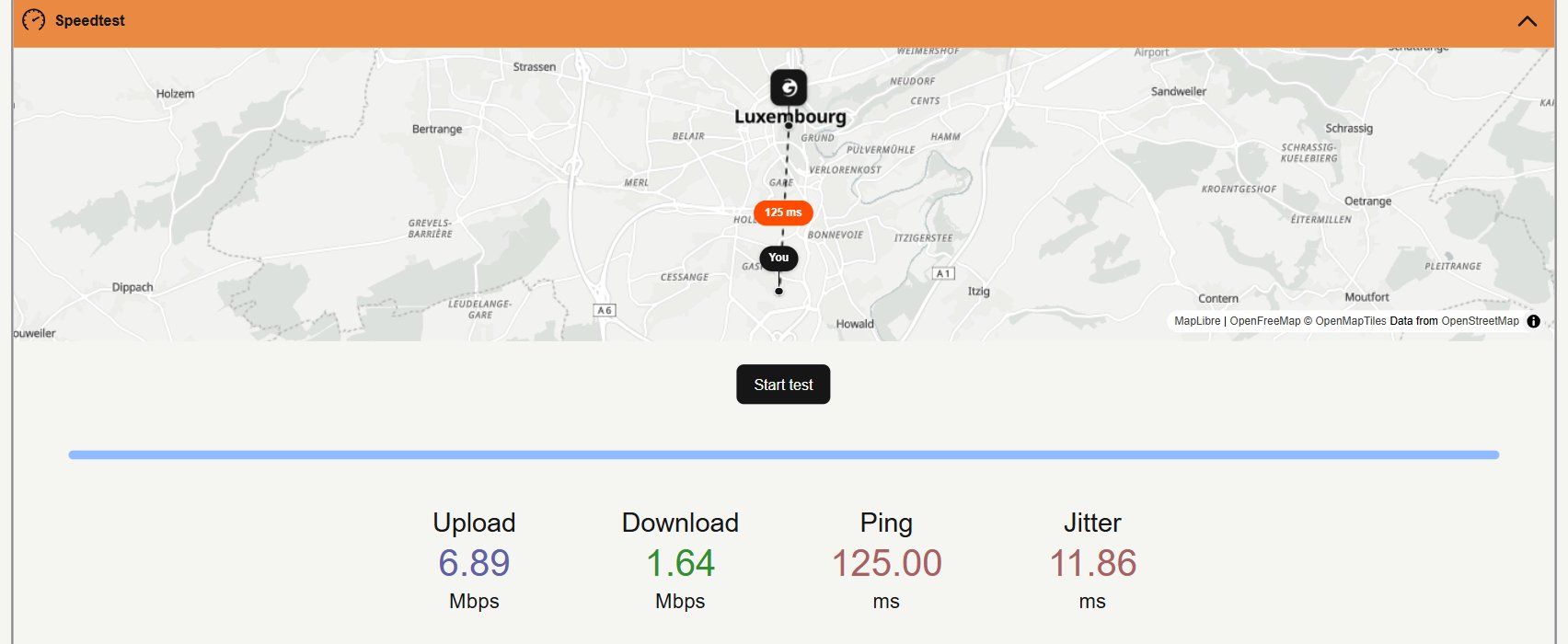
Edge server for the request
The HTML page and JSON endpoint provide the same types of diagnostic information. Use the hostname configured for the CDN resource — the domain through which the content is delivered.cdn.example.com with the CDN hostname. The debug endpoint returns information about the corresponding CDN resource only when opened on that hostname.
Read these objects in the JSON response:
The HTML page also shows the request, client, and server details.


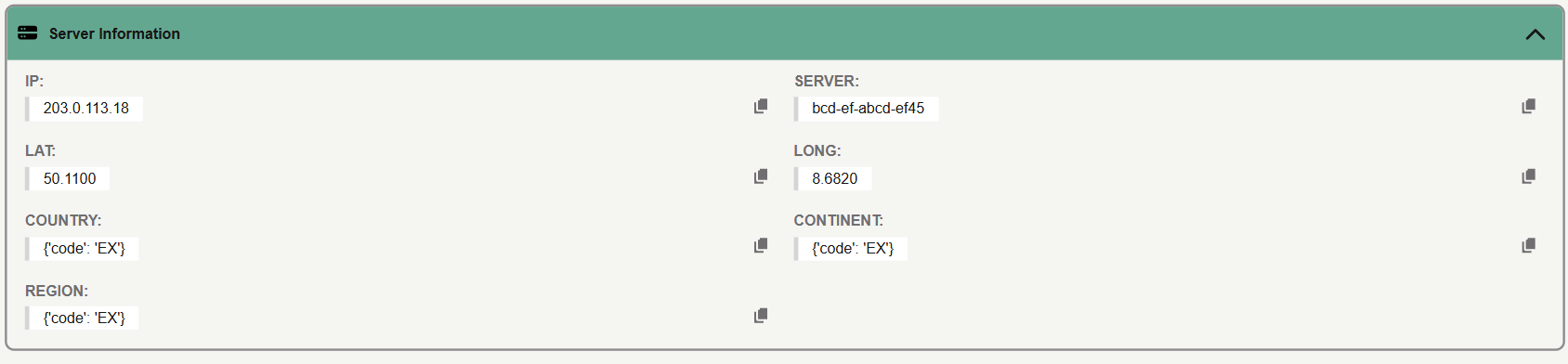
server_headers.server identifies the responding edge server. The server_headers object also contains its address and location.
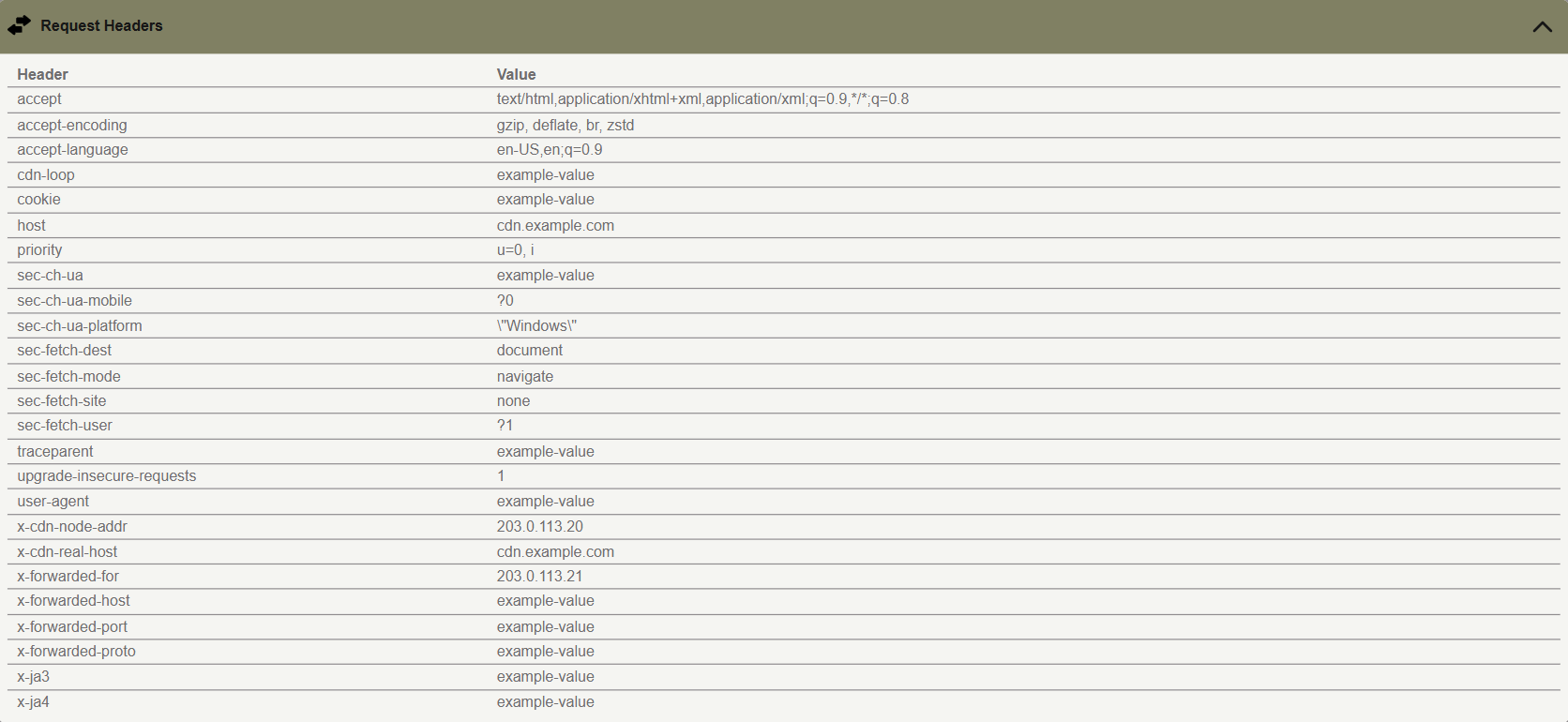
other_headers contains the headers captured with the request.
Results from two networks
When users experience delays on one network but not another, check CDN Debug from both networks.- Open the JSON URL from each network.
- Compare the client ASN, the edge server name, and the location.
- Run Speedtest from each network.
- Compare Ping and Download.
- If the edge server is the expected one and the file is still slow, check cache status and time to first byte in the video delivery guide.
Network B has higher latency and lower download throughput in this test. These differences warrant further investigation but do not necessarily indicate a routing fault.
Result interpretation
Use the following table to interpret common results and decide what to check next.Speedtest measurements
On the HTML page, open Speedtest and click Start test. Ping, Jitter, Download, and Upload come from/ping, /download, and /upload on the same CDN host.