This guide explains how to add and edit API keys to protect function endpoints from unauthorized access.
Create an API key
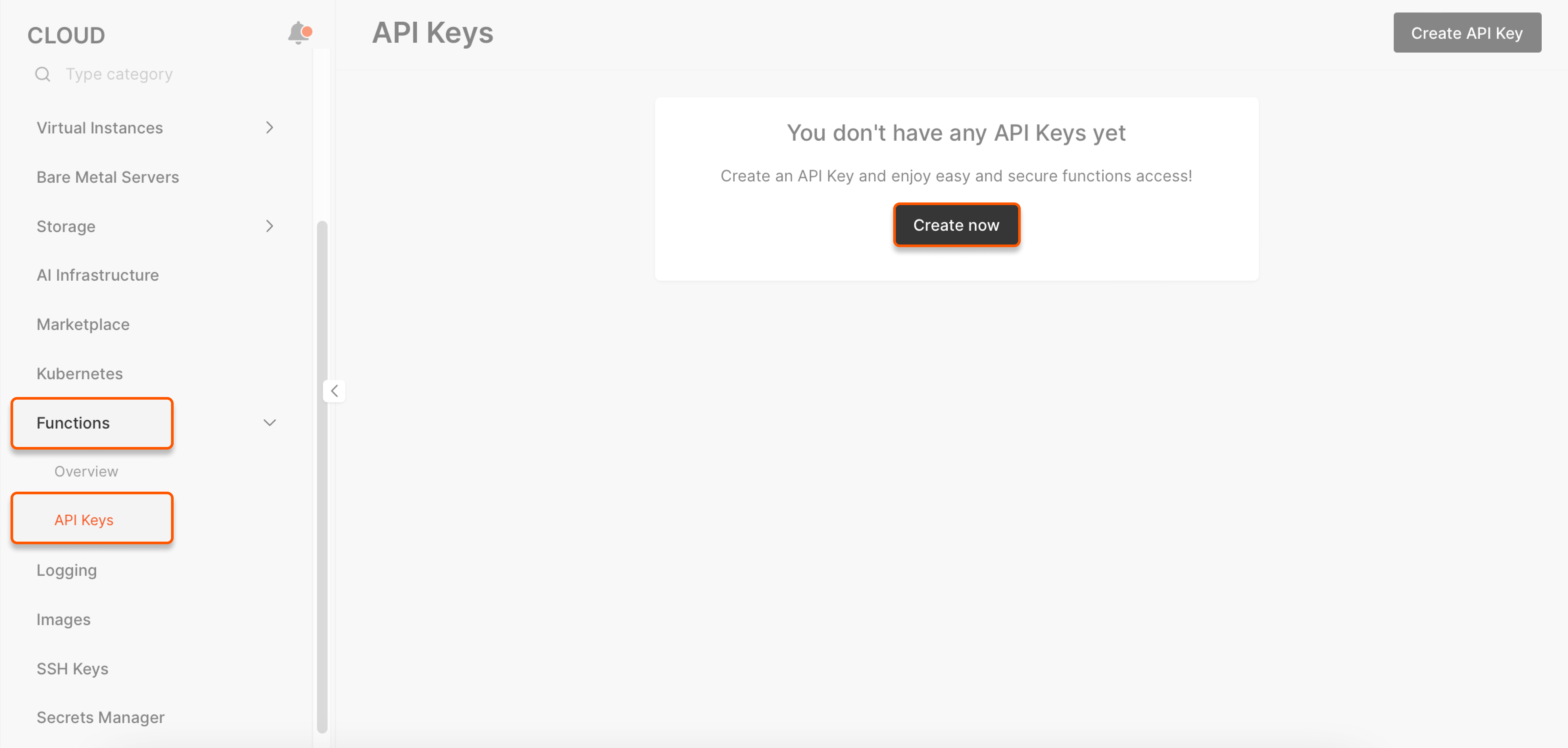
- In the Cloud menu, go to Function as a Service > API Keys and click Create API Key.
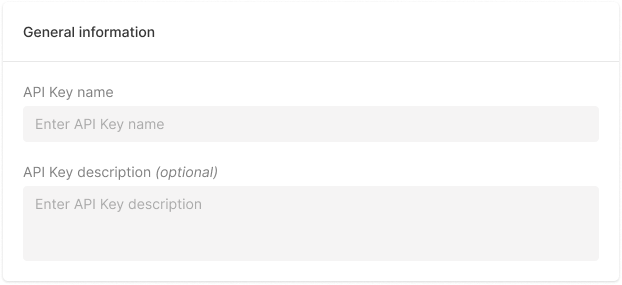
- In General, specify the API key name (required) and description (optional).
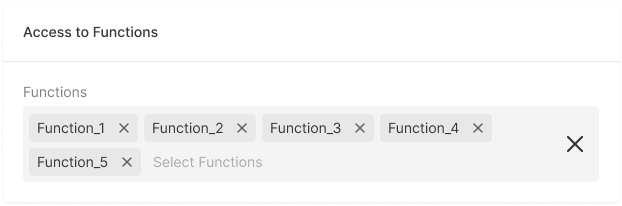
- In Access to functions, specify which functions can be authenticated using the given key.
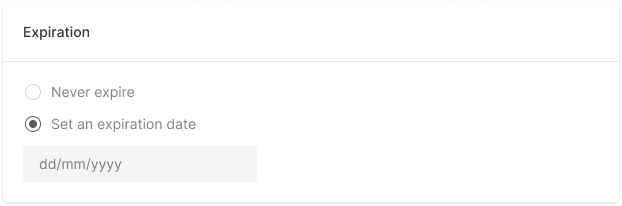
- For Expiration, set the date until when the API key remains valid. To keep the key indefinitely, select Never expire.
-
Click Create.
-
Copy and save the key.
The key is shown only once. Tokens are not stored, so the issuer is responsible for secure storage and usage.
X-API-Key header. Requests without a valid key receive a 401 error.
If an expiry date was set, a notification appears in the Customer Portal before it expires.
Change API key settings
The description, expiration date, and functions accessible with a given key can all be updated after creation.
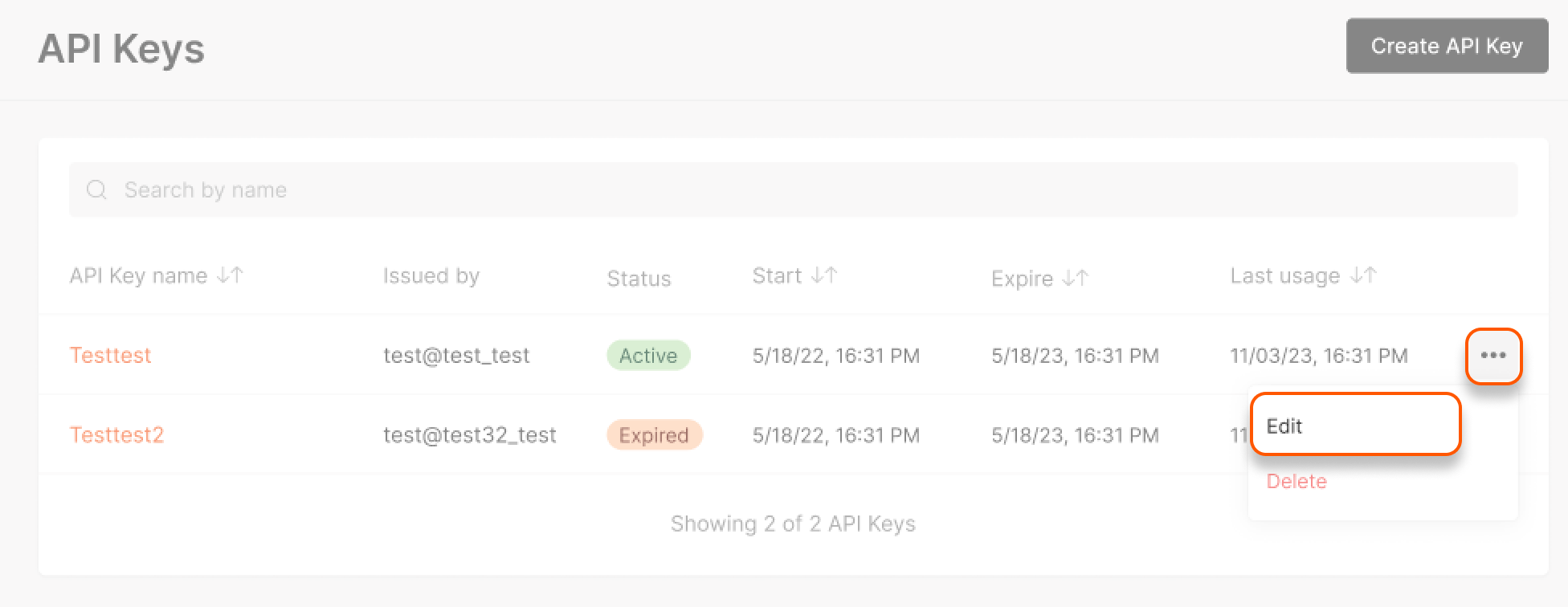
- Go to the API key list, click the three dots next to the key you want to change, and click Edit.
- Go to the tab you need and change the settings as follows:
- General: Change the key description.
- Access to functions: Change the functions that can be authenticated with the key.
- Expiration: Reset the expiry date.
- Click Save.
Delete an API key
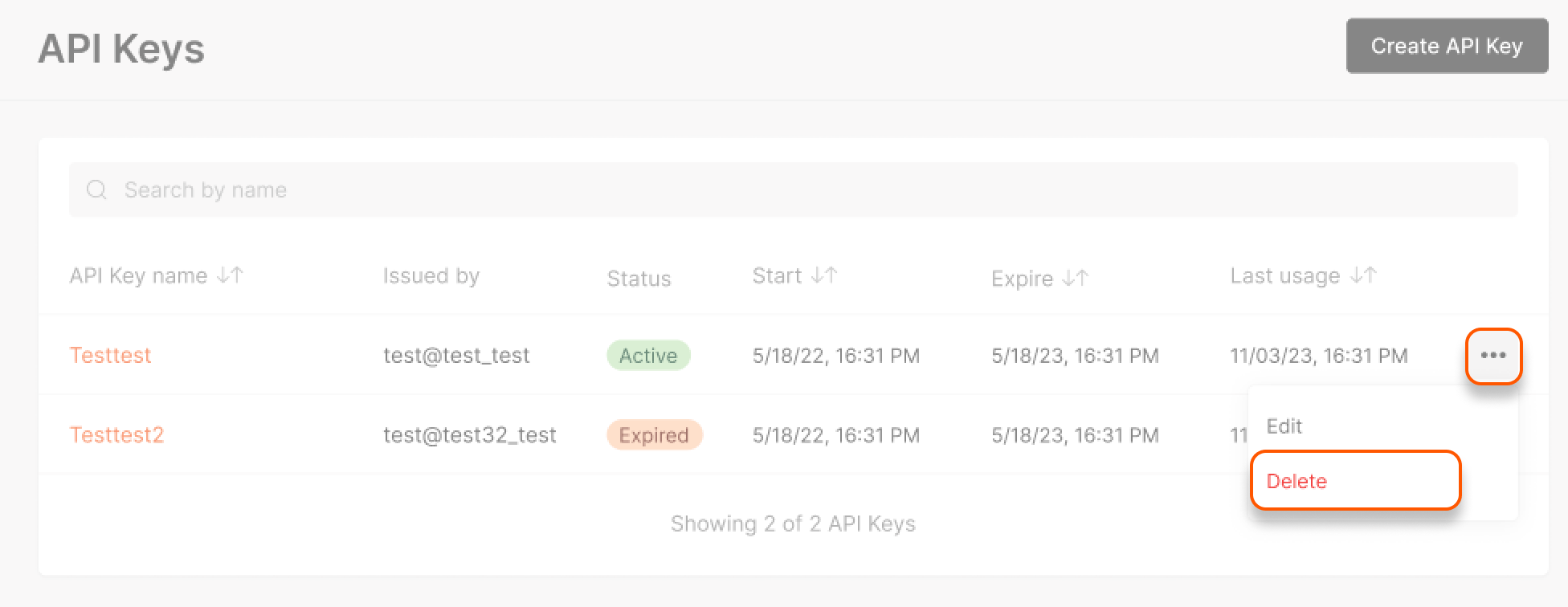
- Go to the API key list, click the three dots next to the key you want to delete, and click Delete.
- Confirm the deletion.
FAQs
- What should I do if I forget or lose my API key?
Delete the key in the Customer Portal, create a new one and add it to the function.
- Can I revoke an API key if it was compromised?
If your key was compromised, delete it in the Customer Portal, create a new one and add it to the function.
- How can I check if my API key is still valid?
Valid keys have the status “Active” in the API key list. If an API key is no longer valid, it will have the status “Expired”.