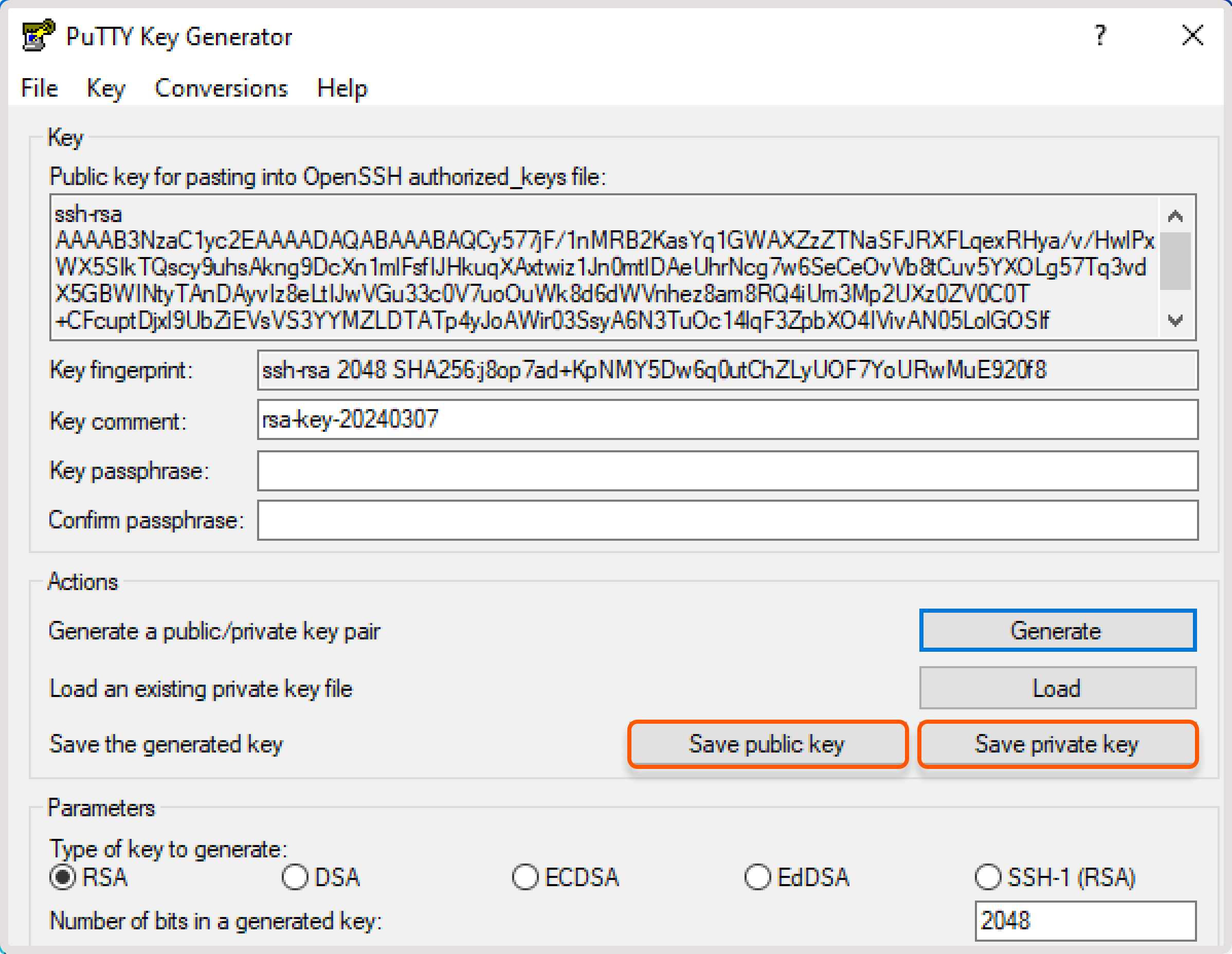
.ppk format before using PuTTY to connect to a Gcore Virtual Machine. PuTTYgen handles the conversion.
1
Install PuTTY
Download and install PuTTY if it’s not already installed. PuTTYgen is bundled with the PuTTY package.
2
Launch PuTTYgen
Open the PuTTYgen application.
3
Load the key file
Click Load and select the key file to convert.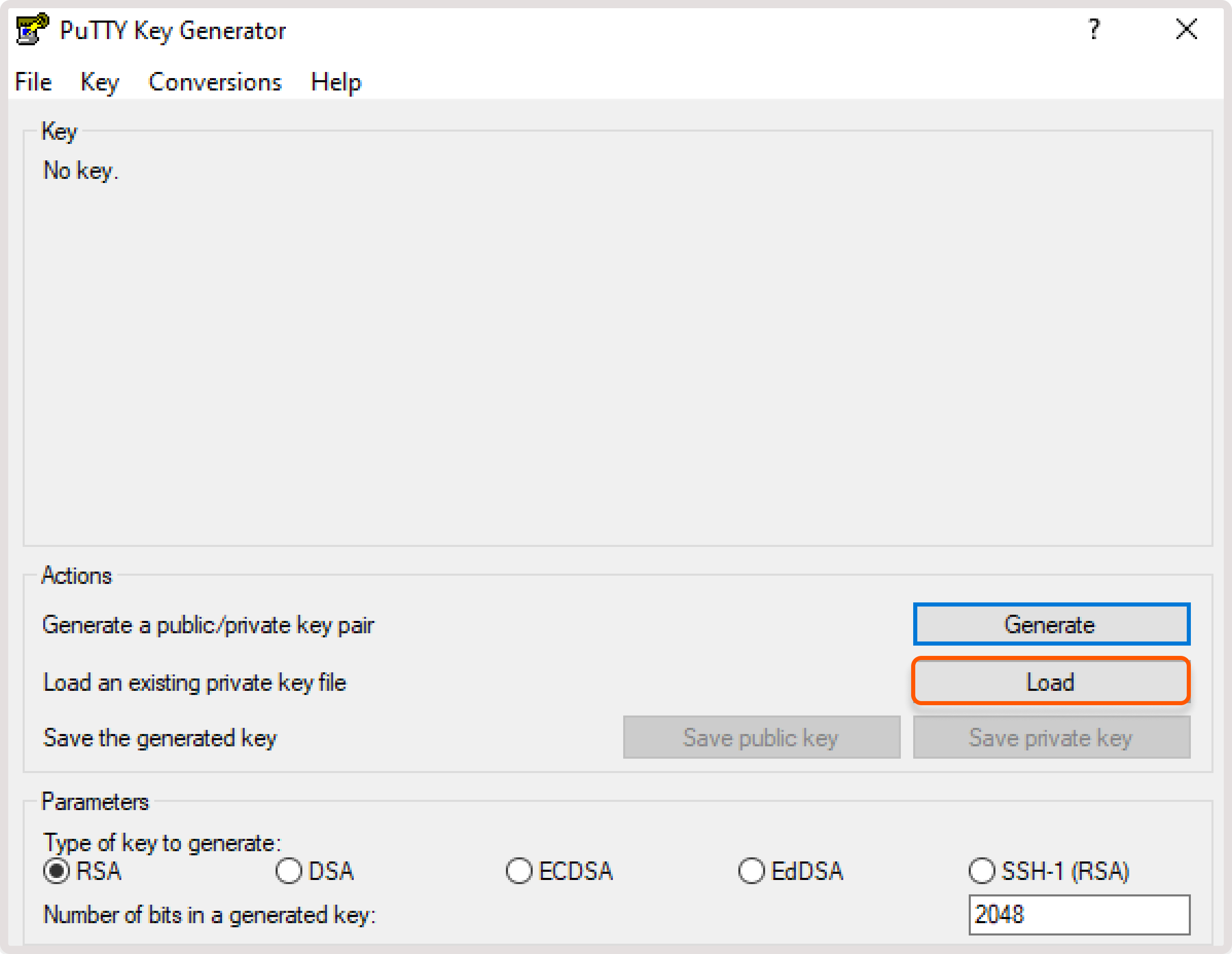
Windows displays only
.ppk files by default. To view all file types, select All files in the Open file dialog.4
Confirm the import
When prompted to confirm the import, click OK.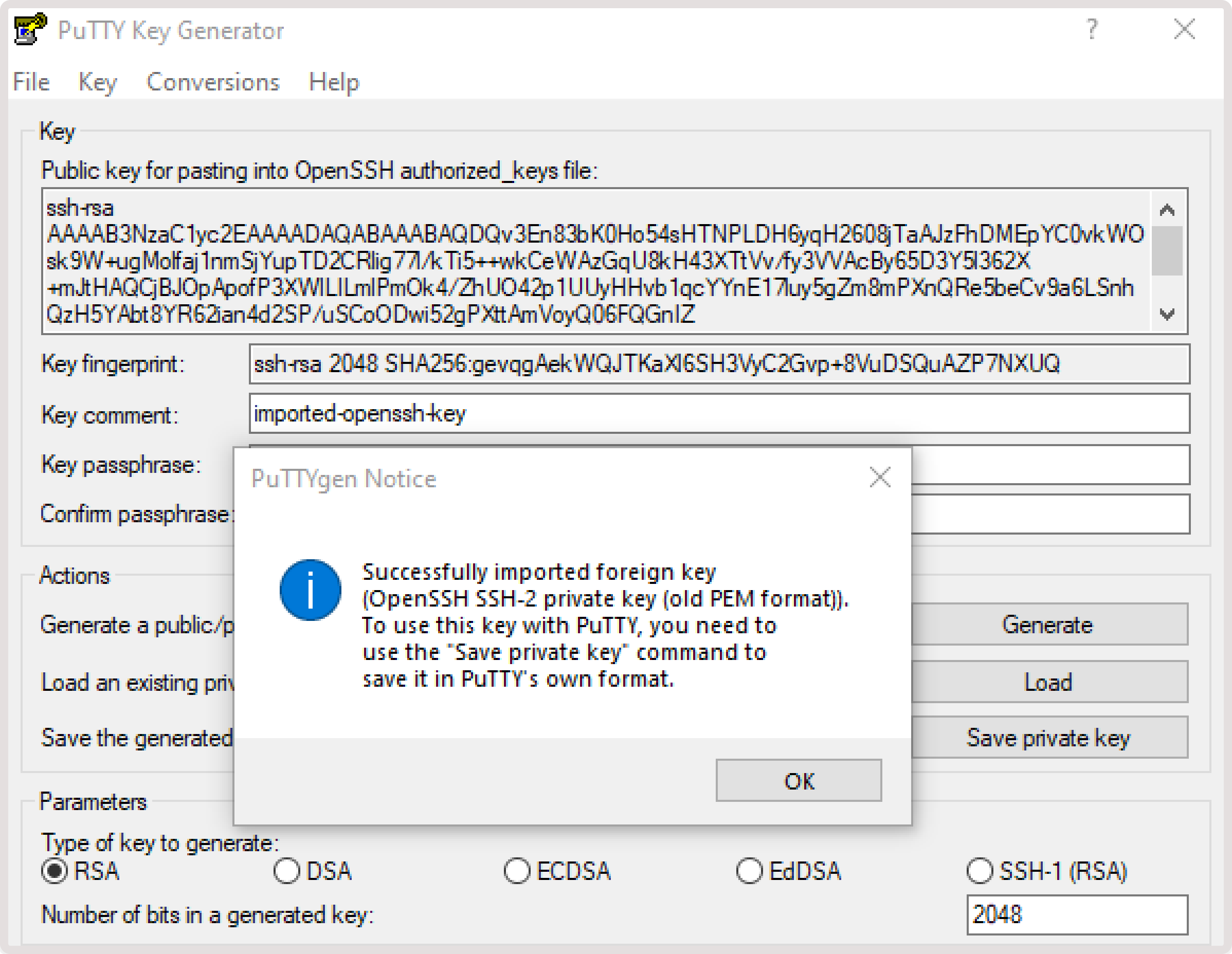
5
Save the converted key
Click Save private key or Save public key to save the converted key to a file.