

Protection profile access
1
Open protection profiles
In the Gcore Customer Portal, navigate to DDoS Protection > Settings > Protection profiles.
2
Review profiles
Review the list of profiles. Each row shows the profile name, assigned networks, and template.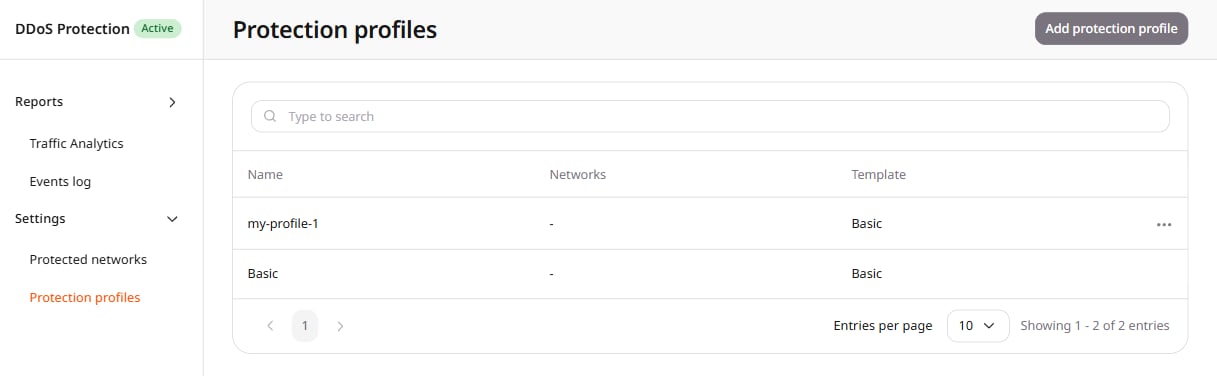
Profile creation
1
Add a protection profile
Click Add protection profile.
2
Enter a profile name
In Name, enter
my-profile-1.3
Select the Basic template
In Template, select Basic. The template adds four catch-all rules: 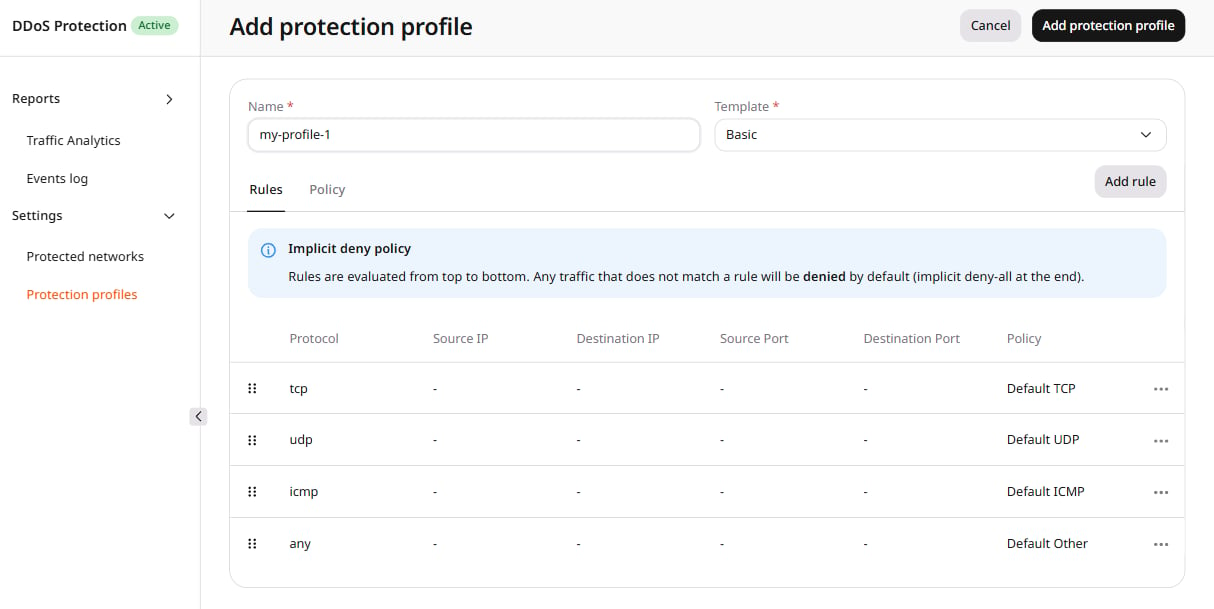
tcp with Default TCP, udp with Default UDP, icmp with Default ICMP, and any with Default Other.Rule and policy configuration
A protection profile has two configuration areas on the same form. The Rules tab matches traffic and chooses a policy. The Policy tab sets the GEOIP block list, rate-limiter caps, and lockdown limits that some of those policies use.Rules and policies
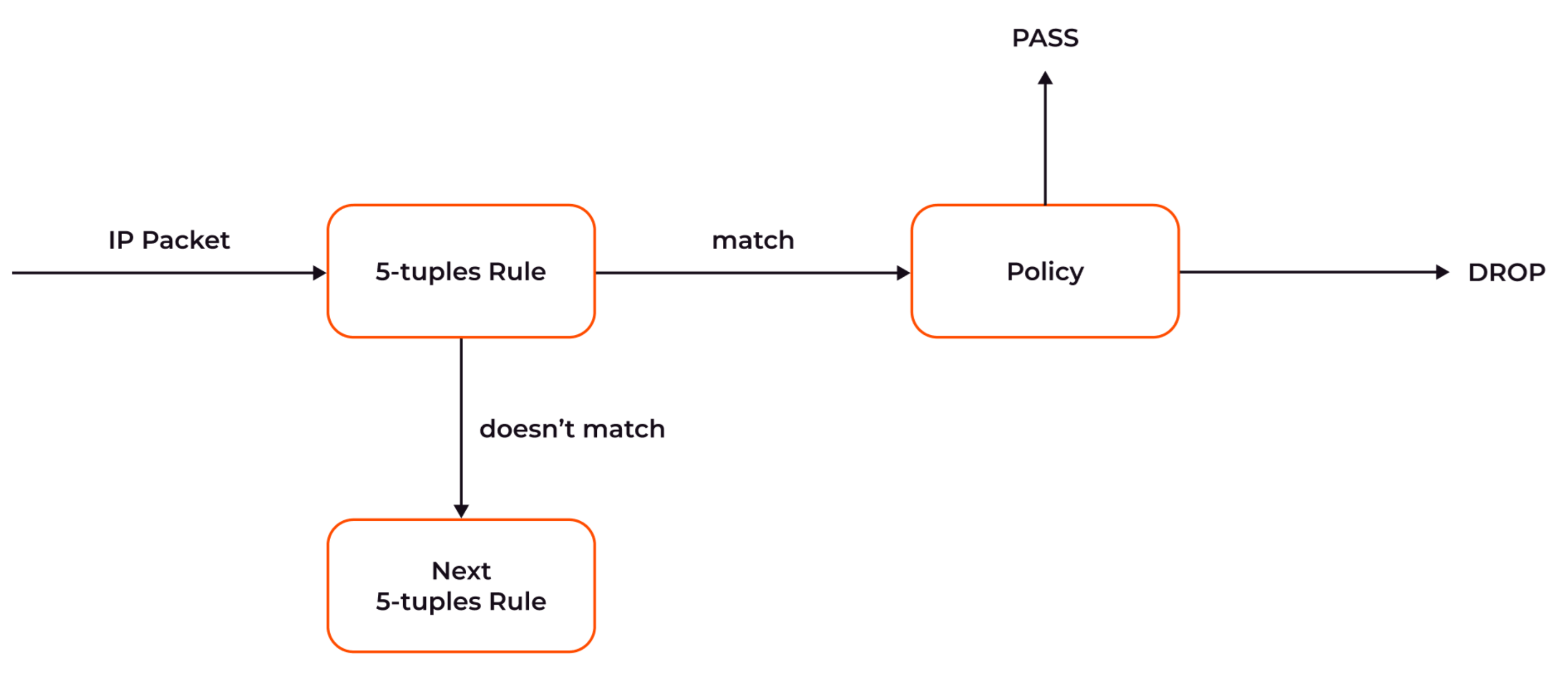
Rules define traffic-matching criteria and apply a selected policy to matching traffic. The Basic template pre-populates four rules that matchtcp, udp, icmp, and any. Add more rules to layer specific protections above these defaults. Policy names and what each policy does are in the Policy reference.
Rule creation
Add a rule to match specific traffic and apply a policy to it.1
Add a rule
Click Add rule. The Add ACL Rule dialog opens.
2
Configure the rule
Policy is required. Each match field accepts a list of values: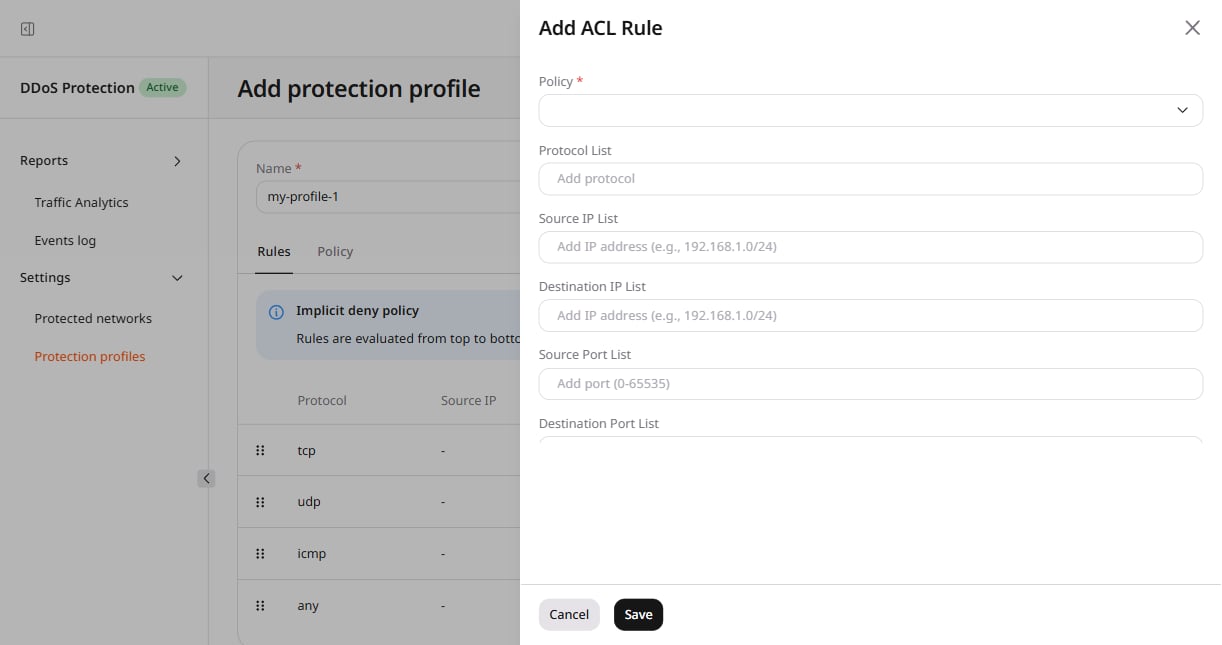
- Protocol List
- Source IP List
- Destination IP List
- Source Port List
- Destination Port List
3
Set rule priority
Drag a rule by the handle at the left of the row. The Basic catch-all rules match
tcp, udp, icmp, and any, so a rule for specific traffic must sit above the matching catch-all rule.4
Save the rule
Click Save.
tcp on destination port 80 and apply TCP SYN cookie challenge.
Policy configuration
The Policy tab sets profile-level limits for the selected template. Limits on the rate-limiter fields are in thousand packets per second (kpps).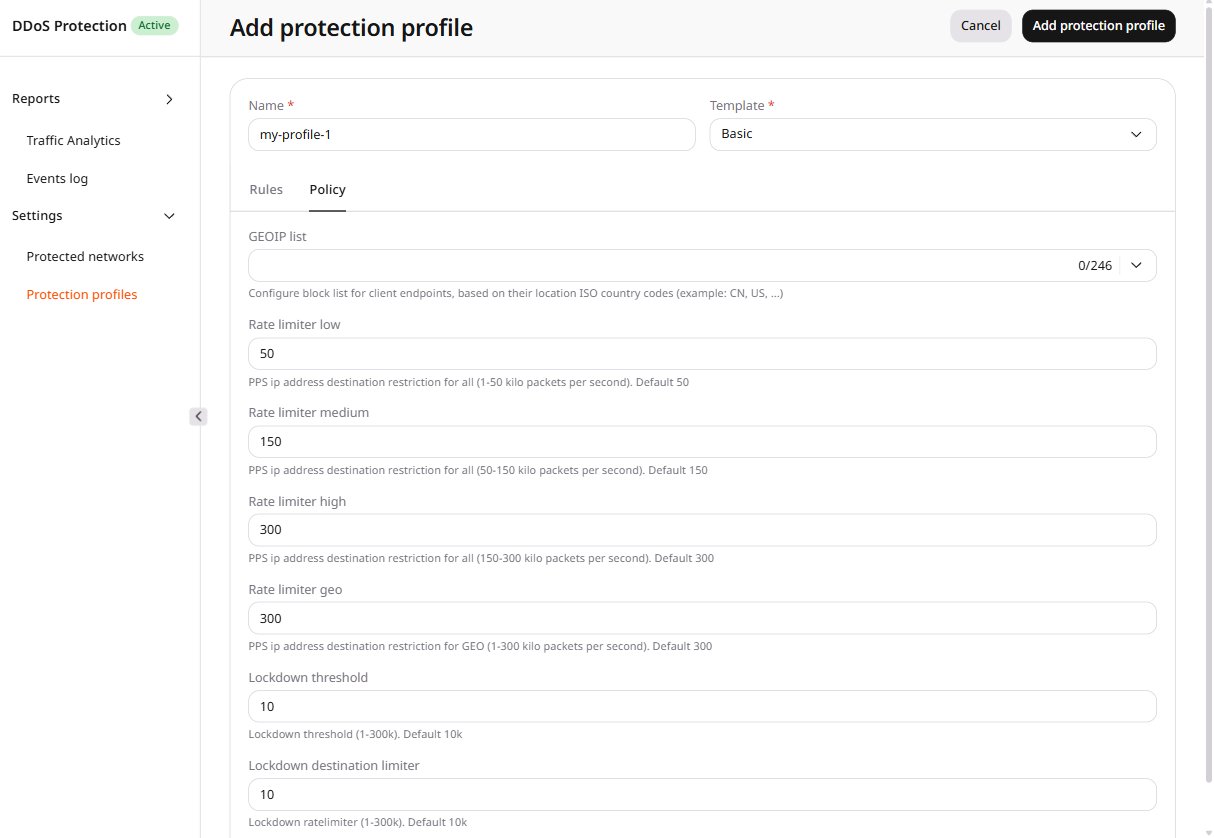
- GEOIP list: ISO country codes for the Geo Restriction policy. The field is a block list. Select the codes before adding a rule that uses Geo Restriction.
- Rate limiter low: destination cap for Rate Limiter Low, from 1 to 50 kpps. Default: 50 kpps.
- Rate limiter medium: destination cap for Rate Limiter Medium, from 50 to 150 kpps. Default: 150 kpps.
- Rate limiter high: destination cap for Rate Limiter High, from 150 to 300 kpps. Default: 300 kpps.
- Rate limiter geo: destination cap for Geo Restriction, from 1 to 300 kpps. Default: 300 kpps.
- Lockdown threshold: range 1-300k. The control shows 10, and the helper text states the default as 10k.
- Lockdown destination limiter: lockdown rate limiter, range 1-300k. The control shows 10, and the helper text states the default as 10k.
Profile saving
1
Review the profile
Review the configured rules and the Policy tab.
2
Save the profile
Click Add protection profile.
Policy reference
Select a policy by the name shown in Add ACL Rule. Game policies inspect that game’s protocol. Default and rate-limiter policies cap generic floods. TCP policies run handshake or session checks. UDP games that have no named policy in the list use Default UDP. The list also includesudp-arma, with no description on the form.
Best practices
When building and maintaining protection profiles:- Start with simple rules and expand them as needed.
- Apply a new profile to a non-critical network first. The events log shows the result before the profile is used on production prefixes.
- Document rules and policies for future maintenance.
- Review and update profiles regularly based on traffic patterns.