

Open the remote management page
Open the IPMI module or the server console from the dedicated servers list.1
Open the dedicated servers list
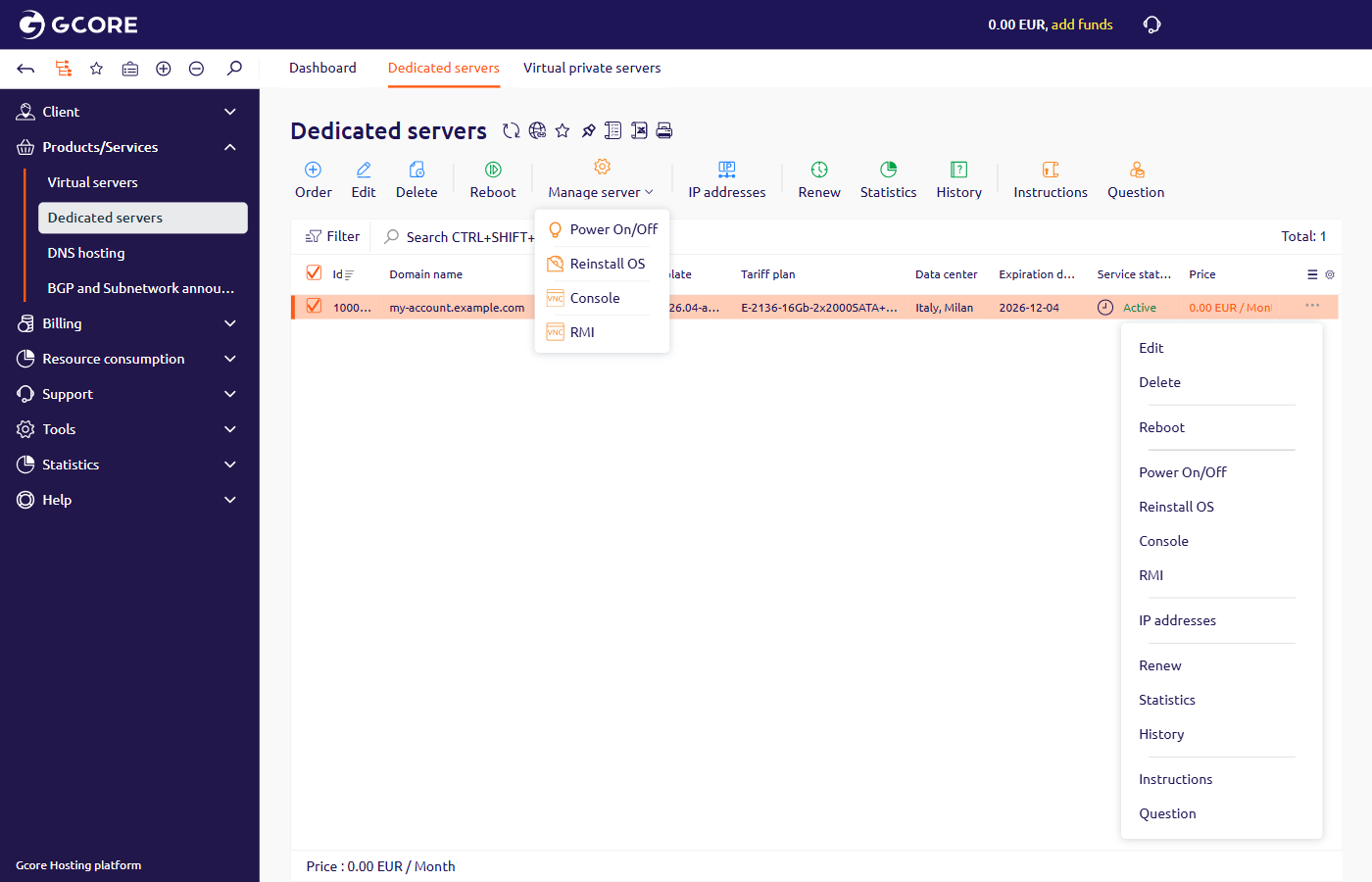
In the Gcore Hosting Portal, navigate to Products/Services > Dedicated servers and select the server.
2
Open Console or RMI
- On the toolbar, click Manage server, then click Console or RMI.
- Click the button at the end of the row, then click Console or RMI.
Cannot log in
Login and Password in the header type into the field that has focus.- Click the username field, then click Login.
- Click the password field, then click Password.
- Click Log In on the form.
Error “Server disconnected: (code: 1006)”
This error appears when two IPMI sessions are open at the same time, for example from two devices or two browser tabs. IPMI supports only one active session at a time.
- Check for two open browser tabs with IPMI. Close the duplicate tab.
- Close the current browser, open a different browser, and reconnect to IPMI.
- Clear browser cookies and reconnect to IPMI.
- Connect to IPMI from a different device.
Error “IPMI URL … of selected server is not available”
This error can occur when the server fails or when emergency or planned work is taking place in the data center.
Remote console does not open
If the remote console fails to open, clear browser cookies, reload the page, and open RMI again. If the issue persists, contact technical support.Remote console behavior
Full screen- Click Fullscreen in the header.
- Click Fullscreen again to leave full screen.