

Check port 22 availability
Test whether port 22 is reachable usingtelnet:
Verify credentials
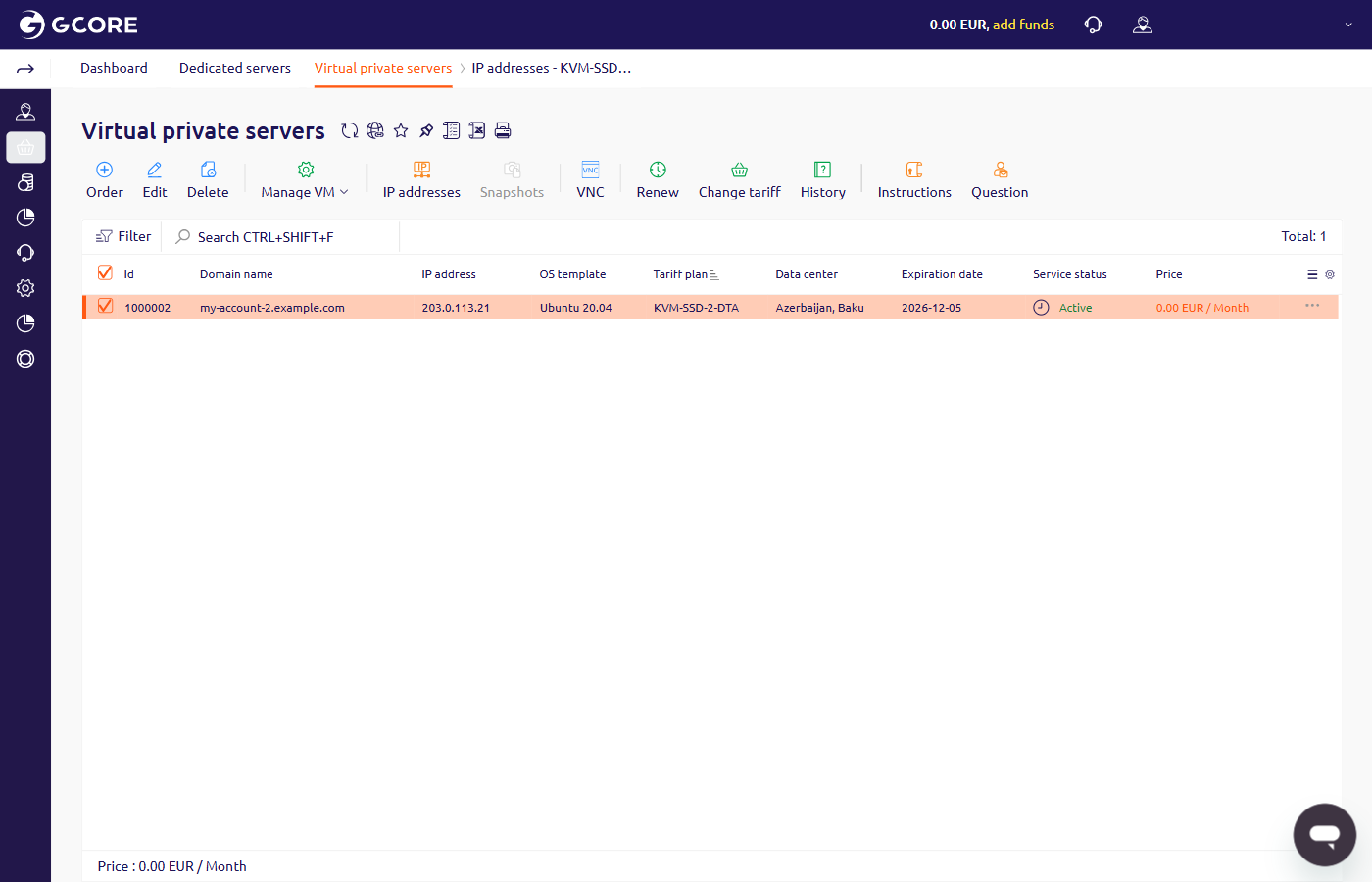
If port 22 is open but the SSH client reports an authentication error, open the Instructions page for that server.- In the Gcore Hosting Portal, navigate to Products/Services > Virtual private servers.
-
Select the server row, then open Instructions:
- On the toolbar, click Instructions.
- Click the button at the end of the row, then click Instructions.
- In Server information, use User and Password.
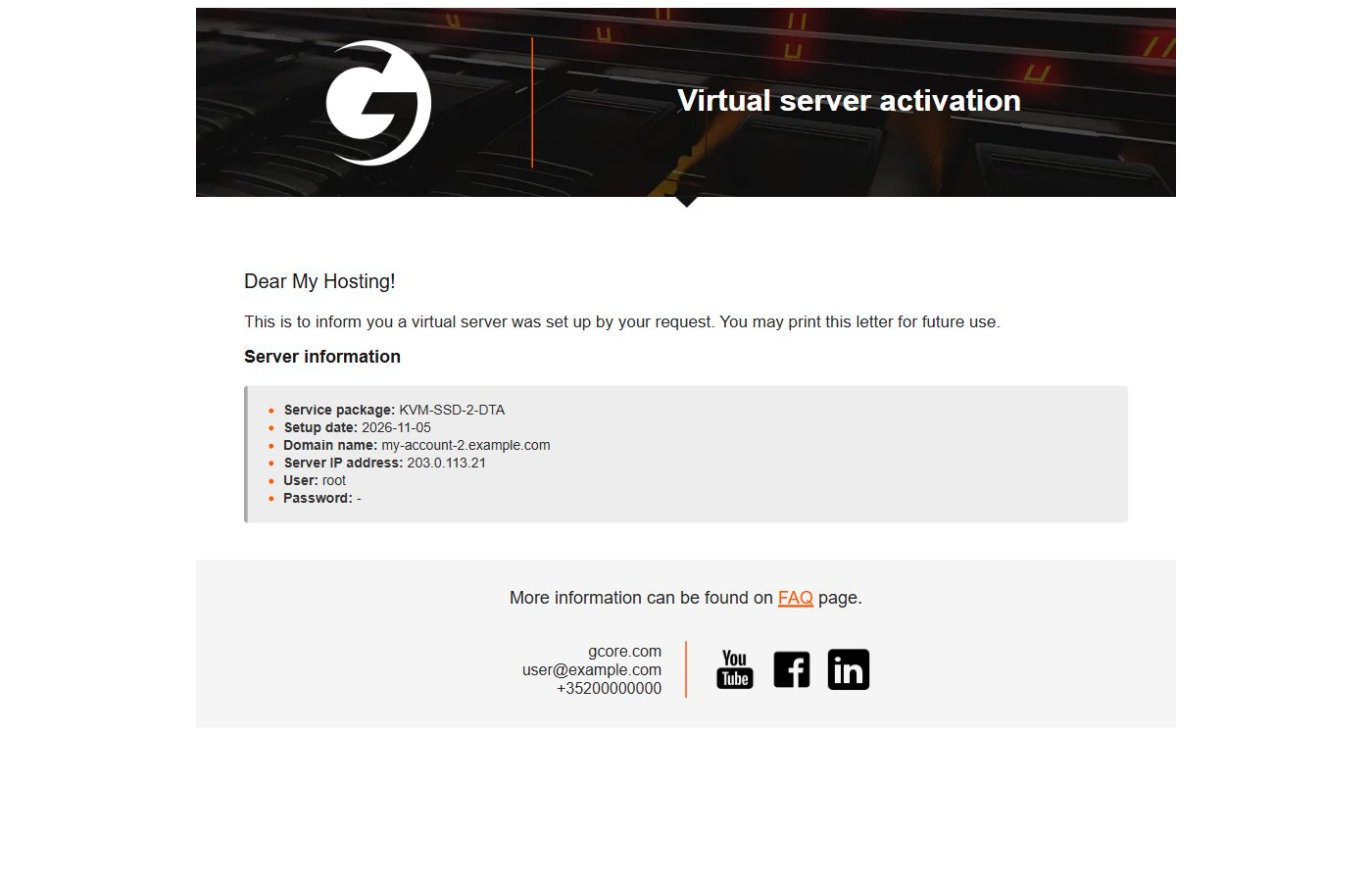
The Instructions page shows the credentials set when the server was created. If the OS password was changed after provisioning, the updated password won’t appear here.
Access the OS directly
If port 22 is not reachable (telnet returns “Connection refused” or times out), the SSH service may be stopped or misconfigured at the OS level. Access the server console to diagnose the issue:- Virtual private server: open VNC. On the toolbar, click VNC, or click the button at the end of the row, then click VNC. Sign in with User and Password from the Instructions page.
- Dedicated server: open Console. On the toolbar, click Manage server, then click Console, or click the button at the end of the row, then click Console.