

Assign a floating IP address
1. In the Gcore Customer Portal, navigate to Cloud > Managed Kubernetes, then click the cluster name.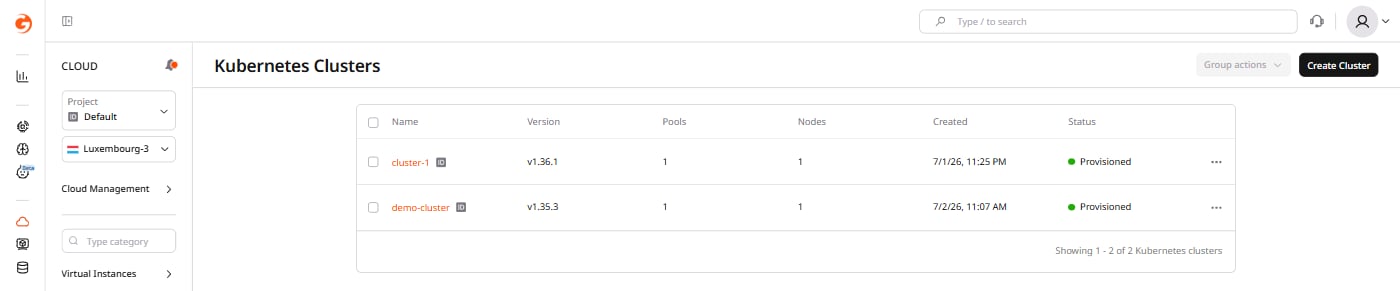
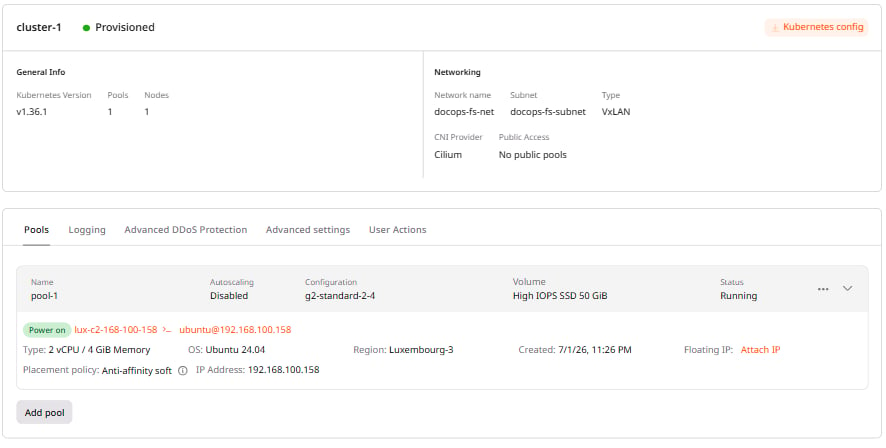
Create a new floating IP
Enable the Attach to existing instance toggle, select Virtual machine as the instance type, select the node and the interface, then click Create a new floating IP.Floating IPs are not recommended for high-traffic workloads. Sustained traffic may impact network stability.
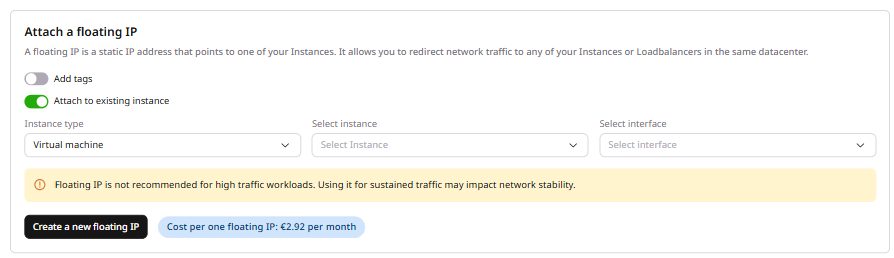
Attach an existing floating IP
Find the address in the list below the form and click Attach to instance, then select the node and the interface. The floating IP is now attached to the node. SSH still requires an inbound rule on the node security group.Connect to a node via SSH
Managed Kubernetes attaches a security group to each worker node. The group name joins the cluster name, the region ID, and the project ID with hyphens and ends in-worker. Inbound rules on this group do not include SSH, so a floating IP alone does not make the node reachable.
In the Gcore Customer Portal, navigate to Cloud > Networking > Security Groups and open that group. Click Add rule and select SSH.
Run the following command, replacing [floating IP address] with the node’s floating IP and [path to the private SSH key] with the path to the private key: