

During ISO installation, the following operations are unavailable: root password editing, creating ISO images, and running automation scripts while the ISO is loading.
1
Open VMmanager 6
Log in to the Hosting portal, navigate to Products/Services → Virtual private servers, select the checkbox next to the server, and click To panel.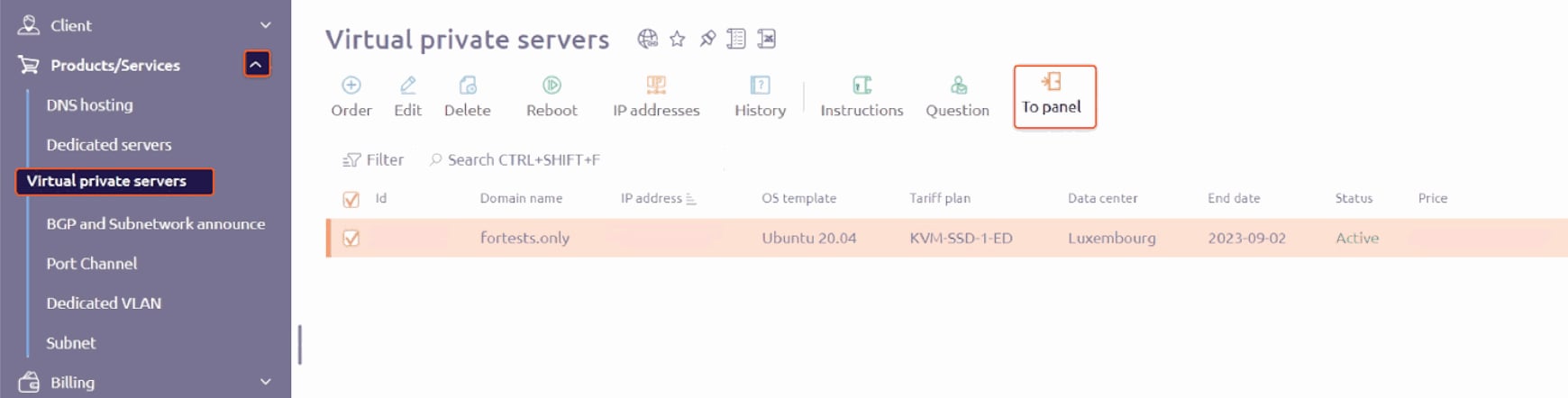
2
Open the ISO mount menu
In VMmanager, open the three-dot menu next to the server and select Mount ISO-image.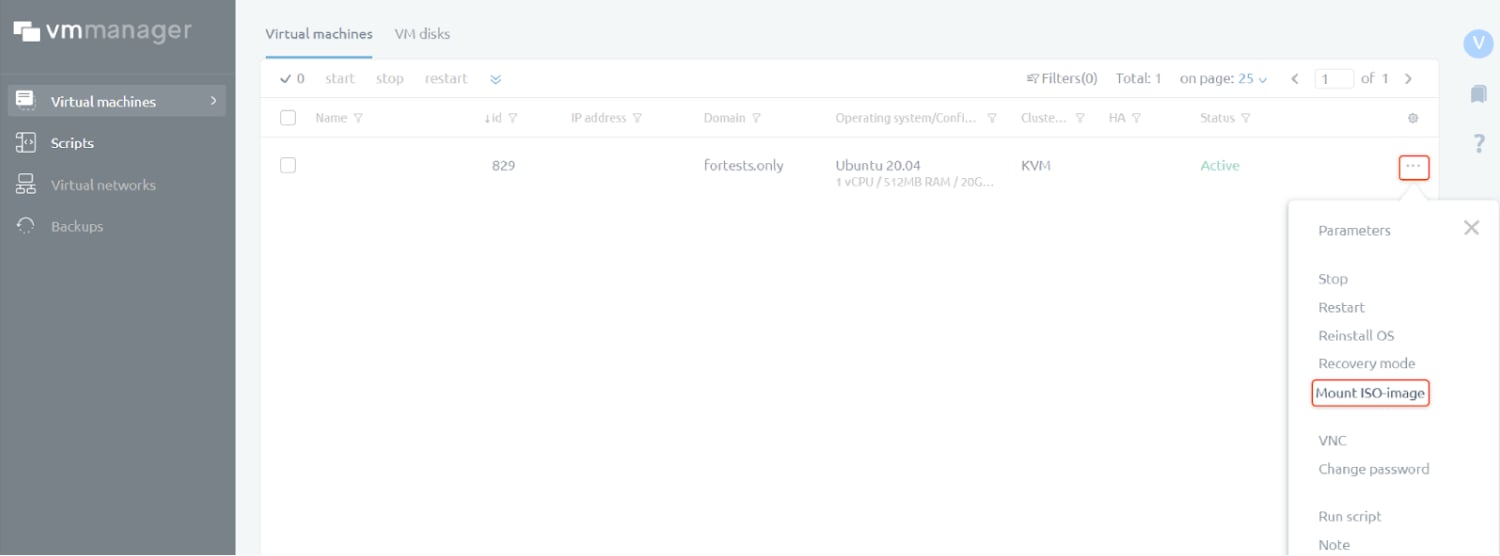
3
Enter the ISO URL
Enter the URL where the ISO image is hosted. Optionally, add Tags to trigger VMmanager automation scripts that have matching tag values.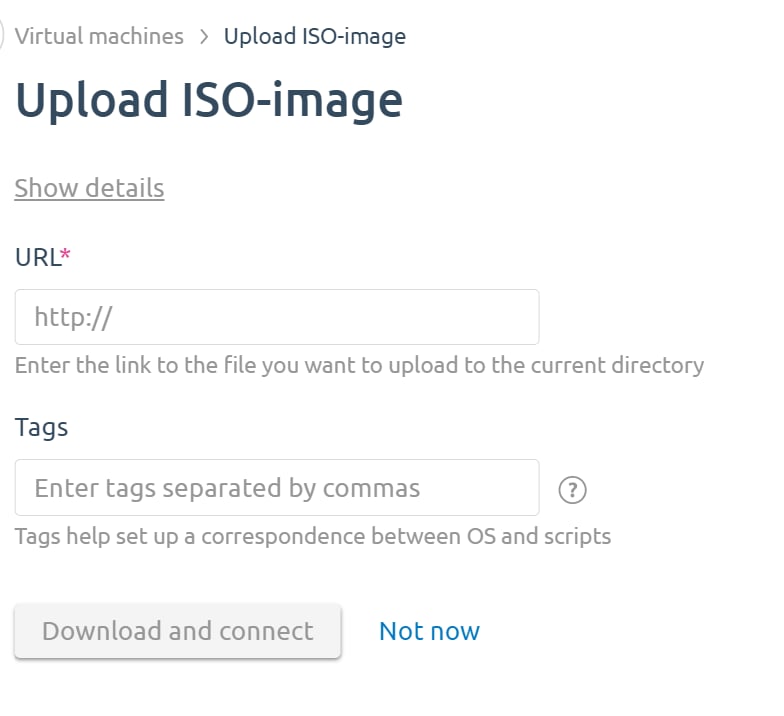
4
Mount and install
Click Download and connect. VMmanager downloads the ISO and restarts the server from it. Connect via VNC and follow the installer prompts to complete the OS setup.
After the installation is complete, disconnect the ISO image to restore normal boot: open Virtual disk in the left sidebar, disconnect the mounted ISO image, and restart the server.